





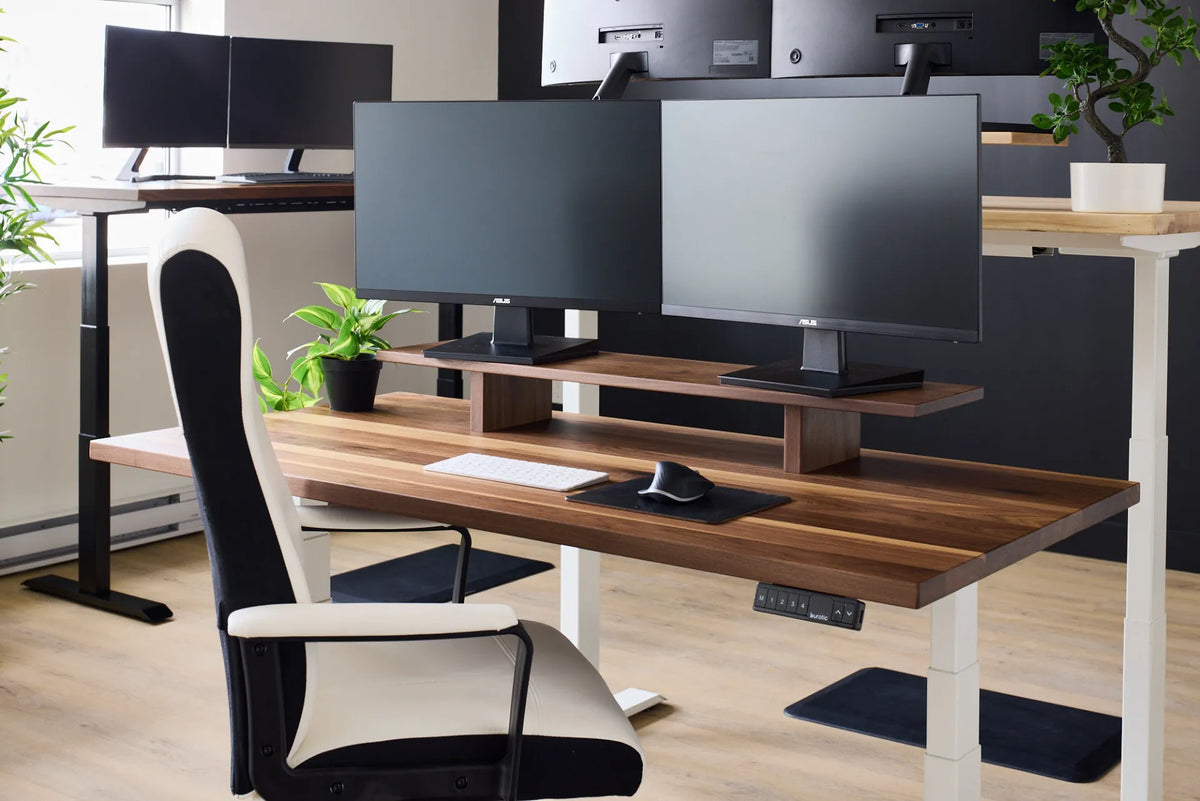
How Far Should Your Keyboard Be From the Edge of Your Desk?

In this article
Your keyboard should sit close enough to the front of the desk that you can type with your elbows near your sides and shoulders relaxed. It should not be so close that the hard desk edge presses into your wrists or forearms. There is no universal number that works for every keyboard, body and desk edge.
A better method is to start near the front edge, sit in your supported posture and move the keyboard only far enough back to avoid contact pressure. The Government of Canada's workstation guide specifically recommends moving the keyboard and input devices toward the edge when reaching causes the hand or wrist to rest on a hard surface. OSHA likewise emphasizes straight wrists, relaxed shoulders and easy reach.
Quick answer
Position the keyboard so the home row is directly under relaxed hands when the upper arms hang naturally. Leave only the space you need to avoid pressing the palms, wrists or forearms on the desk edge. For many setups that means a modest gap, not a broad empty area for full forearm support.
Do not measure from the keyboard's back edge. What matters is the distance from your body to the keys you use and whether the front casing, wrist rest or desk edge changes your reach. A deep mechanical keyboard with a palm rest may require a different placement than a slim compact keyboard.
Why one fixed distance is misleading
People often look for a rule such as 5, 10 or 15 cm from the desk edge. Any of those measurements can work in a particular setup, but none guarantees good posture. The useful distance changes with torso size, chair position, keyboard depth, desk height, armrest position and the shape of the front edge.
If a fixed measurement makes you reach forward, it is too far for that setup. If it places a sharp edge under the wrist, it is too close. Use body position and contact pressure as the decision criteria.
How to place your keyboard step by step
- Set the chair and desk height. Keep feet supported, shoulders relaxed and elbows close to the body.
- Bring the chair close. Avoid leaning toward the desk. Lower or move armrests if they block the approach.
- Place the keyboard near the front. Centre the letter keys, not necessarily the full keyboard casing, with your body's midline.
- Hover your hands over the home row. Wrists should remain straight and in line with the forearms.
- Check edge contact. The desk should not dig into the wrist or forearm while typing.
- Place the mouse beside the keyboard. Keep it at the same level and within the same easy reach zone.
- Test real work. Type, use shortcuts and move the mouse for several minutes before finalizing the placement.
For the complete hand position, see our guide to proper keyboard and hand placement.
Should your forearms rest on the desk?
Light support can be comfortable, but typing should not depend on pressing the wrists into a hard surface. OSHA advises that hands move freely while typing and that a wrist or palm rest, when used, should contact the heel or palm during pauses rather than the wrist during active keying.
Some people prefer partial forearm support on a deep desk. That can work if the shoulders stay relaxed, the wrists remain neutral and the edge is not creating pressure. Others type comfortably with the forearms mostly unsupported and the keyboard closer to the edge. The outcome matters more than the amount of desk visible in front of the keyboard.
Signs the keyboard is too far back
- You lean the torso forward or lose contact with the chair backrest.
- The shoulders move forward or upward while typing.
- The elbows drift away from the sides.
- You rest the forearms heavily on the desk to reach the keys.
- The mouse sits even farther away than the keyboard.
Move the keyboard and mouse toward you together. If a large numeric keypad pushes the mouse outward, a smaller layout may reduce the reach. Our compact versus full-size keyboard guide explains that tradeoff.
Signs the keyboard is too close
- The desk edge or keyboard casing presses into the wrists.
- Your hands bend upward because the keyboard is high relative to the elbows.
- A thick palm rest crowds the hands onto the keys.
- The keyboard hangs over the edge or becomes unstable.
- You cannot use the mouse without striking the chair or desk edge.
Move the keyboard back slightly or correct the desk and chair height. If the front edge is sharp, padding the edge may reduce contact stress, but it does not fix excessive reach or a keyboard surface that is too high.
Desk height changes the answer
A keyboard at the correct horizontal distance can still cause awkward wrists if the desk is too high. OSHA describes a neutral position with hands, wrists and forearms roughly in line and elbows near the body. Adjust the chair or desk so you do not shrug or bend the wrists upward.
When raising the chair to meet a fixed desk, keep the feet supported with a footrest if necessary. On a height-adjustable desk, set the work surface near relaxed elbow height, then fine-tune the horizontal keyboard position.
Keep the mouse in the same reach zone
A good keyboard position is incomplete if the mouse sits beyond the numeric keypad, behind the screen stand or on a different level. Place the mouse close to the keyboard so you do not repeatedly abduct the shoulder. A compact keyboard can create more room, but changing hardware is not always necessary.
Our guide to positioning a mouse at the desk covers reach, height and grip. Recheck the keyboard after moving the mouse because both devices share the same primary zone.
What about a wrist rest or desk pad?
A wrist or palm rest should not force the keyboard farther away than necessary. Match its height and slope to the keyboard, and use it mainly during pauses. A desk pad can soften the feel of the surface, but it does not correct a poor height or excessive reach.
If you use a thick pad, check that the keyboard remains stable and that the added height does not bend the wrists. The goal is a coordinated setup, not the maximum number of accessories.
Standing-desk placement
At a standing desk, users often push the keyboard back to create a large forearm-resting area. This can encourage leaning on the desk and reaching. Bring the device closer until the upper arms hang comfortably. Keep the wrists straight and avoid locking the elbows.
Recheck the position after every meaningful height change. A good sitting placement may not feel identical while standing because your torso-to-desk relationship changes.
Five-minute verification
- Type a paragraph without looking at your posture.
- Pause and notice whether your back still contacts the chair.
- Check whether the shoulders are relaxed.
- Look for red marks or pressure from the desk edge.
- Use the mouse for one minute and notice any shoulder reach.
- Move both devices by a few centimetres and repeat.
If numbness, tingling or pain persists, stop forcing the setup. General ergonomic guidance is not a diagnosis. A qualified health professional or ergonomist can assess individual symptoms and work demands.
The practical position
Keep the keyboard as close as necessary for relaxed shoulders and elbows near the torso, but far enough from the edge to avoid pressure on the wrists and forearms. The exact gap is secondary. Neutral wrists, easy reach and stable support are the real targets.
Set height first, move the chair close, align the letter keys with your body and keep the mouse beside the keyboard. Then adjust in small steps based on what your posture does during real work.
Previous article
How Deep Should an Office Chair Seat Be?
Next article
Why Won't My Standing Desk Move? What to Check Before a Reset