

Should Your Laptop Be on the Left or Right of Your Monitor?

In this article
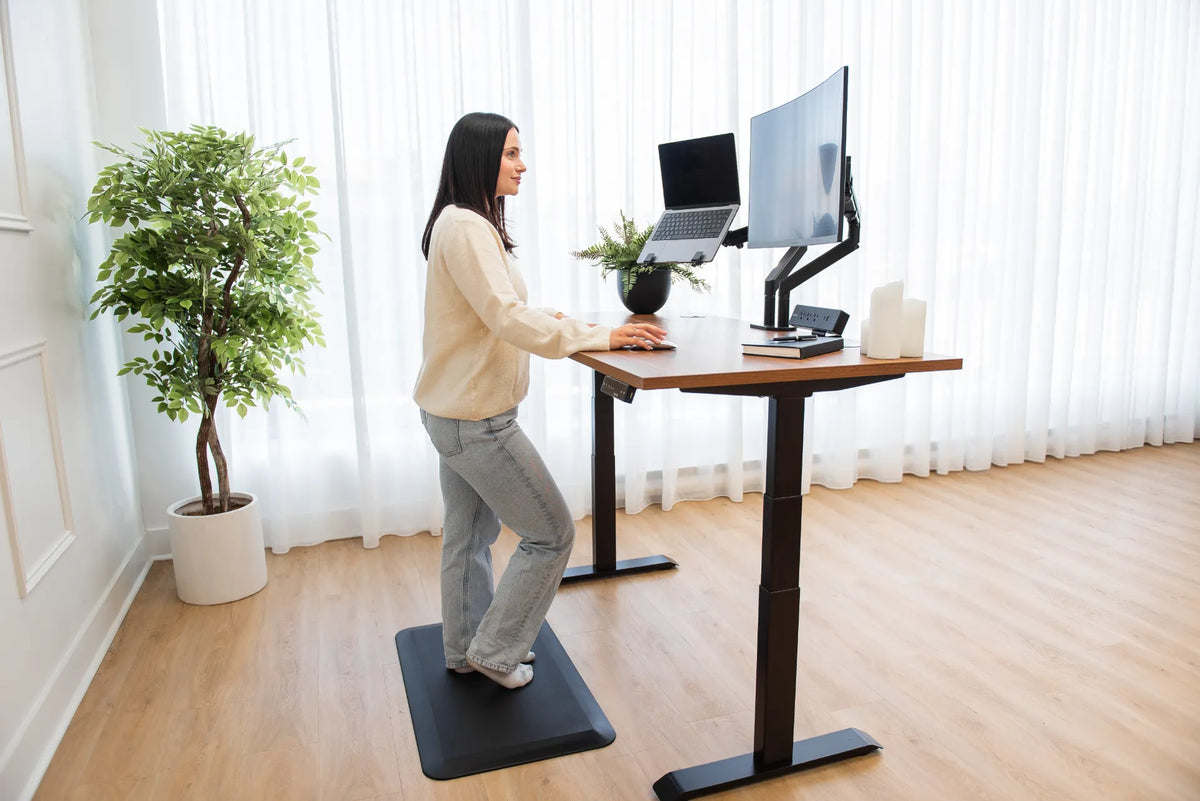
Your laptop can sit on either the left or right of an external monitor. There is no universally ergonomic side. The better position depends on which screen is primary, how often you use the laptop display, where the mouse and other tools belong, and whether the arrangement lets you keep your head and torso mostly centred.
If the external monitor is your main screen, place it directly in front of you and put the laptop on the side that causes the least conflict with the mouse, documents, and room layout. If you use both screens equally, bring their inner edges close, align their useful viewing areas, and centre the join between them. The goal is to reduce prolonged twisting, not to follow a left-side or right-side rule.
Quick decision rule
- External monitor used most: centre it and place the laptop on either side as a secondary display.
- Both screens used equally: centre the gap between them and angle both toward you.
- Laptop used for messages or reference: place it on the side that does not crowd your mouse or active documents.
- Laptop camera used for meetings: move it temporarily in front of you or use an external camera so you do not speak while turned sideways.
Why the primary screen matters more than the side
The Canadian Centre for Occupational Health and Safety explains that a monitor in the wrong position can lead to the head and upper body bending or turning. OSHA similarly recommends placing the monitor directly in front of the user as a starting point. With a laptop and monitor, apply that guidance to the screen you look at most.
If your spreadsheet, code editor, or design canvas stays on the external monitor, centre that monitor. The laptop can hold email, chat, music, or reference material. If the laptop becomes the main display for an hour, either move the window to the centred monitor or turn the chair and input devices so the laptop is temporarily in front of you.
When the laptop works better on the left
The left side may be convenient when your mouse needs generous room on the right, when paper documents enter from the right, or when the desk's power and docking connections are easier to reach from the left. It can also suit a workflow where the secondary screen shows a navigation panel while the main content remains centred.
Do not place the laptop left solely because you are right-handed. Hand dominance can influence mouse space, but screen use and desk obstacles matter more. Test the position during real work and notice how often you rotate your head or lean.
When the laptop works better on the right
The right side may fit a room where the left edge of the desk is against a wall, where a notebook or phone belongs on the left, or where ports and cable routes make the right side cleaner. Some people also prefer communication tools on the right because they glance there briefly and return to the centred primary display.
Again, the side is secondary. If the laptop becomes a frequently viewed screen, bring it closer to the external monitor and angle it inward. Avoid placing it flat at the far corner, which can combine neck rotation with a downward gaze.
Set the screen heights before judging the layout
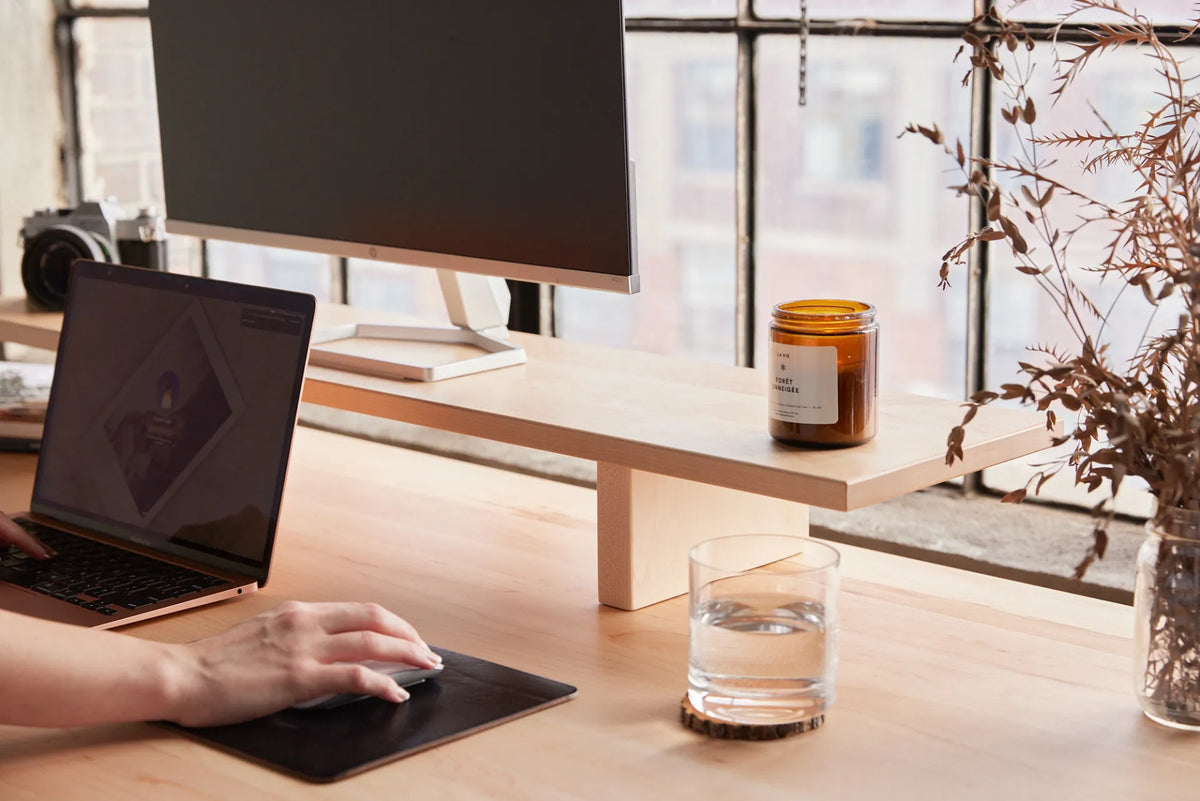
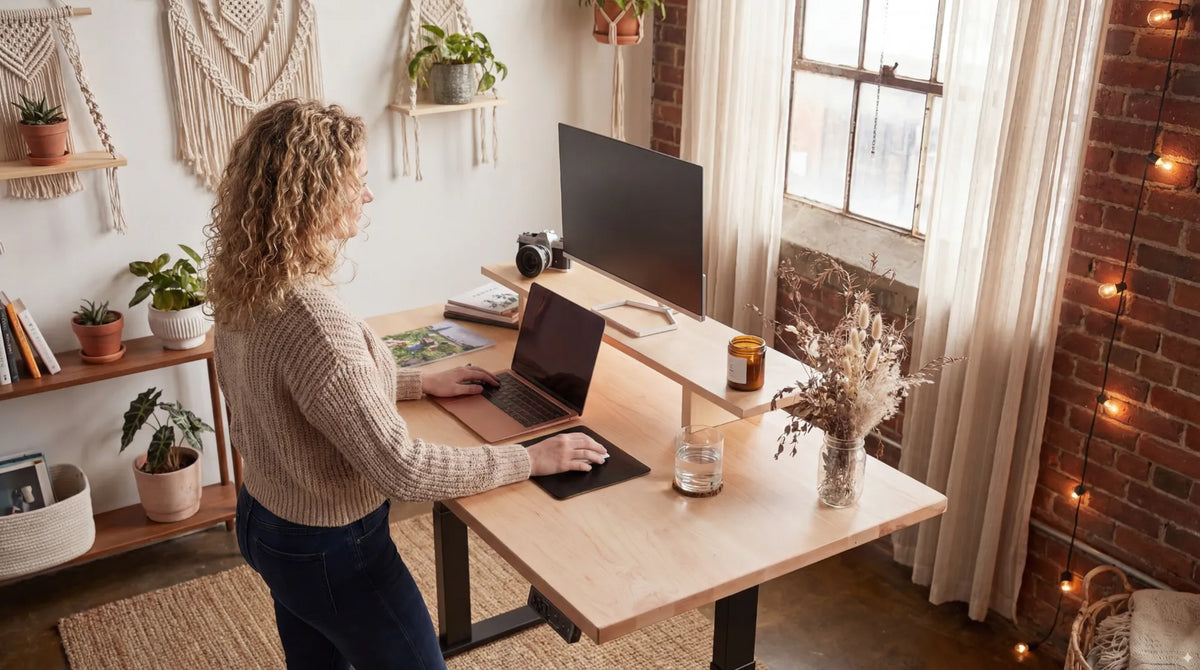
A laptop on the desktop is usually lower than an external monitor. If you use its screen for more than occasional glances, raise it on a stable stand or compatible arm. Then use an external keyboard and mouse so the laptop keyboard does not become too high.
CCOHS recommends placing the monitor so the viewing area is generally below the horizontal line of sight, with adjustments for the user and corrective lenses. Aligning the most-used parts of both screens can reduce repeated up-and-down head movement. The top edges do not have to match if the screens differ in size; what matters is the area you actually view.
Burotic's ergonomic laptop and monitor setup guide covers height, distance, and input devices in more detail.
Match the viewing distance
Try to keep both screens at a similar comfortable distance. If the laptop is much closer, text sizes and eye movements may feel inconsistent. Increase interface scaling on the smaller display instead of pulling it close to your face. CCOHS describes an arm's length as a useful initial estimate for a monitor, adjusted to individual needs.
A monitor arm can help position the external screen, while a separate laptop support can raise the portable display. Confirm equipment compatibility, weight limits, desktop thickness, and mounting clearance before purchase.
Keep the keyboard and mouse centred
Raising the laptop only works if you stop using its built-in keyboard for sustained typing. Put the external keyboard in front of your torso and align it with the primary screen. Keep the mouse close enough that the upper arm can remain near the body.
If the laptop is on the same side as the mouse, make sure it does not force the mouse outward. A compact keyboard or a laptop stand with a small footprint can help. The article Do You Need an External Keyboard and Mouse With a Laptop? explains when those devices become important.
Three layouts that work
Primary monitor centred, laptop to one side
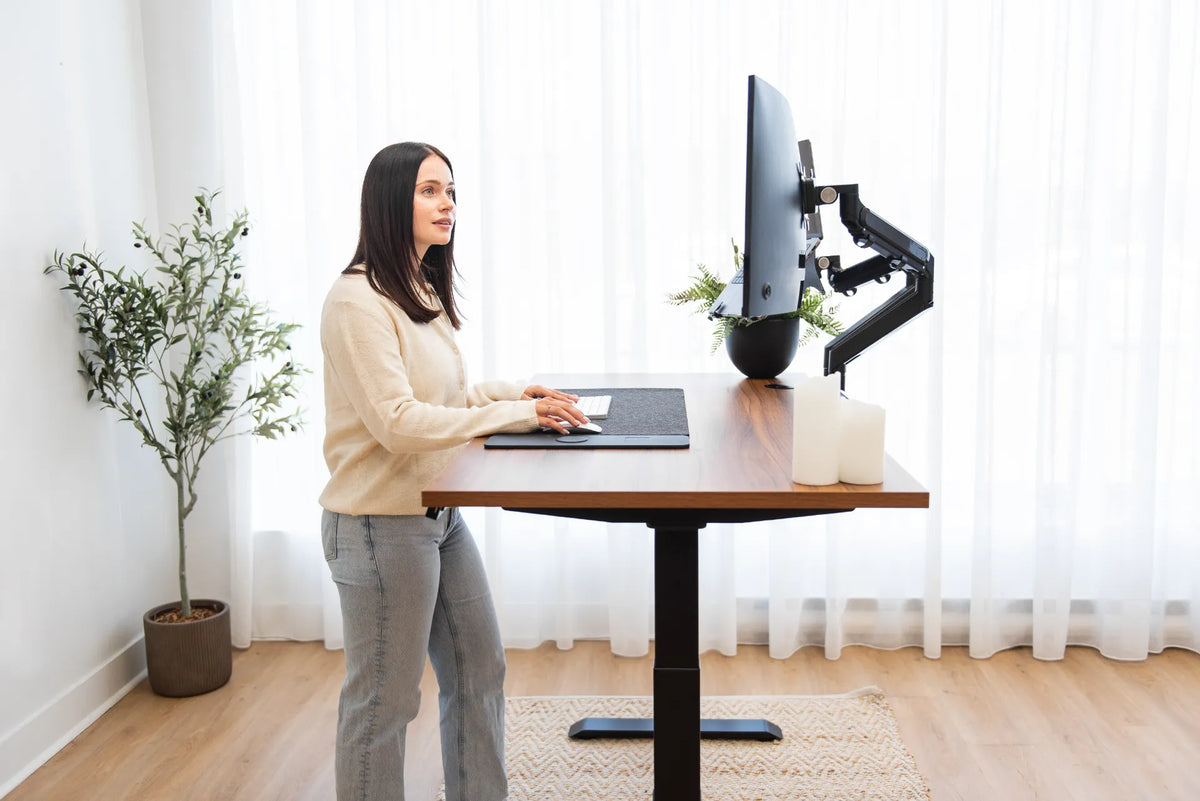
This is the best default for people who do most work on the larger screen. Place the monitor in front, laptop beside it, and input devices centred. Angle the laptop inward and reserve it for secondary content.
Equal-use screens with the join centred
Bring the displays together, angle them into a shallow arc, and centre their inner edges. This layout is appropriate when windows move back and forth between screens. It requires enough desk width and a laptop height that does not create a large vertical step.
Laptop closed in clamshell mode
If you do not need the laptop screen, closing it can simplify the visual field and let the external monitor stay centred. Confirm the computer manufacturer's guidance on closed-display operation, ventilation, power, and external peripherals. The Burotic article on closing a laptop with an external monitor covers the decision.
Special case: video meetings
If the laptop camera is off to the side, you will appear to look away during meetings and may hold your head turned. Move the meeting window to the laptop and reposition it temporarily in front, or use an external camera mounted near the centred monitor. Keep the camera near eye level and return the workstation to its normal arrangement afterward.
Special case: left and right differences
Some users have vision, hearing, mobility, or pain considerations that make one side clearly better. General advice cannot replace an individual assessment. Choose the side that supports clear viewing and comfortable movement, and seek professional input if symptoms or functional limits persist.
Common setup mistakes
Centred keyboard, off-centre main screen: this causes repeated neck rotation even though the hands appear centred.
Laptop too low: a low secondary screen encourages downward head movement. Raise it when it is used often.
Laptop too far away: small text becomes difficult to read, so the user leans or pulls the laptop forward into the keyboard zone.
Screens at very different distances: place them in a similar arc and adjust scaling.
Choosing a side once and never revisiting it: change the layout when tasks, camera use, or room conditions change.
A five-minute left-versus-right test
- Centre the external monitor, keyboard, and chair.
- Place the laptop on the left and work through a typical task for two minutes.
- Count how often you hold your head turned, cross one hand over the other, or move the mouse outward.
- Repeat with the laptop on the right.
- Choose the side with fewer conflicts, then fine-tune height, distance, angle, and cable routing.
For most people, the correct answer is simple: centre the screen used most and put the laptop on whichever side creates fewer obstacles. If both screens are equally important, centre their join. A good setup keeps the primary work in front of you and makes the secondary screen easy to glance at without turning it into a fixed posture.
Previous article
Do You Need Armrests on an Office Chair?
Next article
Should Dual Monitors Touch? How Much Gap to Leave Between Screens