





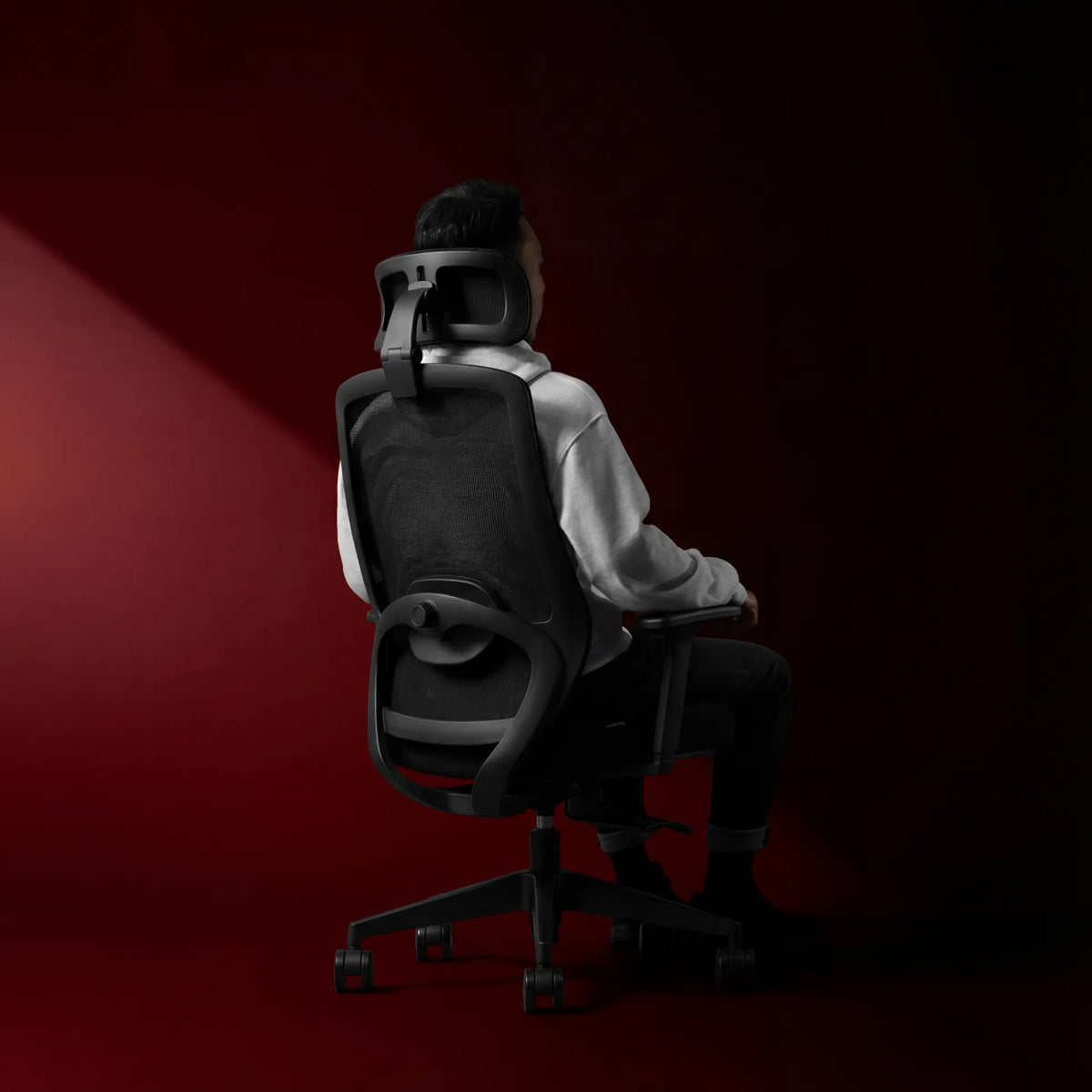
How Should Office Chair Armrest Width Be Adjusted?
Armrests that are too wide can make you reach; armrests that are too close can restrict movement. Use this practical sequence to set width, height and desk clearance together.

In this article
Office chair armrest width should let your upper arms hang naturally near your torso while the forearms receive light, even support. If the rests sit too far apart, you may spread the elbows or lean sideways to reach them. If they sit too close, they can press against the body, restrict movement or make entering and leaving the chair awkward.
Width is only one part of the adjustment. Height, pad angle, front-to-back position, desk clearance and the placement of the keyboard and mouse all influence whether the armrests help. Adjust the chair for your body first, then confirm that it can move close enough to the workstation.
Quick answer: bring the pads under relaxed forearms
Sit back with the lower back supported and let your arms hang comfortably. Bend the elbows so the forearms are roughly horizontal. Move the armrests inward or outward until they meet the forearms without making the elbows flare, the shoulders rise or the wrists angle toward the pads. The pads should support, not dictate, your arm position.
Then roll toward the desk. The armrests must not hit the front edge before the keyboard and mouse are within easy reach. If they do, reassess height, depth and desk position rather than simply widening the rests until they clear.
Signs the armrests are too wide
- Your elbows drift away from your sides to find the pads.
- Only the inside edge of each forearm touches the support.
- You lean left or right to rest one arm.
- The mouse sits farther away because the elbow is already displaced outward.
- Your shoulders feel tired even though the armrests are high enough.
The Canadian Centre for Occupational Health and Safety recommends armrests that provide even support and can be adjusted for both height and width when possible. OSHA’s computer workstation guidance also notes that overly wide armrests can pull the arms away from the body and contribute to shoulder and neck fatigue.
Signs the armrests are too close
- The pads press against your torso or elbows.
- You cannot change position comfortably.
- Getting into or out of the chair feels constrained.
- The pads push the forearms inward and bend the wrists toward the keyboard.
- Clothing catches against the inner edges.
A close setting is not automatically better. The target is enough proximity to support the arms without squeezing the body or controlling how you sit. People have different shoulder breadth, arm position and task requirements, so a fixed width cannot suit everyone.
Adjust armrest width step by step
- Set seat height first. Support the feet on the floor or a stable footrest and keep the thighs comfortable.
- Sit fully back. Use the backrest so you are not adjusting the armrests around a forward-slumped position.
- Relax the shoulders. Let the upper arms hang near the torso before bringing the pads to them.
- Set armrest height. Raise or lower the pads until they lightly meet the forearms without lifting the shoulders.
- Adjust width. Move each rest inward or outward, keeping the elbows close and the pressure even.
- Set depth and angle if available. Position the pads so they support useful forearm area without blocking the desk.
- Test typing and mousing. The keyboard and mouse should remain close, with no need to reach around the armrest.
- Test desk approach. Roll in and confirm that the rests do not stop the chair too far from the work surface.
Use only the adjustments described for your chair. Do not force a pad or post that does not move freely, and do not loosen hardware unless the manufacturer’s instructions call for it.
Width and height must work together
An armrest can be the right width but the wrong height. Too high can lift the shoulders; too low can encourage leaning toward one side. Set height with the shoulders relaxed, then set width so the forearms land naturally. Our guide to office chair armrest height provides a more detailed height check.
Do not use the desk surface as the only arm support if doing so forces the chair too low or the shoulders too high. The desk, chair and input devices must work as a system.
Check the keyboard and mouse
Armrests cannot compensate for a distant keyboard. Keep the input devices near the front working area and the mouse beside the keyboard. If the armrests feel comfortable until you start mousing, the mouse position may be the real problem.
Wider keyboards can push the mouse outward. Before moving the chair armrest outward to follow it, ask whether the mouse can move closer. The armrest should support a neutral arm path, not normalize an avoidable reach.
What if the armrests hit the desk?
First confirm that the height is correct for relaxed shoulders. Then use any supported depth or angle adjustment to reduce interference. CCOHS notes that armrests may be unhelpful when they prevent the user from sitting close enough to the keyboard. Our article on whether an office chair should fit under the desk explains why working reach matters more than hiding the whole chair beneath the surface.
If properly adjusted rests still collide with a fixed desk, compare the clear height and front-edge design with the chair’s working dimensions. Do not lower the rests so far that they no longer support the arms just to make the chair tuck away.
Should both armrests use the same width?
A symmetrical starting point is sensible for keyboard work, but the useful test is how the body and task respond. Avoid intentionally working twisted or supporting one side much more than the other. If an injury, mobility limitation or specialized task requires an asymmetrical setup, seek advice from a qualified ergonomist or health professional rather than improvising around symptoms.
Choosing a chair with useful armrest adjustment
When comparing chairs, check whether width adjustment refers to moving the complete arm posts, sliding the pads, pivoting them, or a combination. These mechanisms do not provide the same range. Verify current product specifications and measurements rather than relying on a category label.
The Loop Ergonomic Chair is one option to review within Burotic’s chair selection. Confirm its current adjustments, dimensions and intended use on the product page. For the broader fit decision, use our guide to choosing an ergonomic chair that fits your body.
When armrest discomfort needs more than adjustment
This guide provides general ergonomic information, not a diagnosis. Persistent pain, numbness, tingling, weakness or symptoms that do not improve with ordinary setup changes should be assessed by an appropriate health professional. A qualified ergonomist can also evaluate the complete interaction among chair, desk, devices and job tasks.
Recheck the setting after a real work session
A showroom test or a few minutes at the keyboard may not reveal a width problem. Recheck after thirty to sixty minutes of normal work. Look for elbows drifting outward, one shoulder rising, pressure along the forearm or repeated changes made to escape the pads. If the chair is shared, record each user's preferred settings instead of leaving one compromise position for everyone.
The practical answer
Adjust office chair armrest width so the forearms receive light, even support while the upper arms remain close to the torso and the shoulders stay relaxed. Too wide creates reaching; too close restricts movement. Set seat height and armrest height first, fine-tune width, then test the keyboard, mouse and desk clearance during real work. The best setting supports your natural arm position without forcing it.


Previous article
Can You Charge a Phone and Earbuds at the Same Time on a Wireless Desk Pad?
Next article
Why Do Your Shoulders Rise at a Standing Desk?