

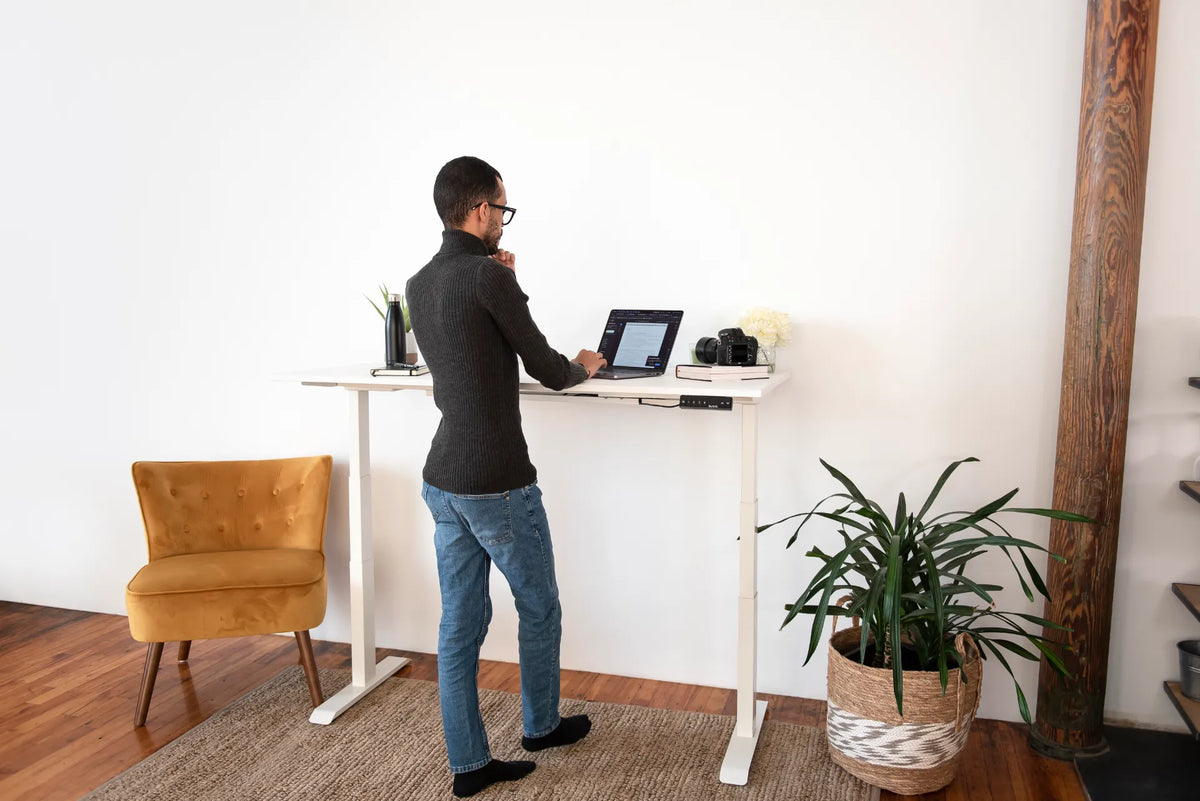
Why Do Your Shoulders Rise at a Standing Desk?
Raised shoulders at a standing desk usually point to a mismatch among desk height, input-device reach and the way the workstation is being used. This guide explains what to check first and how to make cautious, practical adjustments.

In this article
If your shoulders gradually creep toward your ears while you work at a standing desk, the desk itself is not necessarily the problem. Raised shoulders usually mean that your hands, elbows and work surface are not meeting at a comfortable height, or that you are reaching farther than you realize. The pattern can appear while typing, mousing, using a laptop or leaning toward the screen.
The practical goal is not to hold one rigid “perfect” pose. It is to create a setup in which your shoulders can stay relaxed, your elbows remain close to your sides and your hands reach the keyboard and mouse without effort. Then you can change position regularly without rebuilding the workstation each time.
Quick answer: lower the work, shorten the reach, then reassess
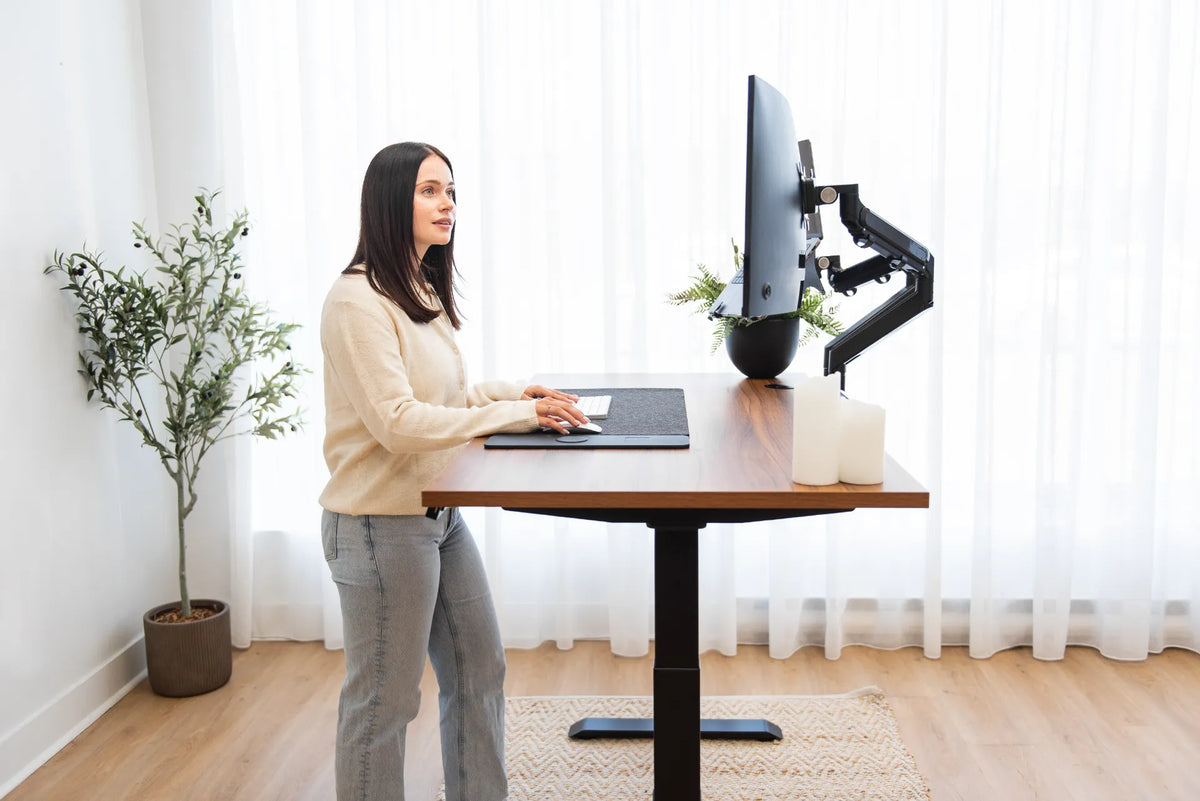
Start with the keyboard and mouse, not the monitor. Bring both input devices close to the front working area. Adjust the desk until your forearms are roughly level or slope slightly downward toward the hands while your shoulders remain relaxed. Keep the mouse directly beside the keyboard. If you use a laptop for long sessions, raise the screen and use an external keyboard and mouse so screen height and hand height can be adjusted separately.
Do not force the shoulders down. If they rise again as soon as you resume work, the workstation still needs adjustment. A small change in desk height or device placement is often more useful than consciously holding tension in the opposite direction.
Why shoulders rise at a standing desk
The desktop is too high for keyboard work
A standing desk can be at a reasonable height for reading while still being too high for typing. When the keyboard sits above comfortable elbow level, the body may compensate by lifting the shoulders and bending the wrists. Thick desk pads, keyboard feet and bulky wrist rests can add a little height too.
Lower the desk in small steps while keeping the torso upright. Stop when the shoulders feel easy and the hands can float over the keys without the wrists pressing into the front edge. If the desk must remain higher for another task, use separate presets or change its height when the task changes. The Canadian Centre for Occupational Health and Safety recommends positioning the keyboard so the shoulders are relaxed and the elbows are close to the body.
The keyboard or mouse is too far away
Height is only half of the problem. A mouse placed beyond a wide keyboard, a laptop pushed toward the back of the desk or documents occupying the front edge can pull the upper arms forward. Reaching may make the shoulders tense even when the desktop height is correct.
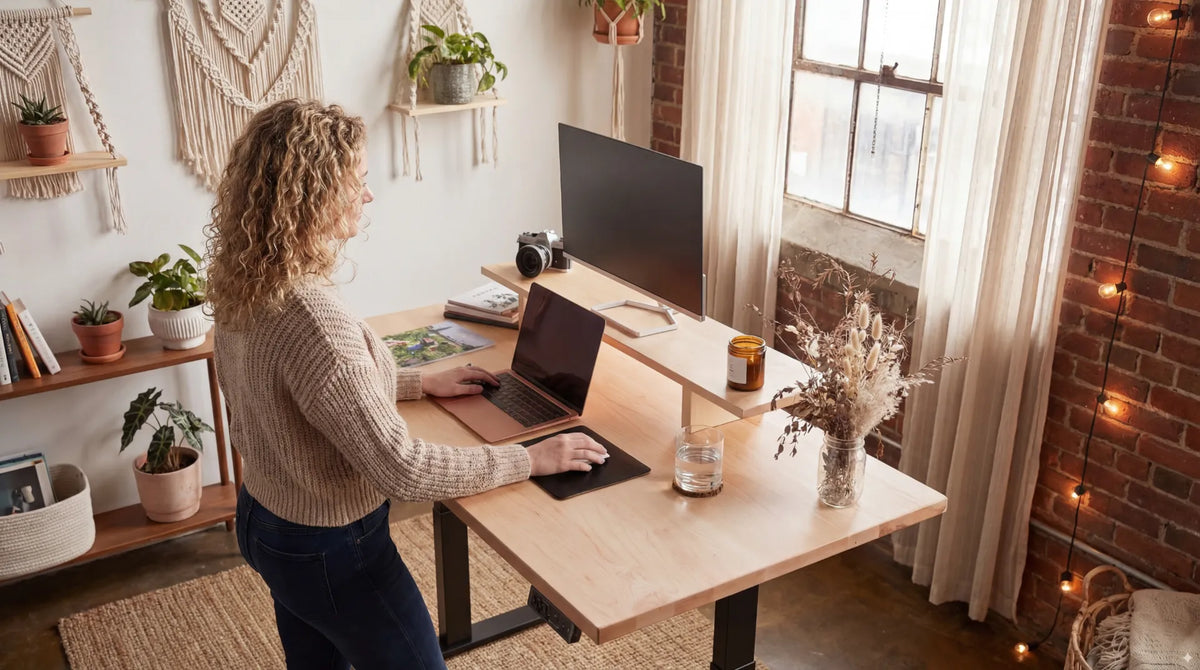
Clear a working zone near the front edge. Centre the keys you actually use, then place the mouse directly beside them at the same level. Our guide to positioning a mouse at your desk explains how reach, height and grip work together. If a full-size keyboard forces the mouse too far outward, a narrower layout may help, but choose it according to your work rather than assuming smaller is always better.
You are working directly on a laptop
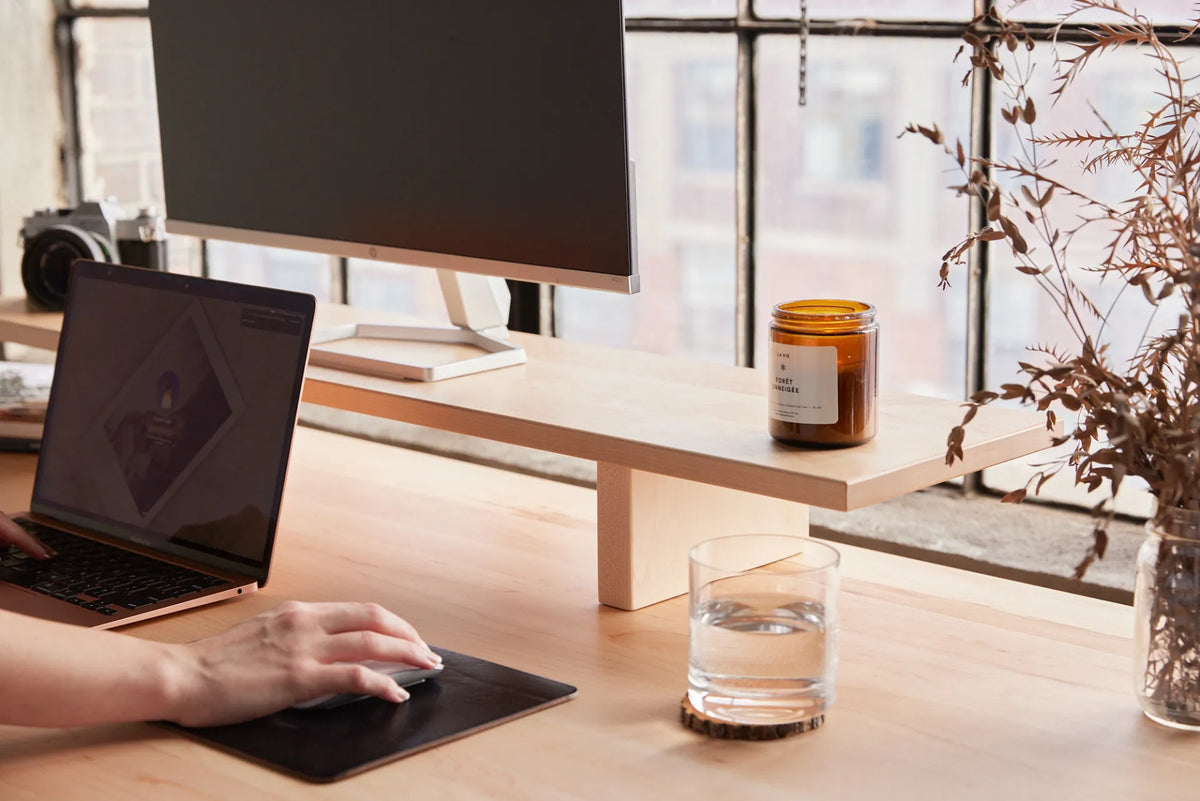
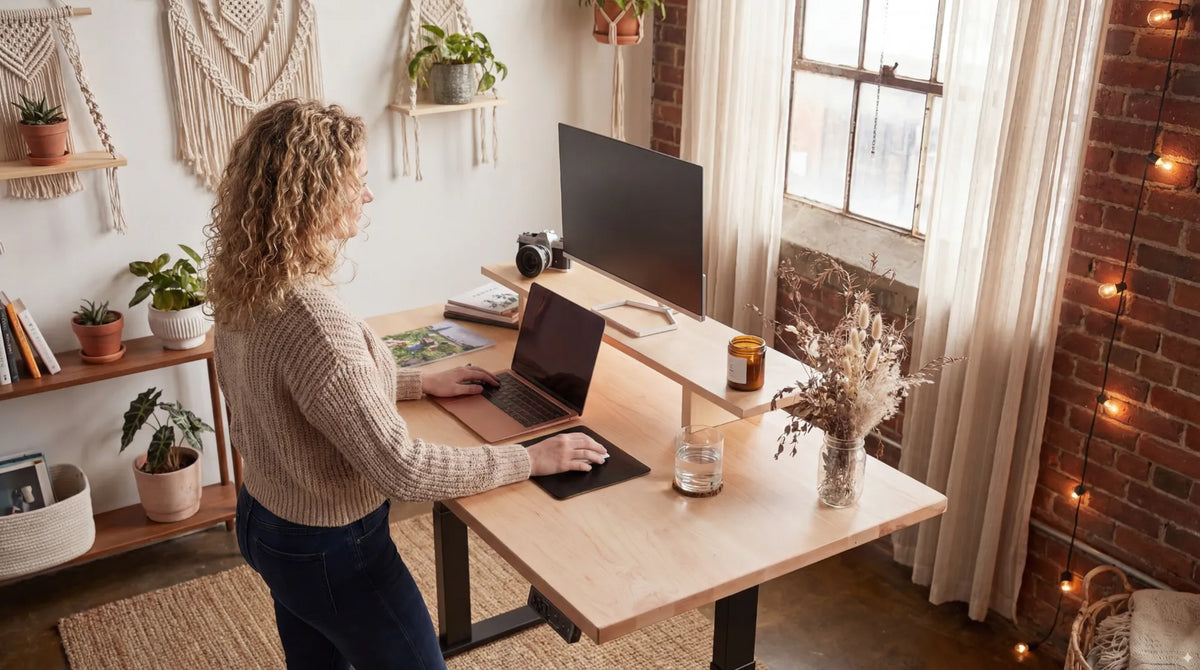
A laptop combines the screen and keyboard, so one part is usually compromised during extended desk work. Raising the laptop for easier viewing raises the keyboard. Keeping it low for the hands lowers the screen and may encourage forward head movement. For longer sessions, separate the two functions with a stable laptop support, external keyboard and mouse. Keep cables long enough for the desk’s full travel and route them so they do not pull on the devices.
The arm support is doing too much or too little
At a standing desk, people sometimes lean heavily on the front edge or hold the arms completely unsupported for long periods. Light forearm contact can be comfortable for some tasks, but hard-edge pressure and prolonged static support are not the goal. CCOHS guidance on wrist rests notes that support should not force raised shoulders or sustained pressure.
If you alternate with a chair, set the chair armrests for the seated position rather than trying to make one armrest setting solve both sitting and standing. Our article on whether to rest your forearms on the desk while typing covers the tradeoffs in more detail.
The screen is pulling you forward
A small, distant or poorly positioned screen can make you lean toward it. That forward reach changes the shoulder position and may lead you to brace on the desk. Adjust text size and screen distance before assuming the monitor must simply be higher. Place the primary screen in front of you and avoid turning the torso toward a secondary display.
A step-by-step standing desk adjustment
- Stand comfortably first. Distribute weight through both feet without locking the knees. Do not chase a military posture.
- Bring the keyboard and mouse forward. Keep the mouse beside the keyboard and remove objects that cause reaching.
- Lower the desk gradually. Aim for relaxed shoulders and elbows near the sides, with forearms approximately level or slightly downward.
- Check wrist position. The hands should remain broadly in line with the forearms rather than bending sharply upward.
- Adjust the screen separately. Once hand height feels right, set the screen for comfortable viewing without lifting the chin or leaning in.
- Work for ten minutes. Notice whether the shoulders rise again during real typing and mousing.
- Save the useful height. If your controller supports presets, save the tested working height, not a number copied from someone else.
The University of Toronto ergonomics FAQ similarly advises relaxed shoulders, elbows close to the waist and a mouse positioned very close to the keyboard. These are useful checkpoints, not a medical diagnosis or a requirement to remain motionless.
Common adjustments that do not solve the cause
Pulling the shoulders down by force
Consciously dropping the shoulders can reveal the problem, but it is not a durable solution if the desk is still too high. The posture should feel available without constant muscular effort.
Raising the monitor and the keyboard together
A monitor riser should change screen height, not force the keyboard upward. Keep input devices on the main work surface unless a specific tray is designed and adjusted for them.
Copying a desk-height chart exactly
Body height charts are starting points. Footwear, elbow height, keyboard thickness, task and personal proportions all change the result. Use the body’s response and the actual equipment as the final check.
Standing for too long
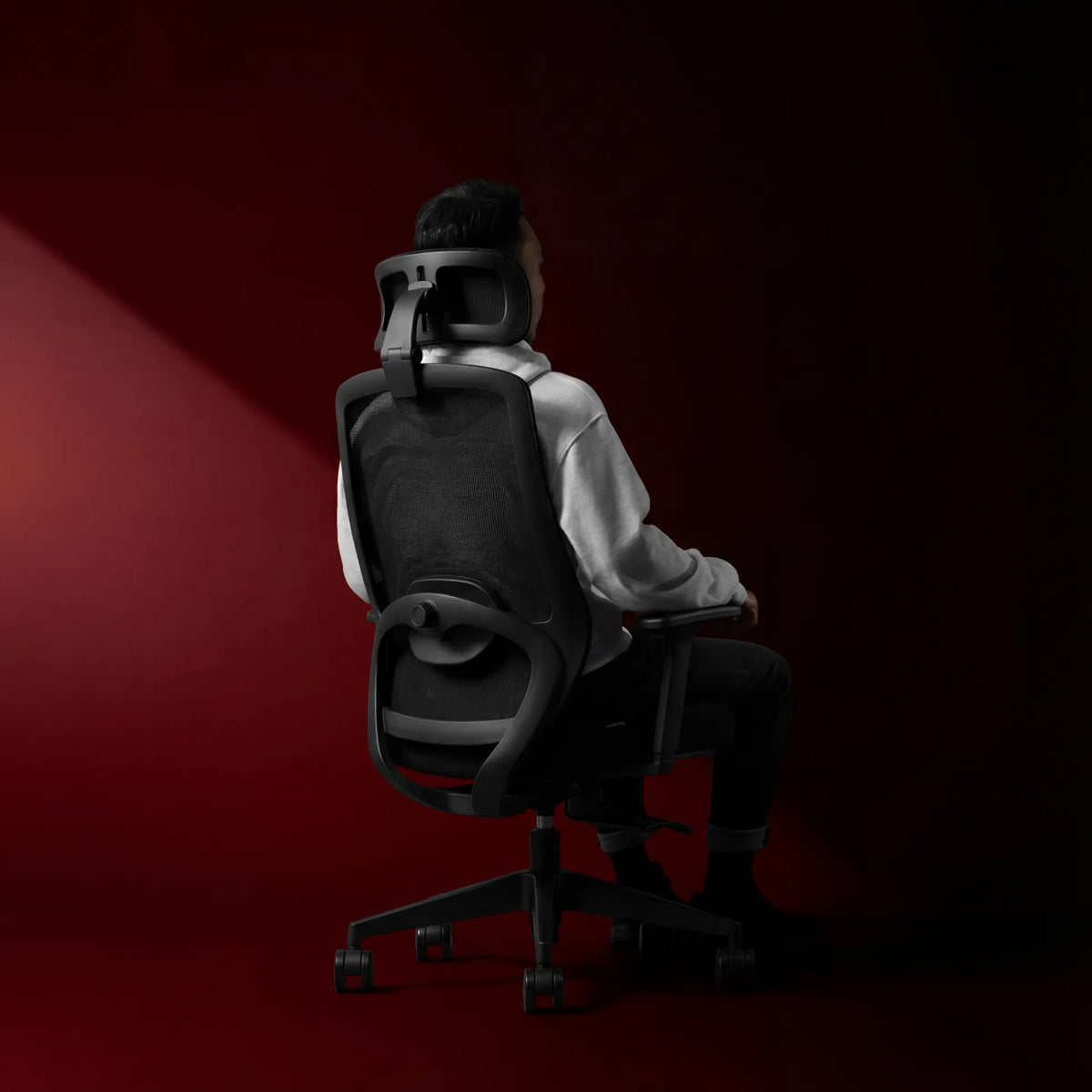
Even a well-adjusted standing position becomes tiring when held too long. Alternate between sitting, standing and brief movement. An adjustable Aspire Standing Desk Frame can make those transitions convenient, but the useful benefit comes from changing position and configuring each position well.
When to stop adjusting and seek help
General ergonomic adjustments should not be treated as a diagnosis or treatment. Stop using a setup that causes persistent pain, numbness, tingling, weakness or symptoms that worsen. A qualified health professional or ergonomist can assess factors that a general guide cannot, including injury history, task demands and individual mobility.
The practical takeaway
Shoulders usually rise at a standing desk because the hands are working too high, too far away or in a laptop setup that ties screen height to keyboard height. Move the keyboard and mouse close, lower the working surface until the shoulders relax, then adjust the screen separately. Test the result during real work and keep changing posture through the day. The best standing height is the one that lets you work without shrugging, reaching or holding yourself rigidly.
Previous article
How Much Space Should You Leave Behind a Monitor?
Next article
How Much Space Should You Leave Behind a Monitor?