






How to Choose an Office Chair for Programming and Long Coding Sessions

In this article
Programming can make hours disappear. The chair that felt acceptable during a short meeting may become distracting halfway through a debugging session. The best office chair for a programmer is not simply the softest or the one with the most controls. It is a chair that fits the user, supports frequent posture changes, and works with the desk, keyboard, mouse and screens as one system.
This guide explains what Canadian programmers, developers, designers and other screen-based professionals should check before buying. It offers general ergonomic information, not medical advice. Persistent pain, numbness or weakness deserves assessment by a qualified health professional.
Start with fit, not a feature list
A chair can have lumbar support, a headrest and adjustable arms yet still fit poorly. Begin with the three contact areas identified in the CCOHS chair-adjustment guidance: the seat, the work surface and the floor. CCOHS notes that a workstation should allow comfortable work and voluntary changes in position. At least two of those three contact areas should be adjustable.
That principle is useful for programmers because the work is rarely static. You may type for an hour, lean back to read documentation, join a video call, sketch an architecture diagram and then stand to think through a problem. A chair should support those transitions without forcing you to rebuild the setup every time.
Check seat height with your actual desk
Set the chair high enough that your forearms can approach the keyboard with relaxed shoulders and elbows near your sides. Your feet should be supported by the floor or a stable footrest. If you lower the chair solely to reach the floor, a fixed desk may leave the keyboard too high and encourage raised shoulders. If you raise the chair solely to reach the keyboard, unsupported feet can create pressure under the thighs.
An adjustable-height desk makes this easier because the work surface can meet the seated user. If your desk is fixed, measure its underside clearance before choosing a chair. Armrests, thighs and the seat must fit without colliding with drawers or support rails.
Match seat depth to your legs
Sit against the backrest and check the gap between the front edge of the seat and the back of your knees. The seat should support most of your thighs without pressing into the knee area. An adjustable seat-depth control is especially useful when a chair will be shared or when the user's proportions fall outside a narrow average.
Seat width matters too. You should be able to sit centred, use the armrests without squeezing your torso, and change position without feeling trapped. Measure your body and compare it with the manufacturer's published dimensions rather than relying on labels such as small, standard or executive. Burotic's ergonomic chair fit guide provides a step-by-step measurement process.
Prioritize useful adjustments for coding work
Lumbar support should meet your lower back
Lumbar support is useful only when it contacts the right area for the individual. It should support the inward curve of the lower back without creating a hard pressure point or pushing the pelvis forward. Start with a gentle setting, sit fully back and adjust by feel. Our guide to lumbar-support position explains the landmarks and common setup mistakes in more detail.
Do not assume that more pressure is better. A programmer who alternates between focused typing and reclined reading may need a backrest that stays supportive through both positions. Test the chair across the tasks you actually perform.
Armrests should reduce reach, not dictate posture
For keyboard and mouse work, armrests can help the shoulders relax when they are set just below the elbows. They should not force the shoulders upward, push the elbows outward or stop the chair from approaching the desk. Height adjustment is the minimum useful control. Width, depth and pivot adjustments can help when switching between a compact keyboard, a full-size keyboard, a mouse and a drawing tablet.
Some users prefer to type without contacting the armrests and use them only while reading or in meetings. That is valid. The important test is whether the arms can remain close to the body and the input devices can be reached without leaning forward.
Use recline and tilt as movement tools
A locked upright posture is not a requirement for good work. A well-chosen tilt mechanism lets you move while remaining supported. For concentrated typing, a slightly more upright position may feel precise. For reading code, reviewing a pull request or listening on a call, a modest recline can redistribute pressure.
Look for a tension range you can control, a backrest that follows you without pushing too aggressively, and lock positions that are easy to understand. Even with a responsive chair, stand, walk or change tasks regularly. Furniture supports movement; it does not replace it.
Evaluate the chair as part of the complete developer workstation
Keep the primary screen in the primary position
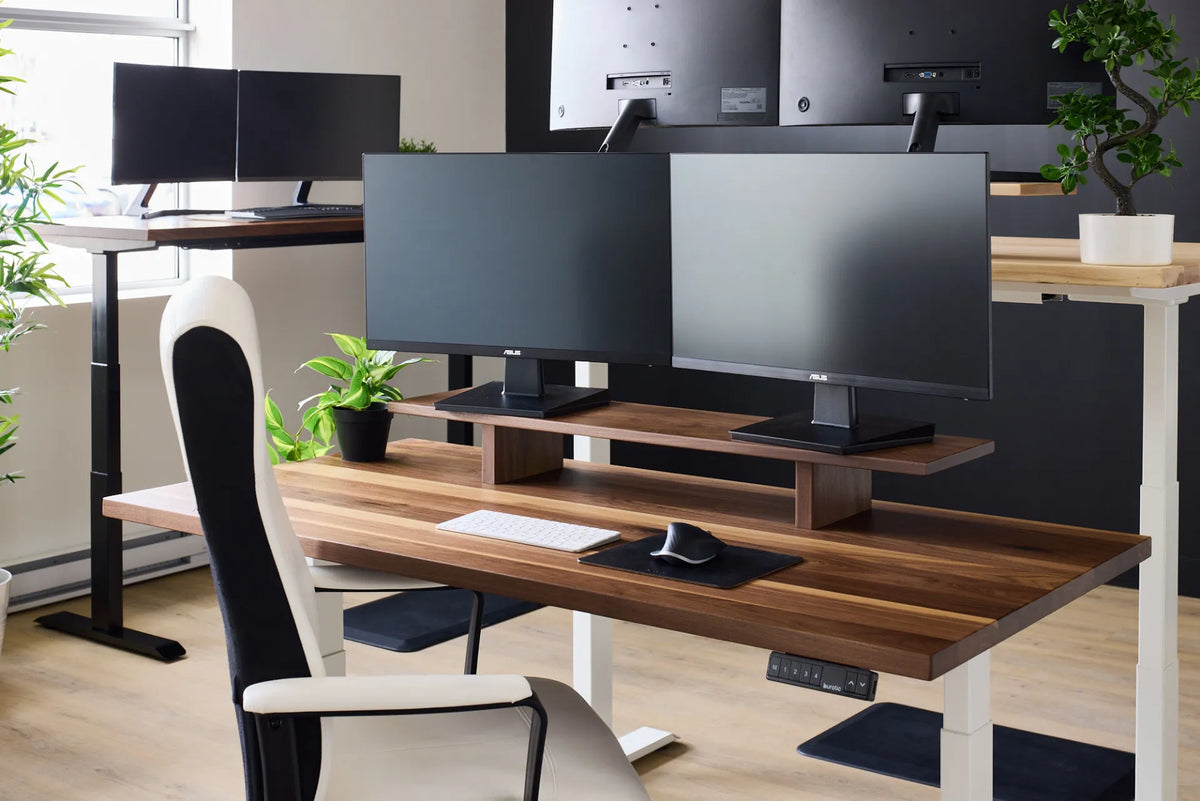
CCOHS warns that poor monitor placement can lead to the chin tilting, the head bending forward or the torso twisting. If one screen contains the editor you use most, place it directly in front of you. Angle a secondary screen inward and keep frequently read content close to the centre. If both screens are used equally, centre the pair around your midline.
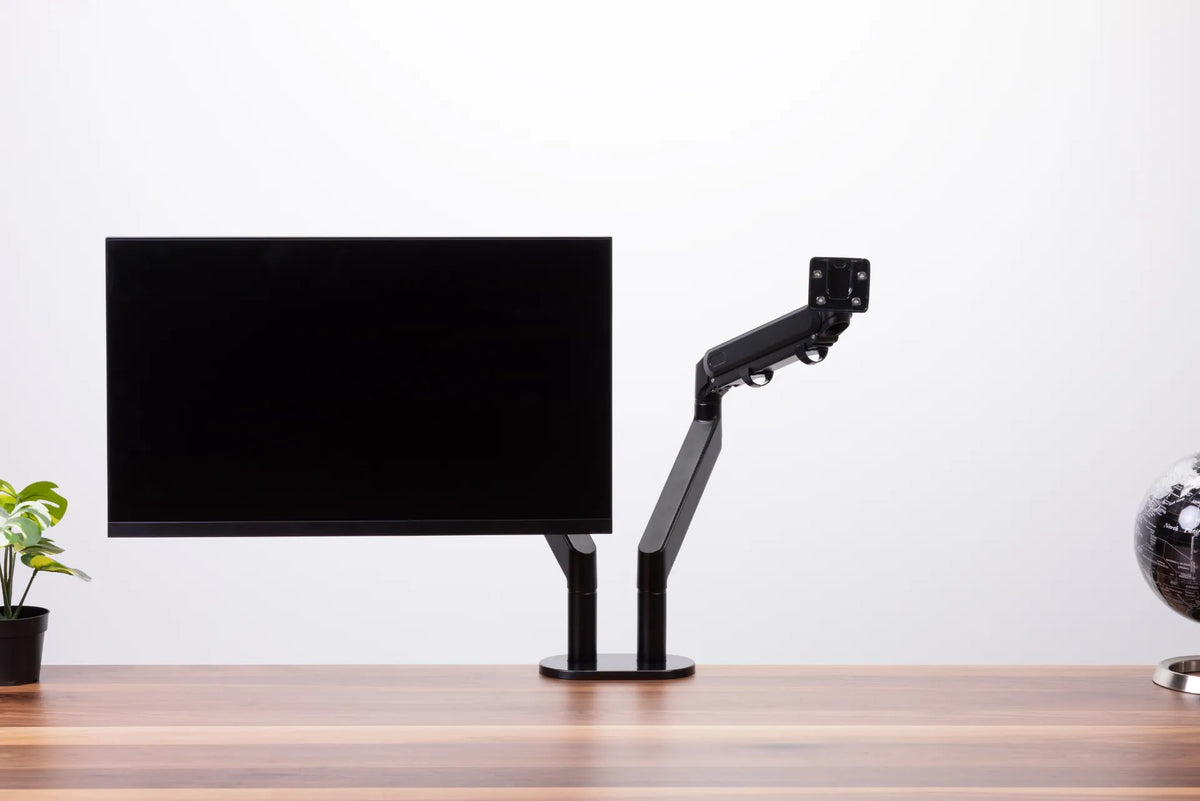
A monitor arm can recover desk space and make screen placement easier, but only after checking monitor weight, mounting pattern, desk thickness and clearance. The chair cannot correct a screen that continually pulls your head to one side.
Place the keyboard and mouse inside the easy-reach zone
Keep the keyboard centred on the keys you use most. For many programmers that means centring the letter keys, not the full width of a keyboard with a number pad. Keep the mouse or trackball close enough that the upper arm can stay near the torso. Large sweeping mouse movements and a distant pointing device can undermine otherwise careful chair setup.
Keyboard shortcuts, a compact layout or an alternate pointing device may reduce repeated reach, but comfort is individual. Introduce one change at a time and observe it over several normal workdays.
Make space for movement
A chair needs clearance to swivel, recline and roll without hitting a wall, cabinet or cable bundle. Check the footprint of the chair base as well as the seat dimensions. Route power and data cables so the casters cannot catch them. On a smooth floor, use a suitable floor-protection solution if needed and make sure it does not create an unstable edge.
A practical chair-testing routine
Use this sequence in a showroom or during a return window:
- Set the height: match the keyboard level while keeping the shoulders relaxed, then support the feet.
- Set the depth: sit fully back and confirm that the front edge does not press behind the knees.
- Place the lumbar support: find gentle contact with the lower-back curve.
- Adjust the arms: bring them under relaxed elbows without blocking access to the desk.
- Test movement: type upright, recline to read, turn toward a second screen and stand up several times.
- Check task fit: use your real keyboard, mouse, laptop or tablet whenever possible.
- Recheck after time: a five-minute impression cannot represent a full coding block.
Also inspect control accessibility, build quality and published limits. A control you cannot reach while seated is less useful. A headrest is optional rather than universal: it should meet the head or upper neck comfortably when reclining and should not push the head forward during upright work.
Common mistakes programmers can avoid
- Buying for appearance alone: a chair can look technical without offering meaningful fit adjustments.
- Copying someone else's settings: two people of the same height can have different leg, torso and arm proportions.
- Using the chair to compensate for a high desk: raise the chair only if the feet can remain supported and the desk clearance works.
- Keeping every adjustment at its maximum: lumbar pressure, tilt tension and arm height should suit the user, not demonstrate the control range.
- Staying still because the chair feels supportive: comfort and movement should work together.
How Burotic options fit the decision
The Loop ergonomic chair is one Burotic option to evaluate against your measurements and preferred controls. Review the current product page for its published dimensions, adjustments and configuration choices rather than assuming that any chair is universal. If you prefer head support during reclined reading or calls, the separate Loop headrest can be considered as part of the same fit check.
The right purchase is the chair that lets your body meet the workstation with minimal compromise. Measure first, adjust systematically, and reassess after real work. That process is more dependable than choosing by a single feature or a generic ranking.
Final checklist
Before ordering, confirm seat height and depth, lumbar contact, armrest range, desk clearance, floor support, screen alignment and movement space. Then compare the chair's published specifications with those requirements. A programming chair should make focused work easier while leaving you free to shift, recline and stand throughout the day.
Sources consulted: Canadian Centre for Occupational Health and Safety, Office Ergonomics and How to Adjust Office Chairs, pages reviewed August 27, 2026; Government of Canada, Guide to Address Ergonomics-Related Hazard Identification and Assessment, reviewed August 27, 2026.

Previous article
How to Choose a Standing Desk Frame and Legs
Next article
How to Fit Two Monitors on a Small Desk