

Should You Shift Your Weight While Standing at a Desk?
Yes. Small, comfortable weight shifts can reduce the strain of holding one fixed standing posture. Learn how to move without leaning on the desk, locking a knee or losing an ergonomic screen and keyboard position.

In this article
Yes. You should shift your weight occasionally while standing at a desk instead of holding one rigid position. The goal is not to sway constantly or rest your whole body on one hip. It is to make small, comfortable changes, keep both feet available for support and alternate standing with sitting and walking.
The Canadian Centre for Occupational Health and Safety, or CCOHS, specifically recommends shifting weight from leg to leg occasionally at a sit-stand desk. Its guidance on standing work also notes that a foot rail or footrest can help a worker transfer weight. These are practical ways to avoid prolonged static standing, but they do not replace a well-adjusted desk.
Why a fixed standing posture becomes tiring
Standing is not automatically harmful, but standing still for a long time can fatigue the feet, legs, lower back, neck and shoulders. A workstation can also restrict movement when the keyboard is too far away, the screen is off-centre or objects block the space around the feet.
A small weight shift changes which muscles are doing the most work. It also gives you a chance to notice whether you are locking a knee, leaning toward the screen or twisting toward the mouse. Movement is useful because there is no single perfect posture to hold all day.
What a healthy weight shift looks like
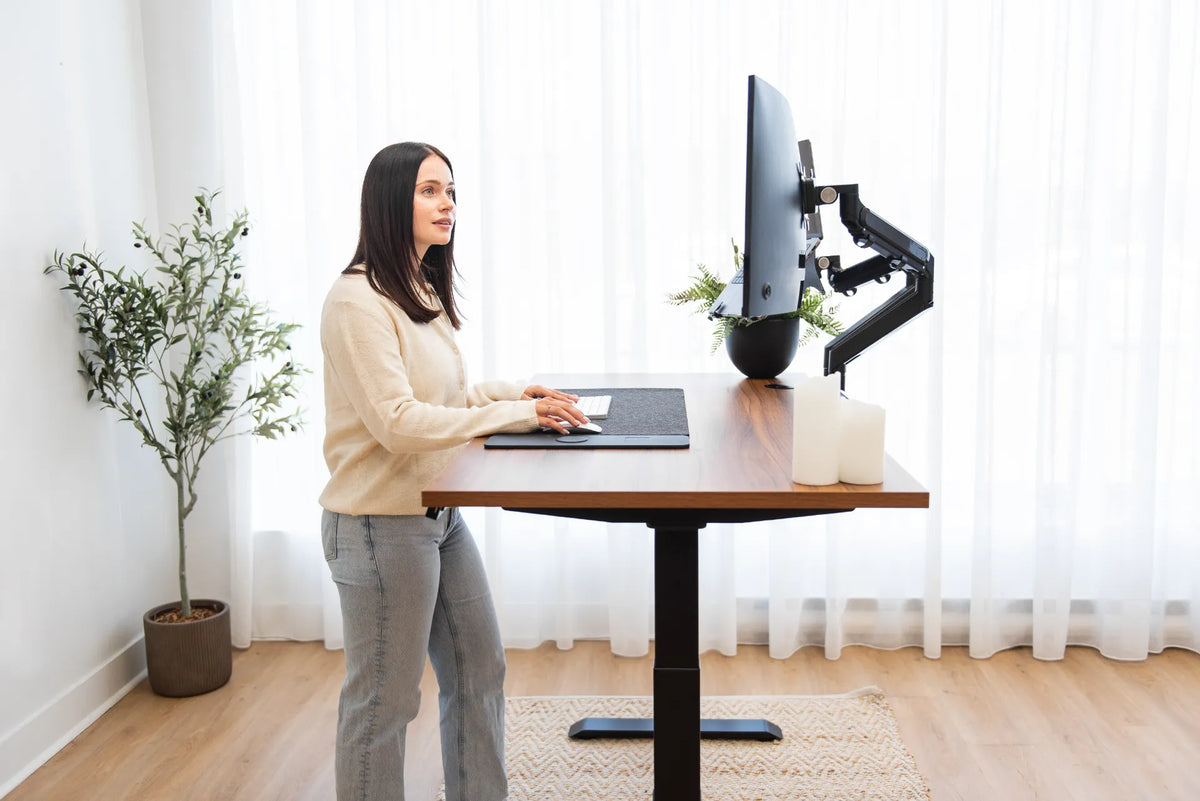
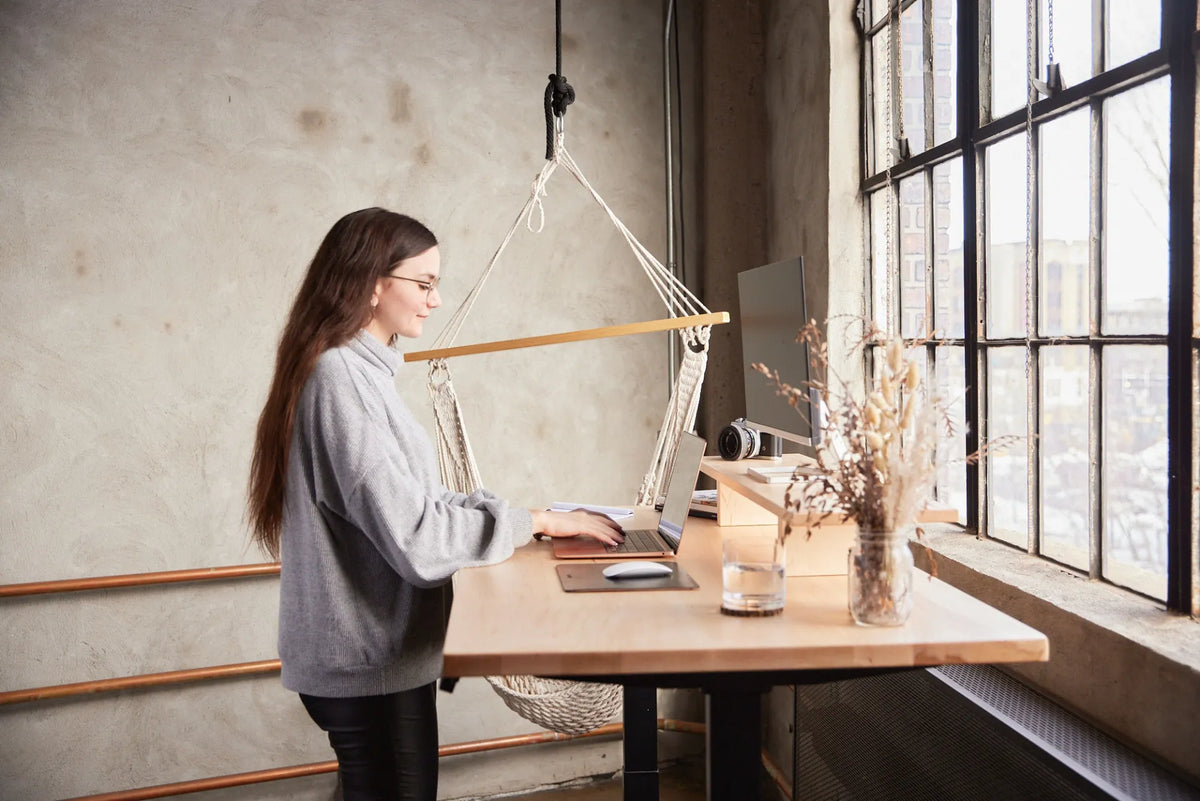
Start with both feet on a stable surface. Keep the desk near standing elbow height, the keyboard and mouse close, and the screen in front of you. Then let a little more weight move to one foot for a short period before returning to a balanced stance or changing sides.
The change can be subtle. Your shoulders should stay level, your pelvis should not collapse dramatically to one side and your upper body should continue facing the work. If you need to reach, move your feet and face the object rather than twisting from the waist.
Use a low footrest when it helps
A stable footrest or rail lets you place one foot slightly higher, then alternate feet. CCOHS identifies this as a way to shift body weight and reduce stress on the lower legs and feet. The support must be stable, low enough to use comfortably and placed where it does not become a trip hazard.
Move before discomfort builds
Do not wait until one leg is numb or your back feels tired. Change position during natural task transitions, such as after sending an email, finishing a call or reviewing a document. If you repeatedly shift every few seconds, the problem may be desk height, footwear, floor hardness or too much standing time.
What to avoid while shifting weight
- Do not lock one knee. Keep the joints comfortable rather than forcing a rigid stance.
- Do not hang on one hip. A large sideways collapse can create an uneven posture through the pelvis and trunk.
- Do not lean heavily on the desktop. This can raise the shoulders, bend the wrists and move the head toward the screen.
- Do not twist toward a second screen. Turn the feet and body or reposition the screen.
- Do not stand through persistent symptoms. Change position and seek appropriate professional advice for ongoing pain, swelling, numbness or weakness.
Set up the desk before judging your posture
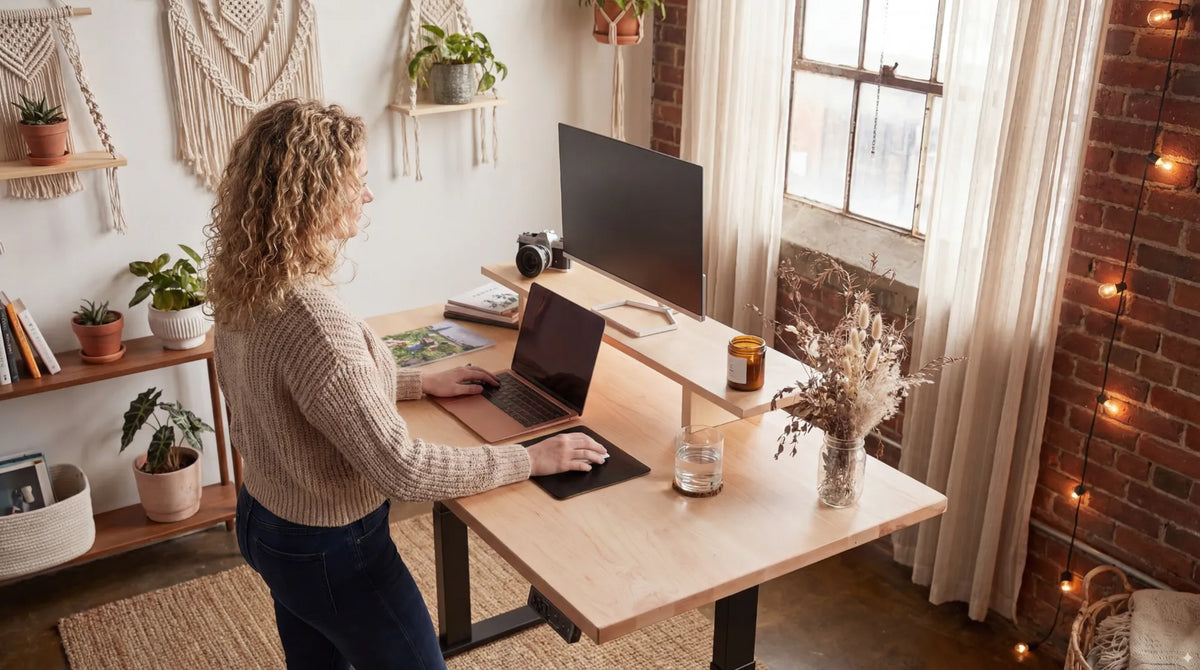
A standing posture is easier to vary when the equipment fits the user. Set the work surface around elbow height so the forearms can remain roughly parallel to the floor and the shoulders can relax. Keep the keyboard and mouse together and within easy reach. Our guide to standing desk keyboard and mouse height gives a practical adjustment sequence.
Place the main screen directly in front of the primary work position. The head should remain level and balanced, with the viewing area at or slightly below eye level. If shifting weight changes your ability to see the screen, the display may be too high, too low or too far away.
Give your feet room
Clear cables, boxes and chair bases from the standing zone. Your stance should not be forced into a narrow gap. The article on where to place your feet at a standing desk explains how stance width, reach and screen alignment work together.
Should you use an anti-fatigue mat?
An anti-fatigue mat may make a hard floor more comfortable, but it is not a licence to stand without breaks. CCOHS notes that resilient surfaces and anti-fatigue matting can help, while also warning that poorly installed mats can create slip or trip hazards.
Choose a mat that lies flat, remains stable and leaves enough room for the movements you actually make. The active Burotic Anti-Fatigue Mat is one option to compare for your workspace. Verify current dimensions and product details on its page before purchasing.
How often should you change position?
There is no universal schedule that suits every person and task. CCOHS reports that recommendations vary widely and emphasizes alternating positions as needed. A practical routine is to use frequent, modest changes: shift weight, place one foot briefly on a support, return to two-foot support, sit for part of the next task and take short walks away from the screen.
The important distinction is between movement and endurance. A sit-stand desk is valuable because it lets you change posture. It should not become a test of how long you can remain standing. A height-adjustable option such as the Burotic Aspire Solid Wood Standing Desk can support those changes when its dimensions and adjustment range suit the user.
A simple two-minute check
- Stand facing the main screen with both feet supported.
- Relax the shoulders and keep elbows near the body.
- Shift a little weight to one foot without dropping the hip.
- Return to centre, then repeat on the other side.
- Take one step back and forward to confirm that cables and the mat do not obstruct you.
- Sit or walk if the position feels tiring rather than forcing another standing interval.
When to adjust the setup instead
Frequent fidgeting can be useful feedback. Lower or raise the desk if the shoulders or wrists are not neutral. Move the mouse closer if one arm keeps reaching. Reposition the screen if your head turns or tilts. Check footwear and the floor if foot discomfort develops quickly.
This article provides general ergonomic information, not a medical diagnosis. Persistent or worsening symptoms deserve assessment by an appropriate health professional.
Weight shifting is not the same as a movement break
Transferring weight changes the load within a standing posture, but it does not provide the same variety as walking away from the desk. A few steps engage the ankles, knees and hips through a wider range and give the eyes a chance to focus beyond the screen. Keep both tools in the routine: small shifts while working, then brief walks between tasks.
If a meeting, phone call or reading task does not require the keyboard, use it as an opportunity to step away safely. Return to the desk and reset the height rather than resuming work from an awkward half-standing position.
Bottom line
Small weight shifts are a normal and useful part of standing desk work. Keep the movements controlled, keep the task in front of you and continue alternating among standing, sitting and walking. If you need large or constant shifts to tolerate the position, correct the workstation or shorten the standing interval.
Previous article
Do You Need a Grounded Outlet for a Home Office Power Bar?
Next article
Do You Need a Grounded Outlet for a Home Office Power Bar?