

Where Should Lumbar Support Sit on an Office Chair?

In this article
Lumbar support should sit in the inward curve of your lower back, not at your belt line and not halfway up your ribs. For many adults, that means the most prominent part of the support lands roughly 15 to 25 cm above the seat. That range is only a starting point. Your torso length, pelvis position, chair depth and preferred working posture determine the final setting.
The goal is not to force an exaggerated arch. A well-positioned support should feel like broad, steady contact that helps preserve the lower spine's natural curve while you work. You should be able to lean against the backrest without feeling a hard ridge, a gap behind your waist or pressure concentrated in one small spot.
What lumbar support is supposed to do
The lower portion of the spine naturally curves inward. When you sit for a long period, fatigue and an unsuitable chair setup can encourage the pelvis to roll backward and the lower back to flatten. A supportive backrest helps reduce the effort required to maintain a comfortable upright position.
The Canadian Centre for Occupational Health and Safety recommends a backrest that supports the lumbar region, can be adjusted vertically and forward or backward, and does not create pressure points. Its workstation guidance also says the backrest should fit into the hollow of the lower back. These principles matter more than chasing one universal measurement.
Lumbar support is only one part of the system. Seat height, seat depth, recline tension, desk height, keyboard position and monitor placement all affect how your back meets the chair. If another adjustment is wrong, moving the lumbar pad alone may not solve the discomfort.
Where should lumbar support be positioned?
Start by finding the natural inward curve just above your pelvis. The support should meet that curve across the lower back. A practical reference is the area around the waistband and slightly above it, but clothing and body proportions make that cue imprecise. Western University's office ergonomics guidance places lumbar padding approximately 15 to 25 cm above the seat, which is a useful setup range rather than a fixed prescription.
Too low
A support that sits too low may press into the top of the pelvis or sacrum. You may feel pushed forward on the seat, notice pressure near the belt line or still have an unsupported hollow higher in the lower back. Raise the support gradually and reassess while sitting fully against the backrest.
Too high
A support that sits too high can press below the ribs or into the mid-back. It may encourage you to pull away from the backrest, arch excessively or slide forward. Lower it until the contact follows the inward curve rather than the flatter area above it.
About right
The support feels broad rather than sharp. Your pelvis stays near the rear of the seat, your shoulders remain relaxed, and the backrest feels usable during both upright work and a modest recline. You should not need to brace your abdominal muscles or hold yourself rigidly to maintain the position.
A seven-step lumbar support adjustment sequence
- Sit all the way back. Place your pelvis against the rear of the seat. Adjusting while perched on the front edge gives a false reference point.
- Set the seat height. Keep your feet supported, thighs comfortable and knees around hip level or slightly below. If the desk requires a higher chair position, add a stable footrest.
- Check seat depth. Leave a small clearance behind the knees. CCOHS suggests about three finger widths. Excessive depth can stop you from reaching the backrest.
- Relax into the backrest. Use a normal working posture instead of sitting unnaturally straight for the test.
- Move the lumbar support vertically. Centre it in the lower-back curve. Make small changes, then sit for a few minutes before judging.
- Adjust depth or firmness if available. Increase contact only until the gap is filled. More pressure is not automatically more ergonomic.
- Recheck the desk and screen. Bring the keyboard, mouse and monitor to you so you are not pulled away from the support.
If your chair has no separate lumbar control, the backrest height, seat depth or recline setting may change where its built-in contour meets you. A small removable cushion can sometimes help, but it must not reduce usable seat depth so much that you are pushed forward.
How firm should lumbar support feel?
Think supportive, not aggressive. Firmness should be sufficient to maintain contact when you relax into the chair, but not so strong that it creates numbness, a pressure point or an exaggerated hollow. The correct setting can feel subtle. Its value is that the chair continues to support you after the novelty of sitting down has passed.
Body shape matters. A pronounced lumbar curve may need more depth, while a flatter curve may prefer gentler contact. Clothing, a winter sweater and even the way you position your pelvis can change the feeling. Treat the adjustment as a range you can refine, not a one-time number.
Lumbar support and recline should work together
An office chair does not need to lock you at a perfect 90-degree angle. CCOHS notes that there is no single sitting position that remains comfortable over a long period. A small recline can redistribute load and make the backrest easier to use, provided you can still reach your work without leaning forward.
Set the recline tension so the backrest follows you without dropping away or pushing you forward. Then confirm that the lumbar contact remains in the same general area. If the support shifts noticeably when you recline, adjust the backrest or lumbar height again in the posture you use most often.
Common lumbar support mistakes
- Using maximum depth by default. Strong pressure can be distracting and may encourage an excessive arch.
- Adjusting around a poor seat depth. If the seat is too deep, you may never reach the backrest comfortably.
- Trying to fix monitor placement with the chair. A screen that is too far away encourages forward leaning, regardless of lumbar quality.
- Holding one posture all day. A good chair supports movement; it does not eliminate the need to change position.
- Ignoring armrest interference. Armrests that hit the desk can keep you too far from the keyboard and pull you away from the backrest.
How to test the setting during a real workday
Use the chair for at least 20 to 30 minutes after each meaningful change. Check whether you remain in contact with the backrest while typing, mousing and reading. Notice whether you slide forward, perch on one side or repeatedly reposition the support. Those behaviours can reveal a mismatch that is easy to miss in a quick showroom test.
Repeat the check later in the day, when fatigue makes compensation more obvious. The best setting should remain comfortable without demanding constant awareness. If discomfort is persistent, worsening, accompanied by numbness or related to an injury, seek advice from a qualified health professional. General workstation guidance is not a diagnosis.
Choosing a chair with useful lumbar adjustment
Look for a backrest that matches your torso, a lumbar feature with a practical adjustment range, and controls you can reach while seated. Seat-height and seat-depth adjustment are equally important because they determine whether you can actually stay against the support.
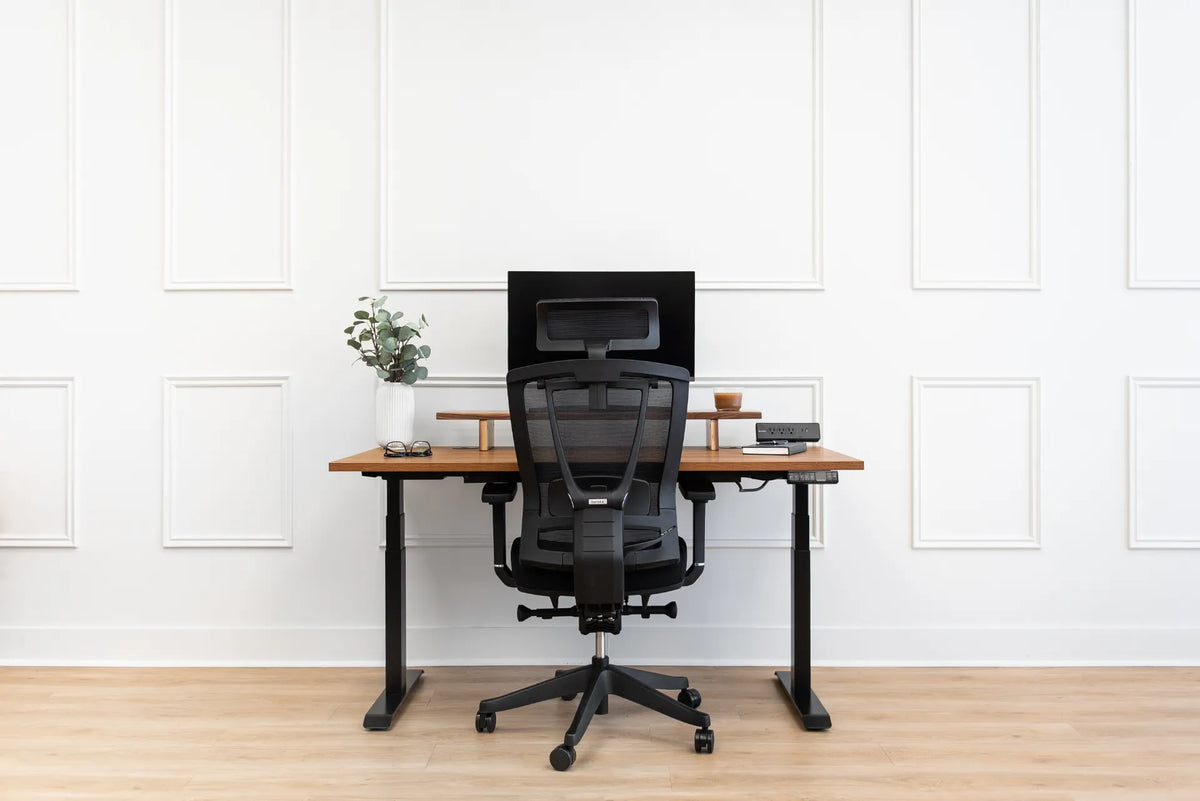
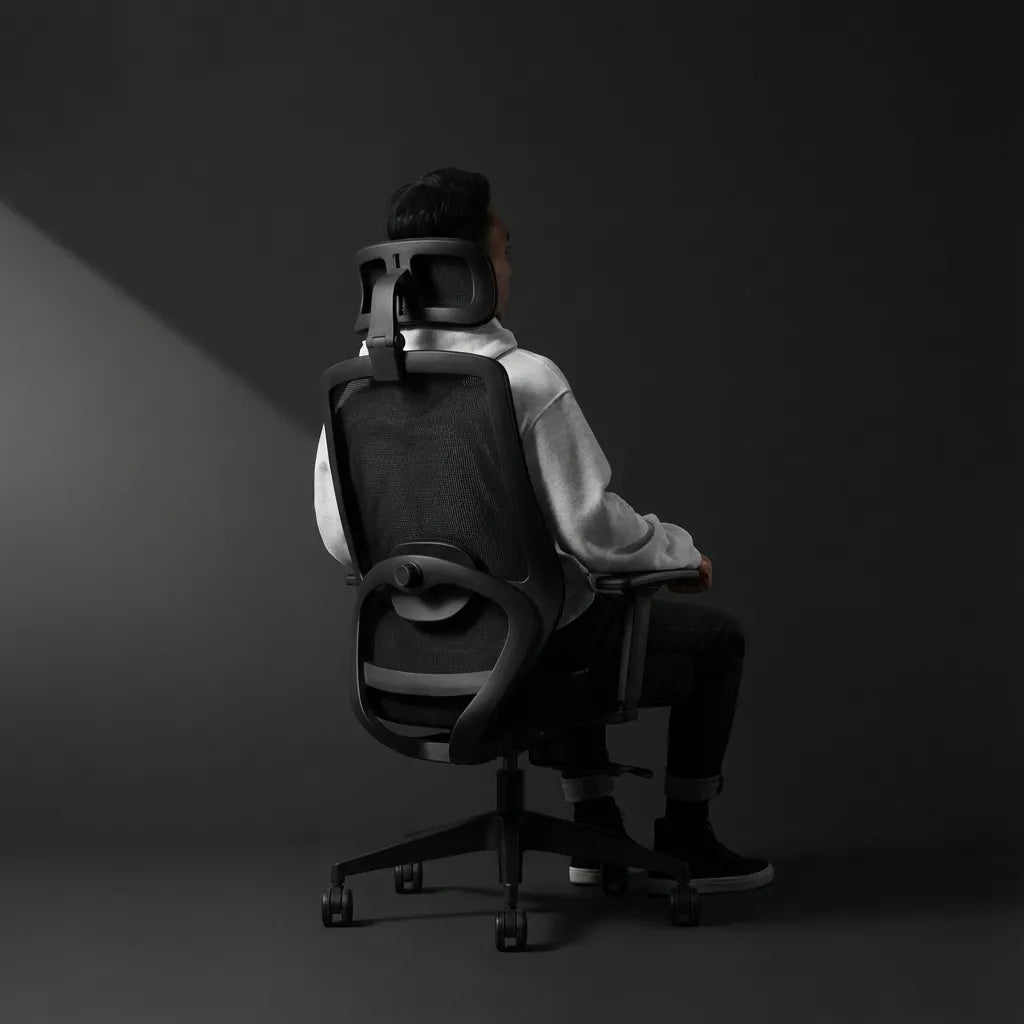
Burotic's Loop Ergonomic Chair combines a breathable mesh back with adjustable lumbar support, seat-depth adjustment, 3D armrests and an infinite recline lock. The Peak Ergonomic Chair is another fully adjustable option for shoppers comparing chair formats. Product selection should begin with fit, so use our guide to choosing an ergonomic chair for your body before deciding.
The practical takeaway
Position lumbar support in the hollow of your lower back, usually above the belt line and within roughly 15 to 25 cm of the seat. Then refine the height and pressure until contact feels broad, stable and unobtrusive. Finish by correcting seat depth, desk height and screen distance so the rest of the workstation allows you to use the support naturally.
A few minutes of careful adjustment can change how a chair feels over an entire workday. Explore Burotic's ergonomic seating options, compare their controls, and choose the model that lets your body stay supported while still moving comfortably.
Previous article
Why Is My Standing Desk Wobbly? 10 Checks Before You Replace It
Next article
Ideal Office Chair Height: A Practical Ergonomic Setup Guide