

How Close Should You Stand to a Standing Desk?

In this article
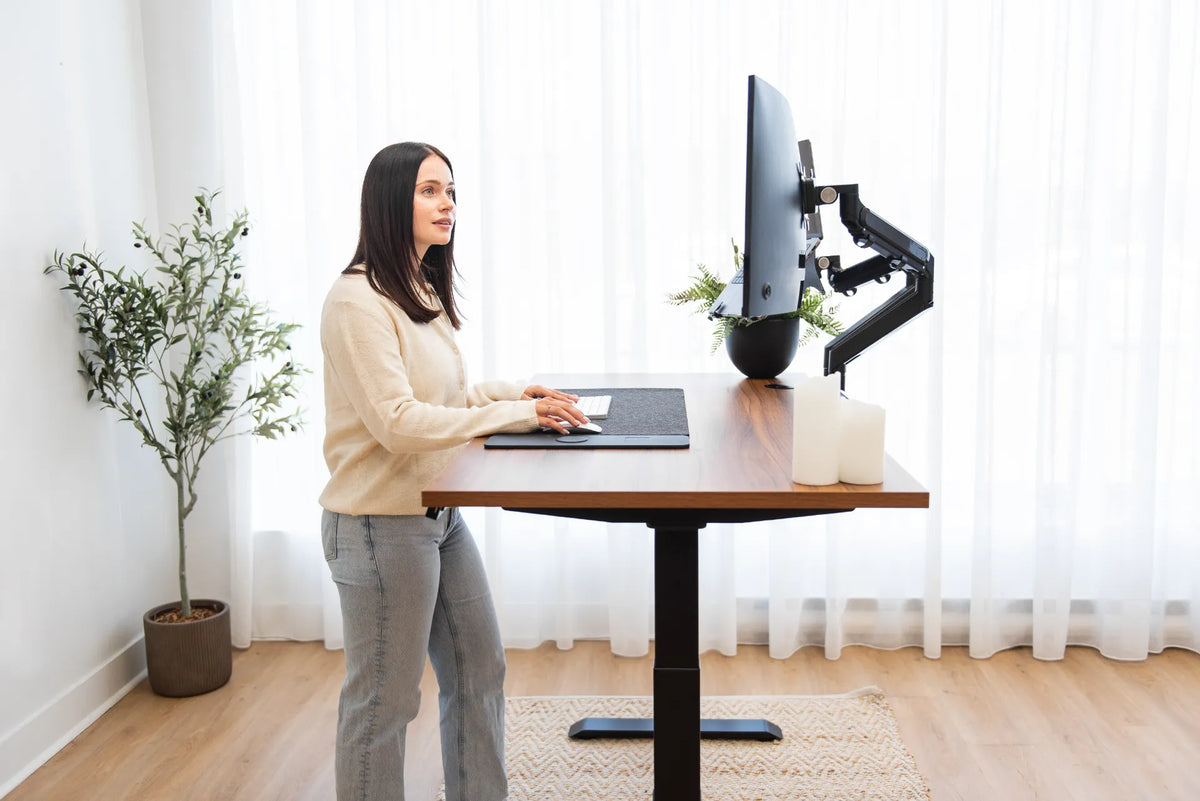
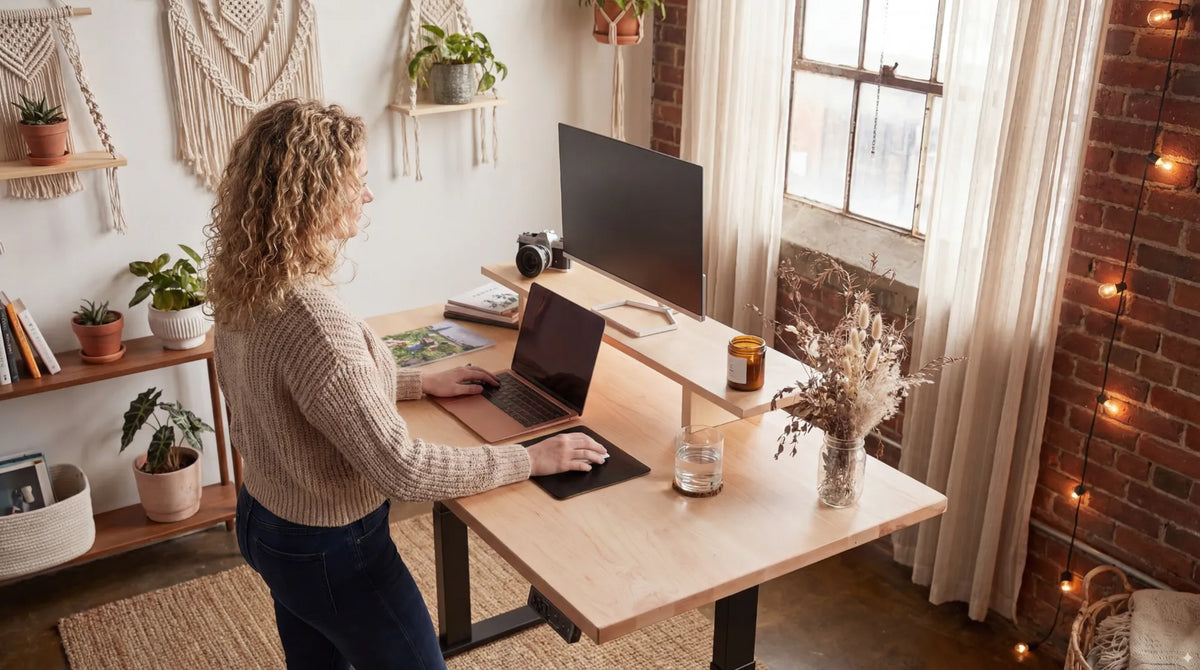
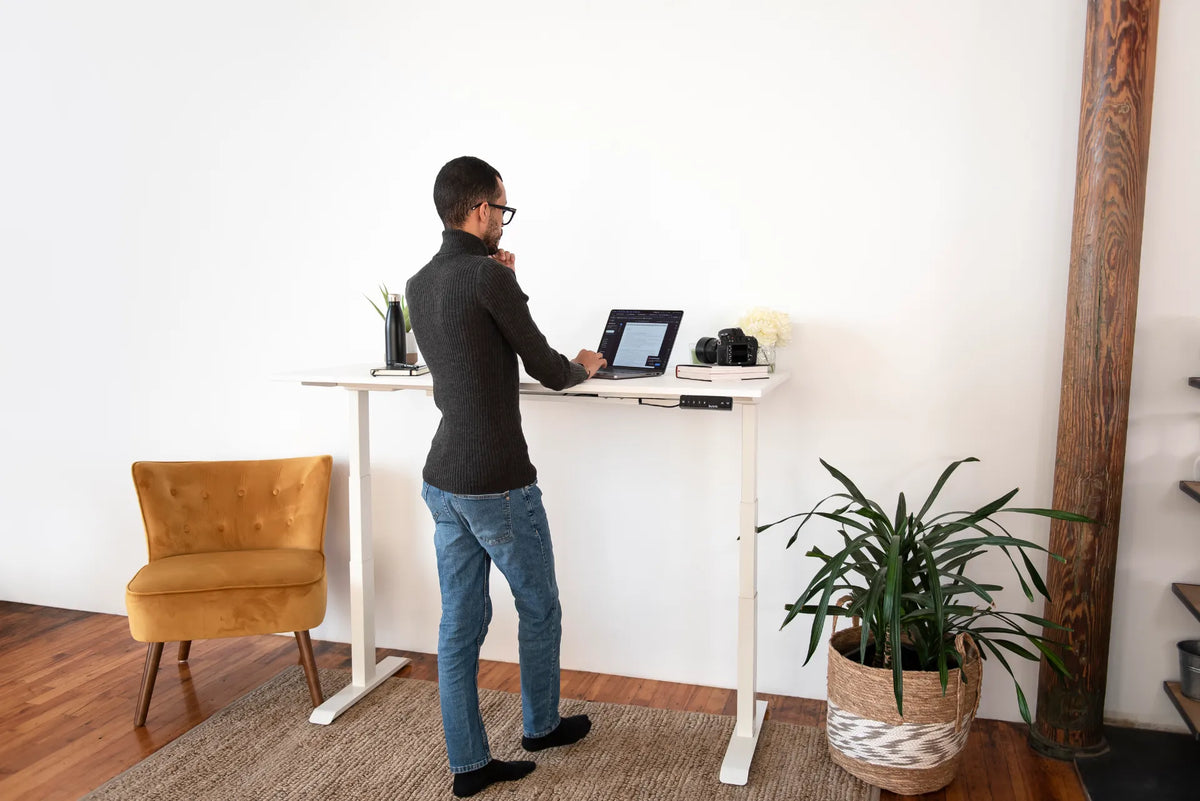
Stand close enough to your standing desk that you can use the keyboard and mouse with your upper arms relaxed beside your torso. You should not have to reach forward, lean your hips on the front edge or pull your shoulders ahead. For many people, that means leaving only a small, comfortable gap between the body and the desk, but there is no universal distance in centimetres.
The correct distance depends on your body, desk depth, keyboard position, footwear and the work being done. A better test is functional: can you keep the elbows near the body, wrists relatively straight, shoulders relaxed and weight free to shift between the feet? This guide shows how to find that position and adjust it when moving between sitting and standing.
Why there is no single ideal number
People differ in torso length, arm length and preferred stance. Desks also differ in edge shape, depth and accessory placement. A fixed number measured from the toes to the desktop can therefore be misleading. The Canadian Centre for Occupational Health and Safety emphasizes neutral working posture and easy reach rather than one prescribed gap.
Your feet may also move during the day. Sometimes they will sit under the front edge, sometimes one foot will rest slightly ahead, and sometimes you will step back during a call. That movement is useful. The goal is not to mark one spot on the floor and stay there. The goal is to establish a close working zone that does not force reaching or leaning.
Use your elbows to find the starting position
Begin with the desk at about elbow height. Stand upright without locking the knees, let the shoulders drop and bend the elbows so the forearms can approach the work surface. Move toward the desk until the keyboard and mouse are available without straightening the arms.
Your upper arms should remain close to the torso. The elbows do not need to form a perfect 90-degree angle at every moment. A comfortable open angle can work well, provided the shoulders stay relaxed and the hands are not reaching upward or forward. Burotic's guide to elbow angle at a standing desk explains this relationship in more detail.
A quick reach test
- Stand naturally and look straight ahead.
- Let both arms hang, then bend the elbows without lifting the shoulders.
- Place the fingers on the keyboard's home row and the hand on the mouse.
- If the elbows move well in front of the torso, step closer or bring the input devices closer.
- If the desk presses into the body or blocks comfortable foot placement, step back slightly.
- Type and use the mouse for two minutes, then check whether the shoulders remain relaxed.
This approach works better than judging by appearance. A workstation can look tidy in a photo while placing the controls too far away for the person using it.
Signs that you are standing too far away
The most common sign is reaching. The elbows drift forward, the upper back rounds and the head follows the hands toward the screen. You may also rest the forearms heavily on the edge because the keyboard is beyond a comfortable reach zone.
- You straighten the elbows to type or use the mouse.
- The shoulders roll forward or lift.
- You lean from the ankles or waist to see the screen.
- The mouse sits beyond the keyboard instead of beside it.
- You repeatedly step forward only when entering text.
- Your wrists rest on a sharp front edge because the keyboard is too deep on the surface.
Move closer and bring the keyboard and mouse toward the front of the desk. Clear papers, a large desk mat or decorative objects that push the input devices away. Frequently used items belong in the primary reach zone. OSHA workstation guidance similarly recommends keeping frequent-use components within easy reach.
Signs that you are standing too close
Closer is not always better. If the desktop presses into the abdomen or hips, you may lean on it and reduce natural movement. A very close position can also crowd the knees or prevent one foot from moving forward. The front edge should not act as a support that holds your body upright.
- Your hips or abdomen stay in contact with the desk.
- You cannot shift weight or change the lead foot freely.
- The keyboard is so close that the wrists bend upward.
- Your elbows are pulled behind the torso.
- You step back to look at the whole monitor.
- Cables, a crossbar or stored items interfere with the feet.
Step back just enough to restore free movement. If the keyboard then becomes hard to reach, move it toward the desk edge or review the desk height. The right solution often combines distance and equipment placement rather than changing only one variable.
Set desk height before fine-tuning distance
Distance and height work together. A desk that is too high encourages raised shoulders or excessive wrist extension. A desk that is too low can lead to bending through the neck and upper back. Start with the surface around elbow height, then refine it while typing.
The standing desk height guide for short and tall users offers a practical setup process. Use body position as the final reference instead of relying only on the number shown by a controller. Shoes, a floor mat and keyboard thickness can all change the effective working height.
Place the keyboard and mouse in the primary reach zone
Keep the keyboard close enough that the upper arms remain near the torso. Put the mouse immediately beside it at a similar height. A wide gap between keyboard and mouse makes the shoulder move outward every time you point or scroll. If you use a full-size keyboard but rarely use the number pad, consider whether a more compact layout would give the mouse a better position.
The desk edge should not press into the wrists. Leave enough space to support the hands lightly during pauses, but avoid anchoring the wrists while typing. Keep cables from pulling the mouse away when the desk moves.
Monitor distance can change your standing distance
Sometimes a person stands too close to the desk because the screen is too far away or the text is too small. Moving the entire body forward solves the visual problem but creates an input-device problem. Instead, adjust the monitor distance, text scaling or monitor arm while preserving a relaxed reach to the keyboard and mouse.
CCOHS commonly uses about an arm's length as a starting point for monitor distance, with adjustments for display size, vision and task. The top portion of the screen should support a comfortable head position. If you use a laptop by itself, its attached screen and keyboard create a compromise. For longer sessions, a separate keyboard and mouse can allow the screen to be raised or moved independently.
Leave the feet room to move
A standing workstation should not trap the feet in one exact pose. Keep the area under and in front of the desk clear. Alternate which foot is slightly forward, shift weight periodically and take brief walking or sitting breaks. A footrest or stable low support may help some users vary position, but it should not create a tripping hazard.
Do not treat standing as a posture to hold for hours. CCOHS recommends changing positions and avoiding both prolonged sitting and prolonged standing. The guide to when to sit or stand can help plan task-based changes.
Adjust the distance for different tasks
Typing and mouse work
Use the close working zone: elbows near the body, shoulders relaxed and controls easy to reach.
Reading or video calls
You may step back slightly if you are not using the keyboard continuously, provided the screen remains easy to see and the floor area is clear.
Drawing or detailed manual work
Bring the task into a comfortable reach zone and adjust the height if the work requires more visual precision. Avoid sustained bending over the surface.
Switching to sitting
Lower the desk and reposition the chair rather than keeping the standing distance. Confirm that the armrests do not block access and that the keyboard remains close.
A practical standing-desk checklist
- The desk is near elbow height for keyboard work.
- The upper arms rest close to the torso.
- The keyboard and mouse are easy to reach without leaning.
- The front edge does not press into the body or wrists.
- The screen is readable without moving the whole body forward.
- The feet can shift, step and change position.
- The area below the desk is free of boxes and cable loops.
- You change between standing, sitting and moving during the day.
If you are choosing a height-adjustable workstation, review Burotic's current standing desk collection for available sizes and configurations. Select the desk based on the space, equipment and adjustment needs verified for your setup.
When discomfort persists
This article provides general ergonomic information, not medical advice or a diagnosis. Persistent pain, numbness, weakness or vision problems deserve attention from an appropriate health professional. A qualified ergonomist can also assess the workstation in relation to your body and job demands.
The practical answer
Stand close enough that the keyboard and mouse are available with the elbows near your sides, but not so close that the desk supports or crowds your body. Set the height first, bring frequently used controls into easy reach, then allow enough space for the feet to move. Use posture and task performance, not a fixed measurement, to find your working distance.
Previous article
Which Monitor Should Be Primary in a Dual-Monitor Setup?
Next article
Should Your Office Chair Fit Under Your Desk?