

How High Should Your Monitor Be at a Standing Desk?

In this article
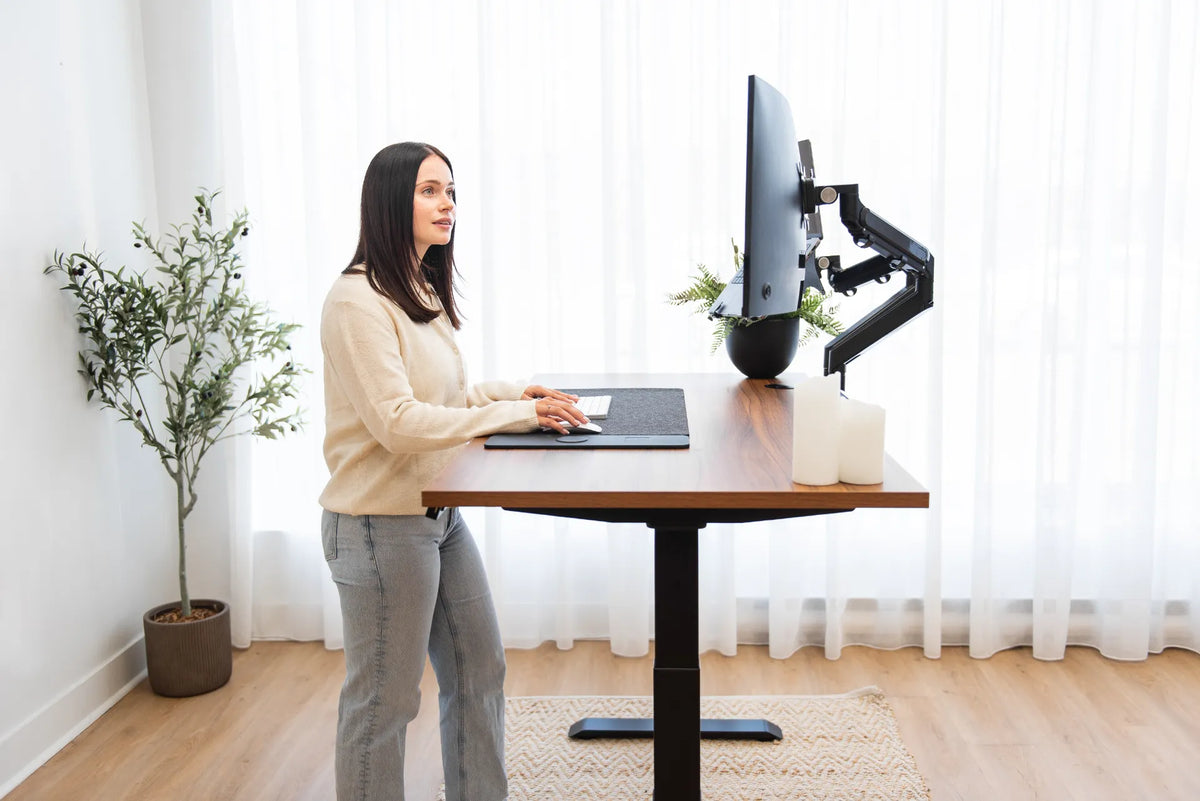
Your monitor at a standing desk should generally sit so the top of the visible screen is around eye level or slightly below it. The centre of the screen should fall below your straight-ahead gaze, letting you look downward with your eyes instead of tipping your head. That is a starting point, not a fixed measurement.
The correct height depends on screen size, viewing distance, whether you wear corrective lenses and how you divide attention between screens. A setup can look symmetrical and still be uncomfortable if the desk is too high, the monitor is too close or your primary screen sits off to one side.
This guide gives you a repeatable adjustment method for standing work. It complements our broader guide to monitor viewing distance by focusing on height and sight line when the desk is raised.
Start with your body and desk height
Do not move the monitor first. Stand in the shoes or slippers you normally wear and let your shoulders relax. Place your feet comfortably apart and avoid locking your knees. Raise or lower the desktop until your forearms can approach the keyboard without shrugging your shoulders or bending your wrists sharply.
The Canadian Centre for Occupational Health and Safety recommends placing the work surface around standing elbow height, with the keyboard and mouse arranged as they would be when sitting. Once that foundation feels natural, adjust the display. Otherwise, you may use monitor height to compensate for an incorrect desk height and leave the keyboard in a poor position.
Use eye level as a starting reference
Look straight ahead without lifting your chin. The top of the active display area should usually meet that line or sit a little below it. CCOHS describes the preferred line of sight as horizontal to about 30 degrees below horizontal for a sit-stand workstation. The practical goal is to view the main content with a gentle downward gaze while the head remains balanced over the torso.
A large monitor may need its upper edge slightly above or below a smaller screen because the centre of the display changes. The location of the content also matters. If the application keeps important controls at the bottom, you may prefer a slightly lower screen. Test real work rather than adjusting from a blank screen.
Why too high is a problem
A screen that is too high can encourage you to lift the chin or extend the neck. You may notice tension at the base of the skull, raised eyebrows or a habit of leaning backward to see the display. Lower the monitor in small steps and check whether your face and shoulders relax.
Why too low is a problem
A screen that is too low can draw the head and upper body forward. If you keep folding at the neck to read, raise the display or bring it closer within a comfortable viewing range. Do not raise it so far that the keyboard follows upward and forces the shoulders to work harder.
Check viewing distance at the same time
Height and distance work together. A screen may feel too low simply because it is far away and the text is difficult to read. CCOHS advises placing a monitor at a comfortable distance, commonly around an arm’s length, then adjusting for screen size, text and vision. Increase software scaling before moving the display extremely close.
Stand in your normal working position and extend an arm toward the screen as a rough check. Then use your actual task. You should be able to read without leaning forward, squinting or moving the head repeatedly. A larger or higher-resolution monitor may need different scaling even when the physical distance is unchanged.
How to adjust monitor height in six steps
- Set the standing desk so the keyboard and mouse support relaxed shoulders and relatively neutral wrists.
- Stand naturally and look straight ahead without posing.
- Move the screen until its upper edge is near that sight line or slightly below it.
- Set a comfortable distance and enlarge text if necessary.
- Work for 15 to 20 minutes on a typical task, then note whether you look up, down or forward excessively.
- Make one small height or distance change and test again.
Use the smallest useful change. Moving the display several centimetres at once can replace one problem with another. A monitor arm is useful when you need independent height, depth and angle adjustment. A monitor stand can provide a simpler fixed lift when its dimensions match your setup.
What about two monitors?
If you use two screens equally, place them at similar heights and angle them inward so the inner edges meet near the centre of your body. If one screen is primary, put it directly in front of you and move the secondary screen beside it. You should not spend most of the day with your neck turned.
The photograph for this guide shows two displays on adjustable arms, but it does not establish a universal position. Your primary task, screen dimensions and working distance should decide the final arrangement. For more detail, see our guide to aligning dual monitors.
Should the monitor move between sitting and standing?
Often, yes. The desk raises the keyboard and monitor together, but your relationship to them can still change. Many people stand slightly farther from the desk than they sit. Shoes alter height, and a seated posture can position the eyes differently relative to the screen. A monitor arm makes it easier to fine-tune the screen for each mode.
Save a sitting desk height and a standing desk height first. Then check the monitor in both positions. If one fixed monitor setting works, keep it. If not, mark or remember two arm positions. The transition should be quick enough that you will actually make the adjustment.
Special cases
Progressive lenses and bifocals
People who use progressive lenses may need the screen lower so they can see through the appropriate part of the lens without lifting the chin. CCOHS specifically notes that corrective lenses can change the preferred monitor height. Our monitor guide for progressive lenses covers that setup in more depth.
Laptops
A laptop screen and built-in keyboard are joined, so raising one also raises the other. For regular standing work, use an external keyboard and mouse when the laptop is elevated. This lets the screen and input devices be positioned independently.
Very large screens
Do not force the top of a very large display to eye level if that makes the lower content hard to see. Sit or stand at your normal distance and position the area you view most often comfortably below the straight-ahead line. Screen angle, scaling and application layout become more important as size increases.
Common adjustment mistakes
- Setting monitor height before setting the desk and keyboard.
- Using a memorized measurement instead of your own eye position.
- Raising the screen to fix text that is simply too small.
- Keeping the primary display off-centre for long tasks.
- Tilting the chin upward to use progressive lenses.
- Assuming one monitor position must work equally well for sitting and standing.
- Changing height, distance and angle at the same time, which makes the result hard to evaluate.
A practical final check
Your standing monitor height is close when you can read the main content with a slight downward gaze, relaxed shoulders and a balanced head. The screen is far enough away to view comfortably, but close enough that you do not lean forward. Your keyboard stays near elbow height and the mouse remains beside it.
No diagram can replace a short real-work test. Adjust the desk first, then the display, and recheck both sitting and standing modes. If discomfort, headaches, numbness or vision problems persist, consult a qualified health or vision professional. General setup guidance is not a medical diagnosis.
Previous article
How to Organize Desk Accessories Without Clutter