





Why Do Standing Desk Cables Pull When the Desk Moves?

In this article
Standing desk cables pull when one part of the cable path cannot follow the desktop through its full range. The tight point may be between the desk and wall outlet, between a device and an under-desk tray, or where several cords are bundled into a rigid group. The desk keeps moving, but the cable has run out of slack.
Do not solve this by creating a loose pile of cord. Extra cable can catch on the frame, rub against an edge or become a trip hazard. The better approach is to identify the moving and fixed sections, add a controlled service loop and test the desk from its lowest to highest position.
This article focuses on a specific symptom: pulling, unplugging or snagging during movement. For a complete installation plan, see our standing desk cable management guide.
First, stop and inspect
If a cable is visibly damaged, frayed, crushed or hot, stop using it and follow the manufacturer’s instructions. Health Canada advises checking electrical cords regularly for damage that could create shock or fire hazards. Do not tape over damaged insulation as a permanent repair.
Disconnect equipment before rerouting cords or working near electrical connections. Follow the instructions for the desk and every powered device. This guide covers general cable organization, not electrical repair.
Find the exact point that becomes tight
Lower the desk and remove clutter from around the frame. With power disconnected where appropriate, trace each cable from device to destination. Separate monitor power, computer power, data cables, chargers and the desk’s own power lead. A single short cable can pull the entire bundle.
Reconnect only what is needed for a careful movement test. Keep hands, clothing and tools away from moving parts. Raise the desk slowly while watching the path. Stop before any cable becomes taut. Mark the tight segment with removable tape or take a photo for reference.
Common tight points
- The cable from the desktop power bar to the wall outlet.
- A monitor cable secured too close to the arm joint.
- A laptop charger whose power brick rests on the floor.
- A bundle tied rigidly from the desktop to a fixed wall or cabinet.
- A cable routed across the desk frame or a moving crossbar.
- A connector that must bend sharply as the desk rises.
Separate the moving zone from the fixed zone
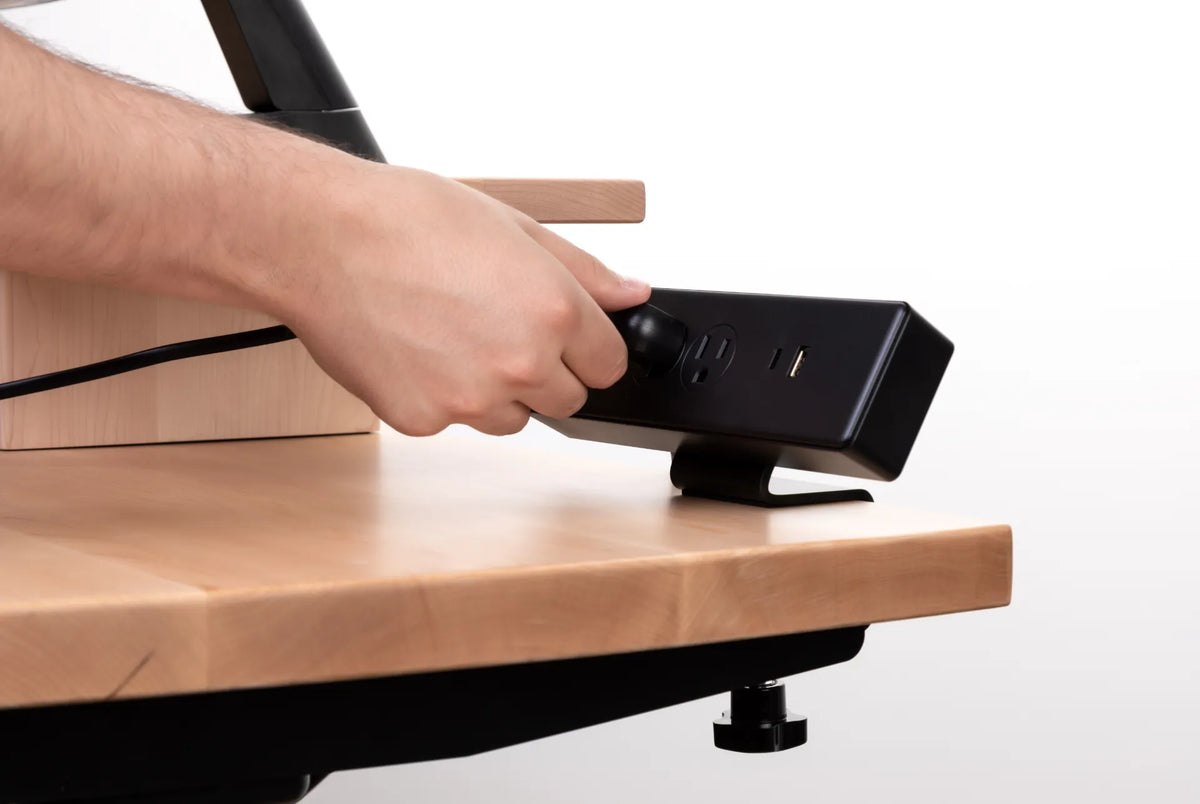
Everything attached to the desktop moves together. Devices, monitor arms, chargers and a desktop power bar belong to the moving zone. The wall outlet, floor raceway and room wiring belong to the fixed zone. The transition between them needs enough free length for the full height change.
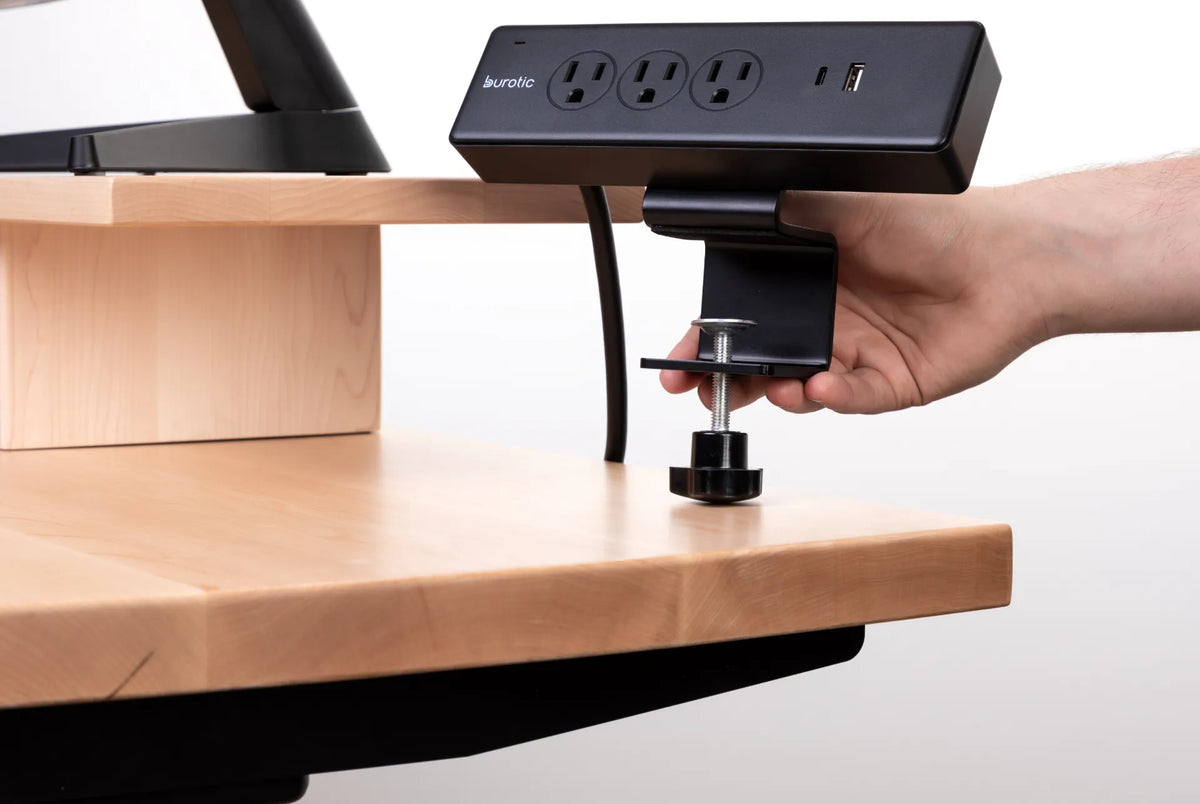
A practical method is to bring device cords to a power bar secured to the moving desktop or placed in an under-desk tray. Then only the power bar’s main cord must bridge the moving-to-fixed transition. This can simplify the path, but it does not change electrical ratings. Check every product’s instructions and capacity.
Add a controlled service loop
A service loop is a planned length of extra cable that opens as the desk rises and relaxes as it lowers. It should hang in a predictable path without touching sharp edges, wheels, feet or moving frame parts. It is not a coil squeezed tightly with several ties.
- Raise the desk to its highest intended working height.
- Route the cable along the planned path without tension.
- Add enough length to prevent strain at connectors.
- Lower the desk and observe where the extra length collects.
- Use broad reusable straps or guides to keep the loop controlled.
- Repeat the full-range test several times.
A cable management solution under the desktop can hold adapters and extra length while keeping the transition cord free to move. Avoid tightening ties so much that they crush cable jackets or lock the loop in place.
Move power bricks off the floor
A power brick on the floor can become the anchor that causes a laptop or monitor cable to pull. If the brick is designed to be supported and can be mounted safely according to its instructions, secure it in a tray or approved holder under the moving desktop. Keep ventilation openings clear.
Do not suspend a heavy adapter by its cable. The connector is not a structural support. If the cord from the brick to the outlet is the short section, use only an extension method permitted by the manufacturer and suitable for the electrical load.
Give monitor arms their own slack
A monitor arm adds movement beyond the desk’s vertical travel. Leave enough cable between the display and the first anchor point for height, depth, swivel and tilt adjustments. Route the cable through the arm’s guides if provided, but do not pull it tight between joints.
Move the screen through its full useful range before securing the last tie. Check that connectors are not carrying the load. If the arm returns to one daily position, preserve enough slack for adjustment without leaving a loop that can enter the arm mechanism.
Keep cables away from pinch and trip hazards
CCOHS recommends keeping cords away from sharp edges and moving parts. At a standing desk, inspect the lifting columns, crossbar, feet and any drawer hardware. A cable that looks clear at sitting height may contact the frame at standing height.
At floor level, route the final cord so people and chair casters do not cross it. Do not run it under a carpet where damage and heat can be hidden. If the wall outlet is far from the desk, reconsider the desk location or consult a qualified electrician instead of building a chain of extensions.
Why cables still pull after you add slack
The bundle is too rigid
Several cables tightly wrapped together behave like one stiff cable. Loosen the bundle near the moving transition and group only the sections that truly share a path.
The anchor point is wrong
If the first tie is on a fixed wall or cabinet, the cable must stretch between two systems. Move the desktop-side anchor onto the desk and preserve a free transition to the fixed outlet.
The cable is caught behind equipment
A cable may have enough total length but be trapped under a monitor base, shelf or computer. Trace it by hand with power disconnected rather than assuming visible slack is available.
The desk is travelling farther than before
A new memory preset, a different user or shoes can increase the highest working position. Test the maximum intended height, not only today’s usual preset.
A safe full-range test
Clear the area and have a direct view of the cable path. Move the desk in short increments. Watch the wall connection, the transition loop, the underside tray and each device connector. Stop immediately if a cable tightens, rubs, catches or lifts an adapter.
After one successful cycle, repeat it while moving monitor arms and checking peripherals. Then sit at the desk and confirm that no cable hangs where knees, feet or chair parts can reach it. Reinspect after moving the desk, changing equipment or adding a device.
Final checklist
- No damaged, crushed or hot cords.
- Device cables terminate in the moving zone where practical.
- One controlled transition reaches the fixed outlet.
- Connectors remain free of tension at maximum height.
- Power bricks are supported, not hanging by their cords.
- Cables remain clear of frame movement, sharp edges and floor traffic.
- The desk completes several slow full-range cycles without pulling.
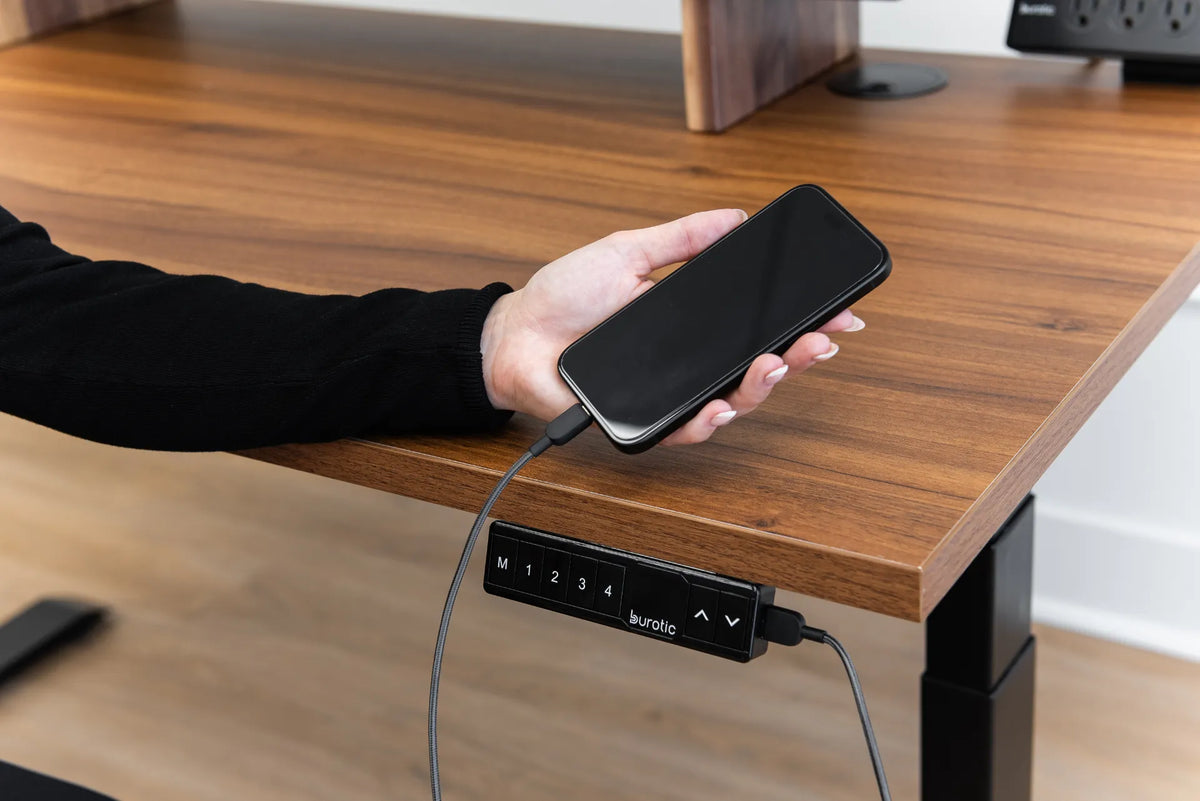
If the desk itself loses power or shows a control error, do not assume cable routing is the only cause. Follow the product manual and use the appropriate troubleshooting procedure. Our article about a standing desk controller that does not respond can help separate a control problem from a cable-path problem.

Previous article
What Size Desk Do You Need for Three Monitors?
Next article
How to Organize Desk Accessories Without Clutter