





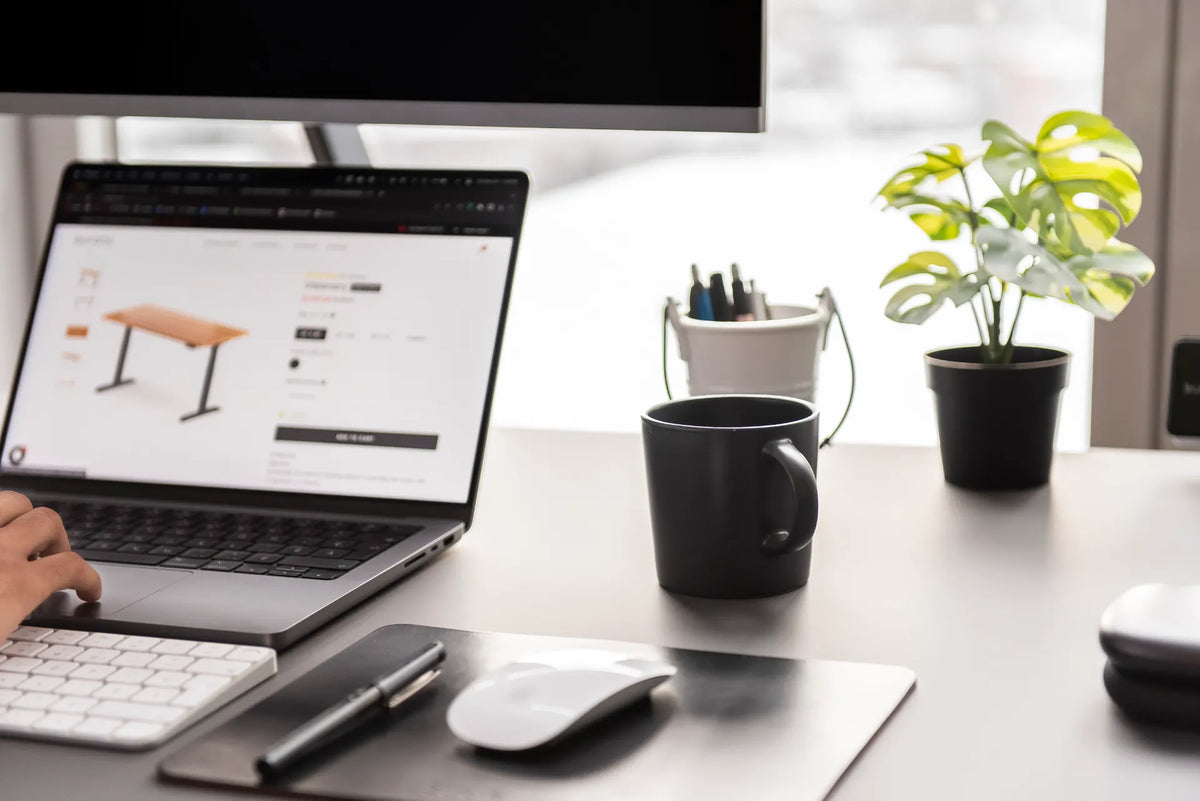
How to Organize Desk Accessories Without Clutter

In this article
Organize desk accessories by keeping only the tools used during the current workday within easy reach. Store occasional items nearby and remove anything that has no defined task. The goal is not an empty desk. It is a surface where the keyboard, mouse, notebook and primary task can work without constant rearranging.
This approach is more useful than buying containers first. A new organizer can make clutter look intentional while leaving too many objects in the work zone. Start with what you do, decide what each item supports, then choose storage that fits the remaining essentials.
This guide focuses on accessories on and around the desktop. For the inside of storage, see our desk drawer organization guide. For a very compact surface with no drawers, use our guide to organizing a small desk without drawers.
Clear the desk and define its jobs
Remove loose accessories, papers and decor, but leave installed equipment in place. List the jobs the desk must support: computer work, calls, handwriting, drawing, shipping, studying or another task. A single-purpose computer desk needs a different set of accessories from a surface that changes roles several times a day.
Define the minimum clear area for each job. A keyboard and mouse need an uninterrupted input zone. Handwriting needs room for paper and the movement of the forearm. Calls may need a notebook, headset and charging point. If the desk cannot support every job simultaneously, plan a quick transition rather than crowding all tools onto the surface.
Sort accessories into three groups
Keep on the desk
Keep an accessory visible when you use it many times a day, it needs a fixed position or storing it would interrupt work. Examples may include the keyboard, mouse, one writing tool, a current notebook, a headset stand or a charging point. Your list should reflect your work, not a generic checklist.
Store nearby
Put weekly or task-specific items in a drawer, cabinet, shelf or mobile caddy. A stapler, spare cables, tape, extra pens and reference documents often belong here. They remain available without occupying primary work space.
Remove or relocate
Discard empty packaging and obsolete notes according to your workplace’s records and recycling rules. Return dishes, move archived files and relocate duplicates. Personal decor can stay if it has a deliberate place and does not block the work area.
Use reach zones instead of visual symmetry
CCOHS advises placing items according to importance and frequency of use. The primary zone is the immediate reach area for the most frequent tools. A secondary zone can hold occasional items, while rarely used items belong farther away. The Government of Canada similarly recommends locating the most frequently used accessories closest to the user.
Sit or stand in your normal posture and sweep your forearms gently without leaning. That area is valuable. Reserve it for the keyboard, mouse and current task. Do not fill it with a pen cup, phone stand or decoration simply because those objects look balanced.
Our guide to desk reach zones explains the principle in detail. Use it to position accessories by movement cost rather than appearance.
Build one home for each category
Group accessories by function: writing, charging, audio, paper handling, cleaning and personal items. Give each category one defined home. A small tray for charging items works better than several cables spread around the desk. One pen cup can replace loose pens in multiple corners.
A category should not expand simply because its container has room. Set a practical limit, such as the number of pens you use in a week. Refill from stored supplies when needed. This prevents the organizer itself from becoming permanent overflow.
Protect the keyboard and mouse zone
The keyboard should stay directly in front of the main task and the mouse should remain close beside it. Avoid placing chargers, notebooks or decorative objects where they push the mouse farther out. Repeated reaching to the side can create an awkward working position.
If a large desk pad defines the input zone, keep unrelated accessories outside its active area. Do not treat every centimetre of the pad as storage. Leave enough mouse travel and a clear path for the hands.
Create a temporary paper zone
Paper becomes clutter when it has no next action. Keep only the document you are using in the main work zone. Give incoming paper one tray or folder and processed paper a separate destination. Set a regular time to empty both.
If you read or compare paper frequently, position it so you do not twist repeatedly between the document and screen. A document holder can help keep reference material closer to the display and reduce repeated changes in viewing direction.
Keep cables and charging accessories intentional
Choose one or two charging locations based on the devices actually used at the desk. Remove obsolete leads and label similar cables when confusion is likely. Route cords so they do not cross the mouse path, snag notebooks or hang into leg space.
Use a cable management solution when adapters and excess length need to move below the desktop. If outlets must stay accessible, a properly positioned power bar can reduce the number of cords travelling to the wall. Follow product instructions and electrical safety guidance.
Use vertical space carefully
A shelf or monitor stand can separate display equipment from small accessories, but it should not become a second layer of clutter. Keep ventilation, monitor controls and arm clamps clear. Do not stack objects where they can fall when a height-adjustable desk moves.
A monitor stand may provide space underneath for a keyboard or notebook when its height and depth fit the workstation. Evaluate the monitor position first. Storage is useful only if it does not force the screen too high.
Organize for transitions, not only for photographs
A desk can look perfect when unused and fail during real work. Test how quickly you can switch from typing to writing, join a call or clear the surface at the end of the day. If every transition requires moving several objects, the accessories are not organized around the workflow.
Use small portable groups for tasks that appear occasionally. A video-call caddy can hold a light remote, headset and notes. A paperwork tray can contain stamps and clips. Bring out the group for the task and return it afterward.
A ten-minute reset routine
- Return every tool to its assigned home.
- Move completed paper to filing, recycling or the next responsible person.
- Remove cups and food containers.
- Reconnect only the charging cables needed next.
- Wipe the open work surface according to material care instructions.
- Place tomorrow’s first task in the ready position.
A short repeatable reset is more sustainable than a major decluttering session every few months. If the desk becomes crowded again within days, the problem may be capacity or workflow rather than discipline. Reduce the number of categories kept on the surface or improve nearby storage.
Common organizing mistakes
- Buying organizers before deciding what needs storage.
- Keeping every spare item visible for convenience.
- Filling the immediate reach zone with decor.
- Using the desktop as an inbox with no processing routine.
- Letting chargers and cables cross the input area.
- Adding a shelf that raises the monitor beyond a comfortable position.
- Creating a system that takes too long to reset.
A practical final rule
Every accessory should earn its location through frequency, task value and fit. Daily tools stay closest. Occasional tools remain nearby. Duplicates, finished paper and inactive devices move elsewhere. Leave deliberate open space for the work itself.
The best organized desk is not the one with the fewest objects. It is the one that lets you begin, switch and finish tasks with minimal reaching and reshuffling. Start with the work, protect the primary zone and choose storage only after the essentials are clear.
Previous article
Why Do Standing Desk Cables Pull When the Desk Moves?
Next article
How High Should Your Monitor Be at a Standing Desk?