




Why Won't My Standing Desk Go Down?
If your standing desk rises but will not lower, the direction-specific symptom helps narrow the cause. Use this safe checklist to inspect obstacles, cables, control settings and reset status before contacting support.

In this article
A standing desk that goes up but will not go down is giving you a useful clue: the desk still has power and at least part of the control system is responding. The problem may be as simple as an obstruction below the desktop, a cable pulled tight, a saved lower limit or an unfinished reset. It can also point to a controller, sensor or lifting-column fault that should be handled by support.
The safest approach is to diagnose the symptom without forcing the desk. This guide focuses specifically on a desk that refuses to lower. If yours will not move in either direction, use Burotic's broader guide to a standing desk that will not move.
First, identify exactly what happens when you press down
Watch and listen once, without repeatedly pressing the control. The response usually falls into one of four patterns:
- Nothing happens: the display may be blank, lit or showing a code, but the desktop does not move.
- The desk starts and immediately stops: an obstruction, a taut cable or the anti-collision system may be involved.
- Only one side moves: stop using the desk. The lifting columns may be out of sync or a motor connection may be interrupted.
- The desk lowers only to a certain height: a lower limit, an object below the desk or the current reset state may be responsible.
Write down any message on the controller and, if possible, record a short video. Error codes and reset procedures are model-specific, so the exact display matters more than a generic internet fix.
Run the safe checks in this order
1. Clear the entire downward path
Look under both sides of the desk, not only beneath the centre. A chair arm, filing cabinet, under-desk treadmill, waste bin, window ledge or wall-mounted shelf can contact the moving desktop or frame. Even a soft object may trigger a collision sensor. Move the chair away and remove anything that could touch the desk as it lowers.
Check attached accessories too. A drawer, cable tray, power bar or computer mount can collide with the frame, a pedestal or another object at a particular height. The Canadian Centre for Occupational Health and Safety recommends arranging storage, cables and the general layout so they do not interfere with desk adjustment. That principle protects both movement and leg clearance.
2. Inspect cables without opening electrical components
Unplug the desk from the wall before touching connections. Follow each visible cable from the controller and lifting columns to the control box. Look for a connector that is partly seated, a cable pinched between metal parts or a lead stretched tight when the desk is high.
Reconnect only the user-accessible plugs described in the manufacturer's instructions. Do not open the control box, motor housing or controller. If you see damaged insulation, bent connector pins, heat discolouration or smell anything unusual, leave the desk unplugged and contact support.
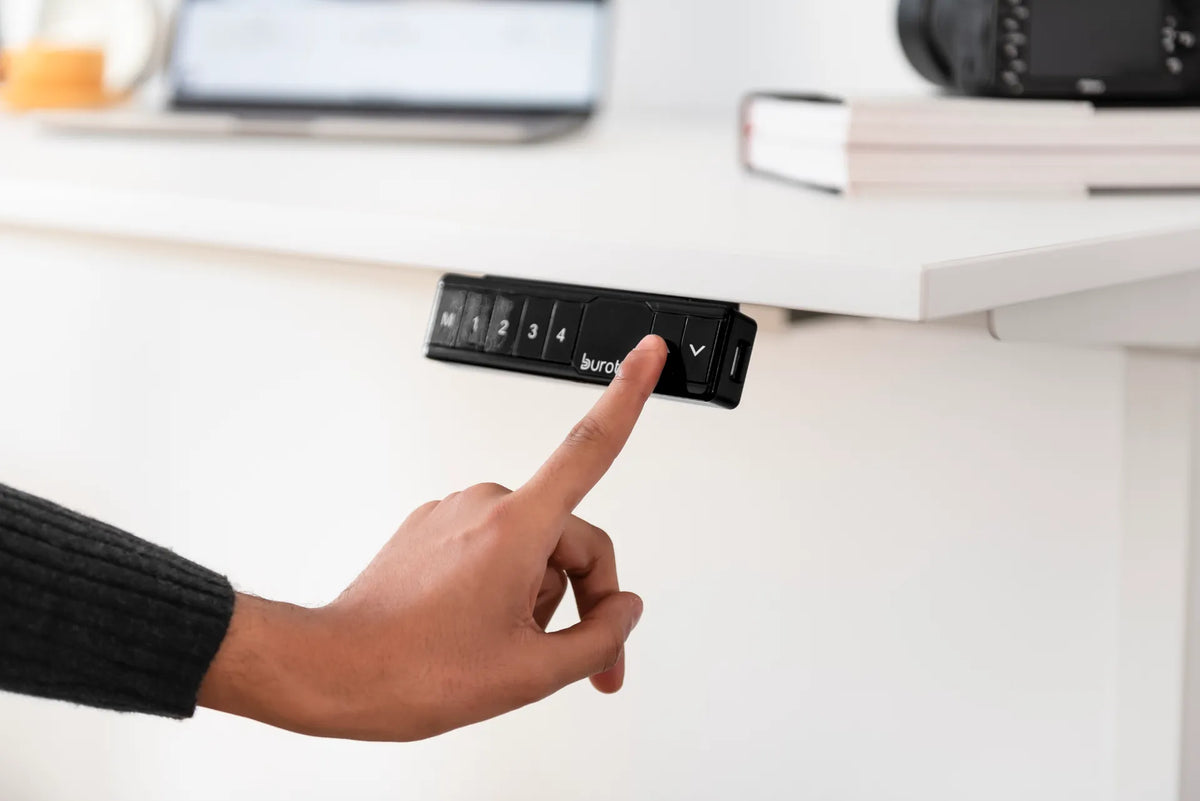
3. Check the controller state
A lit display does not always mean the keypad is ready for normal travel. Some controllers can be locked, can store upper or lower travel limits, or can enter a reset state after a power interruption. A lower limit can make the desk stop consistently at the same height even though nothing is physically in the way.
Use the manual for your exact frame and controller. Button combinations differ, and copying a sequence from another brand can change settings rather than solve the issue. Owners of the Burotic Aspire frame can follow the verified instructions in How to Reset an Aspire Standing Desk Base.
4. Reduce the load and remove unstable items
A desktop that is heavily or unevenly loaded can make a protection system more sensitive. Remove nonessential equipment temporarily, especially dense items near one edge. Keep the monitor and computer secure, and never hold or push the desktop while it is trying to move.
Do not treat unloading as permission to exceed the frame's published capacity later. Confirm the limit on the product page or manual for your model. Burotic's Aspire Standing Desk Frame page is the correct place to verify current specifications for that frame.
5. Power-cycle only as the manual directs
If the path is clear and the visible connections are secure, the manual may call for disconnecting power for a set period and then completing a reset. Follow the documented order precisely. During any reset, keep hands, feet, pets and loose cables clear of the moving frame.
A reset recalibrates position; it does not repair a damaged cable, motor or control box. If the desk is uneven, jerks, clicks, emits heat or moves one side only, stop before attempting repeated resets.
What the symptom can tell you
The display is blank
Start with the outlet, power bar if one is used, power adapter and control-box connection. Test the wall outlet with another device. If power reaches the system but the display remains blank, the controller or control box may require service.
The display works, but the down button does nothing
Check for a keypad lock, a stored lower limit and a controller plug that is not fully seated. If every other button responds, note that detail for support. A single unresponsive key can be a keypad issue rather than a lifting-frame problem.
The desk moves down a few centimetres and stops
Remove objects below and beside the desk, then inspect cables through the full visible travel path. A cable can appear loose at one height and become taut at another. If the desk stops at exactly the same height every time with a clear path, consult the manual for a lower-limit setting or error state.
The desk stops and rises slightly
That behaviour commonly resembles an anti-collision response. Look for contact, shifting loads and cables pulling against the frame. For a fuller explanation, see Why Does My Standing Desk Stop and Reverse?.
One leg moves but the other does not
Release the button immediately and unplug the desk. Continuing can twist the frame or desktop. Do not try to level it by pushing one side. Photograph the connections and contact the manufacturer or Burotic support with the model, error code and video.
When to stop troubleshooting
Basic checks should be quiet, external and reversible. Stop and request service if you notice:
- a burning smell, unusual heat, sparks or damaged wiring;
- grinding, repeated clicking or jerky movement;
- one lifting column moving independently;
- a visibly twisted frame or desktop;
- the same fault returning after the documented reset; or
- an error code that the manual directs to technical support.
Do not bypass sensors, splice cables or open powered components. General troubleshooting is not a substitute for the instructions and service process for your specific product.
Prevent the problem from returning
Leave slack in every cable at both sitting and standing height. Keep mobile furniture outside the lifting path, and check newly installed drawers or cable-management accessories through the desk's full travel before loading them. Move the desk only with objects secured and avoid repeated rapid cycles that may activate thermal protection.
It also helps to save a photo of the connections after assembly. If a plug is disturbed during a move, you can compare the setup without guessing.
The practical answer
If a standing desk goes up but not down, begin below the desk: clear the path, inspect accessible cables, identify the controller message and consult the exact manual before resetting. A consistent stop height suggests a limit or obstruction; a brief reversal suggests collision detection; one-sided movement or electrical warning signs require support.
For an Aspire setup, verify the frame information and use Burotic's model-specific reset guide. If the safe checks do not restore normal movement, contact support with the frame model, controller display, photos and a short video.


Previous article
Should an Under-Desk Drawer Go on the Left or Right?
Next article
Should an Under-Desk Drawer Go on the Left or Right?