


Should Dual Monitors Touch? How Much Gap to Leave Between Screens

In this article
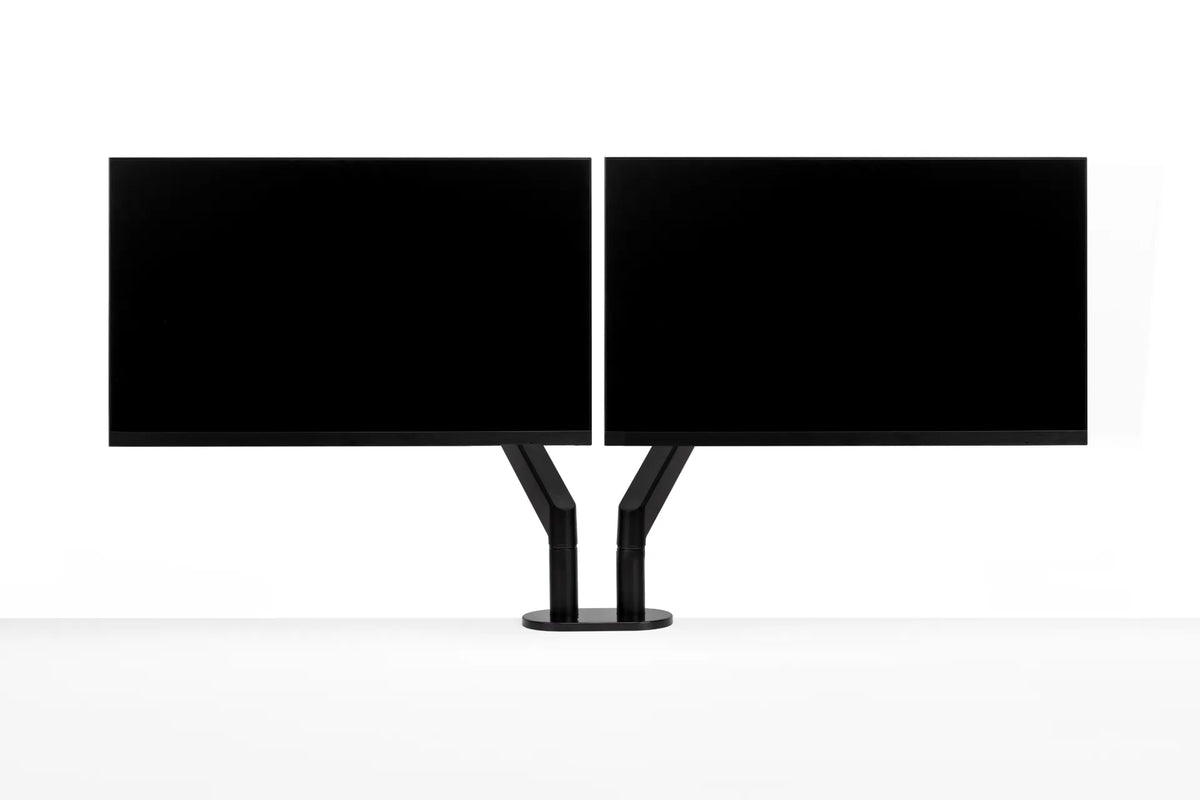
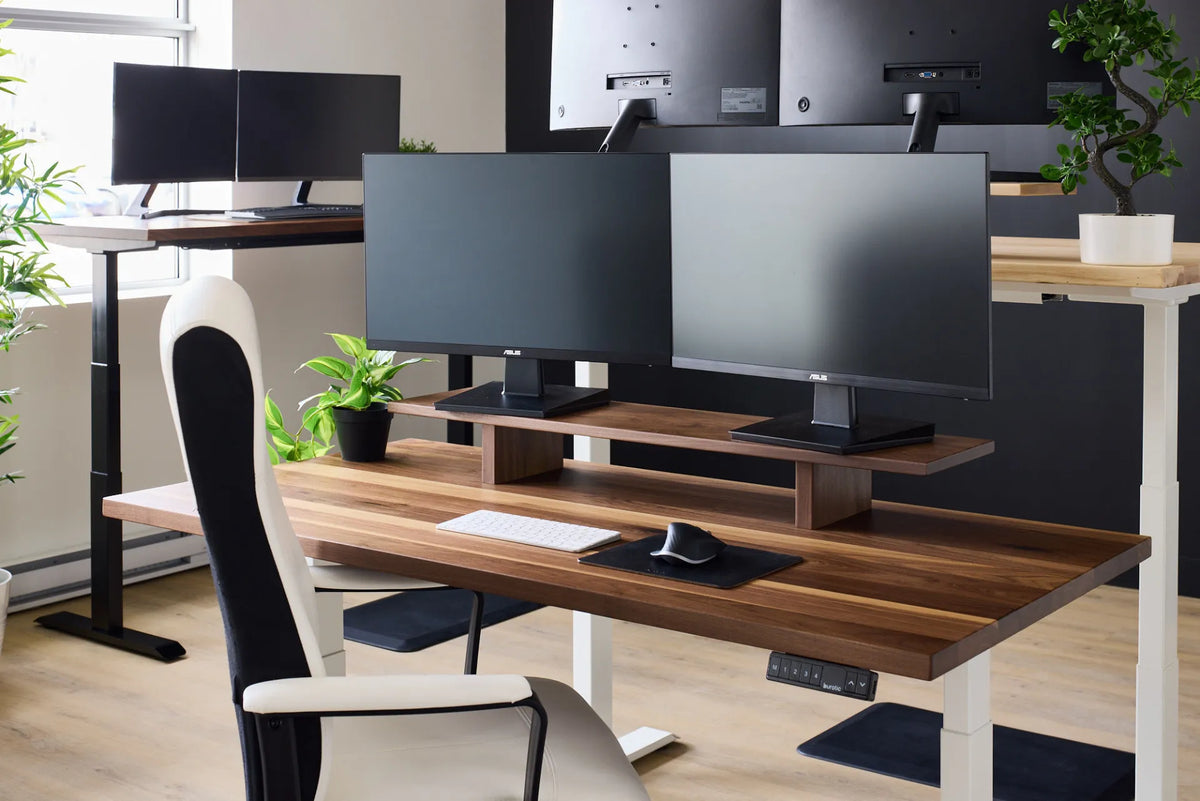
If you use two monitors about equally, their inner edges should usually touch or sit as close together as the stands and bezels allow. The goal is not physical contact for its own sake. It is to create one continuous visual field, reduce the empty strip between screens, and avoid unnecessary head movement. If one display is clearly primary, centre that monitor in front of you and bring the secondary screen close to its side at an inward angle.
The Canadian Centre for Occupational Health and Safety recommends placing equally used monitors with their edges touching and arranging them in a semicircle. That is a useful starting point, not a rigid measurement. Thick bezels, different screen sizes, curved panels, camera placement and the limits of a monitor stand can all justify a small gap.
Quick answer: how much gap should you leave?
Start with the smallest practical gap. For matching flat monitors used equally, that often means the bezels meet. If the screens or their housings would press against each other, leave a few millimetres of clearance. Contact should never force either monitor out of alignment or put pressure on the panel.
- Both monitors used equally: place the inner edges together, centre the seam in front of you and angle both screens slightly inward.
- One primary monitor: centre the primary screen on your body, then place the secondary screen close beside it and turn it toward you.
- One occasional reference screen: keep the primary screen centred. A slightly larger gap can be acceptable if the second display is used only for brief glances.
Do not measure the gap without considering the bezels. A visible centre break is the two bezels plus any open space between the housings. Two narrow-bezel screens can feel nearly continuous even with a tiny clearance, while broad bezels create a larger interruption even when the cases touch.
Why a large centre gap can be uncomfortable
A wide gap can encourage you to keep the head or eyes turned toward one side, especially when content spans both displays. It can also make the pointer and windows feel as though they disappear between screens. Bringing the inner edges closer reduces that break and makes it easier to compare documents, timelines or dashboards.
The gap is only one part of the setup. Two closely spaced monitors can still be uncomfortable if the full arrangement is too wide, too close, too high or not centred around the work you do. Screen position should follow your viewing pattern rather than perfect symmetry for its own sake.
Centre the screens according to how you work
When both monitors are used equally
Place the seam between the monitors directly in front of your nose. Turn the left and right displays inward by similar amounts so that each screen face is at roughly the same viewing distance. Think of the two displays as part of a shallow arc around you.
This arrangement lets you move between screens with relatively balanced eye and head movement. It works especially well for tasks split evenly between two applications. Matching monitor size can simplify the alignment, but it is not essential. If the displays differ, align the main content area rather than forcing the top or bottom housings to match. Burotic's guide to using dual monitors of the same or different sizes covers that decision in more detail.
When one monitor is primary
Put the primary monitor directly in front of you. Place the second monitor beside it with the inner edges close and turn the secondary screen inward. This keeps the application you use most in a neutral viewing position. It also avoids centring the seam when most of your attention belongs on one side.
If you spend a sustained period working on the secondary monitor, move the window to the primary screen or rotate your chair toward the secondary display. Avoid holding the neck turned for long blocks of time.
Set the angle before fine-tuning the gap
A pair of flat monitors usually works better as a shallow curve than as one perfectly flat wall. With the screens turned inward, the outer edges remain closer to the same viewing distance as the centre. The exact angle depends on the display width, desk depth and your position.
Sit in your normal working posture and look at the centre of each display. If one side feels noticeably farther away, adjust the angle or distance. Do not use an extreme V shape simply to eliminate the gap. A sharp angle can distort the relationship between windows and may occupy more desk depth.
Match height and distance
Align the displays so that equivalent areas sit at similar heights. For most office work, the upper portion of the viewing area should be around eye level or slightly below, while the screen remains low enough that you do not lift your chin. Individual needs vary, including for people who use progressive lenses.
CCOHS uses about an arm's length as an initial estimate for monitor distance, adjusted for the person, screen size and text. Both screens should normally sit at a similar distance. If one monitor is much closer, the eyes repeatedly change focus and the apparent sizes may differ.
For a complete alignment sequence, see How to Align Dual Monitors. That article covers screen height, primary-screen placement and viewing angles, while this guide focuses specifically on the centre gap.
When a small gap is the better choice
Different monitor housings
Some bezels protrude, vents require clearance, or controls sit on the inner edge. Do not block ventilation or press housings together. A narrow, even gap is preferable to contact that twists a display.
A camera or light between the screens
A webcam between monitors creates a natural gap. Keep it as narrow as the equipment allows and check that the camera does not force both screens too far from centre. If video meetings are secondary, mounting the camera above the primary display may preserve a better everyday layout.
Mixed sizes or orientations
A vertical secondary monitor may not meet a horizontal primary monitor along the full edge. Bring their useful content areas close and align the zones you look at most. A small physical gap is less important than avoiding repeated reaching or turning.
Can a dual monitor arm help?
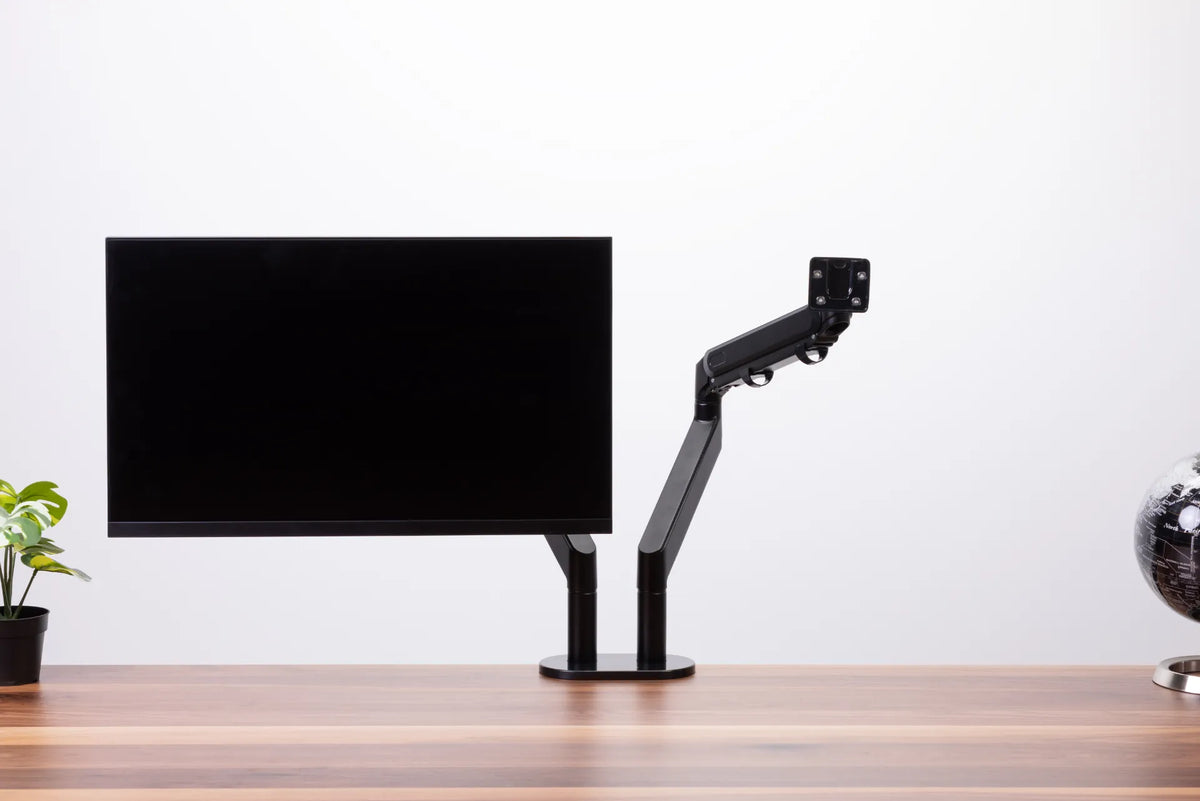
A compatible monitor arm can make the gap, angle, height and depth easier to adjust while clearing the factory stands from the desktop. Check the mounting pattern, supported screen size and weight, desk thickness, edge clearance and wall space before choosing an arm. The screens can fit visually while the arm joints still need room behind the desk.
After mounting, level one monitor first. Bring the second display beside it, match the height, set the angle and only then close the gap. Tighten the arm according to its instructions so the screens do not drift together or sag.
Common mistakes
- Leaving a large gap because two factory stands cannot move closer, even though the resulting layout forces more turning.
- Centring the seam when one screen carries almost all of the work.
- Pushing the housings together hard enough to tilt or stress them.
- Aligning the cases while the visible image areas remain at different heights.
- Moving the screens closer together but leaving the entire pair too far to one side.
- Ignoring desk depth and placing large screens too close to the eyes.
A five-minute setup test
- Sit squarely in your usual position with the keyboard and mouse centred.
- Decide whether one screen is primary or both are used equally.
- Centre the primary display, or centre the seam for equal use.
- Bring the inner edges together without pressure and angle the screens toward you.
- Match the useful viewing height and distance.
- Work normally for at least 20 minutes, then adjust one variable at a time.
A setup can also reveal that two monitors are not the best fit for the desk or task. Burotic's comparison of one monitor versus two monitors can help if you are deciding between display layouts.
Bottom line
For two equally used monitors, begin with the inner edges touching or nearly touching, the seam centred, and both displays forming a shallow arc. For a primary and secondary setup, centre the primary screen and place the second close beside it. The right gap is the smallest one that keeps the screens stable, ventilated and properly aligned. Comfort depends on the entire geometry, so confirm height, distance and angle rather than treating the centre gap as an isolated rule.
Previous article
Should Your Laptop Be on the Left or Right of Your Monitor?
Next article
What Should You Keep on Your Desk? A Practical Home Office Checklist