

Which Monitor Should Be Primary in a Dual-Monitor Setup?

In this article
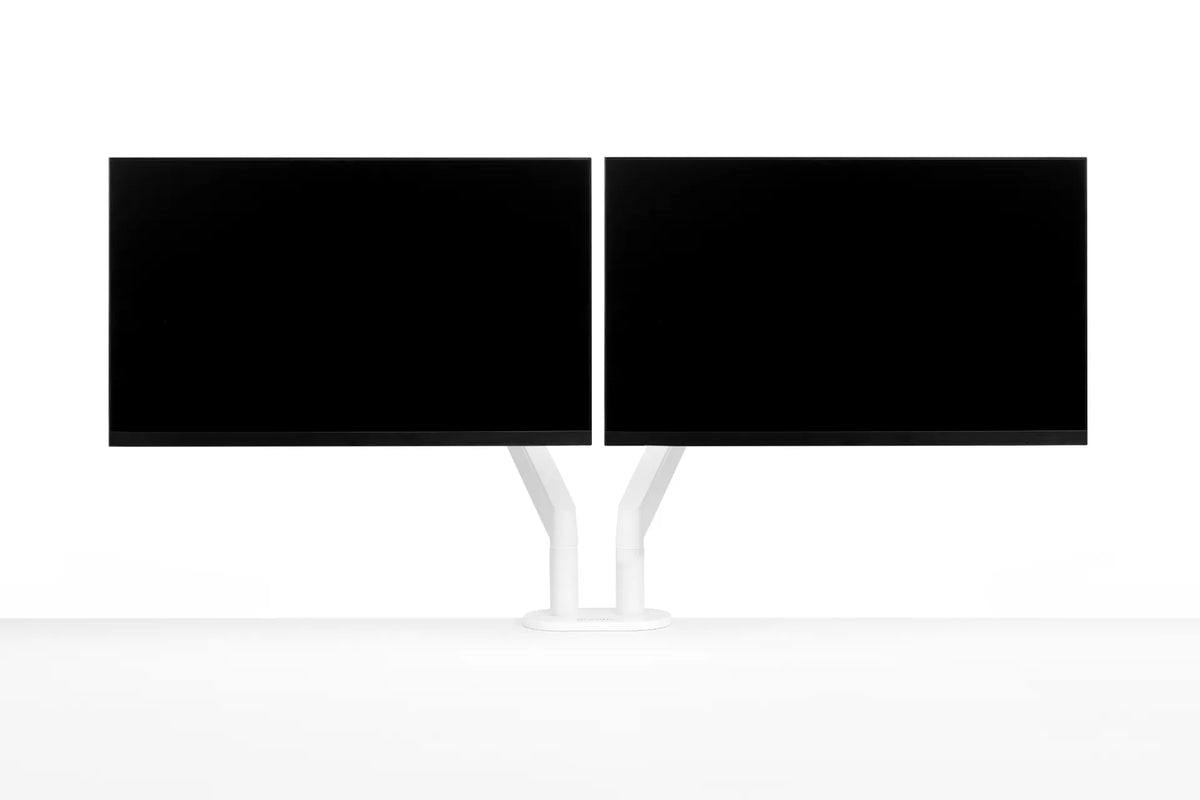
In a dual-monitor setup, your primary monitor should normally be the screen you use most often. Place it directly in front of your usual seated or standing position, with the keyboard and mouse centred to that screen. The secondary monitor can sit beside it and turn slightly toward you. If you use both screens equally, centre the pair as a unit and keep the inner edges close together.
That simple rule solves most layouts, but the best choice also depends on the work you do, how often you move between applications, screen size, resolution and whether one display is easier to read. This guide explains how to make the decision without turning a productive two-screen workstation into a source of repeated neck rotation.
What does a primary monitor actually mean?
Your operating system uses one display as the primary screen. It usually holds the main taskbar, dock, desktop icons and default location for new windows. Ergonomically, however, the more important definition is the screen that carries your main visual task. Those two meanings should usually match.
If your email opens on the official primary display but you spend six hours writing code, editing documents or working in a design application on the other screen, your body will naturally orient toward the screen that matters. In that case, change the software setting or rearrange the displays so the task screen is physically in front of you.
Put the most-used monitor directly in front
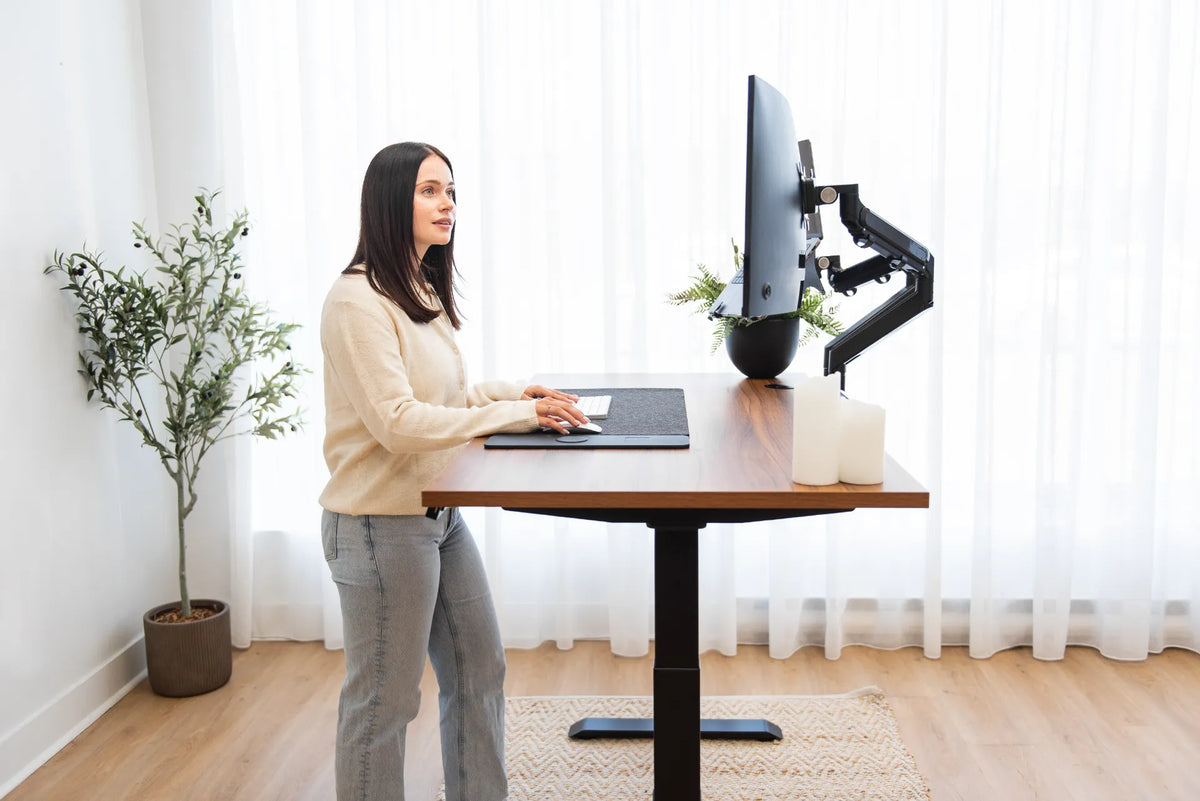
The Canadian Centre for Occupational Health and Safety recommends placing the monitor used most directly in front of the user. This reduces the need to hold the head turned for long periods. The centre of your chair, keyboard and primary display should form one line. When you look forward in a relaxed posture, the main content should be in front of you rather than off to one side.
Do not choose the primary monitor only because it is on the left or because that is how the desk was assembled. Choose it by measuring real use. For one or two workdays, notice which display holds the task that receives the most sustained attention. A calendar checked for a few seconds is different from a spreadsheet viewed for an hour.
Good primary-monitor candidates
- The screen used for writing, coding, analysis, design or other sustained work.
- The sharper or larger screen when text legibility matters.
- The screen that best supports your main application at its normal zoom level.
- The display used for most video calls if looking near the camera is important.
- The screen with the most stable position and least glare.
A secondary monitor is well suited to reference material, chat, email, a preview window, dashboards or tools that you consult intermittently. The goal is not to make the secondary screen unimportant. It is to reserve the most neutral viewing position for the work that occupies the most time.
What if you use both monitors equally?
If your attention is divided almost evenly, centre the two displays as one visual field. Bring their inner edges close together and place the seam directly in front of you. Angle both screens slightly inward so they form a shallow arc. This arrangement makes the left and right viewing angles more balanced.
CCOHS notes that equally used monitors can be placed directly in front with their edges touching. A small physical gap is not automatically a problem, but a wide gap makes your eyes and head travel farther. Keep the most relevant content near the inner edges rather than at the far outside corners.
Equal use does not mean every minute must be split perfectly. It means neither display dominates enough to justify placing it in the centre. If your work changes by project, you can also move the active application to the screen in front instead of rebuilding the hardware every day.
How to decide which screen should be primary
1. Rank tasks by time and concentration
List the applications you use and estimate how long you actively look at each one. Give more weight to sustained focus than to frequent but brief checks. A project manager may open chat dozens of times, yet still spend most concentrated time in a planning document. The planning screen is usually the better primary choice.
2. Compare the displays
If one monitor has clearer text, a more comfortable size, better contrast or fewer reflections, it may deserve the central position. Avoid making unverified assumptions about a screen based on marketing specifications alone. Use the resolution and scaling settings that let you read without leaning forward.
3. Consider input alignment
Your keyboard should support the task on the primary screen. If you centre the keyboard between both monitors while working mainly on the left display, your shoulders and head can point in different directions. Centre the letter keys, not the entire width of an extended keyboard, with the main screen and your torso.
4. Test for a full work session
Use the proposed layout for at least one representative session. Notice whether you keep twisting, slide the chair sideways, lean toward small text or lose the pointer between screens. These are useful signals that the layout or software arrangement needs adjustment.
Position the secondary monitor for quick reference
Place the secondary monitor immediately beside the primary screen and angle it toward your face. Keep both displays at a similar viewing distance when possible. CCOHS generally suggests a viewing distance around an arm's length, then adjusting for screen size, vision and task. A larger display may need more distance so the whole screen can be seen comfortably.
Keep the top portions of the screens at a similar height unless a specific visual need calls for another arrangement. If one monitor is substantially larger, align the useful viewing zones rather than forcing the physical bezels to match. The objective is a smooth eye movement without repeated nodding.
For more detail, see Burotic's guides to aligning dual monitors, choosing monitor distance by screen size and deciding whether dual monitors should touch.
Portrait monitors and unequal screen sizes
A portrait display can be useful for long documents, code or communication feeds, but its tall shape changes the viewing zone. If it is secondary, keep the content you consult most near eye level rather than at the very top or bottom. If portrait work is your main task, the portrait monitor can be primary and placed directly in front.
With unequal sizes, do not automatically give the largest screen priority. A large monitor showing occasional reference material may still be secondary. Choose according to attention, then set scaling so text appears reasonably consistent as you move between screens.
Use monitor arms to make the layout adjustable
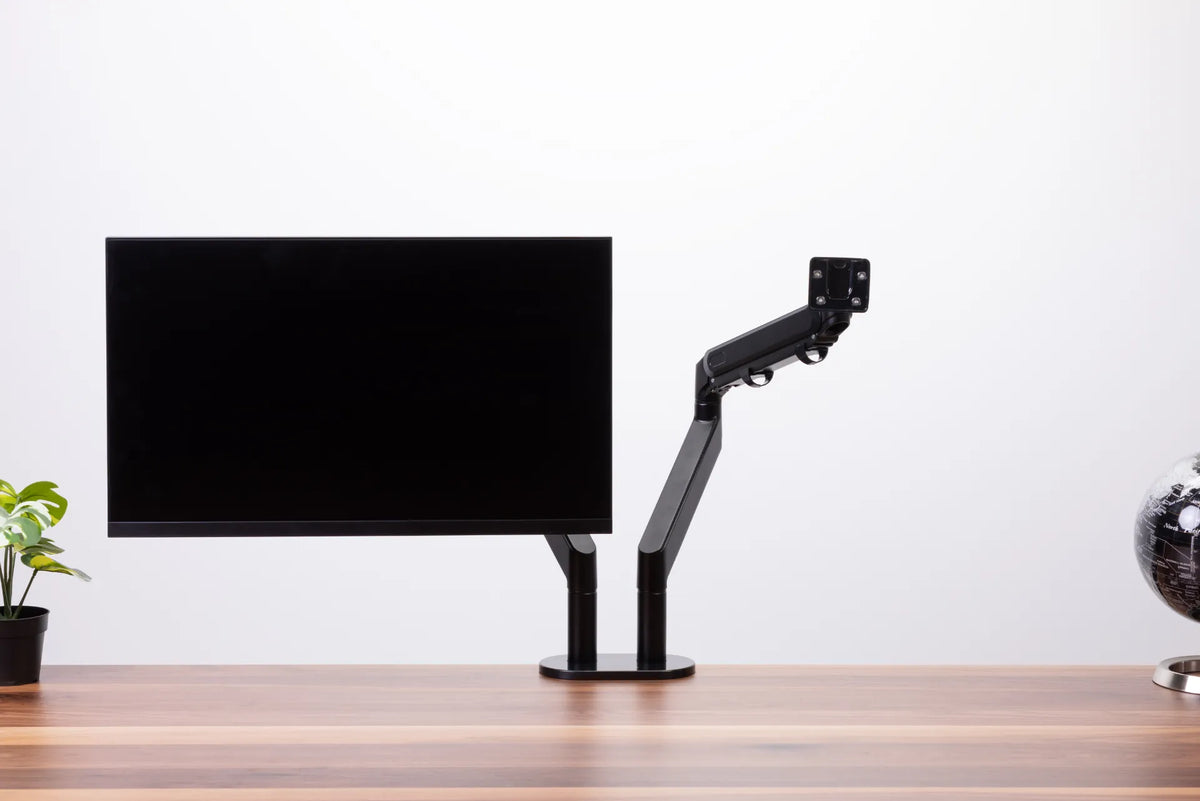
A monitor arm can free usable desk surface and make height, distance and angle changes easier. Before choosing one, confirm each monitor's mounting compatibility and weight against the product specifications. Burotic's monitor arm page provides the current product details, while the guide to single versus dual monitor arms explains the practical tradeoffs.
After mounting, tighten and balance the arm according to its instructions. Cables should have enough slack for adjustment without pulling, but should not hang where they can catch. Recheck alignment after changing between sitting and standing heights because a screen can shift slightly as an arm moves.
Common dual-monitor mistakes
- Keeping the primary screen off-centre: this encourages sustained rotation.
- Centred monitors but an off-centre keyboard: the hands and visual task should support the same body orientation.
- A secondary screen too far away: text becomes harder to read and users may lean or crane forward.
- Very different brightness: constant visual adaptation can feel tiring. Use comfortable, comparable settings for the room.
- Glare on the preferred screen: reposition the monitor or control the light rather than accepting a twisted posture.
- Never revisiting the choice: the correct primary display can change when your main task changes.
A five-minute setup check
- Sit or stand in your normal working position.
- Place the screen used for sustained work directly in front.
- Centre the keyboard's letter keys and mouse with that screen.
- Place the second monitor beside it, close the gap and angle it inward.
- Set a comfortable distance, then adjust text scaling instead of leaning.
- Open typical applications and confirm that main windows launch on the intended display.
- Work for 20 to 30 minutes and refine the angle or distance if you repeatedly turn or reach.
When to seek individual advice
Ergonomic guidance is general, not a medical diagnosis. Vision needs, progressive lenses, an existing injury or persistent discomfort may require an individual assessment from a qualified professional. If symptoms continue after reasonable workstation adjustments, speak with an appropriate health professional or workplace ergonomics specialist.
The practical answer
Make the monitor that receives the most sustained attention your primary display and place it directly in front of you. If both screens truly share the work, centre the pair and angle them inward. Align the keyboard, mouse and chair with the visual task, then test the arrangement during real work. The best dual-monitor layout is the one that keeps important information easy to see while minimizing repeated turning.
Previous article
How Much Weight Can a Monitor Arm Hold?
Next article
How Close Should You Stand to a Standing Desk?