






What Should You Keep on Your Desk for Daily Work?
Keep the tools you use every day within easy reach and move occasional items to a secondary zone, drawer or shelf. This practical guide helps you decide what deserves desktop space without turning minimalism into another rule.

In this article
Keep only the tools you use during most work sessions on your desk: your computer, keyboard and mouse, one current note-taking tool, necessary charging or connectivity equipment and any item required for your main task. Everything else should earn its place through frequent use.
The goal is not an empty desktop. It is a work surface where the next action is easy, the tools you reach for are close and cables or decorative objects do not block movement. A useful setup may look sparse or well-equipped depending on the job.
Start with three reach zones
The Canadian Centre for Occupational Health and Safety describes primary, secondary and tertiary reach zones. The primary zone is for the items used most frequently. The secondary zone is within arm's reach for occasional tools. The tertiary zone requires more forward reach and is better for rarely used items.
Use those zones instead of asking whether an object is attractive enough to stay:
- Primary zone: keyboard, mouse, pen, current notebook or task tool.
- Secondary zone: phone stand, calculator, reference material or charging dock used during the day.
- Tertiary zone or off the desk: spare cables, archived papers, extra stationery, packaging and decorative items you do not interact with.
This approach reduces repeated reaching without forcing every worker into the same layout.
The core items most desks need
Computer and display
Keep the main screen directly in front of you when it is your primary display. A laptop used for long periods may need an external keyboard and mouse so the screen and input devices can be positioned separately. The exact setup depends on your equipment, but the screen should not require repeated neck twisting or a lifted chin.
Keyboard and pointing device
The keyboard and mouse need a clear, continuous area. Keep them close enough that your upper arms can remain near your body. Avoid filling the space between you and the input devices with notebooks, phones or cups that force you to reach.
One active capture tool
A notebook, notepad or tablet can stay on the desk when you use it daily. Choose one active location rather than creating several paper piles. Store completed notes, extra pads and reference documents elsewhere.
Required power and connectivity
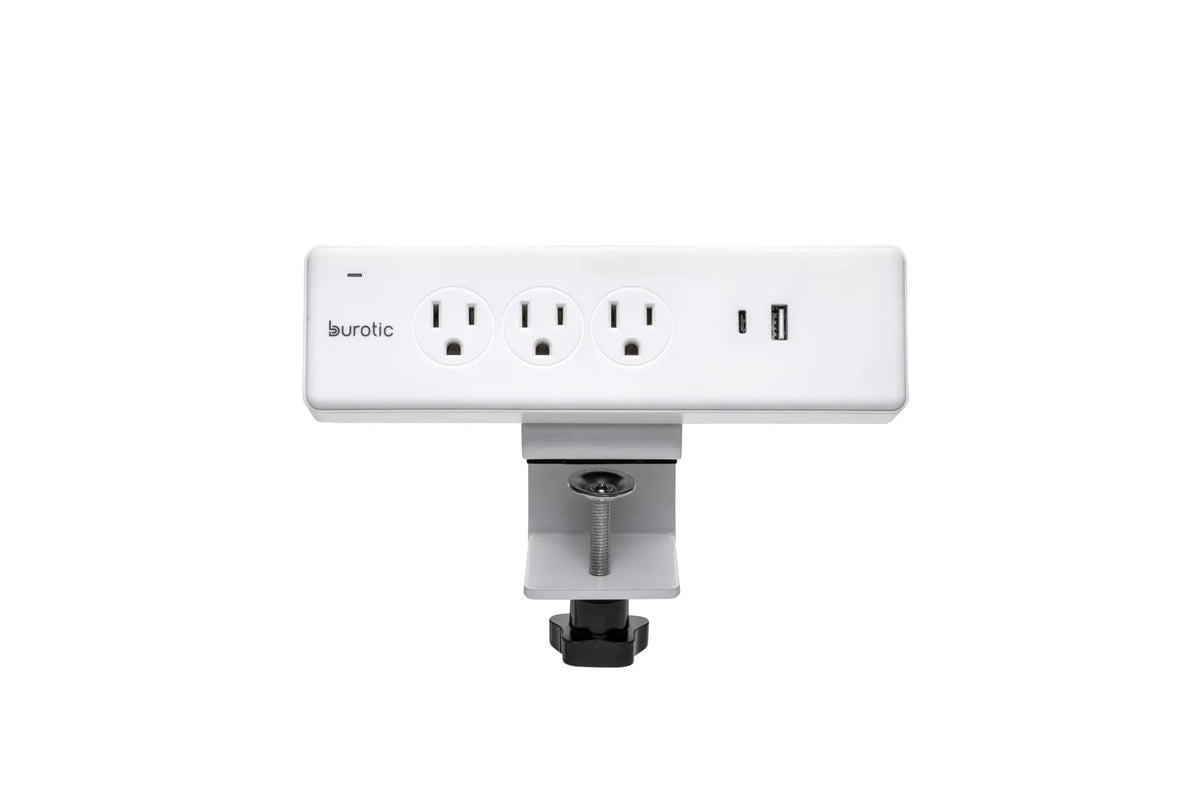
Keep only the chargers, dock or hub needed for the current setup. Route cables so they do not cross the writing area or pull when a height-adjustable desk moves. A mounted power bar or cable tray can move connections away from the main work surface.
Optional items that should solve a real problem
Desk pad
A desk pad can define the input area, provide a consistent mouse surface and protect part of the desktop. It is optional. Choose one that leaves room for your normal hand movements and does not make the keyboard or mouse unstable. The Burotic Wireless Charging Desk Pad combines a work surface with a charging area for compatible devices, but the charging feature only deserves desk space if you will use it.
Phone stand or charging spot
Keep the phone visible only when it serves the work, such as authentication, calls or testing. Otherwise, placing it in a drawer or outside the primary zone can reduce visual interruptions. Give it one consistent location so it does not migrate into the mouse area.
Document holder
If you regularly copy from paper, a document holder can position the page closer to the screen and reduce repeated head movement. If paper review is rare, store the holder when it is not needed.
Light
A task light can help when general lighting is not enough, but its base and beam need planning. Keep it out of the screen's reflection path and away from the area where hands, papers and cables move.
Water
Hydration is useful, but liquids and electronics are a poor combination. Use a stable, closed container when possible and place it outside the main input area, away from power connections and the edge where it can be knocked over.
What should usually leave the desktop?
Move these items unless they are actively required:
- Old receipts, completed notes and unopened mail
- Duplicate pens and large collections of stationery
- Spare adapters, cables and chargers
- Product packaging and instruction sheets
- Personal items that crowd the keyboard or block the screen
- Food containers and open drinks near electronics
- Equipment for a different task or project
For a deeper reset, follow our guide to organizing a home office desk. If accessories are the main source of clutter, use the more focused desk accessory organization guide.
How to decide whether an item stays
Ask five questions:
- Did I use this item during at least three of my last five work sessions?
- Does it support the task I perform most often?
- Can I reach it without leaning or twisting?
- Does it interfere with input devices, screen placement or cable movement?
- Is there a better home for it within easy reach?
An item that fails the first two questions should usually move off the desk. An item that fails the third or fourth needs a different position even if it is essential.
Build a desk around the work, not a generic checklist
A designer may need a drawing tablet in the primary zone. An accountant may need a calculator and reference documents. A customer service worker may require a headset and phone control. A writer may value a large blank area beside the keyboard. The correct list comes from the task sequence.
The Government of Canada's ergonomics guidance recommends minimizing reach distances and changing the workstation to reduce awkward postures. That principle matters more than copying a photographed desk item for item.
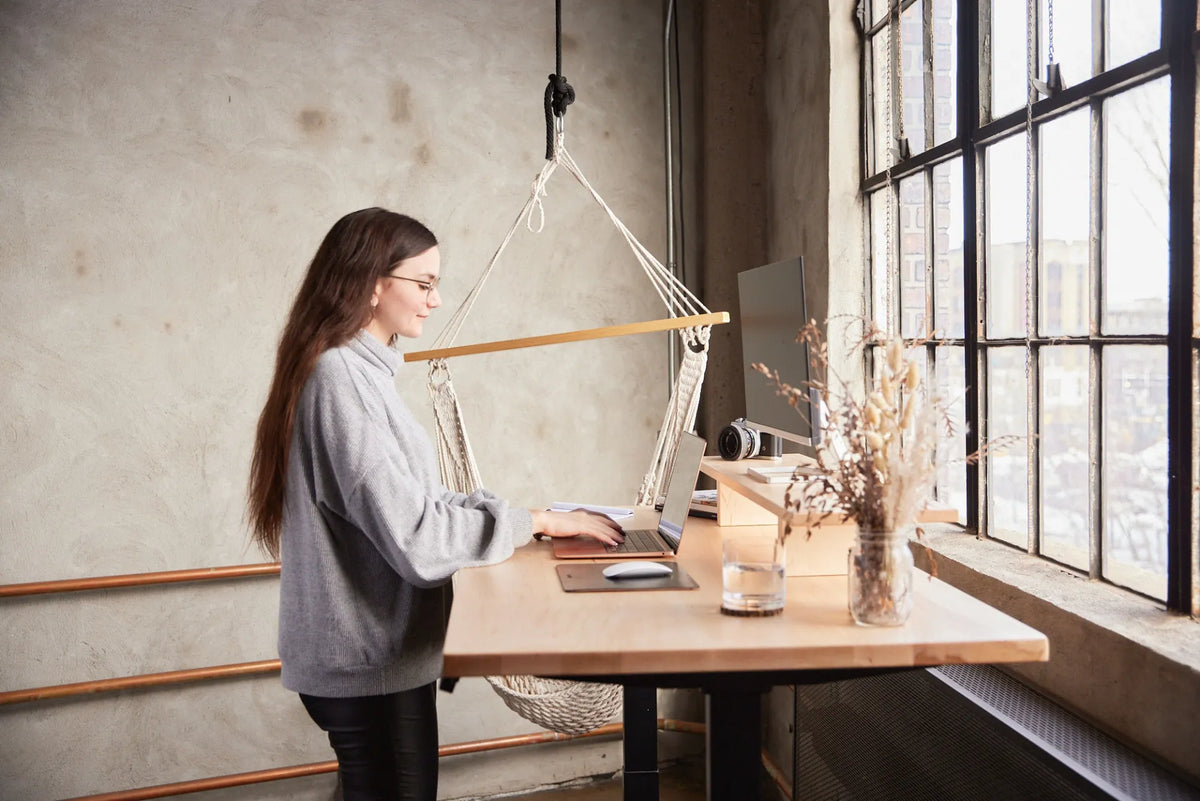
Special considerations for a standing desk
Every object must remain stable through the desk's full travel. Before saving height presets:
- Check that wall shelves, window sills and chair arms cannot collide with the desktop.
- Give each cable enough slack at both height limits.
- Keep tall or fragile objects away from the edge.
- Make sure a mug, plant or lamp cannot catch on a fixed object.
- Keep the controller visible and unobstructed.
If the desk is small, our guide to organizing a small desk without drawers offers storage options that preserve the work surface.
A five-minute setup that lasts
At the start of the week
Remove everything that is not connected to the week's work. Wipe the surface, reconnect only required equipment and test sitting and standing positions.
At the end of each day
Return the pen and notebook to their assigned place, clear cups and paper, connect devices that need charging and leave the keyboard area ready for the next session. The reset should take less than two minutes.
Once a month
Review what has become permanent without being useful. Seasonal projects, new equipment and changing work habits can make yesterday's ideal layout less effective.
Bottom line
Keep daily tools close, occasional tools within arm's reach and everything else off the main surface. A good desk is not defined by the number of accessories it holds. It is defined by how little friction stands between you and the work.
Previous article
Can You Put an All-in-One Computer on a Monitor Riser?
Next article
Can You Put an All-in-One Computer on a Monitor Riser?