

How Close Should Your Office Chair Be to Your Desk?

In this article
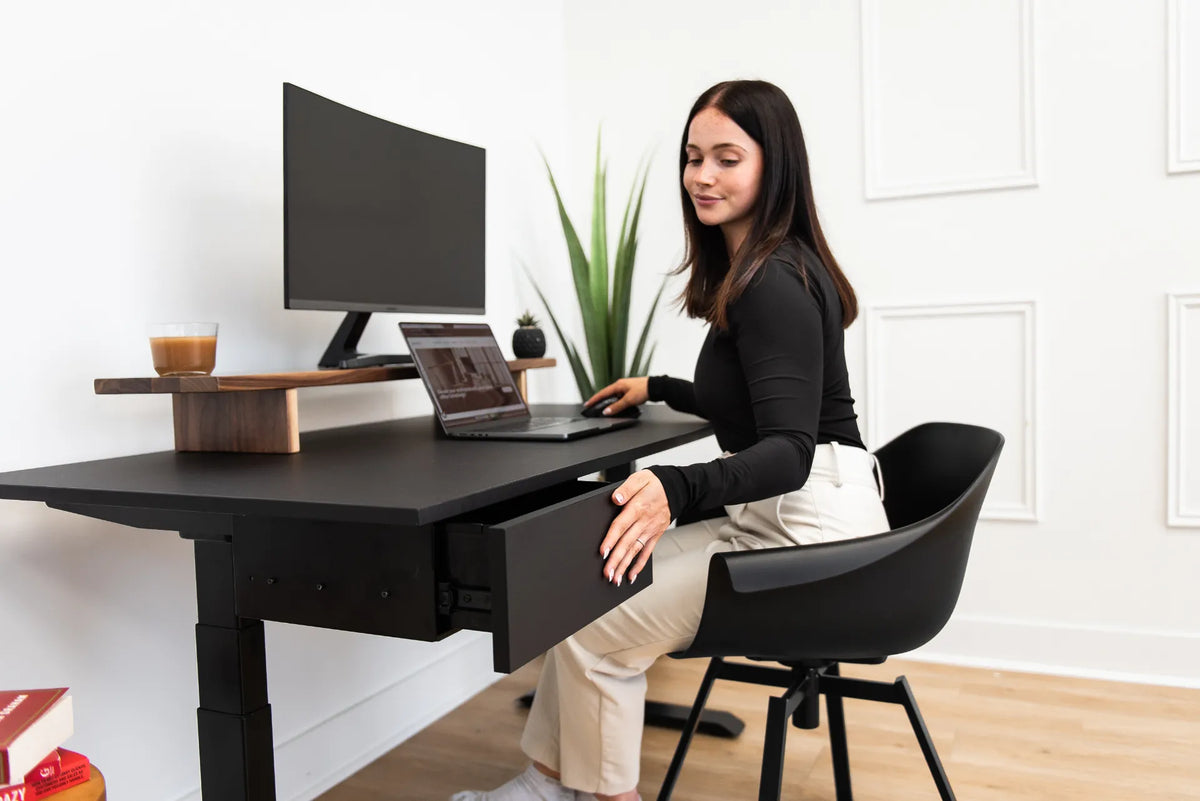
How close should your office chair be to your desk? Close enough that you can sit fully back in the chair, keep the upper arms near your sides and reach the keyboard and mouse without leaning forward. There is no universal number of centimetres because desk edges, armrests, body dimensions and input devices vary. The right distance is the one that lets the chair support you while the work comes within easy reach.
If you sit too far away, the head and torso tend to move forward and the shoulders reach. If you sit too close, the desk edge, drawer or armrests may block the legs or force the shoulders back. The solution is to coordinate chair position, desk height and device placement rather than measuring a gap in isolation.
Quick answer: bring the work close, not your torso forward
Sit all the way back so the backrest supports the lower back. Roll the chair forward until the keyboard can be reached with the elbows close to the body and the shoulders relaxed. The forearms should reach the input devices without stretching, and there should still be clear space for the thighs, knees and feet.
The front of your torso may be near the desk edge, but it should not be pressed against it. Depending on the chair and desk, the armrests may slide partly under the work surface or stop just in front of it. The critical test is whether you can stay supported by the backrest while working.
Why chair-to-desk distance matters
Too far away encourages reaching
When the keyboard and mouse are beyond comfortable reach, people often leave the backrest and move the head and shoulders toward the desk. That removes support from the chair and increases the distance the arms must travel. Over time, the posture can feel tiring even when the chair itself is well adjusted.
The Government of Canada's ergonomics guidance recommends arranging the workstation so the keyboard and mouse sit just below elbow height and close enough to maintain neutral wrists and relaxed shoulders. Distance and height work together. A keyboard that is close but too high can still raise the shoulders; one at the correct height but too far away can still cause reaching.
Too close can reduce clearance
Moving closer is not always better. A thick desk edge, centre drawer, keyboard tray or low work surface can contact the thighs. Armrests may strike the desk and prevent the chair from moving forward. The CCHST notes that armrests should not interfere with access to the workstation. If they do, adjust or lower them when possible rather than abandoning the backrest.
How to find the right distance in six steps
1. Adjust the chair before moving toward the desk
Place both feet on the floor or a stable footrest. Set the seat so the thighs are supported without pressure behind the knees. Adjust the backrest and lumbar support so you can sit against them comfortably. Do not begin by pulling forward to meet a poorly placed keyboard.
2. Set the desk or chair height
The keyboard and mouse should sit around or slightly below elbow height. With a height-adjustable desk, bring the work surface to the seated position. With a fixed desk, adjust the chair to the input height and add a footrest if the feet no longer reach the floor. See how desk height should relate to chair height for the full sequence.
3. Sit against the backrest
Let the chair support your back before assessing reach. If you measure from a perched position, the workstation may appear correctly placed even though you cannot maintain that position comfortably. Keep the head over the torso and let the shoulders settle.
4. Roll forward until the elbows stay near your sides
Bring the chair closer while keeping the back against the backrest. Bend the elbows comfortably and check whether the hands land on the keyboard. You should not have to straighten the elbows fully or move the shoulders forward. The mouse should be beside the keyboard, not beyond a wide area of unused desk.
5. Check under-desk clearance
Make sure the thighs do not touch a drawer or the underside of the work surface. The knees should move freely, and the feet should have space to change position. Remove stored boxes, computer towers or loose items from the leg area. If a drawer reduces clearance, consider repositioning it rather than lowering the chair below the correct input height.
6. Test normal work
Type, use the mouse and switch between common tools. Watch for leaning, reaching, shrugging or repeated contact between armrests and desk. Small changes in keyboard position can matter. A centred keyboard placed near the front of the desk often improves the relationship without moving the entire chair.
Should armrests go under the desk?
They can, but they do not have to. If armrests slide under the work surface without lifting the shoulders or contacting the desk, that can help the chair move close enough. If they stop against the desk, they should still allow the hands to reach the input devices while the back remains supported.
Lower armrests that force you away from the workstation. If they are adjustable, set them to barely support relaxed elbows and confirm that they do not push the shoulders upward. Our guide to office chair armrest height explains the adjustment and when an armrest may be interfering.
Where should the keyboard and mouse be?
Place the keyboard close enough that the elbows remain near the torso. Centre the keys you use, which may mean centring the letter section rather than the entire keyboard with its number pad. Keep the mouse directly beside the keyboard at the same level. Reaching around a wide keyboard can make the chair appear too far from the desk when the real problem is lateral device placement.
Use the checks in Proper Keyboard and Hand Placement for Desk Work. A neutral wrist line, relaxed shoulders and close elbows are more reliable than a fixed distance between the chair and desk.
What if the chair will not move close enough?
Armrests hit the desk
Lower or reposition the armrests if the chair allows it. If they are fixed and block access, check whether the chair suits the desk height and edge design. Do not raise the chair solely to clear the armrests if that makes the keyboard too low or leaves the feet unsupported.
A drawer contacts the thighs
A centre drawer can reduce both vertical and forward clearance. Reposition the drawer to one side when the hardware and desk design permit, or choose a shallower storage solution. OSHA workstation guidance specifically notes that a central pencil drawer may need to be removed when it prevents correct chair height.
The desk is too high or too low
A fixed desk that is too high may require a higher chair plus a footrest. A desk that is too low may not provide enough thigh clearance at the correct chair height. A height-adjustable desk can solve the mismatch by bringing the surface to the seated elbow position instead of making the body adapt.
The chair is too deep
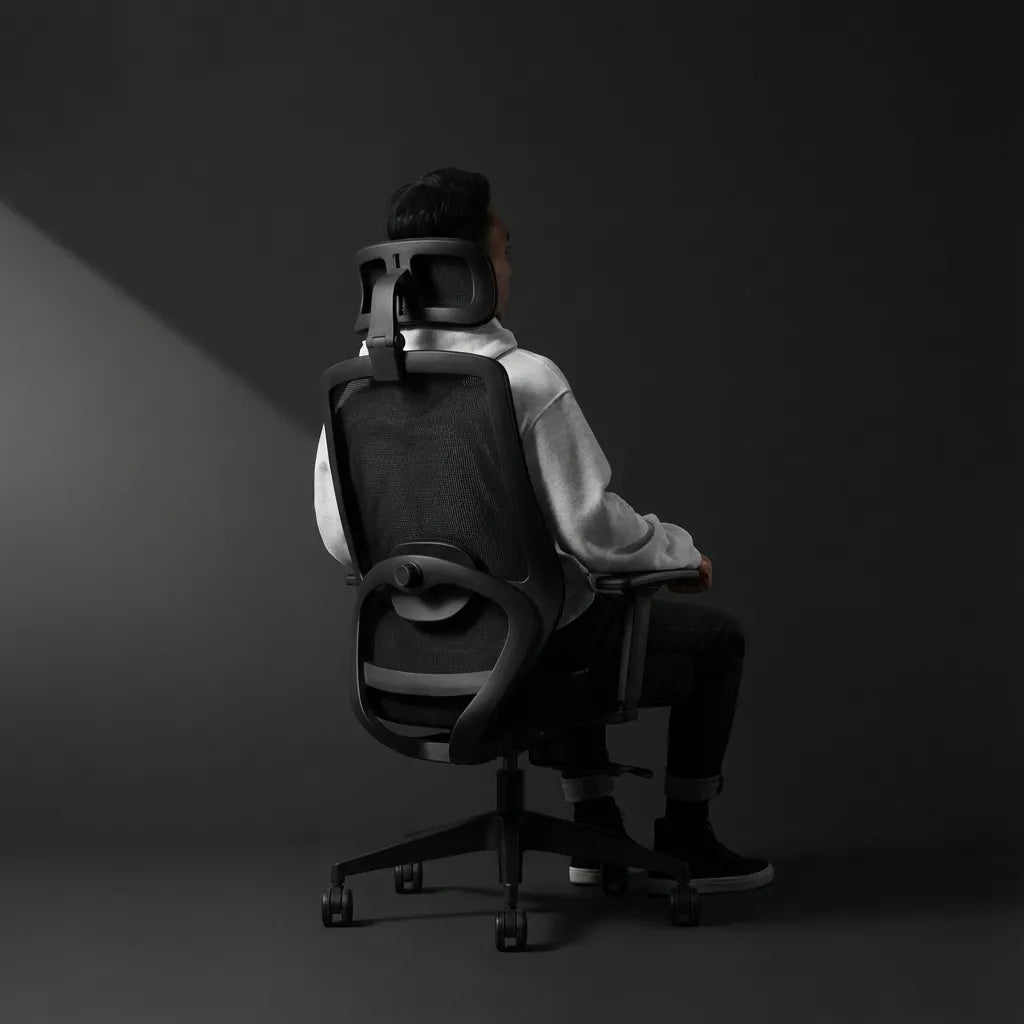
If the seat pan is too deep, you may not be able to use the backrest while keeping space behind the knees. That makes every desk distance feel wrong. Adjust seat depth when available or choose a chair that fits your body. A well-fitting model such as the Loop Ergonomic Chair should still be evaluated through its current dimensions and adjustments for the intended user.
Do not forget the monitor
After moving closer, recheck screen distance. The display should be readable without leaning or pulling the head forward. If the monitor becomes too close, move it back on the desk or adjust its arm. Do not roll the chair away from the keyboard just to create screen distance; position the monitor independently.
A practical self-check
- Your back remains in contact with the backrest during typing.
- Your shoulders are relaxed rather than reaching forward.
- Your elbows stay close to the body.
- Your wrists remain in line with the forearms.
- Your thighs, knees and feet have clear space.
- The armrests do not block access to the work.
- The monitor remains readable from the resulting position.
Final answer
Your office chair should be close enough to the desk that you can remain fully supported by the backrest while reaching the keyboard and mouse with relaxed shoulders and elbows near your sides. There is no single correct gap. Use posture and clearance as the test.
Adjust the chair first, match the desk to seated elbow height, then move forward until the input devices are within easy reach. If a drawer, armrest or thick desk edge blocks that position, fix the interference rather than sitting forward all day. Persistent discomfort should be assessed by a qualified ergonomics or health professional.
Previous article
Should Your Elbows Be at 90 Degrees at a Standing Desk?
Next article
Should Your Elbows Be at 90 Degrees at a Standing Desk?