

Should Your Office Chair Be Centred With Your Monitor?

In this article
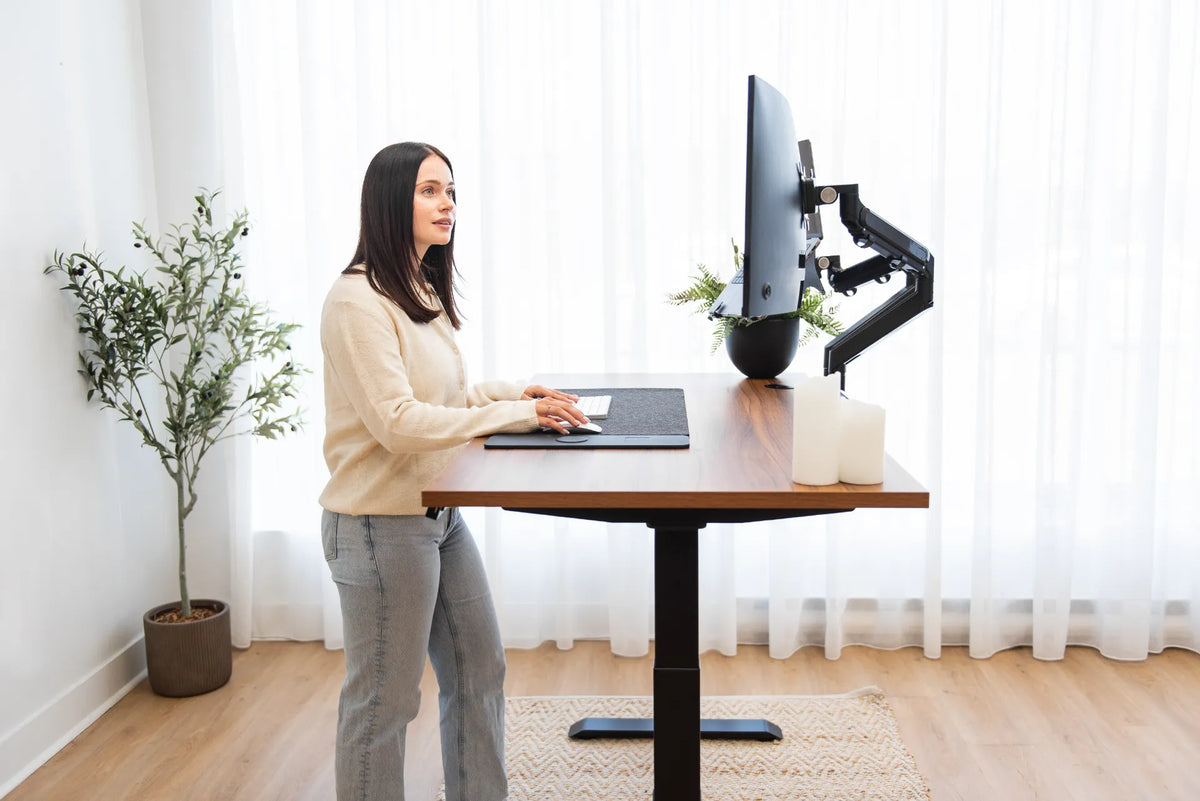
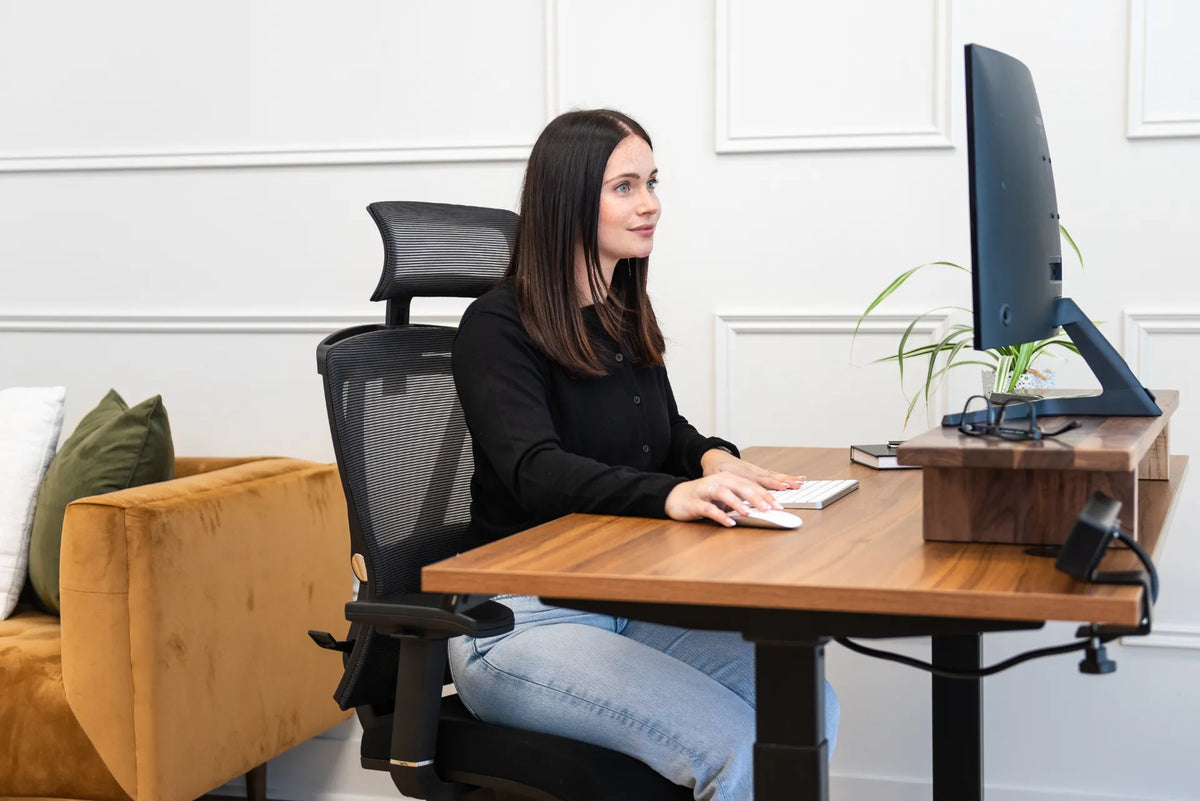
For most computer work, your office chair should be centred with the keyboard and primary monitor, not necessarily with the geometric centre of the desk. The goal is to let your head, neck and torso face the main screen while your hands reach the keyboard and mouse without twisting.
A desk can be visually symmetrical while the working position is not. A monitor may be pushed to one side by a laptop, filing cabinet, return surface or window. If the chair remains centred on the furniture instead of the task, you may spend hours rotating the neck or reaching across the body.
Quick answer
Use one centreline for the parts you use most:
- Centre your body in the chair.
- Place the keyboard directly in front of your body.
- Place the primary monitor directly behind the keyboard.
- Keep the mouse immediately beside the keyboard.
- Adjust the chair and screen height without changing that horizontal alignment.
The centreline can sit left or right of the desk's midpoint. What matters is alignment with the primary task.
Why alignment matters
OSHA identifies prolonged head and neck rotation as a source of uneven muscular loading and recommends placing the monitor directly in front of the user. It advises keeping screens within about 35 degrees to either side. CCOHS describes the optimum side-to-side viewing area as directly in front, about 15 degrees to either side, with 35 degrees as a maximum.
These figures are setup guides, not a medical diagnosis. The practical test is whether you can look at the main content with your nose, breastbone and navel generally facing forward, without holding the neck or torso in rotation.
Centre the task, not the furniture
Rectangular desk
On a simple rectangular desk, the task centre often matches the desk centre. Place the chair, keyboard and screen along that line, then distribute less-used objects to the sides.
Desk with drawers or a pedestal
A drawer unit may reduce legroom on one side. Shift the entire workstation centreline into the clear knee space rather than centring the chair between the outside edges of the desktop. The monitor and keyboard should move with the chair.
L-shaped or corner desk
Choose the surface that supports the main task. If you work primarily on the long straight section, align there. If you work in the corner, make sure the keyboard and monitor can follow the same line without forcing the wrists outward or placing the screen too far away.
Standing desk
The same horizontal alignment applies while standing. Marking a small reference point under the keyboard can help you return the chair and input devices to the same centre after switching positions.
Set the chair first
Before moving the monitor, adjust the chair to your body and the working height. Sit fully back, support the feet, and keep the shoulders relaxed. The seat should let you approach the desk without the armrests or thighs colliding with it.
Then roll the chair into the location where the keyboard can sit directly in front of you. Burotic's guide to chair distance from the desk covers the front-to-back position. Horizontal centring is a separate decision.
Align the keyboard and mouse
The keyboard should follow the centre of your body, usually with the main typing area in front of you. On a full-size keyboard, the entire case may look shifted because the number pad sits to the right. Do not centre the outer shell if that moves the letter keys away from your body.
Place the mouse immediately beside the keyboard at the same working height. If the mouse requires a wide reach, consider a compact keyboard or move the task zone slightly so both tools fit comfortably. Avoid placing the monitor over one centreline and the keyboard over another.
Place the primary monitor
With the chair and keyboard set, place the main screen directly behind the keyboard. CCOHS recommends a viewing distance that can be adjusted to the individual and task, often around an arm's length as an initial estimate. The screen should be readable without leaning forward.
Use the guide to centring a monitor on the desk for screen-specific steps. Remember that centring on the user may place the monitor away from the physical middle of an asymmetrical desk.
What about two monitors?
One primary screen
Place the primary monitor directly in front of the chair and keyboard. Put the secondary screen beside it and angle it inward. This keeps the most frequent viewing direction neutral.
Two screens used equally
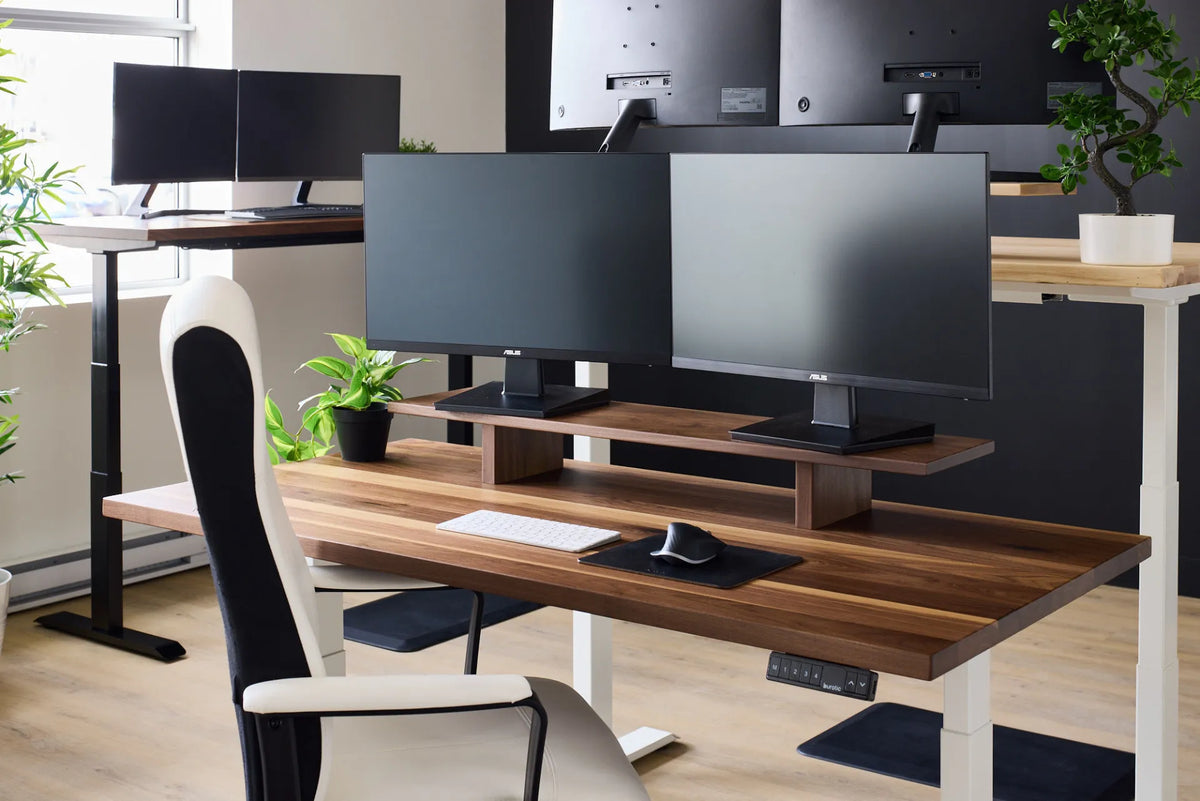
Place the inner edges near the centreline and angle the displays into a shallow arc. Your nose points approximately toward the meeting point. You will still turn slightly, but the movement is shared between both sides.
Laptop plus monitor
If the monitor is primary, centre it and keep the laptop to the side. If the laptop provides the camera for frequent calls, you may temporarily reposition it, but do not leave the main reading task off-centre all day.
Exceptions where the monitor can be off-centre
Paper is the primary task
If you spend most of the time reading or entering information from paper, OSHA notes that the documents can sit directly in front while the monitor moves slightly to the side. Keep the two sources close together and alternate the layout when the computer becomes primary again.
Short, occasional tasks
A secondary screen used briefly can remain off to one side. The concern is sustained posture, not every glance. Rotate the chair or move the screen when the side task becomes prolonged.
Customer-facing work
A reception or consultation desk may require eye contact with another person. Place the monitor so it does not become a permanent barrier, but maintain the ability to face it directly during longer computer tasks. A movable arm can help.
How to check your alignment
- Sit fully back with the chair facing forward.
- Close your eyes and relax the shoulders.
- Place both hands on the keyboard.
- Open your eyes without turning the head.
- Check whether the primary screen is centred in your natural forward view.
- Type and use the mouse for several minutes.
- Notice whether the chair drifts, one shoulder reaches forward or the torso rotates.
A photograph taken from behind can reveal a mismatch between the chair, keyboard and screen. Use it as a setup aid, not as a diagnosis of posture.
Common alignment mistakes
- Centring the chair on the desktop while the monitor is off to one side.
- Centring the entire full-size keyboard instead of the letter keys.
- Leaving the laptop centred when the external monitor is the primary screen.
- Keeping two equally used monitors entirely to one side.
- Letting drawers dictate a twisted sitting position.
- Moving the monitor without moving the keyboard.
- Using armrests that prevent the chair from approaching the task zone.
Choosing furniture that supports alignment
A chair should adjust to your body and roll close enough to the work surface. A desk should provide clear legroom beneath the main task and enough depth for the screen. Monitor supports should let the display move independently of clutter.
When evaluating seating, compare the current details of the Loop Ergonomic Chair and Peak Ergonomic Chair. Fit and adjustment range matter more than forcing a chair to match the centre of a particular desk.
When discomfort continues
Realign the workstation and vary posture throughout the day. If pain, numbness, weakness, headaches or visual symptoms persist, seek advice from a qualified health professional or ergonomist. General setup guidance cannot identify the cause of an individual symptom.
Bottom line
Centre your office chair with the keyboard and primary monitor, not automatically with the desk's outside edges. Keep the main screen in the forward viewing direction, move the keyboard with it, and place the mouse close by. For equal dual-monitor use, centre the meeting point between screens. For paper-first work, centre the documents and keep the screen nearby. The correct centre is the centre of the task.
Previous article
Why Does My Power Bar Keep Turning Off? Safe Checks
Next article
How Deep Should a Monitor Riser Be? A Practical Sizing Guide