

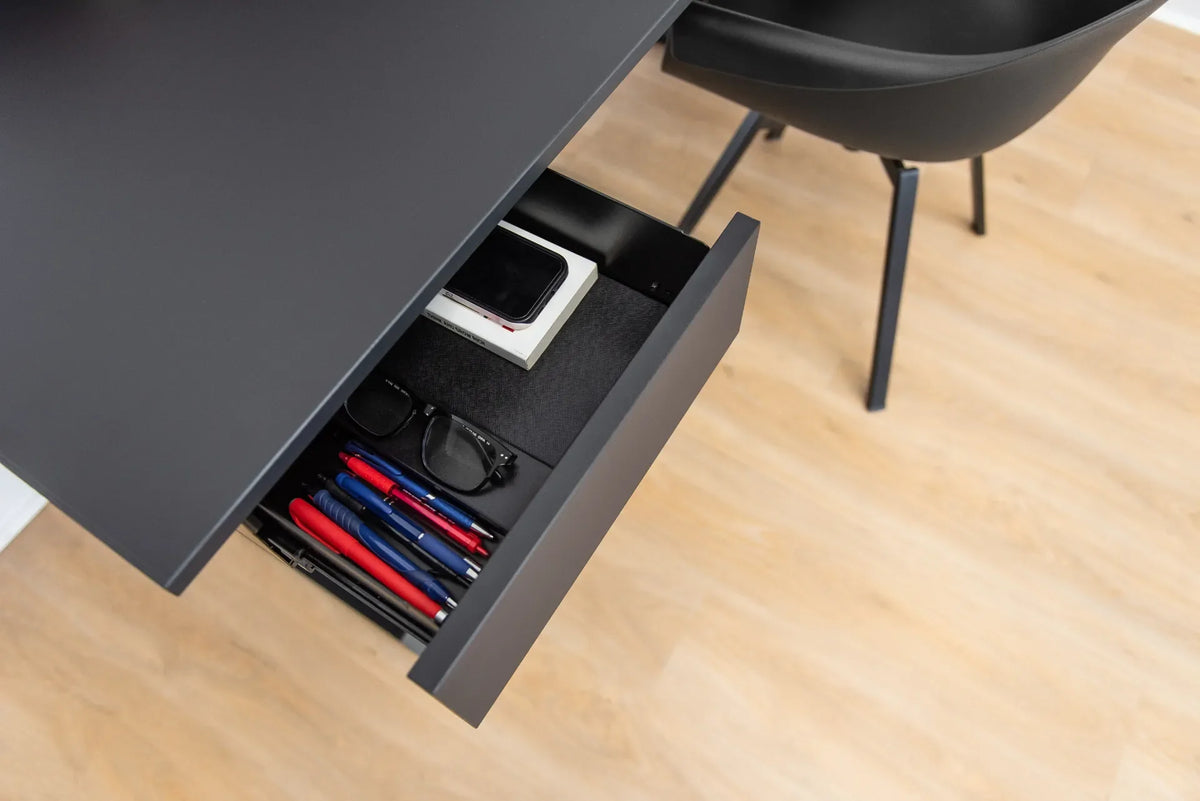
Desk Drawer Hits Your Knees? What to Adjust First
Use this troubleshooting sequence when an under-desk drawer contacts your knees or thighs, without sacrificing chair or keyboard ergonomics.

In this article
If a desk drawer hits your knees or thighs, do not solve the problem by simply lowering your chair. First set the chair for your body and the work surface for your elbows. Then measure the remaining leg clearance and decide whether the drawer can move sideways, farther back or out of the centre position.
The collision usually means the vertical clearance budget is too small: the desktop, drawer and mounting hardware occupy more height than your seated posture can spare. A few centimetres can determine whether the setup feels open or constantly restrictive.
Why an under-desk drawer causes knee contact
Common causes include:
- The drawer is mounted directly over the natural knee zone.
- The work surface is too low for the user.
- The chair is set too high relative to the desktop.
- The drawer body or slide hardware is deeper than expected.
- The user sits forward because the keyboard or monitor is poorly positioned.
- The drawer is installed too close to the front edge.
- A sit-stand desk was tested at one height but not at the user’s actual sitting setting.
The right fix depends on which relationship is wrong. Changing the chair alone can create a second problem, such as unsupported feet or raised shoulders.
Step 1: stop repeated contact and observe the pattern
Do not keep working while your knees repeatedly strike the drawer. Sit naturally, without reaching for the keyboard, and note where contact occurs. Is it the kneecap, the upper thigh, one side only or the hardware below the drawer?
Check contact while typing, moving the chair in and out and turning slightly to reach another item. This reveals whether the problem is height, depth, width or placement. If a sharp fastener or damaged slide is exposed, stop using the drawer until it is repaired according to the manufacturer’s instructions.
Step 2: set the chair for your body
Adjust seat height so your feet are supported on the floor or a stable footrest and your thighs are reasonably level or slightly declined. Keep your back supported rather than perching on the front edge.
The Canadian Centre for Occupational Health and Safety recommends adjusting the chair first and then checking whether the legs fit comfortably beneath the workstation. If the feet lose support when you raise the chair, add an appropriate footrest instead of leaving them dangling.
For a full sequence, use the guide to desk height relative to chair height.
Step 3: set the work surface for your elbows
With shoulders relaxed and upper arms near your sides, the keyboard surface should let the forearms approach a comfortable horizontal position without lifting the shoulders. On a height-adjustable desk, raise or lower the surface after the chair is set.
If lifting the desk by a small amount creates drawer clearance while preserving keyboard height, the setup may be resolved. If the desktop becomes too high for comfortable input, do not keep raising it. Repositioning the drawer is the better fix.
Step 4: measure the real leg-clearance budget
Measure from the floor to the lowest part of the drawer or its mounting hardware. Then measure from the floor to the highest point of your knees and thighs while seated in your normal work shoes. Keep a margin for movement rather than designing for a single frozen posture.
OSHA notes that centre drawers can be removed to create more thigh clearance and gives a general leg-clearance height range of 50 to 72 cm (20 to 28 in.) under work surfaces. That broad range is not a personalized fit guarantee. Body size, chair height, shoe height and task still matter.
Also measure depth. A drawer that clears the knees when you sit back may still contact them when you roll forward. Review how much legroom you need under a desk for the wider planning context.
Step 5: choose the least disruptive drawer fix
Move it sideways
The centre of the desk is usually the main knee zone. Shifting a compact drawer to the left or right can preserve storage while opening the middle. Confirm that it will not interfere with a desk leg, control box, cable tray or chair arm.
Move it farther back
If the drawer is close to the front edge, moving it rearward may clear the kneecaps. Check that the drawer remains reachable without leaning and that its back does not collide with frame components or cables.
Use a shallower drawer
A low-profile drawer may be appropriate when vertical space is limited. Compare the complete installed height, including slides and brackets, not just the interior storage depth.
Remove the drawer
If no position provides free leg movement, remove the drawer rather than compromising the chair and keyboard setup. A mobile pedestal or side storage may be a better fit.
Before drilling new holes, follow the hardware instructions and confirm the safe mounting area. The article on installing an under-desk drawer without losing legroom covers the planning sequence.
Special checks for a standing desk
A standing desk adds moving parts and multiple working heights. After any drawer change:
- Inspect the underside for control boxes, crossbars, lifting columns and cable trays.
- Check that screws are suitable for the desktop thickness and do not approach the top surface.
- Keep the drawer and contents within the desk and accessory load guidance.
- Run a slow, supervised test from the lowest to highest useful setting.
- Watch for cable tension, drawer contact and items that could fall during movement.
- Confirm the drawer does not block access to the height controller.
CCOHS advises that storage and general layout should not make desk adjustment difficult. A drawer that fits while seated but blocks a frame component during movement is not safely placed.
Do not trade knee clearance for poor posture
Several quick fixes make the workstation worse:
- Lowering the chair until the keyboard is too high.
- Sliding forward and losing back support.
- Spreading the knees unnaturally around the drawer.
- Tilting the chair or sitting on one side to avoid contact.
- Removing a structural desk component that only looks like drawer hardware.
If the desk is fixed and too low for your body, a different work surface may be necessary. Do not modify a frame, electrical component or structural part unless the manufacturer explicitly permits it.
How to verify the fix
- Sit with feet supported, back against the backrest and shoulders relaxed.
- Move both feet and knees freely beneath the desk.
- Roll forward to the normal keyboard position without touching the drawer.
- Open and close the drawer without leaning or trapping a cable.
- Turn slightly to each side and confirm the hardware remains clear.
- For an adjustable desk, test the usual sitting and standing presets.
Workstation advice is general and is not a medical diagnosis. If pain, numbness or swelling persists after the physical interference is removed, consult an appropriate health professional or workplace ergonomics specialist.
Restore storage without sacrificing legroom
A useful drawer should organize small items without controlling how you sit. Set the chair and desk first, measure your real movement envelope, then position storage outside the central knee zone whenever possible.
The Burotic Desk Drawer is an option for compatible setups. Confirm the product’s current dimensions, mounting instructions and compatibility with your specific desktop before installation.
Previous article
What Size Anti-Fatigue Mat Do You Need for a Standing Desk?