





Monitor Distance by Screen Size: 24, 27 and 32 Inches

In this article
A larger monitor does not automatically need to sit as far away as a television, but screen size does change the distance that feels comfortable. A 24-inch display can often sit closer than a 32-inch display because the larger screen fills more of your visual field. The right monitor distance also depends on resolution, text scaling, eyesight, the task and whether you lean forward to read.
For most office work, use screen size as a starting point rather than a fixed rule. The Canadian Centre for Occupational Health and Safety, or CCOHS, illustrates a viewing distance of about 40 to 74 cm, while the U.S. Occupational Safety and Health Administration gives a broader preferred range of about 50 to 100 cm. Those ranges overlap, and both leave room for individual adjustment.
Quick monitor distance guide by screen size
Measure from your eyes to the front surface of the screen while you sit or stand in your normal working posture. Do not measure from the desk edge or from your chair.
| Monitor size | Practical starting distance | Common desk consideration |
|---|---|---|
| 24 inches | 50 to 65 cm | Usually fits well on a 24-inch-deep desk if the stand is compact |
| 27 inches | 55 to 75 cm | Often easier to position on a 30-inch-deep desk or a monitor arm |
| 32 inches | 65 to 90 cm | May need more desk depth, a shallow stand or an arm mounted near the rear edge |
These are setup ranges, not medical prescriptions. Start near the middle of the range, make text readable at the operating-system level, and move the screen in small steps. If a clinician or eye-care professional has given you specific instructions, follow those instead.
How far should a 24-inch monitor be?
A 24-inch monitor often works well at roughly 50 to 65 cm from the eyes. At that distance, many people can see the full screen without turning the head, while standard office text remains readable at sensible scaling. A compact display also leaves more room for a notebook, keyboard and mouse on a shallow surface.
Do not pull the monitor closer simply because small text is difficult to read. First check that the display is running at its recommended resolution, then increase text or interface scaling. CCOHS notes that higher resolution can make on-screen elements appear smaller, and that scaling can be adjusted for comfort. Moving the monitor is still useful, but it should not compensate for unusably small text.
How far should a 27-inch monitor be?
For a 27-inch screen, begin around 55 to 75 cm. This is a useful middle ground for spreadsheets, writing, coding and general office work. The display is large enough to show two windows side by side, but it can still fit within a comfortable central viewing zone when it is not too close.
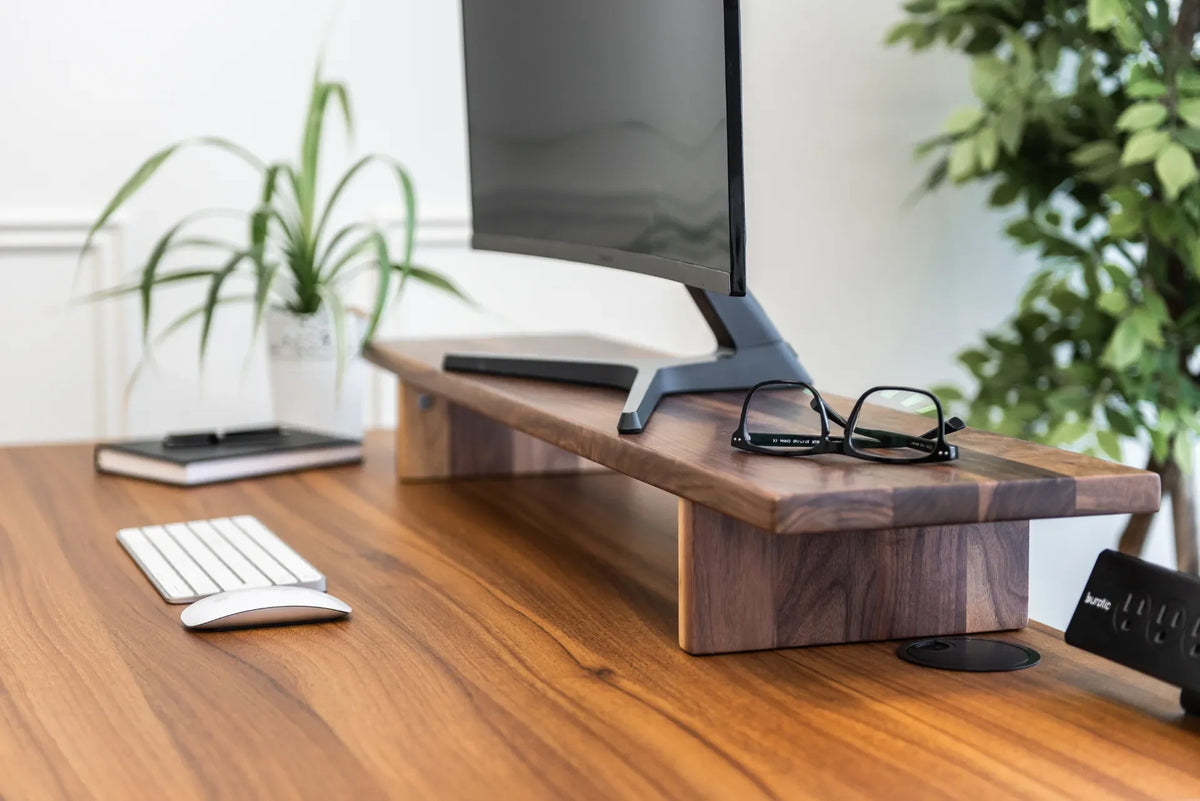
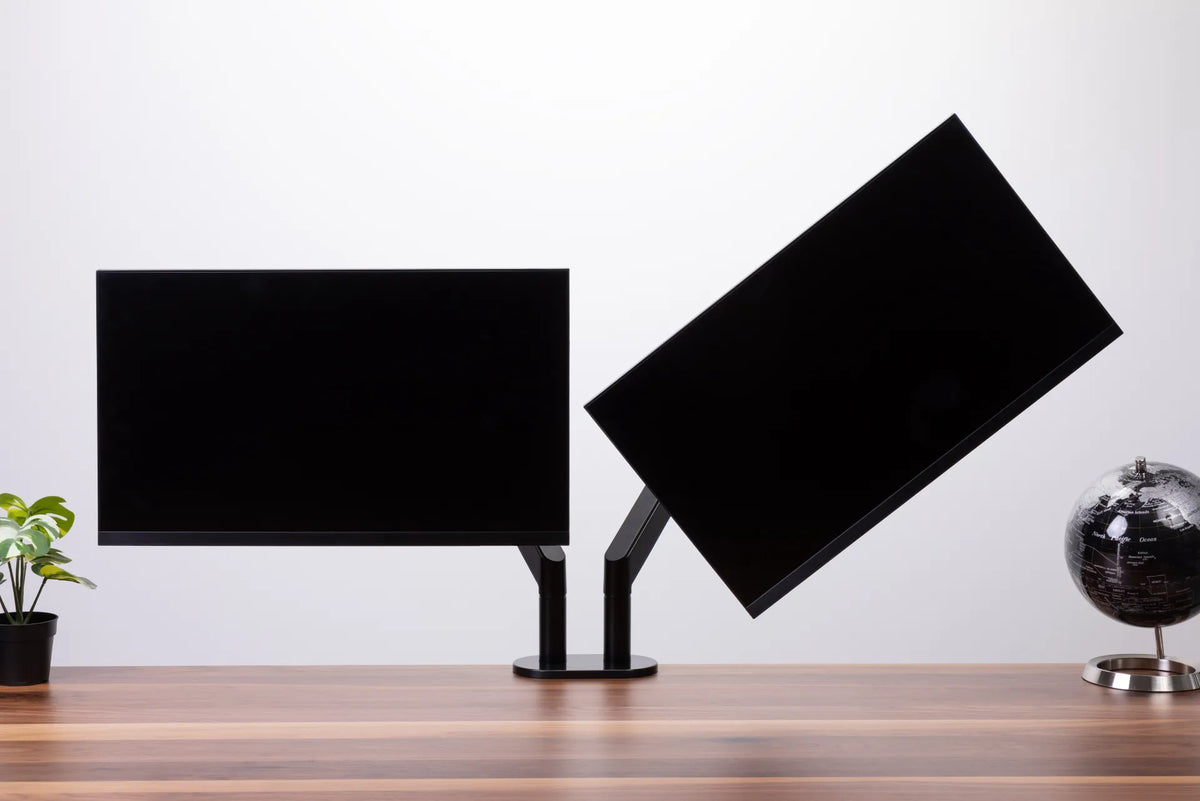
A 27-inch monitor on a deep factory stand may consume more usable depth than the screen size suggests. Measure from the rear foot of the stand to the front of the panel. If that footprint pushes the keyboard toward the desk edge, a monitor arm can separate screen position from stand depth. A monitor stand can help with height and storage, but it does not automatically create more viewing distance unless its footprint lets the screen sit farther back.
How far should a 32-inch monitor be?
A 32-inch monitor commonly feels comfortable around 65 to 90 cm away. The lower end can work for detailed visual tasks when text scaling is appropriate. The upper end can make it easier to scan the full panel without excessive eye or head movement. OSHA's broader 50-to-100-cm guidance is helpful here because some 32-inch setups naturally sit beyond the narrower CCOHS illustration.
Desk depth becomes more important at this size. A 24-inch-deep desk may work if the screen has a shallow base or is mounted on an arm that places the panel near the rear edge. A 30-inch-deep surface gives more flexibility for the screen, keyboard and forearm support. Our guide to 27- vs. 32-inch monitor desk depth explains that fit question in more detail.
Why screen size is only the starting point
Resolution and scaling
A high-resolution screen can show very fine detail, but fine detail is not helpful if you must lean forward to read it. Keep the recommended resolution and adjust scaling or application zoom. This preserves image clarity while making interface elements easier to see. A lower-resolution 32-inch display may need a different distance than a high-resolution model of the same diagonal size.
Task and content
Text-heavy work may feel better with the monitor slightly closer and text enlarged. Large spreadsheets, timelines or design canvases may benefit from a little more distance so the whole screen is easier to scan. Video calls can tolerate a wider range, but the camera framing may influence where the monitor sits.
Vision and corrective lenses
People using progressive lenses may lower the screen or adjust distance to keep the viewing area within the appropriate part of the lens. If you repeatedly lift your chin, lean forward or develop visual discomfort, do not keep forcing the setup. Adjust the screen and text, and consult an eye-care professional when symptoms persist. General ergonomic guidance is not a diagnosis.
Curved screens
Measure to the centre of a curved screen and use the manufacturer's curve radius only as supporting information. The correct position is the one that lets you see the centre and edges without leaning or repeatedly rotating your head. A stronger curve does not override the need for readable text and a neutral posture.
A five-minute method to set the distance
- Sit or stand normally. Adjust the chair and desk before moving the monitor. Your shoulders should stay relaxed and the keyboard should be within easy reach.
- Place the screen in the starting range. Use the table above for 24, 27 or 32 inches.
- Set resolution and scaling. Use the recommended resolution and increase text size until you can read ordinary content without leaning.
- Check the whole screen. Look at the centre and corners. You should not need repeated head turns for a single monitor.
- Move in 5-cm steps. Work for several minutes, then move the screen slightly closer or farther. Recheck height after every change.
The top of the screen is often at or slightly below eye level, but distance and height work together. If you push the screen back, you may also need to raise it slightly to maintain a comfortable downward viewing angle. See how far a monitor should be from your eyes for the broader setup principles.
Common mistakes
- Using arm's length as an exact measurement. Arm length varies, so treat it as a quick check, not a standard.
- Moving closer instead of increasing text size. Software scaling is often the cleaner first fix.
- Measuring from the desk edge. Eye-to-screen distance is what matters.
- Ignoring the monitor stand footprint. A large base can steal the depth needed for the keyboard.
- Setting a 32-inch screen like a 24-inch screen. The larger display may need more distance to stay within a comfortable visual field.
- Changing distance without checking height. Both variables affect neck position and viewing angle.
Choose the desk setup that preserves adjustment room
The best distance is easier to maintain when the desk has enough usable depth and the monitor support can move. Before buying a larger screen, measure the panel, the stand footprint and the distance from your normal eye position to the rear mounting area. If you need to reclaim depth, compare a compact stand with an adjustable arm and confirm desktop compatibility before mounting anything.
A good setup should let you read without leaning, see the full screen without constant head movement and keep the keyboard where your arms remain relaxed. Begin with the size-based range, then let readability and posture decide the final few centimetres.
Previous article
Desk Drawer Hits Your Knees? What to Adjust First
Next article
Does a Desk Pad Protect Your Desk? What It Can and Cannot Prevent