





What Size Desk Do You Need for One Monitor?

In this article
For one monitor, many people can work comfortably on a desk around 48 to 60 inches wide and 24 to 30 inches deep, but those numbers are planning ranges rather than ergonomic standards. The right size depends on the monitor base or arm, viewing distance, keyboard and mouse space, computer, documents and how much room remains around the workstation.
A single screen does not automatically require a large desk. It also does not guarantee that a compact desktop will work. A 32-inch monitor on a deep stand, a laptop beside the screen and full-size speakers can need more surface than a simple 24-inch display on an arm. Measure the real setup before choosing the furniture.
The quick recommendation
- Compact one-monitor setup: start by testing a surface near 48 inches wide and 24 inches deep.
- One monitor plus a laptop or regular paperwork: a width near 55 to 60 inches often gives a more flexible work zone.
- Large screen, deep stand or creative work: test 30 inches of depth, especially when the monitor must sit farther back.
- Minimal setup with a monitor arm: a shallower surface may work, but viewing distance, clamp compatibility and wall clearance still need verification.
These are starting points, not guarantees. Make a scale sketch or test the footprint with painter’s tape and cardboard before buying.
Measure the monitor first
Screen width is only one dimension
Record the overall monitor width, not only its advertised diagonal. Then measure the stand from front to back and the distance between its feet. Some stands extend far behind the screen or occupy the centre of the desk, while others have a narrow base. If you use an arm, record the clamp depth, the arm’s rear sweep and the screen’s movement envelope.
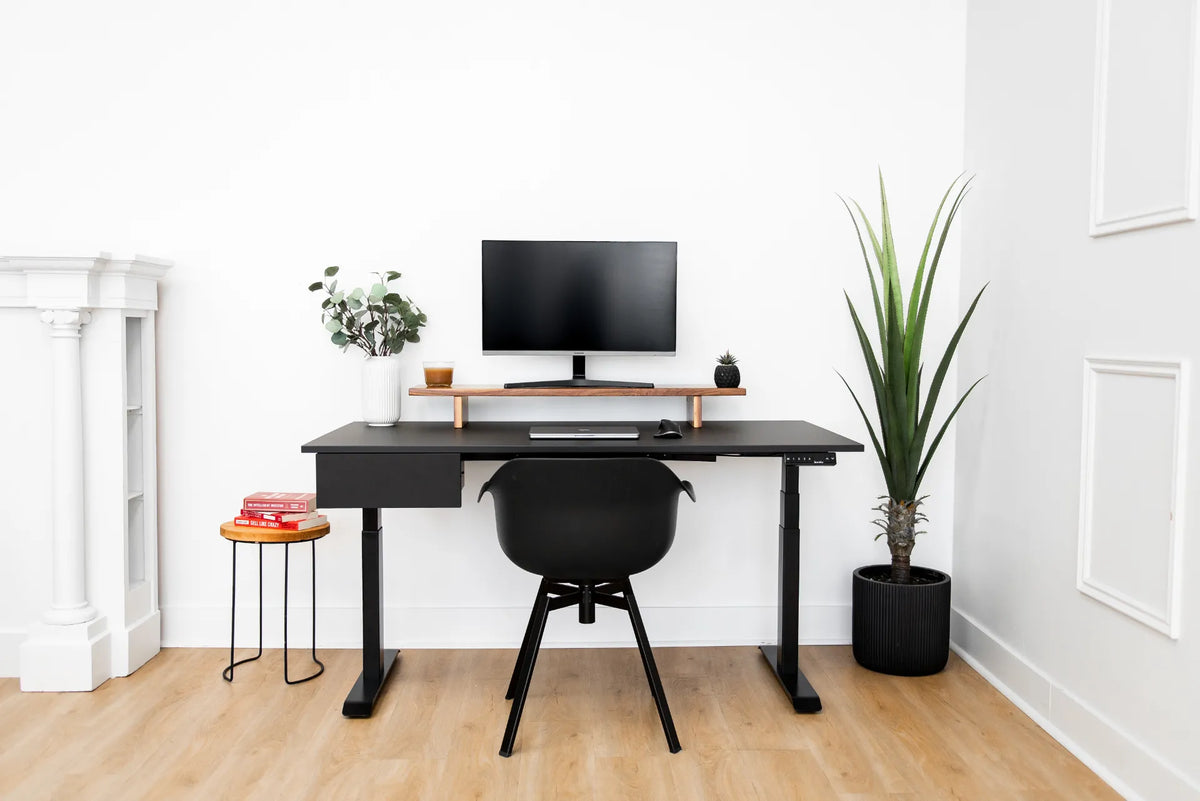
The monitor in the photo sits on a long wood shelf near the rear of a black adjustable desk. The shelf adds useful vertical organization, but it also occupies depth. The image shows one possible configuration, not a promise that the visible equipment or dimensions match a particular product package.
Protect the viewing distance
CCOHS recommends placing the screen at a comfortable viewing distance and adjusting its position to the user and task. Your preferred distance depends on screen size, resolution, eyesight and content. A desktop is too shallow if the monitor stand forces the screen closer than you can comfortably view, or if you must push the keyboard to the front edge to create distance.
Use the method in our monitor viewing-distance guide, then measure from the back of the screen to the front of the usable keyboard area. Add the monitor stand footprint and a small margin so equipment does not sit on the edge.
How much desk depth do you need?
Depth determines whether the screen can sit far enough away while the keyboard and forearms remain supported. A 24-inch-deep desk can suit a compact monitor, a shallow stand or an arm. A 30-inch-deep surface provides more flexibility for a large screen, deeper stand, documents in front of the keyboard or equipment behind it.
More depth is not always better. In a small room, an oversized desk can reduce chair clearance and walking space. Deep surfaces can also encourage storing objects beyond comfortable reach. Compare the tradeoffs in the 24 vs. 30-inch desk depth guide.
A simple depth calculation
- Place the monitor at a comfortable distance.
- Measure the stand or arm space behind the screen.
- Place the keyboard where the elbows can stay near the body.
- Leave practical space for the mouse and for the front edge.
- Add any document zone used in front of or beside the keyboard.
If the total extends past the available surface, increase desk depth, reduce the stand footprint or use a compatible monitor arm. Do not move the screen too close merely to fit a smaller desk.
How much desk width do you need?
Width supports horizontal reach and task zones. For one centred monitor, a compact desktop may need only enough room for the screen, keyboard and mouse. Add a laptop, notebook, speakers, phone dock or reference documents and the required width grows quickly.
48 inches: focused and compact
A 48-inch width can work for one monitor, keyboard and mouse when accessories remain modest. It is attractive for bedrooms, small apartments and narrow offices. Measure the chair, door swing and storage before assuming a small room requires the smallest possible top.
55 to 60 inches: flexible one-screen work
This range can create a separate area for a laptop, notebook or occasional paperwork without moving the main input devices. It also gives more choice for placing a monitor arm or controller. The extra width is useful only when the room and desk frame support it.
Above 60 inches: task-driven space
A wider top may make sense for large drawings, audio equipment, frequent paper review or future expansion. Do not choose it only because one monitor appears small on a product photo. Extra surface costs room area and can collect items outside a comfortable reach zone.
Plan the keyboard and mouse zone
The keyboard and mouse should stay close enough that the shoulders remain relaxed and the elbows stay near the body. Allow more mouse width than a static photo suggests, especially for low pointer sensitivity, design work or gaming. Left-handed users need that space on the opposite side.
Do not let a monitor base split the keyboard position or push the mouse against a raised shelf leg. If a shelf is used, test its support locations with the keyboard centred. The mouse-positioning guide explains reach and height in more detail.
One monitor plus a laptop
Decide whether the laptop is a closed computer, a second active screen or a device used only occasionally. A closed laptop can use a vertical stand when compatible and ventilated according to its manufacturer. An open laptop beside the monitor needs additional width and careful screen positioning to limit repeated neck rotation.
If the laptop becomes the secondary display, place the primary screen directly ahead and angle the secondary device inward. CCOHS guidance for multiple displays recommends putting the most-used screen in front. A separate keyboard and mouse usually provide more flexibility than typing on a laptop pushed far from the body.
Check the desk frame and accessories
Usable top size is not the only compatibility question. For an adjustable desk, verify the frame’s supported top dimensions and capacity from the current product documentation. Include the monitor, computer, arm, shelf, drawer and everything else that moves with the top. Do not infer capacity from appearance.
For a monitor arm, verify desktop thickness, edge shape, clamp area and rear clearance. Cable trays, drawers and frame crossbars can block the clamp. A wall behind the desk can limit the arm’s sweep even when the desktop is deep enough.
Measure the room, not only the desktop
Add the desk depth, chair movement zone and a usable path. Mark the outline on the floor with removable tape. Open nearby doors and drawers, roll the chair back and raise the desk to standing height. A 60-inch top may fit the wall while still obstructing a doorway or radiator.
The photographed workstation is centred against a white wall with open floor in front, a chair, a side table and plants. Your room may have baseboards, outlets, vents or window trim that change the placement. Plan the real obstacles.
Five layouts to test
- Centred monitor: keyboard and screen aligned, mouse beside the keyboard.
- Monitor plus laptop: primary screen centred, laptop angled on the side.
- Monitor on an arm: clear clamp zone and enough wall clearance.
- Monitor on a shelf: shelf supports outside the keyboard and mouse zones.
- Monitor plus documents: document holder close to the screen or a clear writing zone beside it.
Build each layout with paper rectangles or boxes representing the real equipment. This exposes conflicts that a width number alone cannot show.
Common sizing mistakes
- Buying from the monitor’s diagonal measurement rather than its total footprint.
- Ignoring the depth of the original stand.
- Assuming a monitor arm eliminates all depth requirements.
- Forgetting the laptop, speakers or paperwork used every day.
- Choosing a wide top without checking the frame’s supported range.
- Measuring the wall but not the chair and walking path.
- Using every inch for storage until the keyboard and mouse lose their ergonomic position.
A practical buying checklist
- Monitor overall width, height and stand depth recorded.
- Comfortable viewing distance tested.
- Keyboard and mouse zone measured.
- Laptop and document zones included.
- Monitor-arm clamp and wall clearance verified if applicable.
- Desk frame compatibility and capacity confirmed from current documentation.
- Chair travel, doors, outlets and walking space marked in the room.
Once the measurements are clear, compare them with the verified dimensions in Burotic’s standing desk collection. Choose the smallest surface that supports the full task comfortably, not simply the smallest top that can hold the monitor.
The practical answer
For one monitor, 48 inches wide by 24 inches deep is a reasonable compact setup to test, while 55 to 60 inches of width and up to 30 inches of depth can provide more room for a laptop, documents or a large stand. These dimensions are planning ranges, not universal rules.
The correct desk preserves comfortable screen distance, keeps the keyboard and mouse close, supports the equipment and fits the room with adequate chair movement. Measure the monitor’s real footprint and build the layout before choosing.
Previous article
Why Is My Standing Desk Controller Not Responding?
Next article
How High Should Your Desk Be Relative to Your Chair?