

Why Is My Standing Desk Controller Not Responding?

In this article
When a standing desk controller does not respond, start with the simplest safe checks: stop pressing buttons, remove possible obstructions, confirm the outlet works, inspect the desk’s power and control connections, and look for a lock symbol or error code. Use the reset procedure only for the exact desk model. Do not open the control box, bypass a safety device or force the desk to move.
An unresponsive handset can result from lost power, a loose plug, cable tension, a locked keypad, an interrupted adjustment, an overload, a motor protection pause or a fault that needs service. This guide provides a general diagnostic order. The desk manual and manufacturer instructions always take priority.
First, make the area safe
Move your chair, drawer, storage and loose objects away from the desk’s travel path. Look above and below the surface. A monitor arm, window sill, wall shelf, filing cabinet or cable bundle can interfere even when the tabletop itself appears clear. Keep hands, pets and children away from the moving frame.
If you notice smoke, sparks, a burning smell, damaged insulation, unusual heat, liquid exposure or a plug that is loose in the receptacle, disconnect power if it is safe to do so and stop troubleshooting. Replace damaged electrical equipment or obtain qualified service. CCOHS recommends removing defective electrical equipment from service rather than continuing to use it.
Step 1: confirm that power reaches the desk
Check the wall outlet
Plug a known working, low-power device into the outlet, or test the desk at another suitable grounded outlet when the manufacturer permits it. If the receptacle is controlled by a wall switch, verify the switch position. Check whether a breaker or ground-fault device has tripped, but do not repeatedly reset electrical protection when the cause is unknown.
Remove extra devices from the test
If the desk uses a power bar or extension arrangement, consult the manual before changing it. For diagnosis, a direct connection to the specified grounded outlet can eliminate a failed or switched-off distribution device, but only use a connection the manufacturer allows. Never connect one power bar to another. The guide on plugging a standing desk into a power bar explains the safety checks.
Follow the power cord end to end
Verify that the wall plug, power supply and control-box connection are fully seated. A plug can look connected while remaining slightly loose. Disconnect the desk before reseating removable connectors unless the manual directs otherwise. Pull on the plug body, not the cable.
Step 2: inspect the controller connection
Trace the controller cable from the handset under the desktop to the control box or specified port. Look for a partially inserted connector, a bent latch, crushed cable, sharp fold or section pulled tight by the desk’s movement. Do not confuse the controller lead with accessory or charging cables.
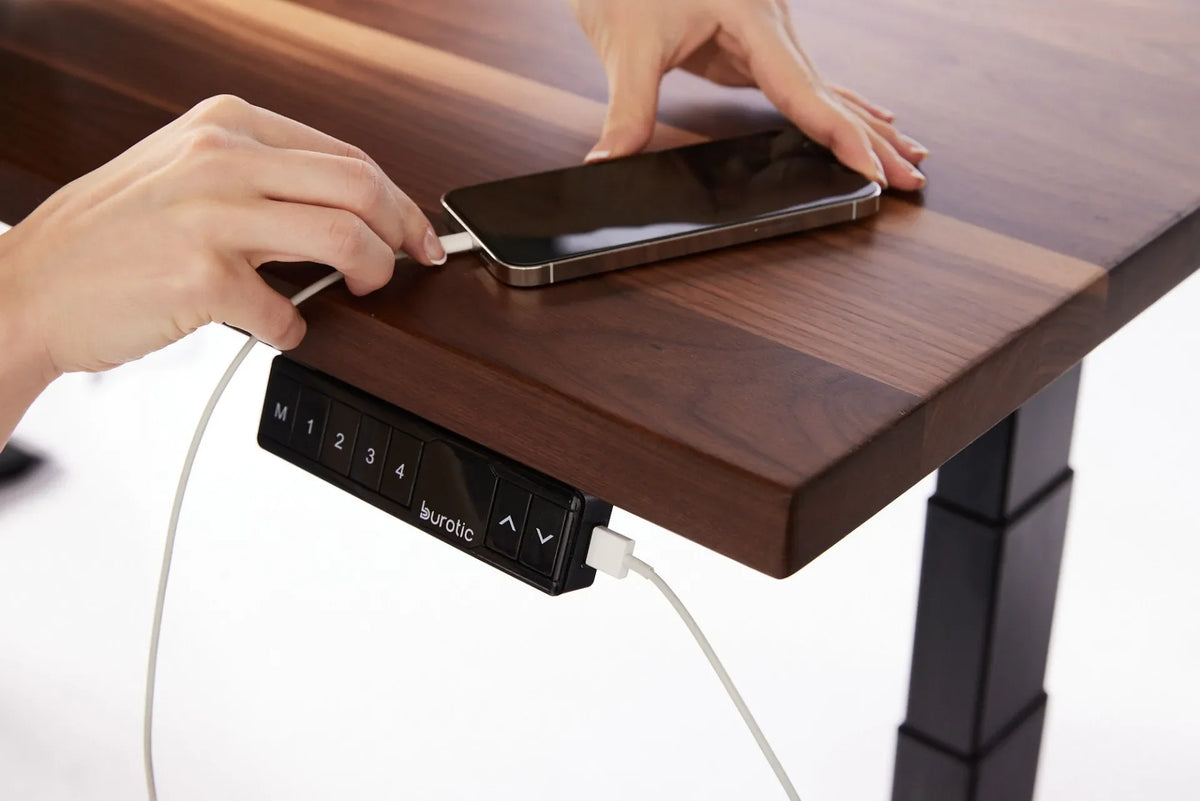
The photo shows a Burotic controller under a dark wood desktop near two charging cables and a phone. It is a useful reminder that the controller area can become crowded. A charging cable should not pull on the handset, cover its buttons or become caught when the desk moves. The presence of charging ports does not identify the cause of a controller fault.
Test the full cable route
With the desk disconnected, inspect the route at the lowest and highest reachable positions without forcing the frame. The cable should not be pinched between the top and frame, stretched around a drawer, or tied so tightly that the connector carries the load. Our standing desk cable management guide explains how to leave a movement loop.
Step 3: check for a keypad lock
Some controllers have a child lock or keypad lock. The screen may show a lock symbol, a word, a code or no obvious clue. Because the unlock command varies, use the model’s manual rather than trying random button combinations. Holding the wrong button can change a memory preset or begin a reset.
If the controller lights up but buttons do nothing, a lock state is more plausible than a total power loss. If the display is completely blank, begin with power and connections. If only one button fails, the handset may require service.
Step 4: read the display before resetting
Record any letters, numbers or flashing pattern. Take a photo if the code disappears quickly. The same characters can mean different things on different control systems, so do not rely on a generic code list. Check the exact model documentation or contact support with the code and the steps that preceded it.
A reset can clear some position references after a power interruption, but it will not repair a damaged cable, overloaded frame or failed component. Repeated resets can hide the sequence that produced the fault. Complete the basic inspection first.
Step 5: use only the correct reset procedure
If the manufacturer directs a reset, clear the travel area, remove unnecessary load and follow every step in order. Many desks use a lower-limit sequence, but the button, timing and confirmation vary. Do not copy instructions from another brand or control box.
For the Burotic Aspire base, use the verified Aspire reset and error-code guide and the current product manual. If your desk is another model, obtain that model’s instructions. Stop if the frame moves unevenly, makes an abnormal sound or meets an obstacle.
Step 6: check load and obstructions
Compare everything on and attached to the moving surface with the desk’s verified capacity. Include monitors, arms, shelves, computers, drawers and accessories. Do not guess a capacity or assume that a desk which moved yesterday remains within limits after equipment was added.
Look for contact at the sides, rear and underside. A cable tray can hit a drawer pedestal. A clamp can touch a wall. A monitor arm can meet a shelf at standing height. An anti-collision system may stop or reverse the desk when it senses resistance, but its behaviour depends on the model and does not replace a clear path.
Step 7: allow a protection pause when directed
Motors and control systems may limit repeated operation. If the desk has been moved many times in a short period, follow the manual’s rest interval before another attempt. Do not place ice, fans or other improvised cooling devices on electrical components. A desk that repeatedly becomes unavailable during ordinary use should be assessed by support.
What the symptoms can tell you
- Blank display and no movement: check the outlet, power path and connections first.
- Display works but no button responds: check for a keypad lock, displayed code and the manual’s instructions.
- One button fails: the handset or button may need service.
- Desk moves only downward: it may need a model-specific position reset, but confirm the manual.
- One side moves differently: stop immediately and contact support. Do not force the frame level.
- Desk stops at one height: check for contact, cable tension, stored limits or an error code.
- Problem began after moving the desk: inspect every plug and the complete cable route.
What not to do
- Do not open the control box or motor housing.
- Do not bypass grounding, anti-collision or other safety features.
- Do not repeatedly press buttons while the desk is blocked.
- Do not pull the tabletop by hand to make the legs move.
- Do not use an undocumented reset sequence from another model.
- Do not continue using damaged, hot or wet electrical equipment.
Prepare useful information for support
Record the desk model, controller model if visible, purchase information, error code and the time the problem began. Note whether the display is blank, whether either direction works and whether equipment was recently added. Include clear photos of the controller, control box connections and cable route without exposing personal information.
A concise sequence helps: “The display is on, the down button works, the up button does not, no obstruction is visible, and the problem began after moving the desk.” That is more useful than simply saying the desk is broken. For memory settings that work but do not recall the expected height, consult the standing desk memory preset guide.
The practical answer
An unresponsive standing desk controller is not automatically a failed motor. Check the safe travel area, outlet, power connections, controller lead, cable tension, keypad lock and display message in that order. Then perform only the reset specified for the exact model.
Stop and contact support when electrical damage is visible, the frame moves unevenly, the same fault returns, or the correct procedure does not restore normal operation. A controlled diagnosis protects the desk, connected equipment and the people around it.


Previous article
Where Should Your Feet Be When Standing at a Desk?
Next article
What Size Desk Do You Need for One Monitor?