




How Much Clear Desk Space Do You Need for Daily Work?
Keep enough clear desk space for your main task, not an arbitrary percentage of the surface. A practical setup preserves an immediate work zone for the keyboard, mouse or document while moving occasional items farther away.

In this article
You need enough clear desk space to perform your main task without moving unrelated items, twisting or reaching around obstacles. There is no universal percentage that every desktop must leave empty. A laptop-only worker, an illustrator and a dual-monitor user need different footprints. The useful measure is a clear primary work zone directly in front of you, plus accessible space for occasional items.
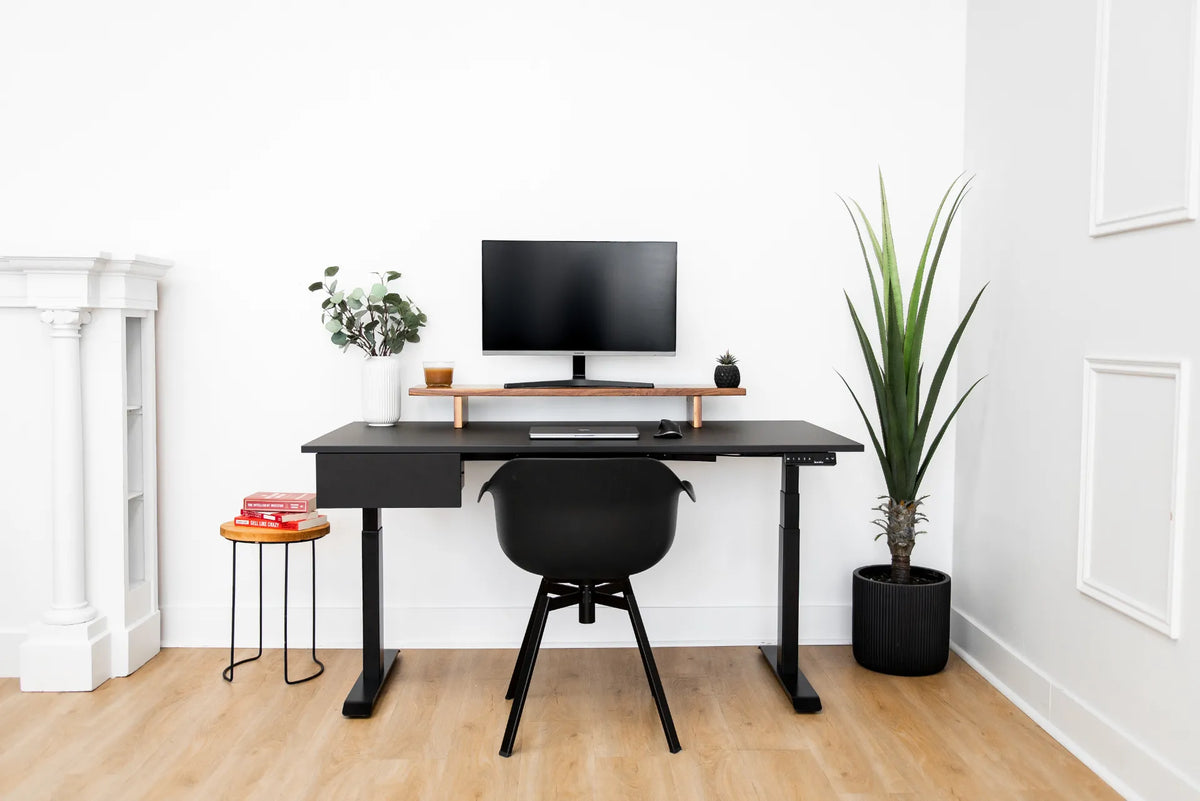
The selected photo shows a black height-adjustable desk with one monitor on a wood riser, a closed laptop, mouse, drawer, mug and plants. The centre remains relatively open. It is an example of visual breathing room, not a dimensional standard. Use your actual equipment and tasks to decide how much surface should remain available.
Start with the task you do most
Clear space is functional space. For computer work, it may mean room for a keyboard and mouse at the same level, with space to keep the shoulders relaxed. For handwriting, it means an open area large enough for paper and forearm movement. For mixed work, it may mean a zone that can change quickly without unplugging equipment.
The Government of Canada ergonomics guide recommends adequate space for input devices and keeping frequently used accessories close. CCOHS similarly organizes the work surface into primary, secondary and tertiary reach zones. These principles are more useful than copying a minimalist photograph.
Use reach zones to decide what stays
Primary zone: immediate work
The primary zone is the area closest to you. It should hold the objects used continuously or very frequently, such as the keyboard, mouse, current document or drawing tool. Keep this zone free of decorations, spare cables and storage trays that force the hands outward.
Our guide to desk reach zones explains how frequency of use determines placement. The exact boundary changes with body size and posture, so test it by keeping the upper arms relaxed and moving mainly from the elbows.
Secondary zone: occasional items
Place the phone, notebook, calculator or reference material within comfortable arm's reach if you use it occasionally. This area does not need to be empty, but it should not block the primary task or require repeated trunk bending.
Tertiary zone: rarely used items
Objects used rarely can sit farther away or move to a drawer, shelf or cabinet. Stand to retrieve a heavy or awkward object instead of leaning across the desk. A decorative plant can occupy a far corner if it does not block a screen, light or desk movement.
How much clear surface by common task?
Use these task-based checks rather than fixed universal dimensions:
- Laptop work: enough room for the computer, an external mouse if used and comfortable forearm placement, without placing a drink beside a vent or cable.
- Desktop computer work: a direct keyboard and mouse zone aligned with the main screen, plus room to bring the chair close.
- Handwriting: an open sheet-sized area with space for the forearm to move and no raised edge pressing into the wrist.
- Document review: space for the active document near the screen or a holder, while completed files move out of the primary zone.
- Creative work: a flexible area sized for the current material, with tools grouped by frequency rather than spread across the desktop.
If your main task requires clearing half the desk every time, the problem may be storage, equipment placement or desk dimensions. If a large surface simply attracts more unused items, a larger desk will not solve the workflow.
Keep clear space in front of the user
Empty space in a distant corner is less useful than an unobstructed work zone directly ahead. Centre the primary screen and input devices on your body. Leave room to bring a notebook or document into the same central area when needed. Do not preserve a decorative empty strip while crowding the keyboard against the desk edge.
Hard or sharp edges should not press into the wrists. The federal ergonomics guide recommends adjusting input-device placement and avoiding sustained contact with desk edges. Clear space must therefore include usable depth, not just width.
What should move off the desktop?
- Supplies used less than weekly
- Duplicate pens, chargers and notebooks
- Packaging and paperwork with no active purpose
- Cables that can be routed without restricting desk travel
- Personal objects that crowd the keyboard, mouse or documents
Do not remove items merely to make the desk look empty. Accessibility matters. Medication, adaptive tools or task-specific equipment may need a consistent position. The aim is to reduce unnecessary obstacles while preserving what the user genuinely needs.
Use storage without sacrificing legroom
A drawer can move small objects off the surface, but it should not contact the knees or prevent the chair from approaching. Shelves can raise rarely handled items, but they must not push the monitor too high or create unstable stacks. Cable trays should keep cords away from moving frame parts and allow enough slack for standing-desk travel.
For a practical reset, follow our guide to organizing a home office desk without losing work space. The related article on what to keep on your desk for daily work helps separate necessary tools from passive storage.
A ten-minute clear-space audit
- Remove everything that is not part of today's main task.
- Place the keyboard, mouse or primary material directly in front of you.
- Work for two minutes and notice every object you reach for.
- Keep frequent items in the primary zone and occasional items farther away.
- Move rarely used objects into storage.
- Check that the chair, knees and cables have clearance under the desk.
- Raise and lower an adjustable desk through its full range.
- Photograph or note the arrangement so it is easy to restore.
When a larger desk may be justified
Consider more surface area when the required equipment cannot fit within comfortable reach, when documents are a routine part of the job or when devices cannot be positioned safely without overlap. Measure equipment footprints before buying. A wider desktop does not fix insufficient depth, and more depth does not fix poor storage.
The active Burotic Aspire Premium Laminate Standing Desk is one adjustable-desk option to compare with your measured equipment and room. Verify current sizes, configurations and availability on the product page rather than inferring them from the photograph.
Reassess when the task changes
A clear zone that works for email may fail when you open a large report, sketch on paper or add a second input device. Treat the arrangement as adjustable rather than permanent. At the start of a different task, remove completed material, bring the new work into the primary zone and return shared tools to consistent locations. Reassess after adding equipment, changing dominant hand, moving between sitting and standing or sharing the desk with another person. This small reset prevents a tidy-looking layout from becoming an ergonomic obstacle and helps you distinguish a temporary project footprint from a genuine need for more storage or desktop area.
Bottom line
Keep enough desk space clear for the task directly in front of you, then organize everything else by frequency of use. The goal is not a perfectly empty surface. It is a work zone where the keyboard, mouse, documents and forearms fit without repeated reaching, twisting or object shuffling.

Previous article
Which Side of a Desk Pad Goes Down?
Next article
Which Side of a Desk Pad Goes Down?