

Should Your Keyboard Be Centred With Your Monitor?

In this article
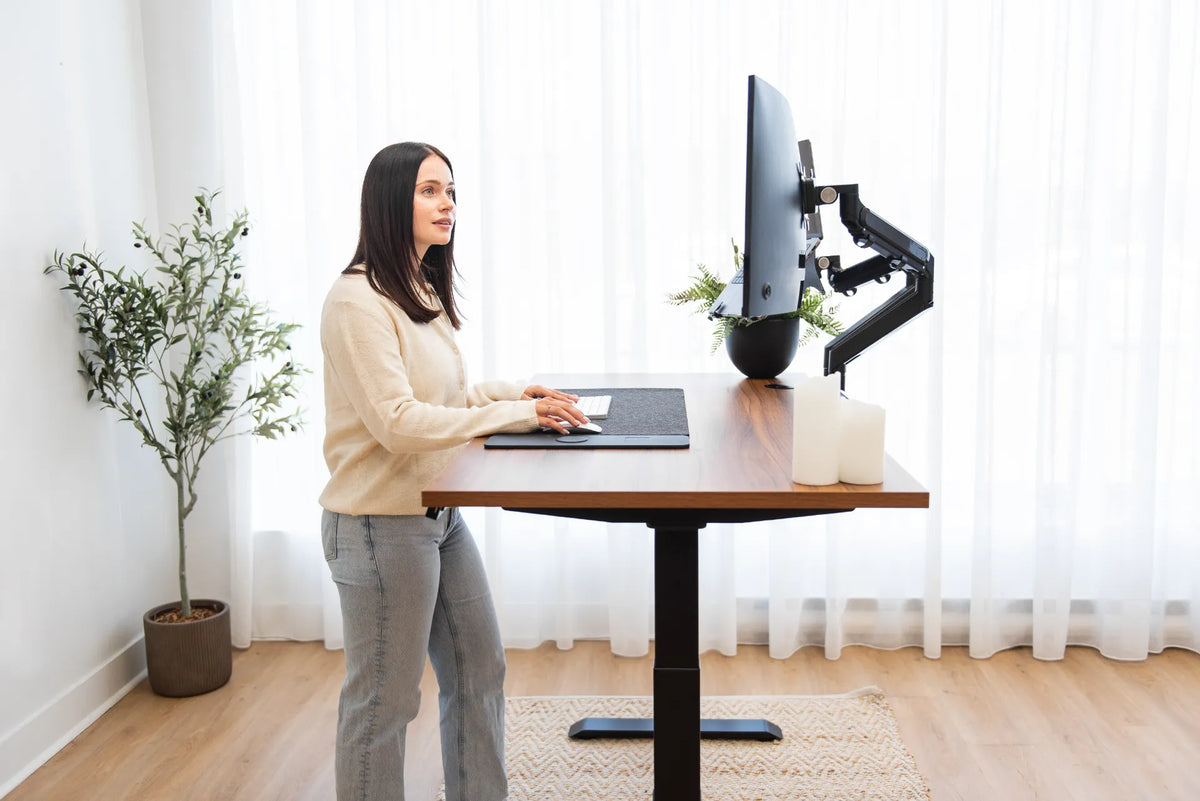
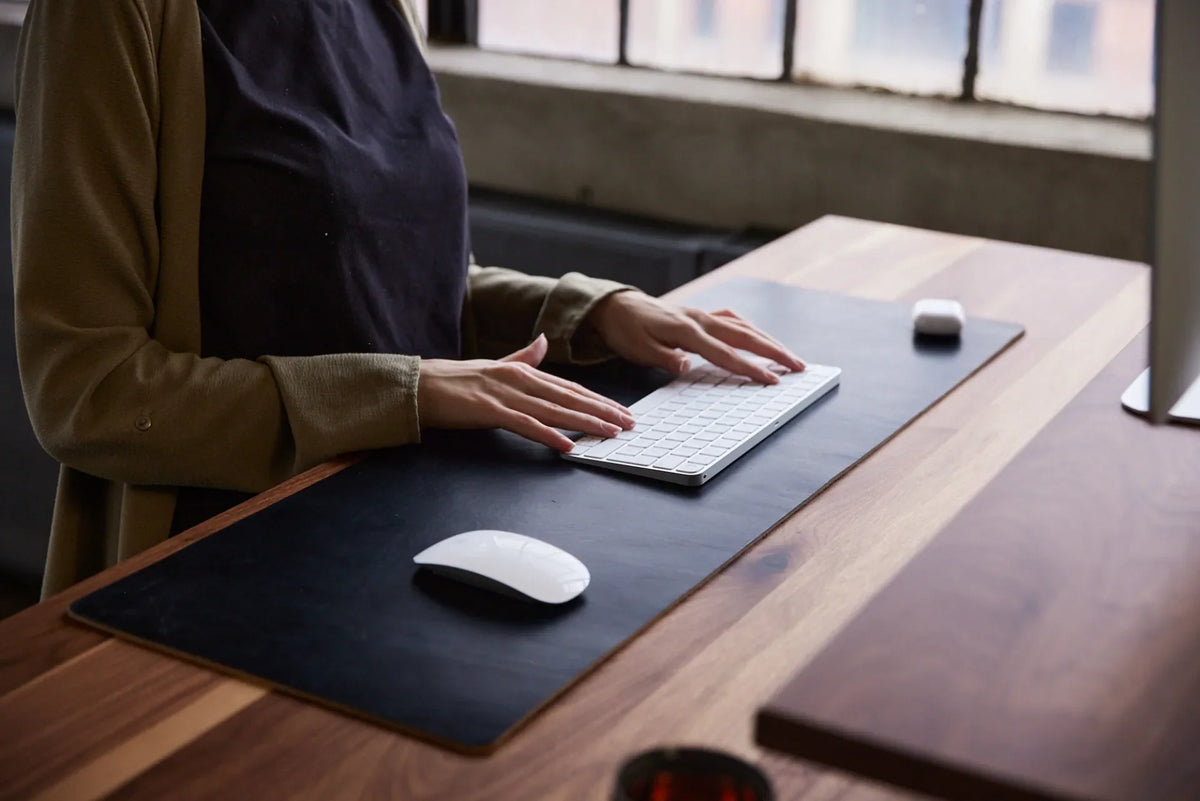
Your keyboard and primary monitor should usually be arranged around the same body centreline. The important detail is what you centre: align the part of the keyboard you type on most, usually the letter keys, with your torso and primary screen. Do not automatically centre the full keyboard casing if a number pad makes one side much wider.
This setup helps you face forward instead of rotating your shoulders or neck for long periods. It is a practical starting point, not a medical prescription. Your dominant tasks, screen arrangement and input devices can justify small changes, but those changes should still let your shoulders relax and your wrists remain in line with your forearms.
Quick answer: centre the typing area with your body
For a standard computer workstation, place the keyboard directly in front of you. Centre the alphanumeric section, not necessarily the outside edges, with the midpoint of your body. Then place the primary monitor on that same line. If the space bar sits comfortably in front of your midline and you can type without reaching sideways, the setup is probably close.
The Canadian Centre for Occupational Health and Safety, or CCOHS, recommends placing the keyboard directly in front of the user with relaxed shoulders, elbows close to the body and wrists straight. Its monitor guidance also recommends putting the most-used screen directly in front of the user. Together, those principles create one clear working axis.
What does “centred” mean on a full-size keyboard?
Use the letter keys as the reference
A full-size keyboard includes a number pad on the right, so the geometric centre of the entire device falls to the right of the letter keys. If you align the whole casing with your body, your hands may shift left while your torso continues to face the screen. Instead, use the middle of the alphanumeric section as your reference.
Look at where your hands rest during normal typing. The G and H key area is often close to the midpoint of the letter section. You do not need to measure to the millimetre. The goal is to avoid holding both forearms noticeably to one side.
Let your main task influence the position
If you type text most of the day, prioritize the letter keys. If you enter numbers for long blocks of time, you may rotate between a typing position and a number-entry position rather than fixing the keyboard in one compromise location. Frequent task changes can be supported by a keyboard that slides easily on the desk.
A compact keyboard removes the dedicated number pad and makes centring more obvious. That can also bring the mouse closer to the body. The best choice depends on whether saving reach matters more than having dedicated number keys.
Align the monitor, chair and keyboard as one system
Start with your chair and body
Sit fully back with your head over your shoulders and your upper body facing forward. Do not use the desk edge as the only reference, because a desk can be angled in a room or have an asymmetrical shape. Your body position establishes the centreline.
Move the chair so you can approach the keyboard without leaning. If armrests prevent you from getting close enough, adjust them when possible. The keyboard should remain close enough that your elbows stay near your sides.
Place the keyboard next
Set the keyboard directly in front of the body centreline. Keep it far enough from the front edge to support a comfortable hand position, but not so far away that you reach forward. The guide to keyboard distance from the desk edge explains how to check reach and forearm position.
Keep the wrists straight rather than bent sideways toward the keys. A centred keyboard cannot correct a surface that is too high or low, so adjust chair or desk height as well.
Move the primary monitor onto the same line
Place the centre of the primary screen in front of you. If the monitor stand forces the screen off-centre, adjust the stand or use a compatible monitor arm after verifying screen weight, mounting pattern and desk fit on the current product page.
Use the article on centring a monitor on your desk to check screen position, viewing distance and surrounding space. The monitor and keyboard should support the same forward-facing posture.
What changes with two monitors?
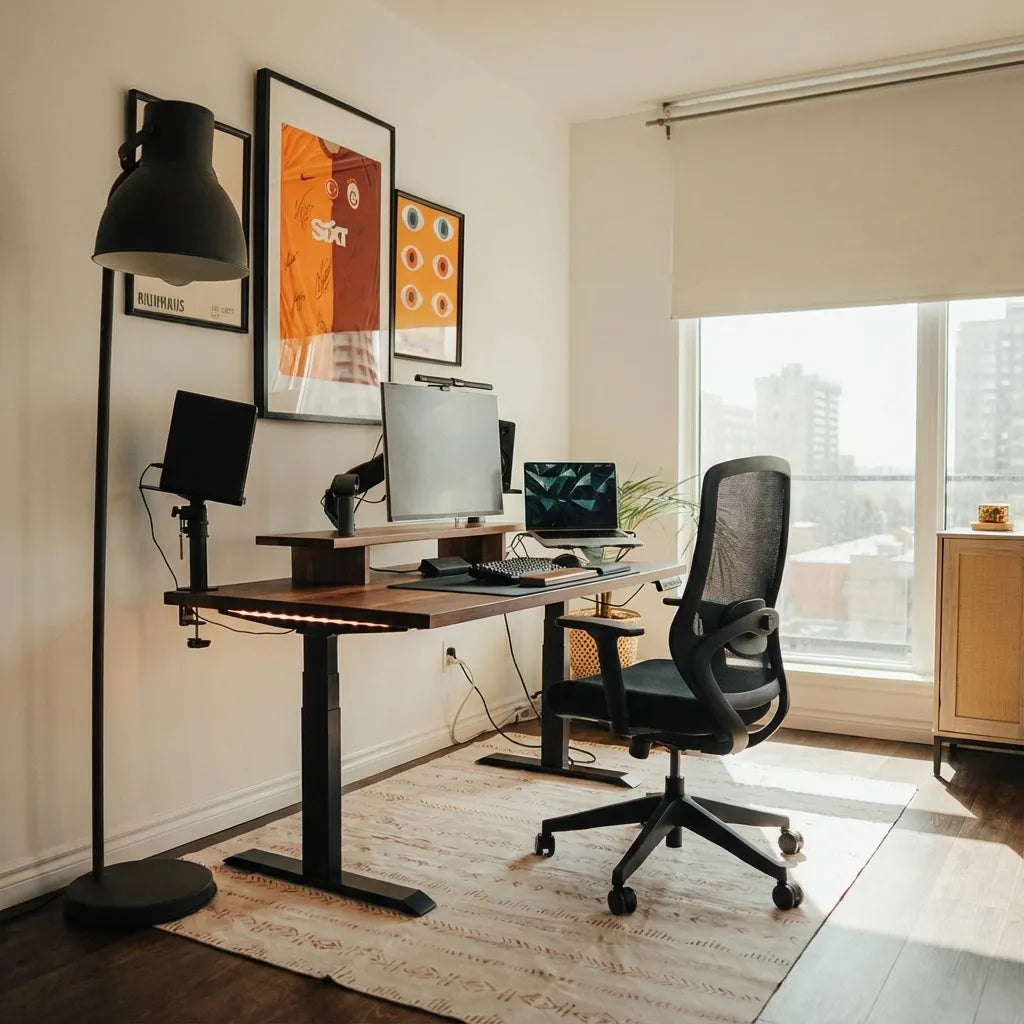
If one display is primary, keep it directly in front of you and place the second display to one side at a slight angle. The keyboard should stay aligned with your body and primary screen. This reduces the need to work for long periods with the head turned toward the main content.
If you use both screens equally, place them close together in a shallow arc and centre the meeting point between them in front of you. In that case, the keyboard aligns with the gap between the screens rather than the centre of one display. Turn your chair and body toward the screen you are actively using instead of twisting only your neck.
For mixed use, choose the arrangement that matches the majority of your work. A setup can be changed between tasks, especially when the screens are mounted on adjustable arms.
What changes with a laptop?
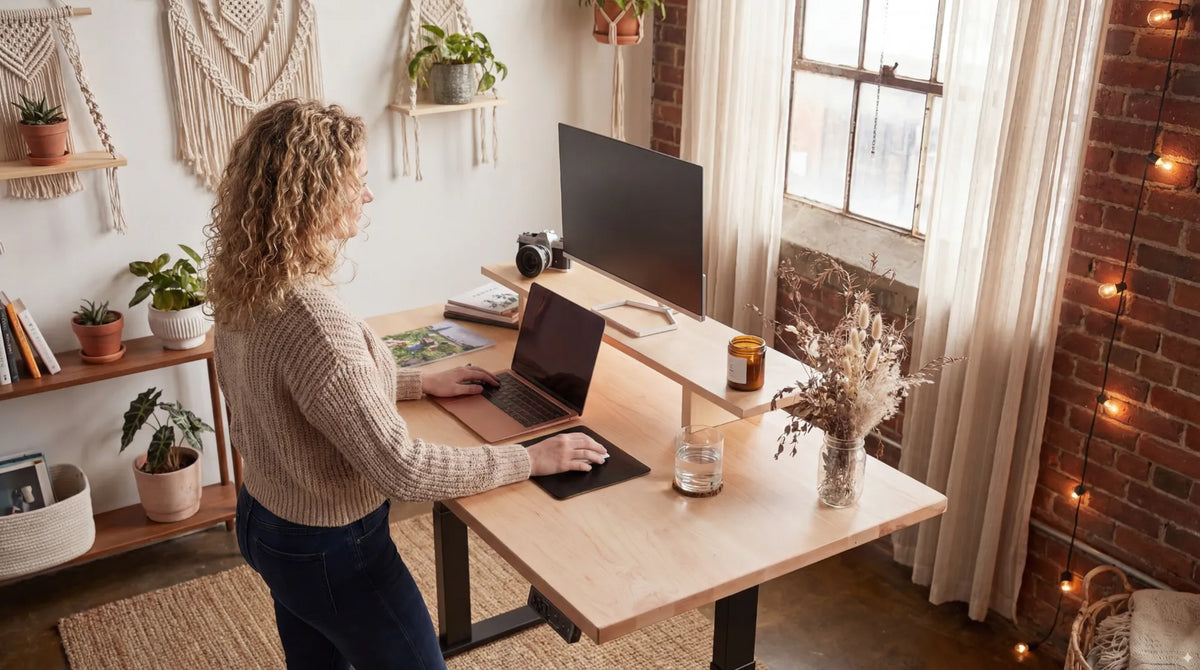
When the laptop is your only computer, the built-in keyboard and screen are permanently connected. Centre the laptop with your body for short sessions. For longer desk work, an external keyboard and mouse can let you raise the laptop screen while keeping the input devices at a comfortable height.
If the laptop is a secondary screen, keep the external keyboard aligned with the primary monitor. Put the laptop to the side and angle it toward you. Avoid sliding the keyboard toward the laptop unless the laptop has become the primary screen for that task.
Common signs the setup is off-centre
- Your chair faces one direction while the keyboard or main screen sits to the side.
- One shoulder stays forward while you type.
- Your wrists angle sideways toward the letter keys.
- You repeatedly rotate your neck to see the primary screen.
- The mouse is so far from the keyboard that your elbow moves away from your body.
- You centre the keyboard casing even though the number pad shifts the typing area left.
These observations can help you adjust the workstation, but they are not a diagnosis. Persistent pain, numbness or weakness should be discussed with an appropriate health professional.
A two-minute alignment check
- Sit in your normal working position and look straight ahead.
- Identify the midpoint of your torso and the letter-key section.
- Slide the keyboard until those points align.
- Move the primary monitor onto the same centreline.
- Bring the mouse beside the keyboard without crowding it.
- Type for one minute and check whether your shoulders remain relaxed.
- Repeat the check while standing if you use an adjustable desk.
Also compare the arrangement with the guide on whether your office chair should be centred with your monitor. Chair, keyboard and screen should work as a single system.
Bottom line
In most single-monitor setups, centre the keyboard's letter section with your body and primary screen. A number pad can make the whole keyboard look off-centre even when the typing area is correctly placed. With two equally used monitors, centre the keyboard on the gap between them. With a primary and secondary display, align the keyboard with the primary one.
Make the adjustment from your normal seated or standing position, then confirm that the keyboard height, reach and mouse location remain comfortable. A small change in alignment can simplify the entire workstation.

Previous article
Where Should You Put a Desk in a Square Room?
Next article
Should Your Desk Be Centred on the Wall?