


Should Your Laptop Screen Be Below Your Monitor?

In this article
Yes, a laptop screen can sit below an external monitor, but the arrangement works best when the external monitor is your main display and the laptop is used for shorter, secondary tasks. The monitor should remain centred with your body, while the laptop stays close enough that you can glance down without repeatedly bending or twisting your neck.
If you work mainly on the laptop, placing it low below another screen is usually less comfortable. In that case, raise the laptop, move it beside the monitor or make it the centred primary display. The right arrangement depends more on screen use than on visual symmetry.
Start by choosing the primary screen
The display used for most reading, writing and detailed work should be directly in front of you. CCOHS recommends putting the most frequently used monitor in front and placing secondary displays to the side or within an easy viewing area. This principle also applies when the second display is a laptop.
If the external monitor holds your main application, centre it with your chair, keyboard and body. The laptop can sit below it for chat, music controls, a reference document or a video-call panel. If the laptop contains the main work, centre and raise it instead of treating it as a low secondary screen.
The guide on choosing a primary monitor explains how task frequency should determine the centre of the workstation.
How low is too low?
There is no universal vertical gap that fits every person and screen. The laptop is too low when you repeatedly drop the chin, bend the neck forward or lean toward the display to read it. It is also too low when text must be enlarged so much that the secondary screen no longer serves its purpose.
CCOHS describes a monitor viewing zone below the horizontal line of sight and warns that screens placed too high can also create discomfort. For a laptop below a monitor, keep both displays within an easy downward viewing range. The top display should not force you to look upward, and the lower display should not require a sustained head-down posture.
Use your eyes first, then your head
A quick glance to the laptop should mostly involve eye movement. Occasional small head movement is normal. If you spend several minutes on the lower screen, move the active window to the main monitor or reposition the laptop rather than holding your neck bent.
Align the screens around the task
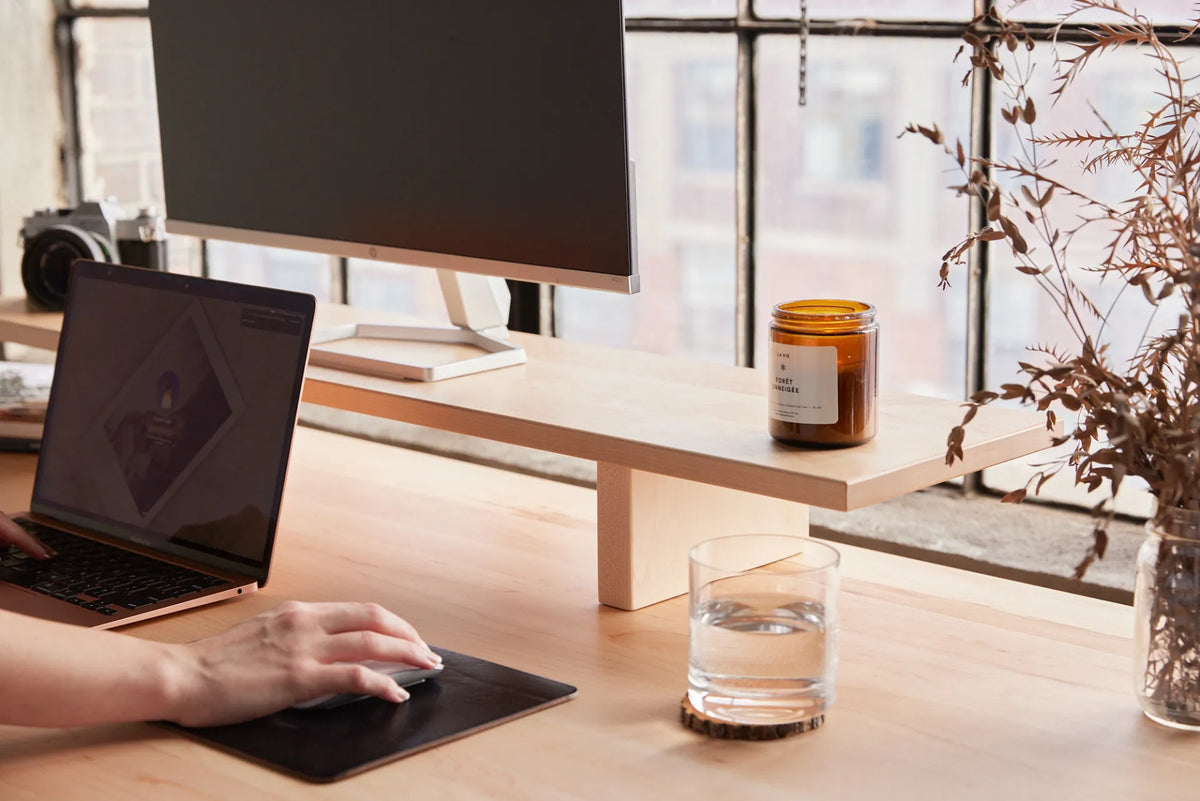
A laptop directly below a monitor creates a vertical arrangement. It can save horizontal desk space and keep the secondary display close to the centre. It also creates more vertical eye travel and may place the laptop keyboard in front of the external keyboard.
Use a stacked arrangement when:
- the external monitor is clearly the primary screen;
- the laptop is used for short reference tasks;
- both screens remain readable at a comfortable distance;
- the laptop does not block the monitor or input devices;
- the desk is deep enough to preserve a comfortable viewing distance.
Use a side-by-side arrangement when you alternate frequently between screens, need to compare documents or use the laptop camera for long calls. The article on placing a laptop to the left or right of a monitor covers that option.
Separate the screen from the keyboard
A laptop combines the display and keyboard at a fixed angle. Raising the screen also raises the keyboard, while lowering the keyboard lowers the screen. An external keyboard and mouse solve this conflict by allowing the laptop to be positioned for viewing rather than typing.
For longer sessions, place the external keyboard and mouse at a height that keeps the shoulders relaxed, elbows near the body and wrists in a neutral line. Keep them close enough that you do not reach past the laptop. CCOHS telework guidance recommends a keyboard at the correct height and a nearby mouse that can be reached without arm or wrist strain.
Check distance as well as height
A laptop below the monitor may sit closer to you because it occupies the front of the desk. That difference can make text appear larger on one screen and smaller on the other. Move the laptop only as close as needed for legibility, then adjust display scaling before leaning forward.
CCOHS suggests that an arm’s length is a useful starting point for monitor distance, adjusted for the person, screen and text size. The correct distance lets you read without eyestrain or a forward head posture. Review the laptop screen height guide for a complete height and distance check.
A practical setup sequence
- Sit or stand in your normal working position.
- Centre the external monitor if it will be the primary display.
- Set its height so the screen is at or slightly below your natural horizontal gaze.
- Place the laptop below it without covering important parts of either screen.
- Open the applications you actually use on each display.
- Check whether the laptop can be read with mostly eye movement.
- Position the external keyboard and mouse without reaching over the laptop.
- Work for 15 to 20 minutes, then reassess neck position and screen use.
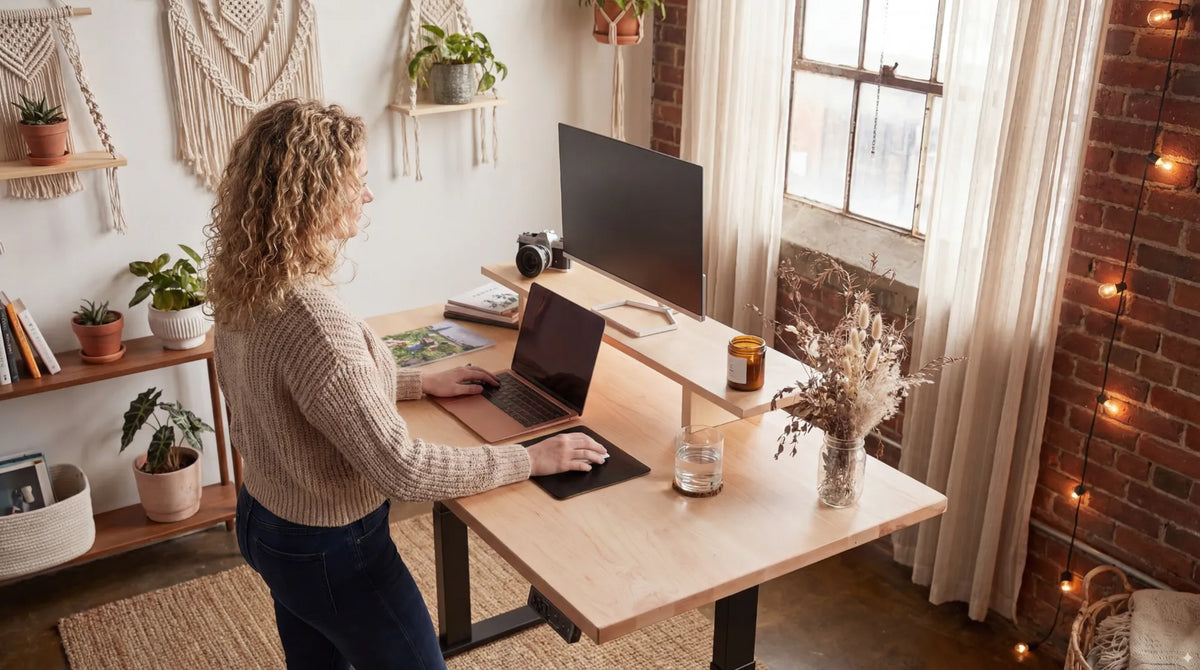
A photograph can look balanced while the working arrangement remains awkward. Test the real applications and text sizes before deciding that the layout is finished.
When a monitor arm helps
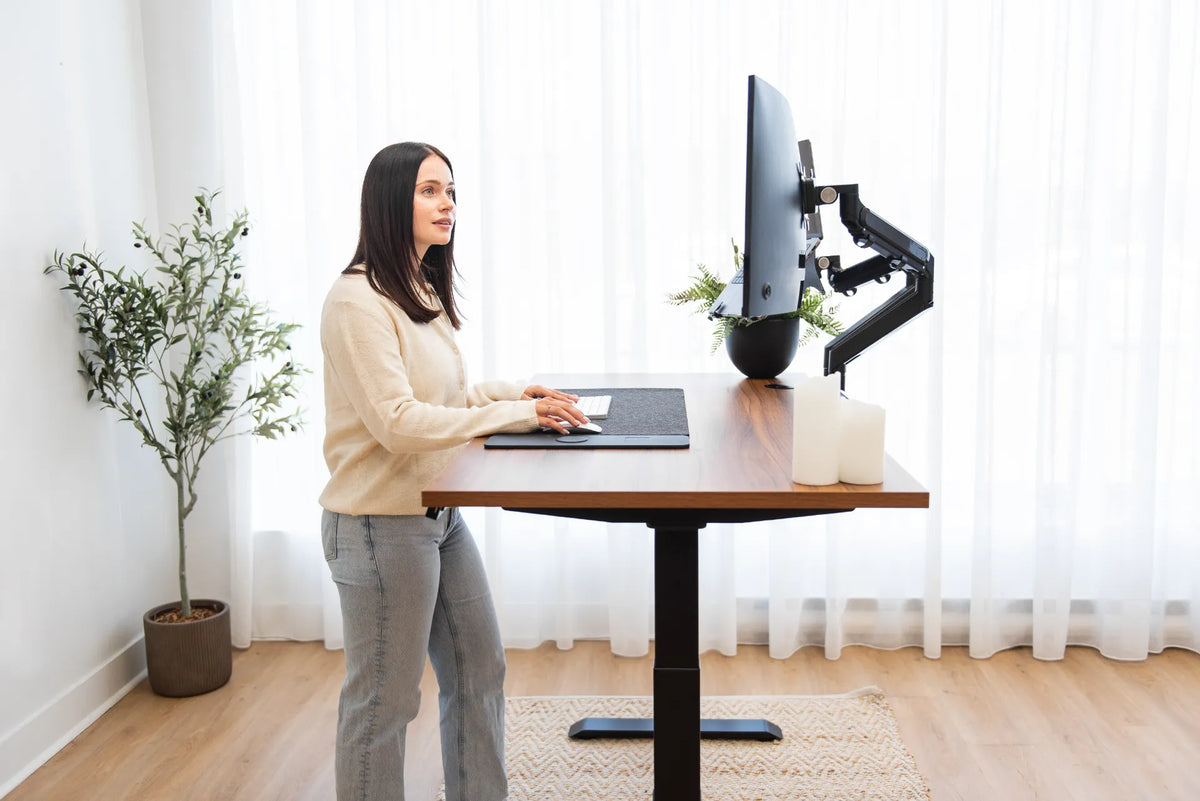
A monitor arm can create more room for the laptop and let the external display move independently. It may also help align the monitor with sitting and standing positions. Compatibility still matters: confirm the monitor weight, mounting pattern, desktop thickness and available clamping area.
Burotic's Monitor Arm is one option to compare after checking those requirements. A fixed stand or riser may be enough when the desk and screen remain in one position.
Common mistakes
- Using the lower laptop as the main screen: move primary work to the centred monitor.
- Stacking screens too high: the upper monitor should not require upward viewing.
- Placing the laptop too close: use scaling and distance together.
- Reaching over the laptop to type: preserve a comfortable keyboard and mouse zone.
- Ignoring the webcam: long calls may work better with the laptop beside the monitor or with a separate camera.
- Chasing perfect alignment: prioritize the screen used most rather than matching every edge.
Verify the arrangement during real work
Do not judge the setup only from a neutral desktop or an empty browser window. Open the applications you actually use, including documents, video meetings and reference material. Watch where your eyes and head move during a typical ten-minute task. If you repeatedly lower your chin to the laptop or turn toward it for most of the session, the laptop is functioning as a primary screen even if you intended otherwise. Raise it, move it closer to centre, or move the task to the external monitor.
Recheck the arrangement after changing chair height or switching the desk between sitting and standing. A monitor relationship that works while seated can become too low or too far away when the work surface moves.
The bottom line
Your laptop screen can sit below your monitor when it is a true secondary display. Keep the external monitor centred, make both screens readable without repeated neck bending and use external input devices for longer work. If you constantly look down at the laptop, raise it, move it beside the monitor or change which screen is primary.
For a broader arrangement, follow the ergonomic laptop and monitor setup guide.
Previous article
Should You Lock Your Knees at a Standing Desk?
Next article
How Much Walkway Space Should You Leave Beside a Desk?