





Where Should an Office Chair Headrest Sit?
Learn where an office chair headrest should sit, how to adjust it for upright work and reclined breaks, and how to spot a poor fit.

In this article
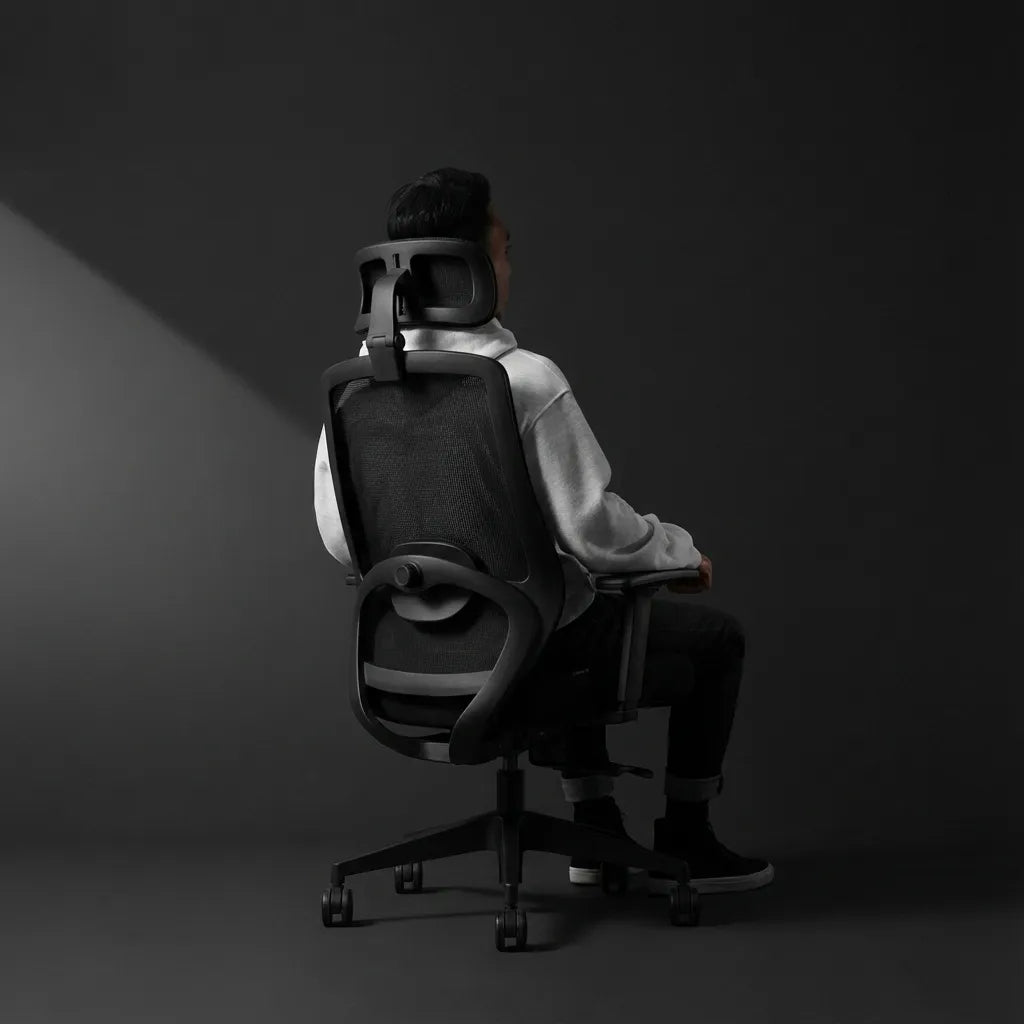
An office chair headrest should support the back of your head or the upper part of your neck without pushing your head forward. That simple answer is a useful starting point, but the best position depends on the chair, your body, the task and whether you are sitting upright or reclining.
A headrest is not meant to hold your head in one fixed position all day. It should be available when you lean back, pause or change posture. During focused keyboard work, you may sit slightly forward of it. During a call, reading break or reclined task, it can provide welcome support. The goal is a comfortable fit that lets your head remain balanced over your torso.
This guide explains how to find that fit, how to test it and when a headrest may not be the right solution. It offers general ergonomic guidance, not medical advice. Persistent pain, numbness or headaches should be discussed with a qualified health professional.
What part of the head or neck should the headrest support?
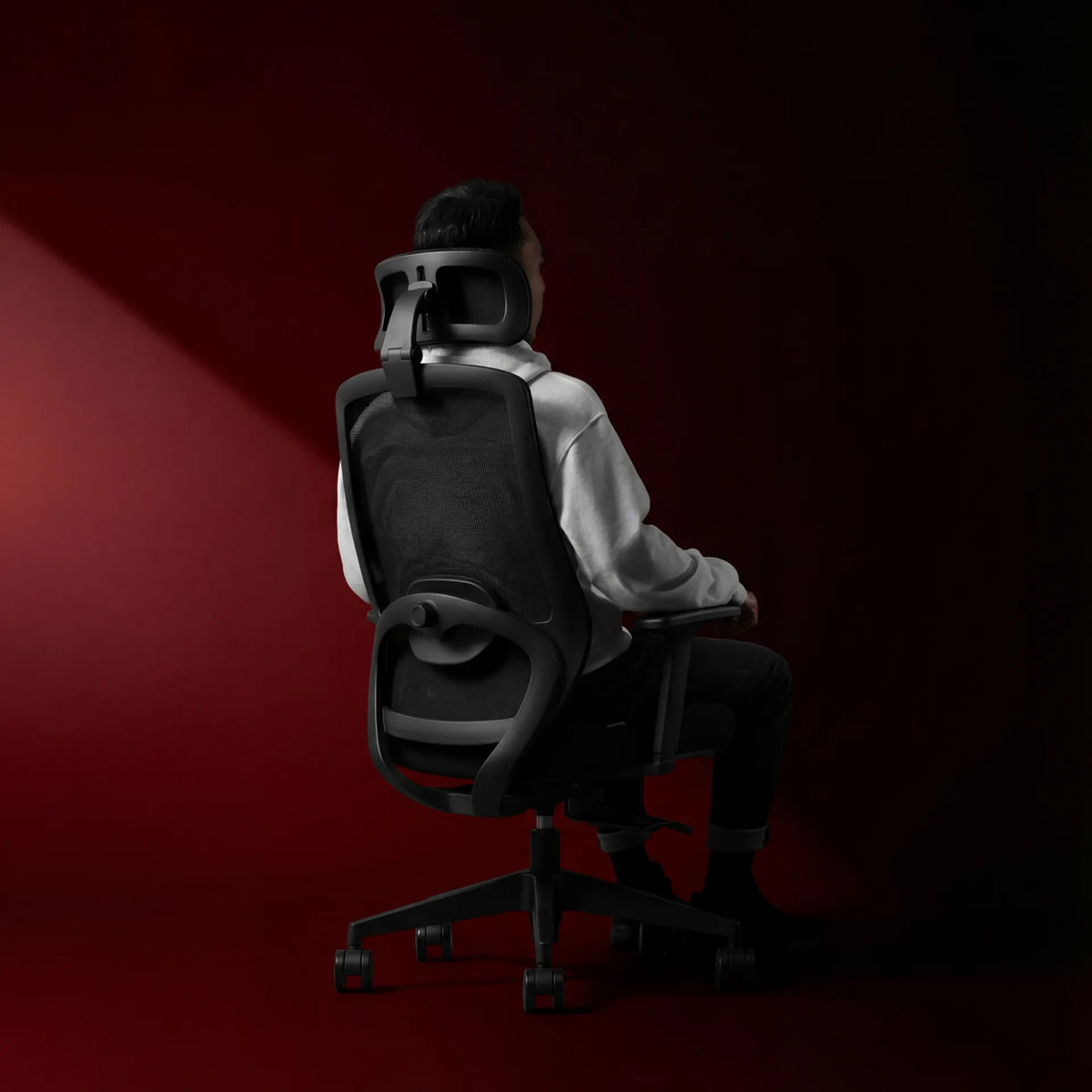
Start by aiming the headrest at the back of the head, near the base of the skull, or at the upper neck if that is how the headrest is shaped. The contact should feel broad and gentle. It should not create a hard pressure point, force your chin down or make you crane your neck to reach it.
The exact contact area varies because headrests are not all designed the same way. Some are curved pads that cradle the lower back of the head. Others are narrower supports intended to meet the upper neck. There is no single measurement that fits every person. The Canadian Centre for Occupational Health and Safety notes that workstations should accommodate individual dimensions rather than an imagined average user. That principle applies here too.
Why support too low can be uncomfortable
If the headrest sits too low, it may press into the middle of the neck or upper back instead of supporting the head. You may feel as though the pad is nudging your head away from the chair. A low support can also encourage you to slide forward, which reduces contact with the chair’s backrest and lumbar region.
Why support too high can miss the target
If the headrest is too high, it may touch the crown of the head or fail to make useful contact when you recline. Some users respond by tilting the chin upward. That is a sign to lower the support or adjust its angle rather than trying to adapt your posture to the chair.
Adjust the chair before adjusting the headrest
A headrest cannot compensate for a chair that is poorly adjusted. Set the foundation first. Sit back so the backrest supports your torso. Place your feet securely on the floor or on a stable footrest. Adjust seat height so your shoulders can remain relaxed while your hands reach the keyboard. Set armrests so they support the forearms without lifting the shoulders.
Then check the lumbar area. Your lower back should feel supported without a hard ridge. If the seat depth is adjustable, leave enough clearance behind the knees so the seat edge does not press into the legs. Burotic’s Loop chair adjustment guide walks through this sequence in more detail.
Only after the chair fits should you set the headrest. This order matters because changes to seat height, backrest angle or seat depth alter where your head meets the support.
How to set the headrest in five steps
1. Sit in your normal working position
Do not pose for the adjustment. Sit as you would during a real work session, with your pelvis toward the back of the seat, your torso supported and your screen in front of you. If you use progressive lenses, consider your usual viewing angle because the monitor may need to sit lower to avoid lifting the chin.
2. Raise or lower the headrest
Move the headrest until its padded area lines up with the back of your head or upper neck. If the support has discrete height settings, test the two closest positions rather than assuming the first contact is correct.
3. Adjust depth or angle if available
Bring the support forward only until it meets you when you relax into the backrest. It should not push the head in front of the shoulders. If the headrest rotates, use the angle that creates even contact rather than a sharp edge.
4. Test upright work and reclined rest
Type for a few minutes in your regular posture, then recline. During upright work, light contact or no contact can be normal. In a reclined position, the headrest should become easy to use without requiring you to search for it. Adjust the recline tension so the chair supports movement rather than dropping backward.
5. Recheck the monitor
A well-positioned headrest can still feel wrong if the screen makes you look up, down or sideways. CCOHS recommends considering viewing angle and viewing distance together. Place the primary monitor in front of you and generally keep the top of the screen at or slightly below eye level, adjusting for screen size, corrective lenses and personal comfort.
Should your head touch the headrest while typing?
Not necessarily. A headrest is often most useful during reclined work, calls and short recovery periods. When you are typing intently, your head may sit slightly forward of the support while remaining balanced over your shoulders. That is different from jutting the chin forward for a long period.
Forcing constant contact can create another problem: you may move the headrest too far forward and end up with the chin tucked. Instead, treat it as one support among several. The backrest carries the torso, the seat supports the pelvis, the armrests reduce shoulder load and the headrest gives the head a place to rest when appropriate.
If you work for long hours, the ability to change position matters more than holding a single ideal pose. Our guide to choosing an office chair for long work sessions explains why adjustability and task fit deserve more attention than a rigid posture rule.
Signs the headrest is positioned poorly
- Your chin is pushed toward your chest.
- You have to tilt your chin upward to reach the pad.
- The support presses sharply into the middle of your neck.
- Your head is pushed in front of your shoulders.
- You slide forward in the seat to escape the pressure.
- The headrest catches your hair or headset every time you move.
- You cannot recline without losing sight of the monitor.
Make one small change at a time. Height, depth and angle interact, so adjusting all three at once makes it difficult to identify what helped. Give each setting a short real-world trial rather than judging it from a few seconds of sitting.
What if the headrest does not fit?
First, confirm that it is installed in the intended orientation and that every adjustment is available. If it still pushes your head forward at its most rearward setting, the headrest may not match your body or preferred posture. Removing it can be more comfortable than forcing a poor fit, provided the chair is designed to be used that way.
A headrest is optional for many office tasks. A supportive backrest, suitable seat dimensions and a workstation arranged around the user are more fundamental. Do not choose a chair solely because it has a large headrest. Test whether the complete chair supports your body and work.
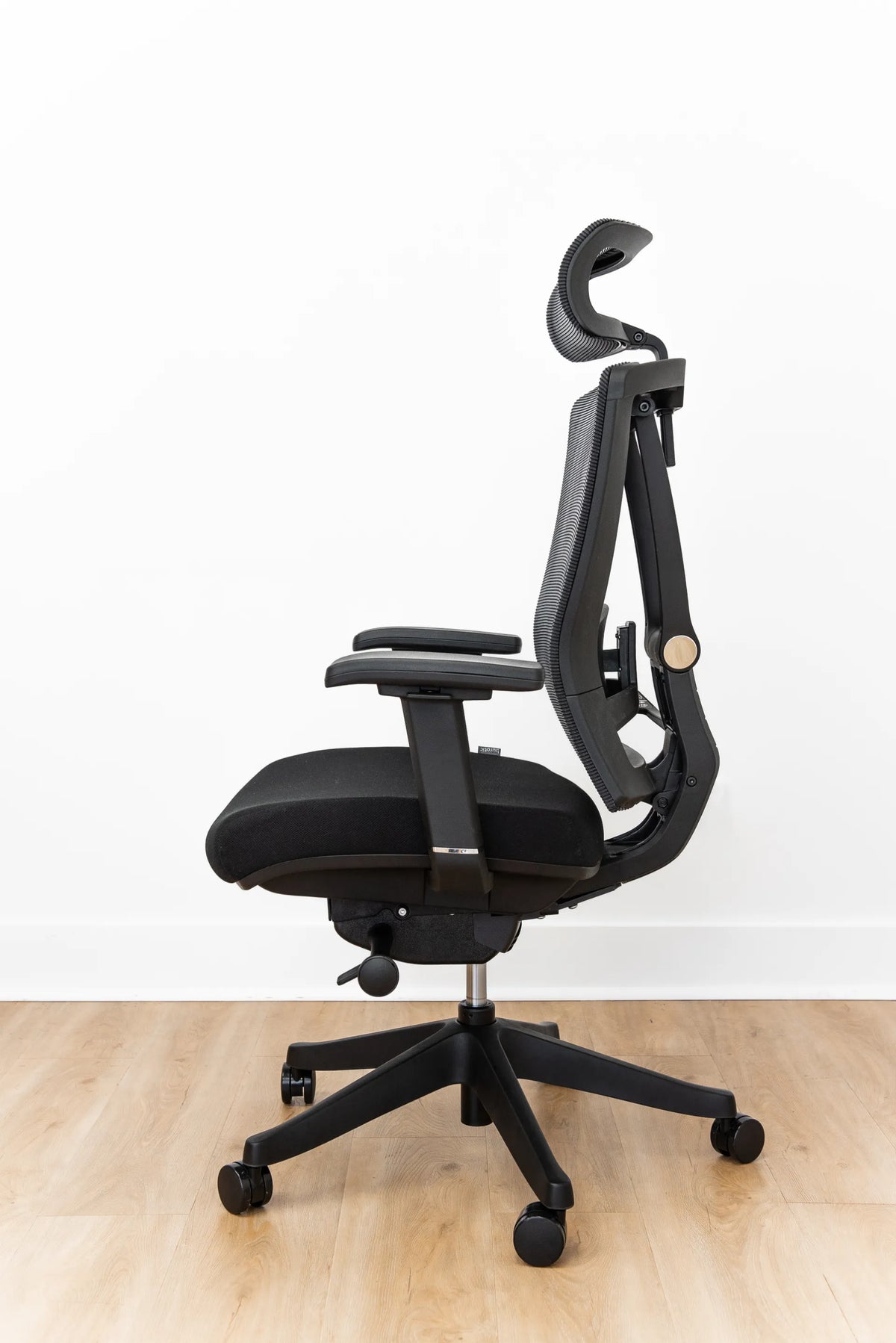
For owners of the Loop chair, the Loop Ergonomic Headrest is the compatible option to consider. If you are selecting a new chair, review the adjustment range and fit of the Loop Ergonomic Chair as a complete system rather than evaluating the headrest alone.
Headrests for different tasks
Focused keyboard and mouse work
Prioritize screen position, relaxed shoulders and close input devices. Use the headrest as a nearby support, not a restraint. If contact makes it harder to see the screen without moving the eyes or neck, revisit both headrest depth and monitor height.
Calls, reading and reclined work
These are situations where a headrest can be especially useful. Lean back with the torso supported and let the pad carry some of the head’s weight. Keep the screen or reading material positioned so you do not have to twist.
Shared workstations
Reset the chair at the start of each shift. A headrest positioned for a taller colleague may sit above your head, while one set for a shorter colleague may press into your neck. A short adjustment routine can prevent hours of working around someone else’s settings.
A practical final check
Your headrest is in a useful position when you can sit back, keep the chin neutral and feel gentle support without being pushed forward. You should be able to move between upright and reclined positions without fighting the chair. The monitor should remain easy to view and your shoulders should stay relaxed.
There is no universal height mark that replaces testing. Adjust the chair from the ground up, position the headrest for your anatomy, then evaluate it during real work. A good setting tends to disappear into the background. You notice the support when you need it, not as a pressure that dictates how you must sit.

Previous article
Why Is One Side of My Standing Desk Higher Than the Other?
Next article
How Large Should a Desk Pad Be?