

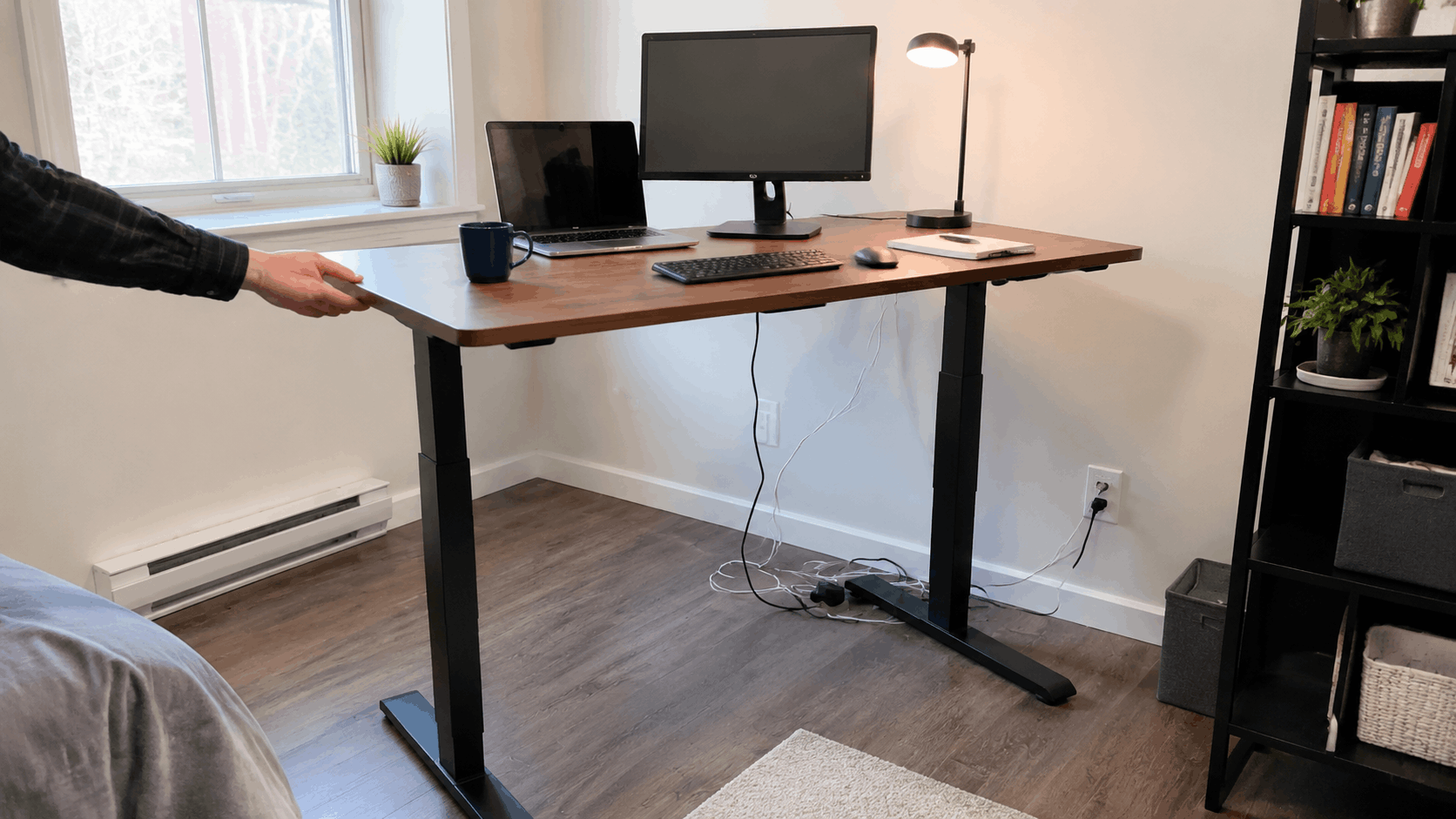
Why Is My Standing Desk Wobbly? 10 Checks Before You Replace It
Diagnose standing desk wobble by checking the floor, levelling feet, fasteners, tabletop, load, monitor arms and cable tension in a safe order.

In this article
A standing desk that moves slightly when deliberately pushed is not necessarily defective. The more useful question is whether the desk or monitor shakes during normal typing, mouse use or height changes. If movement interferes with work, there are several checks worth making before replacing the frame.
Standing desk wobble can come from the floor, levelling feet, loose fasteners, tabletop attachment, uneven loading or monitor arms that amplify small vibrations. This guide provides a safe troubleshooting sequence that starts with the simplest causes and avoids unsupported modifications.
First, identify the type of movement
Not every movement has the same cause. Observe the desk without forcing it beyond normal use.
- Rocking: one foot lifts or the desk tips diagonally. This often points to an uneven floor or incorrect levelling.
- Side-to-side sway: the whole frame moves laterally, especially at standing height.
- Front-to-back movement: pressure on the front edge makes the desk flex or shift.
- Desktop flex: the frame appears steady, but the surface bends or vibrates.
- Monitor shake: the screen moves more than the desktop, often because an articulated arm magnifies a small vibration.
- Movement during travel: the desk shakes, hesitates or makes an unusual sound while rising or lowering.
Use normal typing and mouse movements as your primary test. Aggressively shaking a raised desk can make almost any two-leg frame move and does not necessarily represent daily performance.
1. Check whether the floor is level and firm
A rigid frame cannot compensate for four contact points that do not sit evenly. Test the desk at its normal location, not while it straddles a flooring transition or rests partly on a rug.
Press gently near each corner at the lowest height. If the desk rocks diagonally, inspect the levelling feet. Adjust them according to the manufacturer’s instructions until every foot makes firm contact. On carpet, verify that the feet have settled through the pile and that the desk is not resting on a thick pad, cable or floor protector.
Do not slide cardboard, folded paper or an improvised wedge under a foot as a permanent fix. A proper levelling adjustment provides broader, more predictable contact.
2. Recheck all frame fasteners
Fasteners can be missed during assembly or loosen slightly after the desk settles under load. Unplug the desk, remove objects that could fall and follow the assembly manual before inspecting connections.
Pay particular attention to:
- feet connected to the lifting columns;
- columns connected to the upper frame;
- cross-frame or support-rail connections;
- brackets connecting the frame to the tabletop;
- adjustable frame-width fasteners;
- control box and cable components that may be mistaken for structural parts.
Tighten only to the manufacturer’s specified method. Overtightening can strip threads, crush a desktop insert or damage the surface. If hardware is missing, damaged or does not engage properly, stop and request the correct replacement rather than substituting an unapproved screw.
3. Inspect how the tabletop is attached
A desk can feel unstable when the steel frame is secure but the surface is not firmly connected. From below, look for gaps between the brackets and tabletop, loose screws or unused attachment points that the manual requires.
Do not add random screws to a solid wood or laminate surface. Screw length, pilot-hole size and location matter. A screw that is too long can damage the top, while a hole near an edge or reinforcement feature can weaken the material.
If you combined a frame with a custom surface, confirm that the top falls within the frame manufacturer’s permitted width, depth and thickness ranges. The current Burotic Aspire Standing Desk Frame lists compatibility with tops from 42 to 75 inches wide, 22 to 36 inches deep and at least 0.9 inch thick. Verify the current product page and installation instructions for the exact configuration.
4. Test at several heights
Raise the desk in small increments and repeat the same typing test. A tall structure naturally has more leverage than a low one, so some increase in movement can occur as the columns extend. What matters is whether movement becomes disruptive at your actual working height.
If you only notice wobble at the maximum setting, confirm that you truly need that height. The correct working surface is generally near elbow level for keyboard and mouse use. Raising the desk higher to lift the monitor can create a poor arm position and unnecessary extension.
The Canadian Centre for Occupational Health and Safety recommends setting the work surface so the keyboard is near elbow height and the wrists remain straight. Adjust the screen independently rather than using desk height to compensate for a monitor that sits too low.
5. Separate desk movement from monitor-arm movement
A monitor arm places the screen above the desk on articulated joints. This creates useful adjustability, but it can make small desktop vibrations easier to see.
Test the setup in stages:
- Type normally while watching an object placed directly on the desktop.
- Compare that movement with the screen.
- Check that the monitor arm clamp is installed on a flat, compatible part of the top.
- Confirm that arm joints and the VESA plate are adjusted according to the arm instructions.
- Move the screen closer to the arm’s central support and repeat the test.
A fully extended arm creates more leverage than a compact position. If the desk surface is relatively steady but the monitor shakes, the arm position or adjustment may be the main contributor. The Burotic Monitor Arm should only be installed after confirming monitor weight, VESA pattern, desktop thickness and underside clamp clearance.
6. Review load and weight distribution
A lifting-capacity number is not permission to place every item at the front or on one side. The weight of the tabletop, monitors, computer, speakers, arms, drawers and accessories all contribute to the moving load.
Create a simple inventory and include:
- the tabletop itself;
- each monitor without its original stand if it is arm-mounted;
- monitor arms and laptop trays;
- desktop computer and battery backup;
- speakers and audio equipment;
- under-desk drawers, trays and mounted accessories;
- books, equipment and other permanent items.
Distribute heavier equipment as evenly as the workstation allows and keep the centre of mass reasonably close to the frame. Avoid placing a very heavy computer at the extreme end of a wide top unless the manufacturer confirms the configuration. The Aspire frame currently lists a 280 lb lifting capacity. That figure should be evaluated together with the tabletop and complete workstation, not only the visible equipment.
7. Check desktop size, stiffness and overhang
A longer or deeper surface creates more leverage at its edges. If the frame is narrowed too much under a wide top, large unsupported overhangs can make movement at the corners more noticeable.
Confirm the required frame width and bracket placement in the manual. A tabletop should be structurally suitable for the span and for any clamped accessories. Damage, excessive flex, loose laminations or an unsupported seam require attention before the desk is used.
Burotic’s Aspire Solid Wood Standing Desk pairs the Aspire frame with a prepared surface as a complete configuration. If you are using a separate top, verify compatibility before drilling or moving equipment onto it.
8. Look for cable tension and hidden contact
A power or video cable that becomes tight can pull on the desktop, monitor arm or computer as the desk moves. A cable tray that touches a wall, drawer or frame member can also create vibration or noise that resembles a mechanical problem.
Move the empty desk slowly from minimum to maximum height while observing the cable path from a safe distance. Keep hands and loose clothing away from moving parts. Confirm that every connection has enough slack, that no cable is pinched and that fixed wall connections do not pull against the moving section.
The published standing desk cable management guide explains how to separate moving and fixed cable zones and test them through the entire height range.
9. Confirm that the desk is not touching nearby furniture
A desk that barely touches a wall, filing cabinet, windowsill or shelf can transfer movement and sound. Leave the clearance specified by the manufacturer around moving edges.
This check is particularly important behind monitor arms, where the screen or arm may swing behind the tabletop, and beside drawers or storage units that remain fixed while the desk rises.
10. Reset only when the manufacturer instructs you to
A controller reset may solve certain synchronization or travel problems, but it is not a general cure for a loose frame. Use only the reset sequence provided for the exact desk model.
If one leg moves differently from the other, the desk stops unevenly, an error code appears, or the motors make an unusual sound, stop operating the desk and contact the manufacturer. Repeatedly cycling a desk with an electrical or synchronization fault can worsen the problem.
What not to do
- Do not brace a height-adjustable desk to a wall unless the manufacturer designed it for that purpose.
- Do not add a crossbar, drill the columns or modify the lifting mechanism.
- Do not exceed the stated moving-load capacity.
- Do not tighten fasteners while the desk is powered or carrying unstable objects.
- Do not place hands near lifting columns or pinch points during movement.
- Do not keep using a desk with a visibly bent part, damaged wire or uneven leg travel.
A practical stability test after adjustments
Once the desk is level and all approved connections are secure, rebuild the workstation in stages.
- Test the empty desk at sitting and standing height.
- Add the tabletop equipment that sits directly on the surface.
- Add monitor arms and screens.
- Route and secure cables.
- Repeat normal typing, mouse and height-change tests.
This sequence helps identify which component introduces noticeable movement. It also prevents you from changing several variables at once.
When to contact support
Contact the desk manufacturer or installer if wobble continues after levelling and checking the approved fasteners, or if you find damaged hardware, uneven travel, electrical errors, unusual motor noise or visible deformation.
Provide the desk model, surface dimensions, approximate equipment load, floor type, working height and a short video of the movement. A side view and a view of the feet often make troubleshooting more efficient.
Stability starts with the whole workstation
Standing desk stability is not determined by one specification. The floor, frame, fasteners, top, equipment placement, monitor arms and installation all interact. Begin with levelling and assembly, then isolate accessories and load.
If you are selecting a new frame, compare the permitted tabletop dimensions, height range, lifting capacity and installation requirements against the workstation you actually plan to build. That preparation is more useful than relying on an aggressive showroom shake test.
Sources
- CCOHS: Sit-stand desks
- CCOHS: Monitor positioning
- OSHA Computer Workstations: Desks
- OSHA Computer Workstation Evaluation Checklist
Always follow the instructions for your exact desk. This article provides general troubleshooting information and does not replace an inspection by the manufacturer or a qualified technician.


Previous article
Do Anti-Fatigue Mats Work? How to Choose One for a Standing Desk
Next article
Where Should Lumbar Support Sit on an Office Chair?