


Should You Recline While Working at a Computer?
A slight, supported recline can be a comfortable computer-working posture when the screen, keyboard and chair remain aligned. Learn when to recline, how far to lean back and what to adjust if the posture makes you reach or crane your neck.

In this article
Yes, you can recline slightly while working at a computer, provided your back stays supported and your keyboard, mouse and screen remain easy to use without reaching or bending your neck. Reclining is not a licence to slide forward, lose lumbar contact or work from a deeply leaned-back position for hours. It is one of several postures you can move between during the day.
The Canadian Centre for Occupational Health and Safety notes that no single working posture suits everyone for an extended period. Its guidance encourages variation, including upright sitting, slight reclining, forward tilting and standing where the workstation supports those positions. The useful question is therefore not whether reclining is universally good or bad. It is whether your reclined position keeps the work close, the joints supported and the body free to change position.
What counts as a useful working recline?
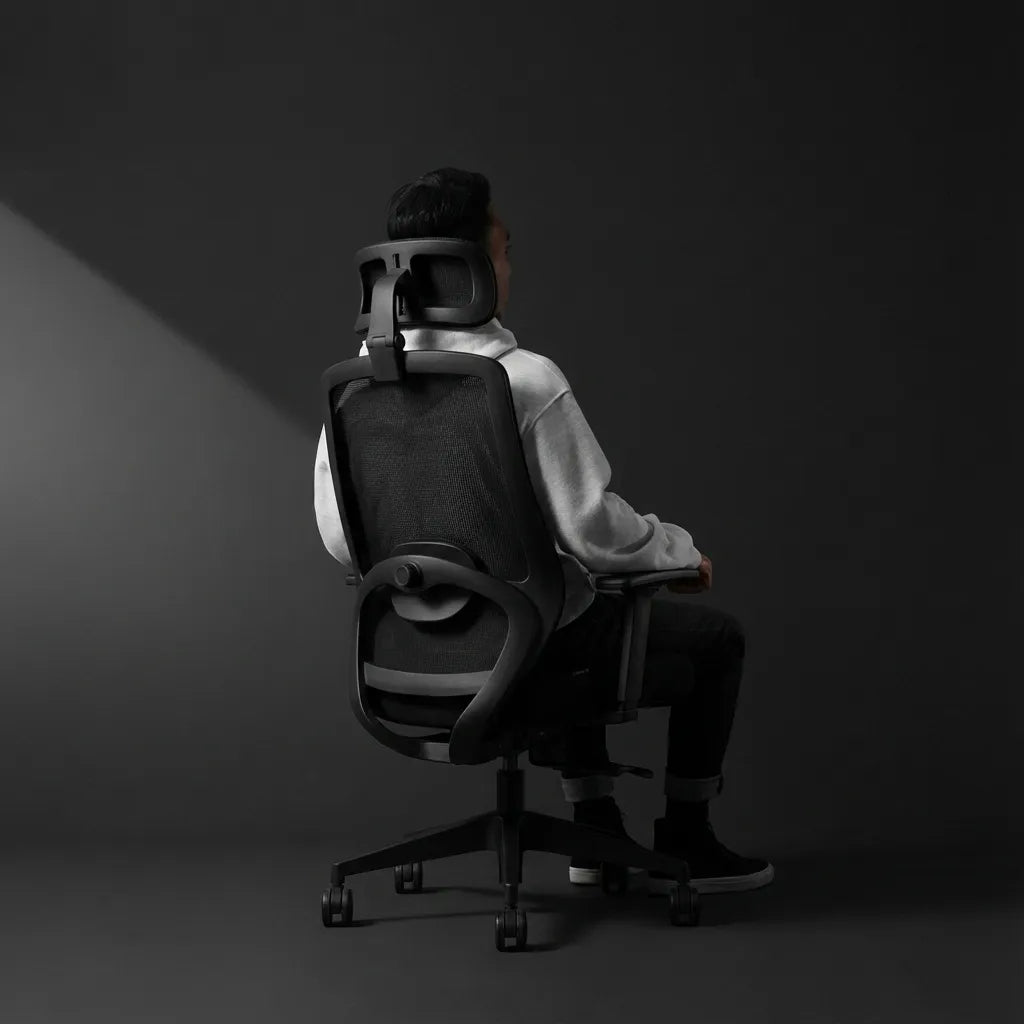
A working recline is usually modest. Your torso leans back slightly while the backrest supports the natural shape of your spine. Your head stays balanced rather than jutting forward, your shoulders remain relaxed and your elbows stay near your sides. OSHA describes a neutral seated position in which the torso and neck are aligned and may recline while the back remains supported.
CCOHS cautions against reclining the backrest more than 30 degrees for normal seated work. That does not create a precise prescription for every body or chair, but it is a useful boundary: a deep lounge posture is different from a supported working posture. The more you recline, the more likely the keyboard, mouse and screen will need to move with you.
Recline should not become a forward head posture
A common failure occurs when the torso moves back but the head moves forward to keep reading the screen. The result may feel relaxed through the back while increasing effort at the neck. Enlarge text, bring the monitor closer or reduce the recline rather than craning toward the display.
Keep your lower back in contact with support
If your pelvis slides toward the front edge, the backrest can no longer support you as intended. Reset by sitting all the way back, adjusting seat depth if available and placing the lumbar support in the hollow of the lower back. Our guide to lumbar-support position explains this relationship in more detail.
When reclining can work well
A slight recline can suit reading, reviewing documents on screen, video calls and periods of focused computer work when the input devices stay close. It may also provide a useful change from sitting bolt upright. Variation matters because even an excellent posture becomes tiring when held without movement.
Reclining can be especially practical on a chair with a backrest that moves smoothly and provides appropriate resistance. The backrest should support your movement rather than fall away or push you forward. If the chair has adjustable tension, set it so you can lean back with control and return without straining. See how to adjust office-chair recline tension for a control-focused walkthrough.
When an upright position may be easier
Detailed handwriting, close visual inspection and tasks that require frequent reaching may be easier in a more upright posture. Reclining is also less suitable when the desk is too high, the keyboard is far away or the chair cannot move close enough to the work surface. In those cases, leaning back increases the distance to the task and can pull the shoulders forward.
If you must reach for the mouse, lift the arms or bend the wrists, fix the workstation before increasing the recline. Bring the keyboard and mouse toward you, lower the work surface where possible and keep the mouse beside the keyboard at the same level.
How to set up a slight recline for computer work
- Adjust seat height first. Keep both feet supported on the floor or a stable footrest, with room under the desk.
- Sit fully back. Keep the pelvis against the back of the seat so the lumbar area meets the backrest.
- Set the backrest support. Adjust lumbar height or depth only within the controls available on your chair.
- Use a modest angle. Lean back just enough to feel supported while remaining engaged with the work.
- Bring the work to you. Keep the keyboard and mouse close enough that elbows remain near the body.
- Recheck the screen. Make sure you can read without lifting the chin, leaning forward or squinting.
- Test movement. Confirm that the chair returns smoothly and that cables, armrests and the desk do not obstruct it.
Locked or free-moving recline?
There is no single answer for every task. A locked position can provide a consistent reference, while a tensioned free-moving backrest allows small changes. Choose the mode that keeps you supported and stable. Do not force a control or assume every lever works the same way. Consult the chair instructions, and use the adjustment sequence for the exact model. The Loop chair adjustment guide is available for owners of that Burotic model.
Five signs the recline is not working
- Your head moves forward or your chin lifts to see the screen.
- Your lower back loses contact with the backrest.
- You reach for the keyboard or mouse with straightened elbows.
- Your feet slide forward or lose stable support.
- You cannot return upright without pulling on the desk or armrests.
If one of these appears, reduce the angle and adjust the related component. Do not solve every problem with the chair alone. Monitor distance, desk height, keyboard position and seat depth work as a system.
Recline is not a substitute for movement
A comfortable leaned-back position can still become static. OSHA recommends changing working position, making small chair adjustments, standing and walking periodically. CCOHS similarly emphasizes posture variation. Use reclining as one option in a sequence that may include upright sitting, brief standing and short movement breaks.
A practical cue is to change position when you notice fidgeting, leaning on one armrest, sliding forward or losing concentration. You do not need a rigid timer if natural task changes already prompt movement. Calls, reading and planning may suit a slight recline; typing, writing and detailed mouse work may bring you more upright.
What to look for in a chair
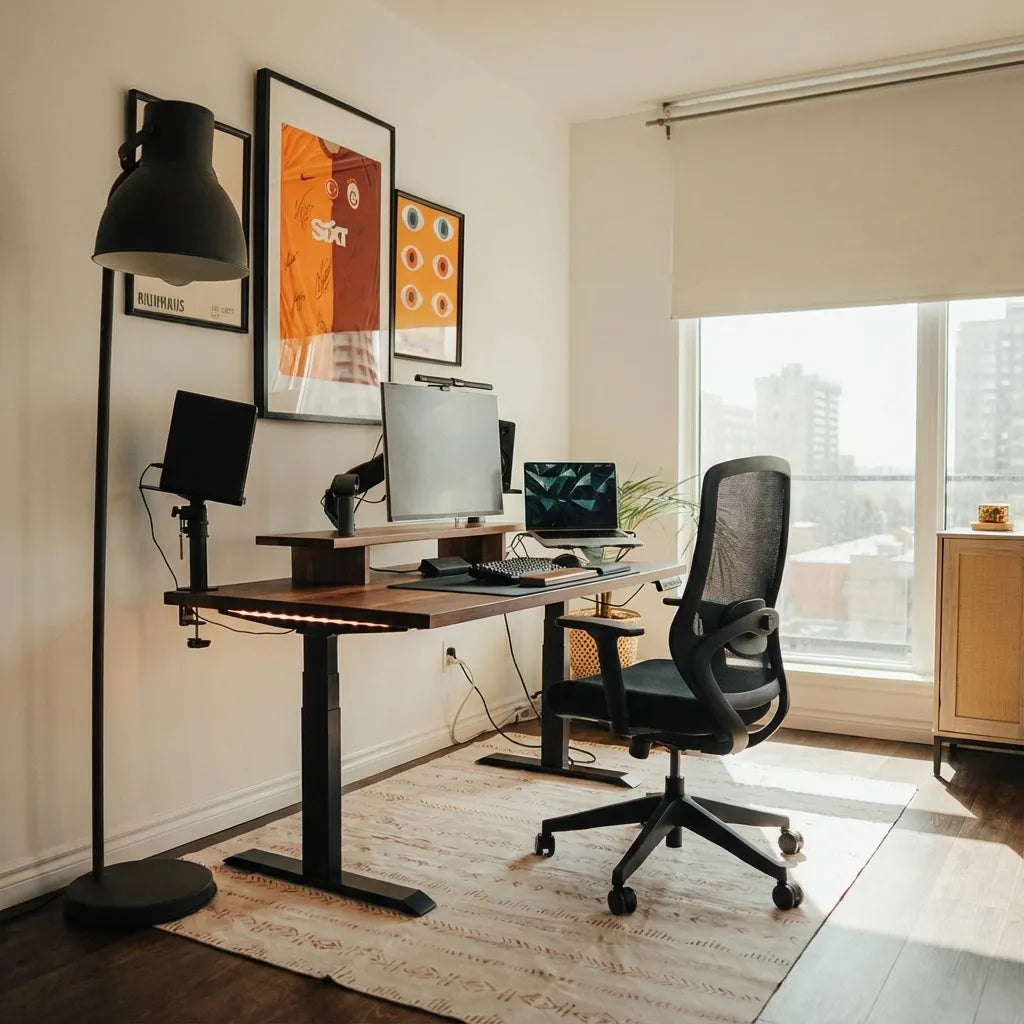
For reclined computer work, useful features include a supportive backrest, controllable tilt resistance, a stable base and adjustments that let the seat fit your body. A headrest may be helpful for deeper recline, but it should not push the head forward during ordinary work. Confirm every current specification on the product page rather than assuming a feature from appearance alone.
The active Burotic Loop Ergonomic Chair is one chair to compare with your body dimensions, desk and adjustment needs. This article does not diagnose or treat pain. Persistent pain, numbness, weakness or symptoms that continue after setup changes should be discussed with an appropriate health professional.
Bottom line
A slight, supported recline can be a sound computer-working posture. Keep the back supported, the head aligned and the input devices within easy reach. Avoid turning a working recline into a deep lounge position, and move between postures instead of searching for one perfect angle to hold all day.
Previous article
Which Side of a Desk Pad Goes Down?
Next article
Should You Shift Your Weight While Standing at a Desk?