





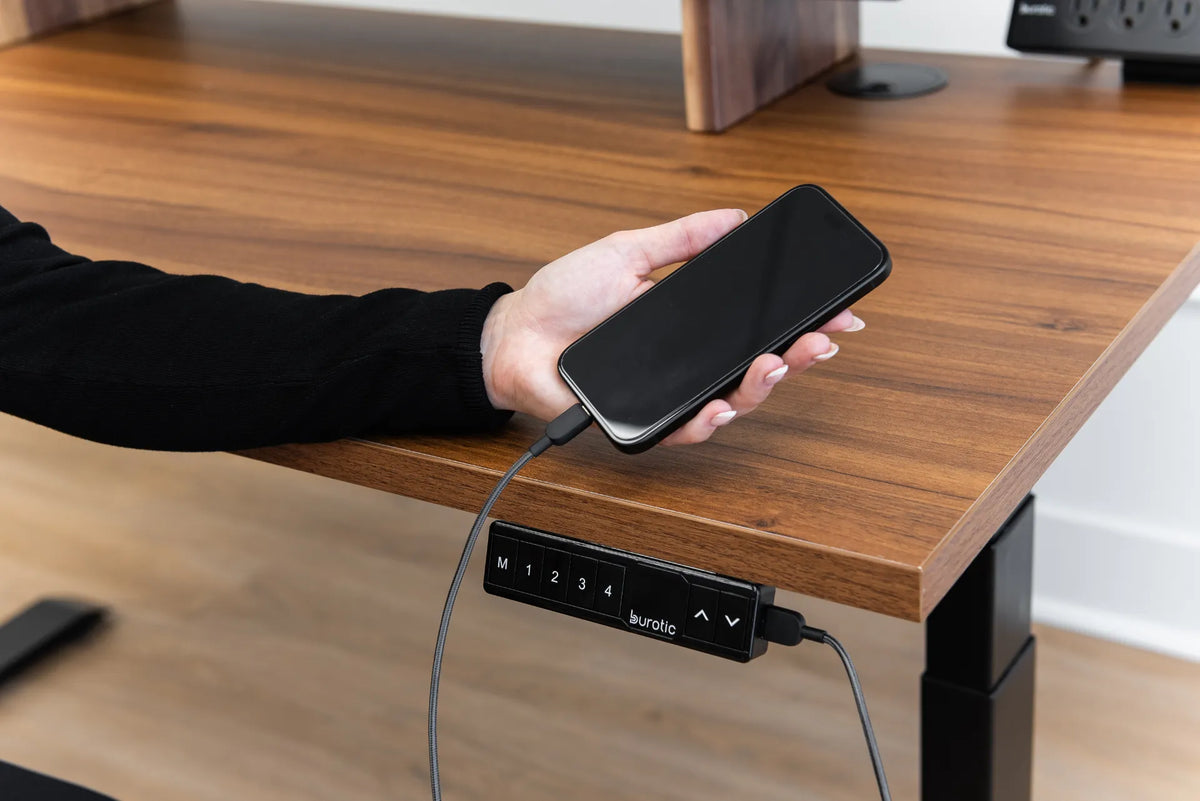
Why Is Your Standing Desk USB Port Charging Slowly?

In this article
A standing desk USB port may charge a phone slowly because the port supplies less power than a dedicated fast charger. The cable, the phone's temperature, active apps, shared power and the desk's operating state can also limit charging. Slow charging does not automatically mean that the desk or phone is defective.
Start by checking the desk manual or product specification for the port's rated output. USB connector shape does not guarantee a charging speed. A USB-C opening, for example, does not necessarily mean the port supports USB Power Delivery. Use the desk port for convenient top-ups only when its documented output matches the device's needs.
Why desk USB ports are often slower than wall chargers
A USB port integrated into a desk controller has to work within the desk electronics' power design. Some ports provide basic USB charging, while a modern wall adapter can negotiate a much higher power level with a compatible phone. The USB Implementers Forum explains that USB Power Delivery is the protocol designed for flexible, higher-power delivery. Both the source and the device, plus the cable where required, must support compatible modes.
A desk USB port can therefore work normally and still be slower than the charger supplied or recommended for your phone. Treat the port rating as the source of truth, not the connector alone.
Seven checks for slow charging
1. Confirm the port's documented output
Look for voltage and current, or a wattage rating, in the desk manual. Multiplying volts by amps gives an approximate maximum wattage. That maximum may be lower in real use and does not prove that a fast-charging protocol is available.
If the documentation does not state the output, contact the manufacturer rather than assuming. Do not open the controller or control box to inspect internal wiring.
2. Compare with a known compatible wall charger
Charge the same phone with the same cable from a compatible wall adapter. If the wall adapter is much faster, the desk port is likely providing a lower power level. If both are slow, investigate the cable, phone settings, temperature or battery condition.
Apple's Canadian support guidance notes that ports in computers, hubs or vehicles may charge more slowly than a dedicated USB-C charger. The same principle can apply to a convenience port integrated into furniture.
3. Inspect and swap the cable
A damaged, excessively long or low-quality cable can increase resistance or fail to support the desired charging mode. Check for fraying, bent connectors, looseness and heat. Stop using a damaged cable. Test with a short, known-good cable that is compatible with the phone and intended charging standard.
4. Check whether power is shared
Some multi-port power sources divide available output among connected devices. Disconnect other USB accessories temporarily and test again. If charging improves, the source may be sharing a limited power budget. The exact behaviour depends on the desk's documented design.
5. Let the phone cool down
Phones can reduce or pause charging when the battery becomes too warm. Heat can come from direct sunlight, demanding apps, video, gaming or a warm room. Remove the phone from sunlight, stop intensive use and let it return to a normal temperature. Do not cool it with ice or condensation-producing methods.
Apple states that charging can slow or pause under extreme temperature conditions and resume when the battery returns to a normal range. Other phone manufacturers use similar protective controls, so consult the support page for your device.
6. Check the phone's charging settings
Battery protection features may slow or pause charging near a selected limit, often around 80 percent. A phone may also display a slow-charger notice when a higher-power source could improve the rate. Review the battery screen before concluding that the port is failing.
7. Confirm the desk has stable power
If the controller display, height adjustment or USB port behaves intermittently, confirm that the desk's power connections are secure and that the wall outlet is working. Stop if there is a burning smell, unusual heat, sparking, damaged insulation or liquid exposure. Disconnect power safely and contact support or a qualified technician.
When slow charging is normal
Slow charging can be expected when the desk port is designed for basic convenience power, the phone is nearly full, the device is warm or the screen and demanding apps are active. Charging speed also changes throughout the battery cycle. The highest advertised rate is not maintained from zero to 100 percent.
If you need rapid charging before leaving, use a dedicated, manufacturer-compatible wall adapter. If you only want to maintain the battery during desk work, a lower-power port may be adequate.
When the problem may be the desk port
Suspect the desk port when multiple known-good cables and compatible devices fail to charge, the connector is loose, power cuts in and out with small movements, or the port becomes unusually hot. Do not insert metal tools or spray cleaner into the port. Power down the desk and follow the manufacturer's support process.
If the desk itself is connected through a power bar, verify that the arrangement follows the desk manufacturer's instructions and the electrical product's rating. The article Can You Plug a Standing Desk Into a Power Bar? covers the broader electrical setup.
USB-A, USB-C and Power Delivery are not interchangeable claims
USB-A and USB-C describe connector families. Charging performance depends on the source, device, cable and protocol. USB Power Delivery can support substantially higher negotiated power, but only when the complete connection supports it. A simple adapter does not automatically add Power Delivery.
Do not rely on colour, connector shape or a marketing icon to infer output. Read the electrical specification. The companion Standing Desk USB Port Guide explains charging limits and safe use in more detail.
A safe troubleshooting sequence
- Save your work and stop moving the desk while checking cables.
- Read the desk port's output specification.
- Inspect the cable and connectors without opening any electrical housing.
- Test a known-good, compatible cable.
- Disconnect other USB devices and test one phone.
- Let the phone cool and review battery protection settings.
- Compare with a compatible wall charger.
- Contact support if the port is intermittent, loose, damaged or unusually hot.
Plan charging around the way you work
A desk USB port is useful because the cable can move with the height-adjustable surface. Route the cable with enough slack for the desk's full travel, but keep it away from pinch points and moving frame components. A cable that becomes taut can damage a connector or pull a phone off the desk.
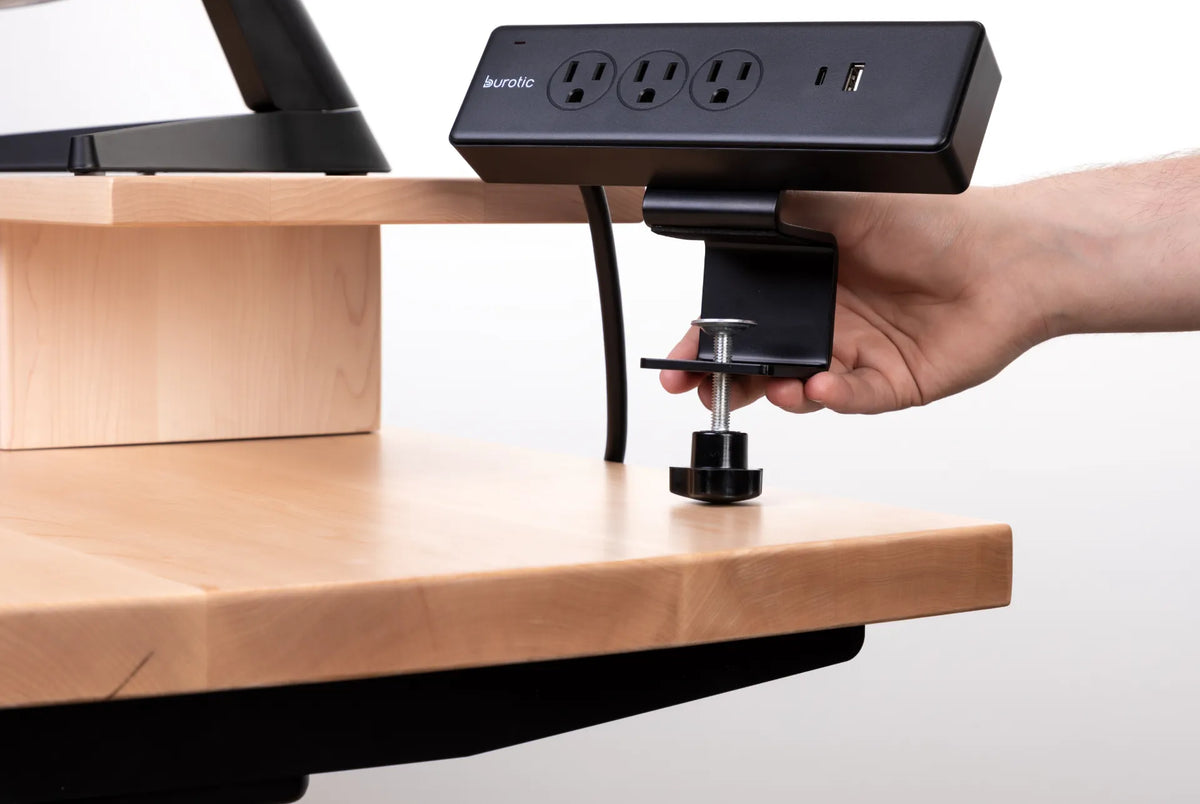
If your desk has no suitable fast-charging port, attach a compatible charger or power solution using a safe, movement-ready cable plan. Never daisy-chain power bars. Keep high-power adapters ventilated and follow their ratings.
Burotic's active Aspire Standing Desk Frame page provides current product information. Confirm controller and port details for the exact configuration you own before applying model-specific steps.
Bottom line
A slow desk USB port is usually a power-capability mismatch, cable issue, shared-power limit or phone protection behaviour. Verify the documented output, test a known-good cable and compare with a compatible wall charger. Use the desk port for the purpose its specification supports, and stop using it if you see damage, intermittent contact or unusual heat.
Sources
- USB Implementers Forum: USB Power Delivery, accessed November 1, 2026.
- Apple Support Canada: About iPhone Charge Speeds, published March 16, 2026.
- Apple Support Canada: If Your iPhone Won't Charge, reviewed November 1, 2026.

Previous article
How Much Mouse Space Do You Need on a Desk?
Next article
How High Should a Laptop Screen Be?