




What Size Desk Do You Need for Three Monitors?
Plan a three-monitor desk by measuring real screen width, stand or arm footprints, viewing distance, keyboard space and cable movement.

In this article
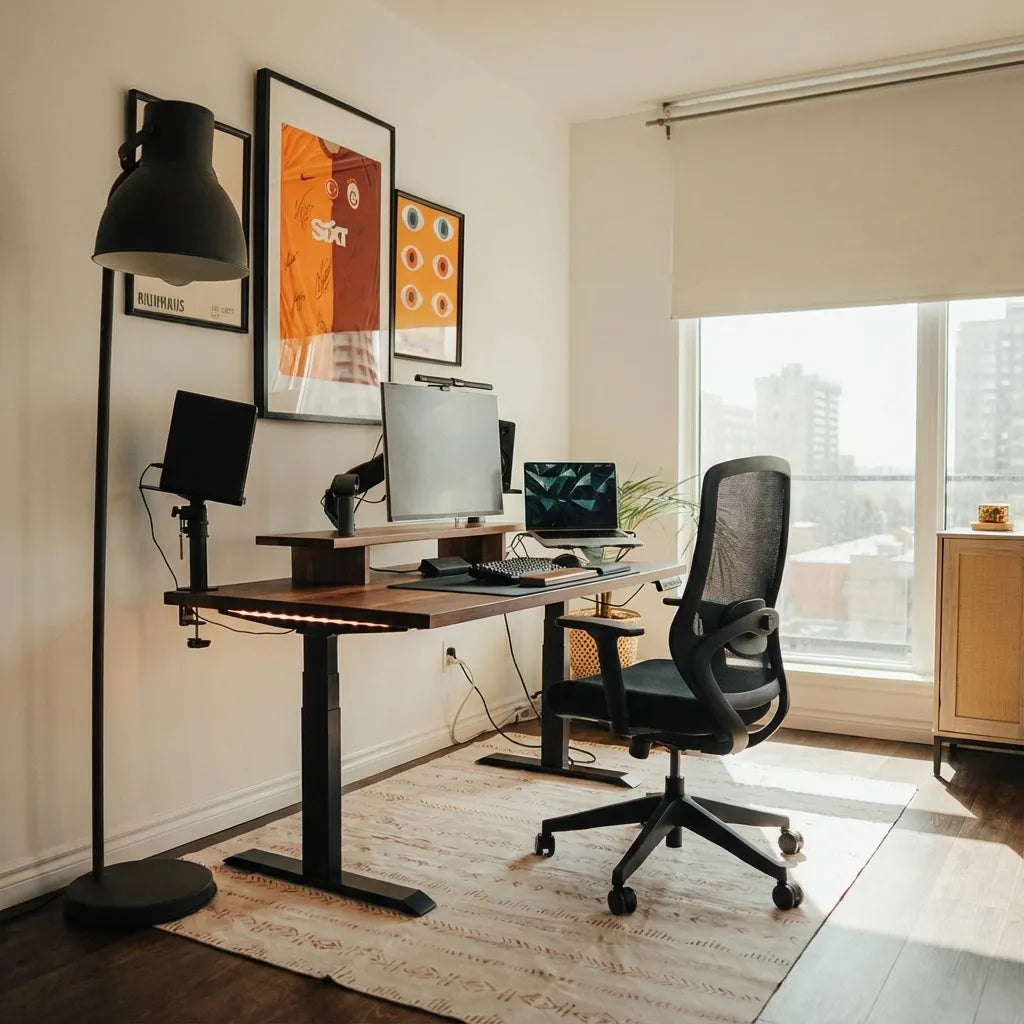
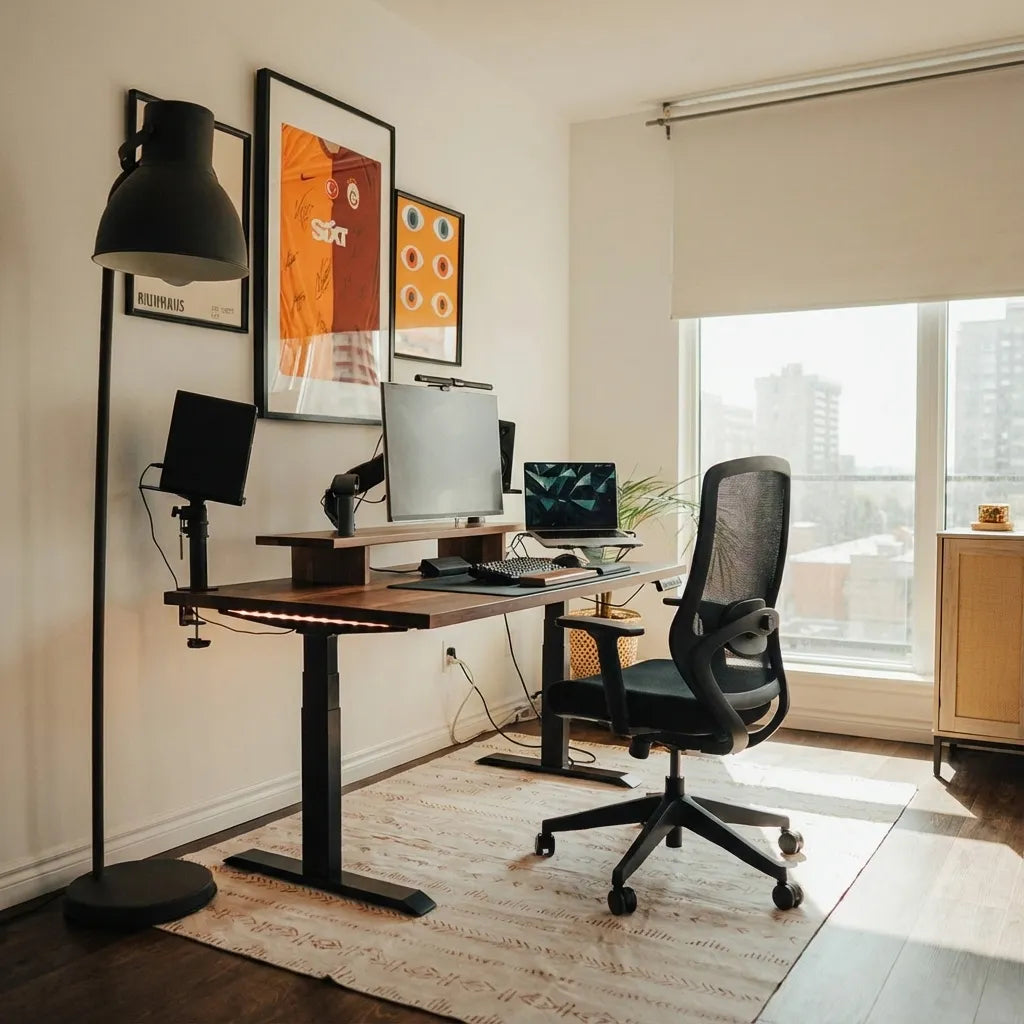
A desk for three monitors must be sized around the actual screens and supports, not just the diagonal numbers printed on the boxes. In many setups, a 60-inch desk can work with compact screens and monitor arms. A 72-inch desk usually gives three screens more breathing room, especially when they use their original stands or when you need speakers, a laptop and writing space. Those are planning examples, not universal limits.
The right width depends on the monitors’ outer dimensions, the angle of the side screens and whether the displays overlap visually. The right depth depends on viewing distance, stand footprints and the space needed for a keyboard and mouse. Weight capacity, edge construction and cable movement also matter.
This guide gives you a repeatable way to choose. It addresses a three-screen footprint specifically, rather than the simpler side-by-side arrangement covered in our guide to aligning two monitors.
Measure the monitors, not their advertised diagonal
A 27-inch monitor is measured diagonally across the display area. That does not tell you its full outer width, the thickness of its bezels or the space occupied by its stand. Two screens with the same diagonal can have different physical dimensions.
Measure each unit from its far left to far right, including the frame. Record the height if you plan to rotate one display vertically. If you have not bought the monitors, use the manufacturer’s published dimensions with the stand and without it. Do not estimate from screen size alone.
Next, sketch the layout. A flat row needs close to the combined outer width of all three monitors. Angling the side displays reduces the straight-line width but adds depth. Overlapping the bezels slightly in your field of view can reduce span, while leaving gaps increases it.
Use a width formula for your layout
For a straight row, add the three measured outer widths, then add the horizontal space required for speakers, a laptop dock or other items that truly belong beside the screens. Compare that total with the usable width of the desktop, not the nominal width alone.
Usable width can be reduced by rounded corners, clamp clearances, a desktop computer, shelving or an L-shaped return. Keep the displays and support hardware safely within the surface. Do not plan for a stand base or clamp to hang over an edge.
For angled side monitors, make a paper or cardboard footprint. Mark the centre screen and rotate the side rectangles until the edges form a comfortable arc. Measure the total span and front-to-back depth. This simple mock-up is more reliable than a generic desk-size chart.
Is a 60-inch desk enough for three monitors?
It can be, particularly with slim-bezel displays, a centred primary screen and adjustable arms. A 60-inch surface is more demanding, however. There may be little room left for speakers, notebooks or a laptop. Large stand bases can conflict with one another, and the side screens may sit closer or turn inward more sharply than you prefer.
Before choosing this width, mark a 60-inch line on a table or floor and place monitor-sized cardboard rectangles along it. Include the actual base dimensions. If the planned arrangement fits only when equipment touches the edges, give yourself more margin or use compatible arms.
When is a 72-inch desk the better choice?
A 72-inch desk is often easier when the screens are large, the original stands are wide or you need equipment beside the displays. The extra width can allow a more gradual viewing arc and can reduce competition between a third monitor and a laptop.
More width is not automatically better. A very wide arrangement can place frequently viewed content too far to the side and lead to repeated neck rotation. Use the central screen for the main task and reserve the outer displays for reference content. Bring the side monitors inward rather than spreading them simply because the desk allows it.
Our 48-, 60- and 72-inch desk comparison covers the broader trade-offs between room footprint and usable surface.
How deep should a desk for three monitors be?
Depth should let you achieve a comfortable viewing distance while keeping the keyboard and mouse within easy reach. CCOHS explains that viewing angle and viewing distance work together. It gives a general viewing-distance range of 40 to 74 centimetres while noting that recommendations vary and personal factors matter.
Monitor size can increase the distance you prefer. Wide or high-resolution screens may be more comfortable farther away, provided text remains readable. Corrective lenses can change the ideal height and distance. If you have to lean forward to read or turn the head excessively to scan the layout, change the arrangement rather than accepting the strain.
Original stands need more depth
Many factory stands have broad feet or deep bases. Their front edge can compete with the keyboard and their rear edge can push the screen forward if the desk is close to a wall. Measure each base and include cable clearance behind it.
Monitor arms can recover surface area
Compatible arms can lift the screens and free the area beneath them. They also make it easier to create a shallow arc and fine-tune height. Arms do not eliminate planning: confirm each monitor’s mounting pattern and weight, the arm’s capacity, the required clamp or grommet clearance and the desktop manufacturer’s limits. Our guide to choosing a monitor arm covers those checks.
Burotic’s current Monitor Arm is available in single and dual configurations. Review the live product specifications and your monitor information before deciding how many arms and which arrangement are appropriate.
Position the primary screen first
Place the monitor used for most of your work directly in front of your normal sitting position. CCOHS recommends setting multiple monitors according to how often each is used. If all three are used equally, arrange them in a curved formation and sit near the centre. If one is primary, keep it centred and place the others close beside it.
Keep the top of each screen at a comfortable level, generally no higher than eye level. Portrait screens can rise quickly, so check their top edges. Aligning the screens does not require every lower edge to be identical if the displays differ in size, but the content you use most should be easy to view without lifting or twisting the head.
Do not forget the keyboard, mouse and writing zone
A three-monitor setup can consume attention until the input devices become an afterthought. Reserve a central zone for the keyboard and mouse. They should remain at the same working height and close enough that the elbows can stay near the body.
If the centre monitor’s stand projects into that zone, consider moving it back, replacing it with a compatible support or choosing a deeper desk. Do not solve the problem by placing the keyboard near the front edge while your forearms rest on a hard corner.
Decide whether writing space belongs to the left or right and include it in the width calculation. If you work from paper documents, a holder close to the primary screen can reduce repeated neck rotation.
Check weight capacity and desktop construction
Add the weight of all screens, stands or arms, computer equipment and other desktop items. Compare the total with the desk and frame manufacturer’s published capacity. On a standing desk, capacity must be adequate throughout the height range.
Monitor-arm clamps concentrate force at the desktop edge. Confirm that the tabletop material, thickness and edge profile are compatible. Avoid clamping over unsupported areas, cable channels or hardware. If the manufacturer provides a reinforcement plate or installation requirement, follow it.
An adjustable frame such as the Aspire Standing Desk Frame lets you pair a suitable tabletop with a height-adjustable base. Verify the current frame and tabletop specifications for the exact configuration you plan rather than assuming that any three-monitor load or top size is acceptable.
Plan cables for both sitting and standing
Three screens can create several power and signal cables. Route them so they do not restrict arm movement or pull when the desk changes height. Raise the desktop fully while watching every cable. Leave a controlled service loop where movement occurs and secure excess cable away from the legs and feet.
Keep power connections accessible and follow electrical instructions for the equipment. If a computer sits on the floor, verify that its cables reach the highest desk position. If it sits on the desktop, include its width and weight in your plan.
A pre-purchase checklist
- Measure the outer width and height of all three monitors.
- Measure every original stand or verify compatible arm specifications.
- Mock up the straight or angled arrangement.
- Calculate usable desktop width after fixed accessories.
- Confirm enough depth for viewing distance and input devices.
- Centre the primary monitor and check side-screen rotation.
- Total the weight of monitors, supports and desktop equipment.
- Verify tabletop and frame limits with the manufacturers.
- Test cable reach at the desk’s highest position.
- Leave a practical writing or accessory zone if you need one.
The practical answer
A 60-inch desk may accommodate three compact monitors, particularly with well-chosen arms and few side accessories. A 72-inch desk gives most three-screen layouts more flexibility. But neither number guarantees a fit. The reliable method is to measure the screens and supports, mock up their angles, preserve adequate viewing depth and verify weight and mounting limits.
Build the layout around the screen you use most. Keep the outer monitors close enough that information is visible with modest head movement, and protect the central keyboard and mouse zone. When those pieces fit on the surface with safe margins and manageable cables, you have found the desk size your three-monitor setup actually needs.
Previous article
How Large Should a Desk Pad Be?
Next article
Why Do Standing Desk Cables Pull When the Desk Moves?