

Should One Monitor Be Vertical in a Dual-Monitor Setup?

In this article
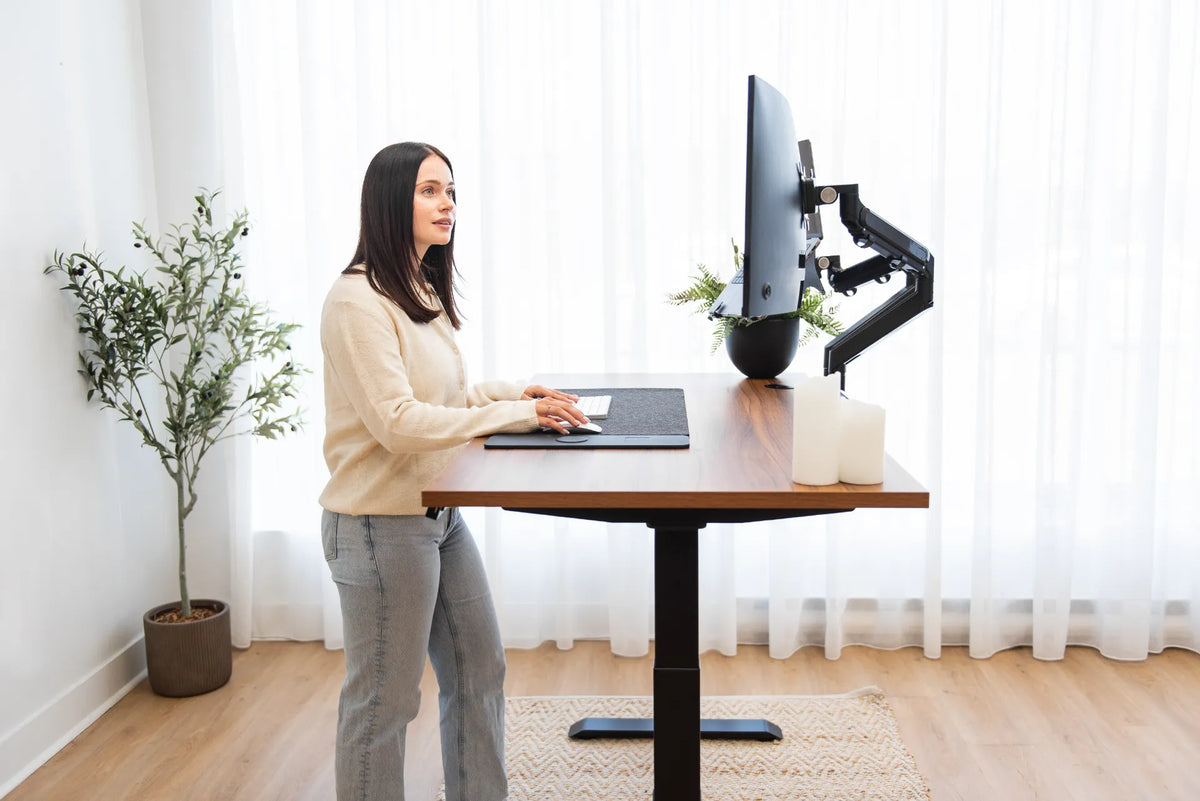
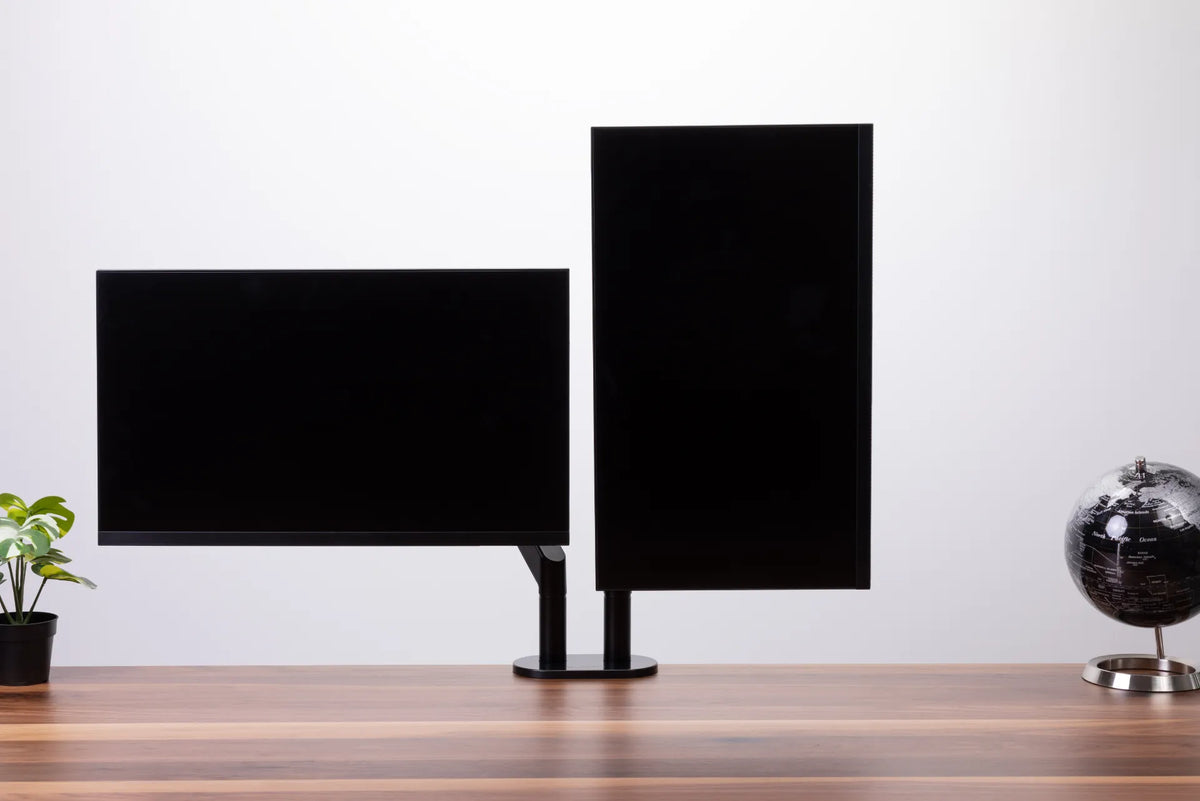
Using one monitor vertically and one horizontally can be an excellent dual-monitor layout for reading long pages, comparing documents, coding or keeping communication tools visible. It is not automatically more ergonomic, however. The setup works when the landscape screen handles your main task, the portrait screen supports a clear secondary task, and neither screen makes you twist your neck repeatedly.
The best decision depends on how you divide your work, the size of each display and the range of your monitor stand or arm. Start with task frequency, not appearance.
Quick answer: should one monitor be vertical?
Choose one vertical monitor when a meaningful part of your work benefits from height more than width. Keep the screen used most often directly in front of you. Place the portrait screen immediately beside it and angle it inward so its useful content stays within a comfortable viewing zone.
Keep both monitors horizontal if you frequently stretch wide timelines, spreadsheets, design canvases or video across the second screen. A portrait display should solve a real workflow problem, not simply make the desk look different.
Tasks that work well on a portrait monitor
- Reading long documents, web pages, research notes or contracts
- Reviewing code with more lines visible at once
- Keeping email, chat or a project list beside the main workspace
- Viewing page layouts, proofs or mobile-oriented content
- Comparing a reference document with work on the primary screen
Portrait orientation is less helpful for wide dashboards, horizontal video, large spreadsheets with many columns, audio timelines and side-by-side windows that need equal width. If those tasks dominate, two landscape screens are usually simpler.
Which screen should be vertical?
In most mixed layouts, the secondary monitor is the better portrait candidate. The Canadian Centre for Occupational Health and Safety recommends placing the monitor used most often directly in front and placing the secondary monitor to one side at an angle. That principle still applies when the secondary screen is rotated.
If you genuinely use both screens equally, centre the seam between them and angle the pair into a shallow arc. This works well for matched landscape displays, but a mixed pair often has unequal visual weight. Test the layout with your actual applications before committing to a permanent clamp position.
The guide on choosing the primary monitor in a dual setup provides a task-based method. For more portrait use cases, see the vertical monitor setup guide.
How to position one vertical and one horizontal monitor
1. Centre the primary screen on your body
Align the centre of the main screen with your keyboard and the midline of your body. Your chair, keyboard and primary display should form one straight working axis. This reduces the tendency to sit between the screens while turning toward the one you actually use most.
2. Place the portrait display close to the primary screen
Leave only enough gap to prevent contact when you adjust the displays. A large gap increases eye travel and encourages head turning. Angle the secondary display toward you rather than leaving it flat against the wall.
3. Align useful viewing areas
A portrait screen is taller, so aligning the physical tops may place important content too high. Instead, keep the areas you read most within a comfortable band. Many people place the top of the primary screen at or slightly below eye level, then lower the portrait display so its upper content does not require repeated upward head movement.
4. Match viewing distance
Place both screens at a similar comfortable distance. CCOHS recommends about an arm’s length as a starting point, adjusted for screen size, resolution, text size and vision. If the portrait display is much closer or farther away, your eyes must refocus every time you switch.
5. Adjust software orientation and scaling
Change the operating system orientation to portrait and confirm that the pointer moves naturally between screens. Match text scaling closely enough that content does not jump dramatically in size. Arrange the virtual displays in the same left-right and vertical relationship as the physical screens.
Left or right: where should the portrait monitor go?
Place it on the side that suits the task and your habits. A reference screen may work on the side where you naturally glance while writing. If one eye has stronger vision, if you use progressive lenses or if a shoulder or neck condition affects rotation, comfort may favour the other side. There is no universal correct side.
Try the portrait screen on each side for a full work session. Count how often you turn, which applications you place there and whether the mouse travels farther. Keep the arrangement that reduces unnecessary movement.
Compatibility checks before rotating a monitor
VESA mounting and rotation clearance
Confirm that the monitor supports the mount pattern and that its stand or arm can rotate the screen safely. Check clearance above the desk, below shelves and beside the primary display. Disconnect or loosen cables before rotating so a connector is not pulled.
Weight and size limits
Use the monitor’s actual weight without its original stand and compare it with the arm’s per-screen capacity. A tall portrait screen changes leverage and may expose a weak tilt joint. Tighten only according to the arm instructions.
Ports, vents and controls
Rotation can move ports and alter cable bends. Keep ventilation openings clear and buttons accessible. Use cables long enough to accommodate adjustment without tension.
Burotic’s Monitor Arm page is the verified reference for current compatibility details. Confirm the specifications there before choosing an arm for a particular screen.
Common mistakes
- Putting the portrait screen in front even though the landscape screen is used most
- Mounting the portrait screen too high because the top edges were aligned
- Leaving a wide gap between displays
- Using different scaling that makes text size inconsistent
- Running a cable tightly around an arm joint
- Opening chat on the portrait display and turning toward it constantly
Will a vertical monitor save desk space?
It can reduce the horizontal footprint, especially when the monitor is mounted rather than supported by a wide original stand. It does not eliminate the need for depth, stable mounting and cable clearance. A portrait screen also needs more vertical space and may conflict with a shelf or low wall cabinet.
If the desk is narrow, combine orientation with deliberate placement. The guide on fitting two monitors on a small desk explains width, depth and mounting tradeoffs.
How to test before committing
- List the applications used on each monitor for one typical day.
- Rotate the secondary screen using its approved stand or arm.
- Centre the primary screen and place the secondary close beside it.
- Work for one full session without dragging every window back to landscape.
- Notice neck rotation, upward viewing, text scaling and cable tension.
- Return to two landscape screens if portrait mode does not improve a repeated task.
Frequently asked questions
Should the monitors be the same size?
Not necessarily. Similar pixel density and text scaling often matter more than identical diagonal size. Both useful viewing areas should still sit at comfortable heights and distances.
Should the portrait monitor be left or right?
Either side can work. Choose based on task frequency, vision, workflow and comfort, then test both.
Can I use a vertical monitor without an arm?
Yes, if the original stand supports safe rotation and remains stable at the needed height. An arm can offer more freedom but must match the display’s mount, size and weight.
Sources
- Canadian Centre for Occupational Health and Safety: Positioning the Monitor
- US Occupational Safety and Health Administration: Computer Workstation Evaluation Checklist
One vertical monitor is worthwhile when it has a clear secondary job and remains close to a properly centred primary screen. Let task frequency decide the orientation, then refine height, angle, distance and scaling until switching between displays feels easy rather than repetitive.
Previous article
Why Is My Standing Desk Beeping? What the Sound Can Mean
Next article
How Much Space Should You Leave Between Two Desks?