






Standing Desk Weight Capacity: How to Plan a Multi-Monitor Setup

In this article
A multi-monitor workstation can place far more weight on a standing desk than the screens alone suggest. Monitor arms, a desktop computer, speakers, a large desk shelf, chargers and everyday accessories all travel with the work surface. The correct question is therefore not simply how much a frame can lift. It is whether the complete, distributed load stays within the rating for the exact desk configuration you intend to buy.
This guide shows how to build a realistic load inventory, interpret manufacturer information and leave room for future equipment. It does not assign an unverified capacity to any Burotic product. Always use the current product page and installation documentation for the exact frame, top size and configuration.
What standing desk weight capacity usually means
A manufacturer's capacity normally describes a maximum supported load under defined test conditions. It may refer to the frame, the complete desk or the moving load, and it may or may not include the desktop itself. Those distinctions matter. A frame rating cannot automatically be applied to every top material, width or custom installation.
Before comparing numbers, identify what each rating includes. Ask whether the stated capacity includes the work surface, whether it applies while the desk is moving, and whether there are limits related to width or top dimensions. If the documentation is unclear, obtain confirmation from the manufacturer instead of assuming the most favourable interpretation.
Build a complete load inventory
Start with the desktop
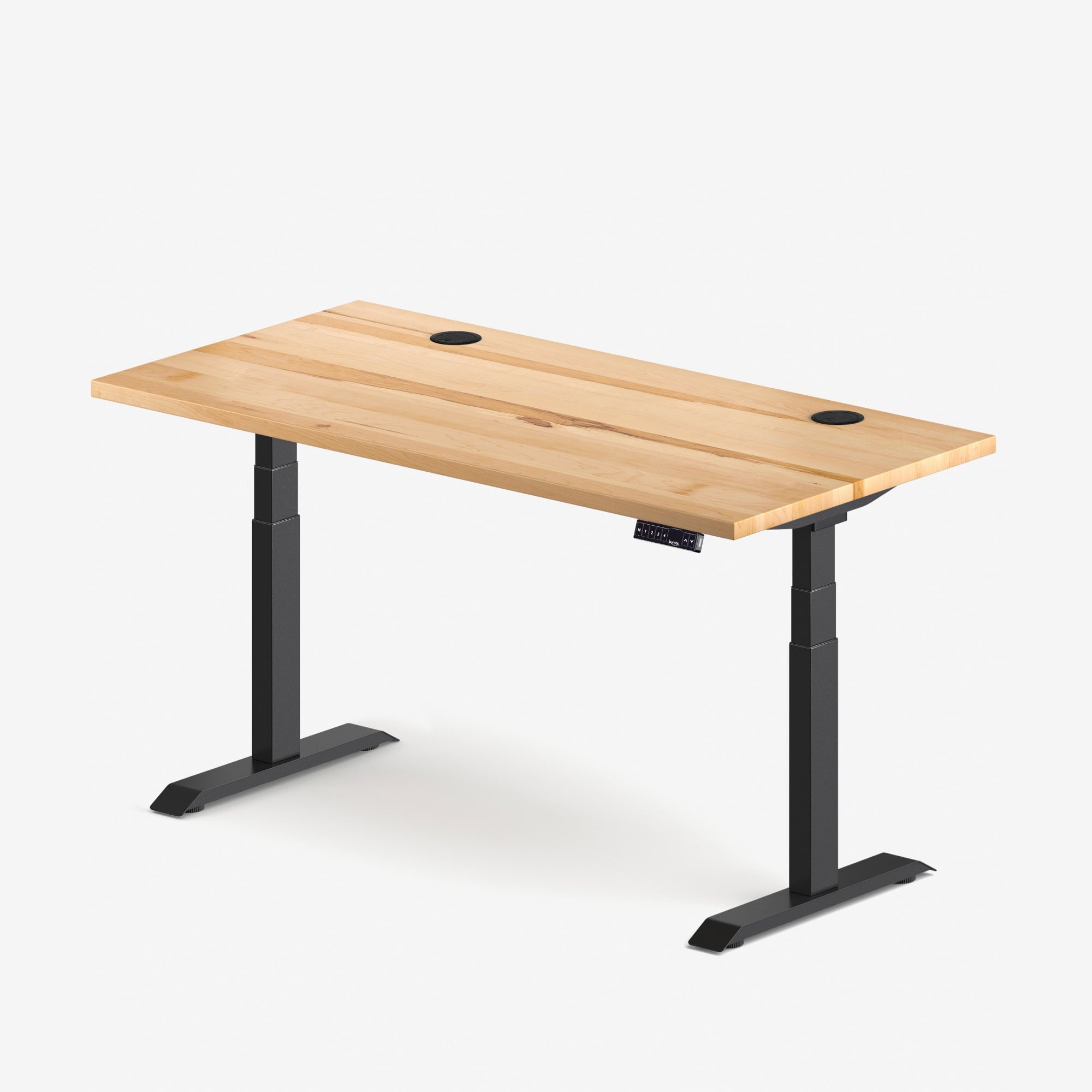
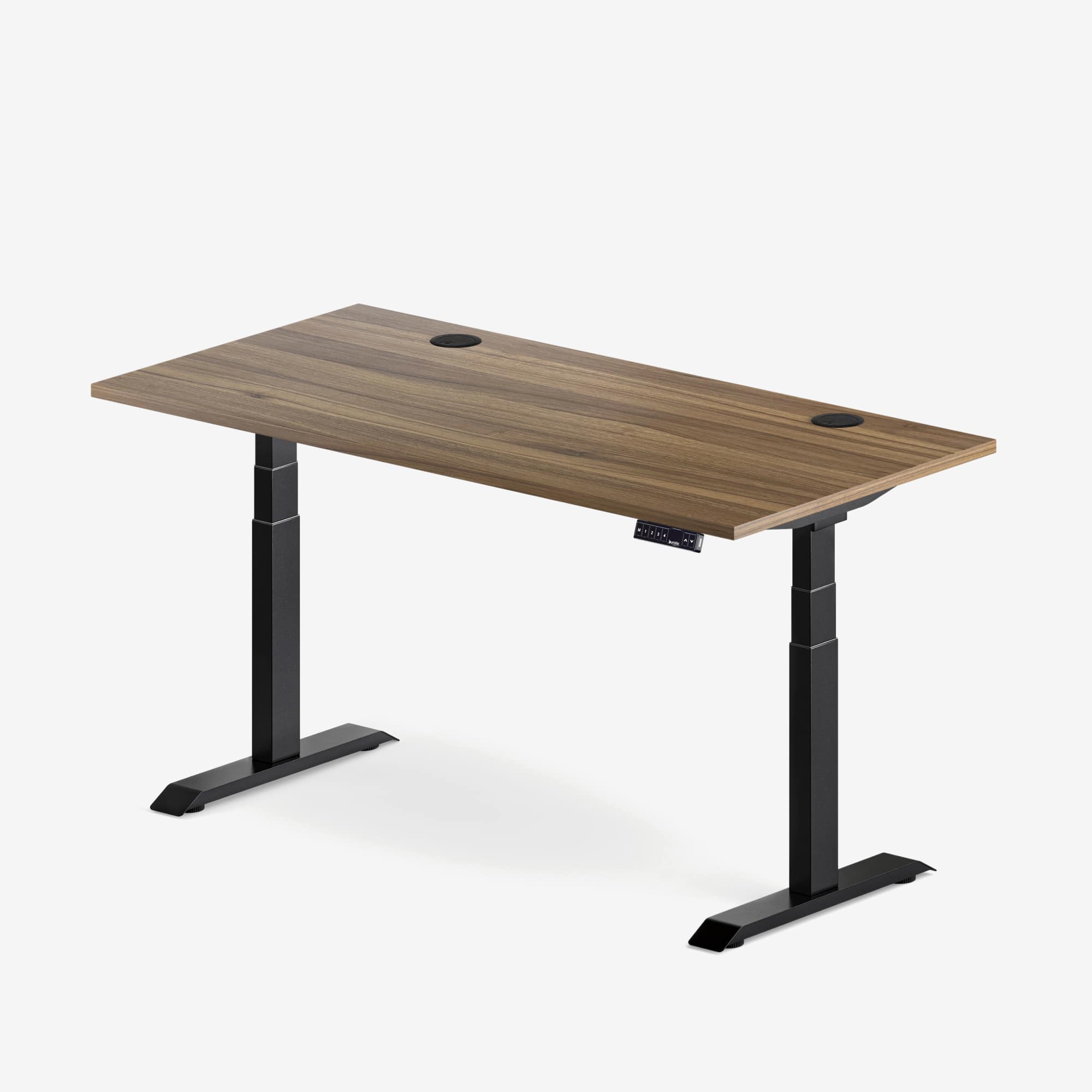
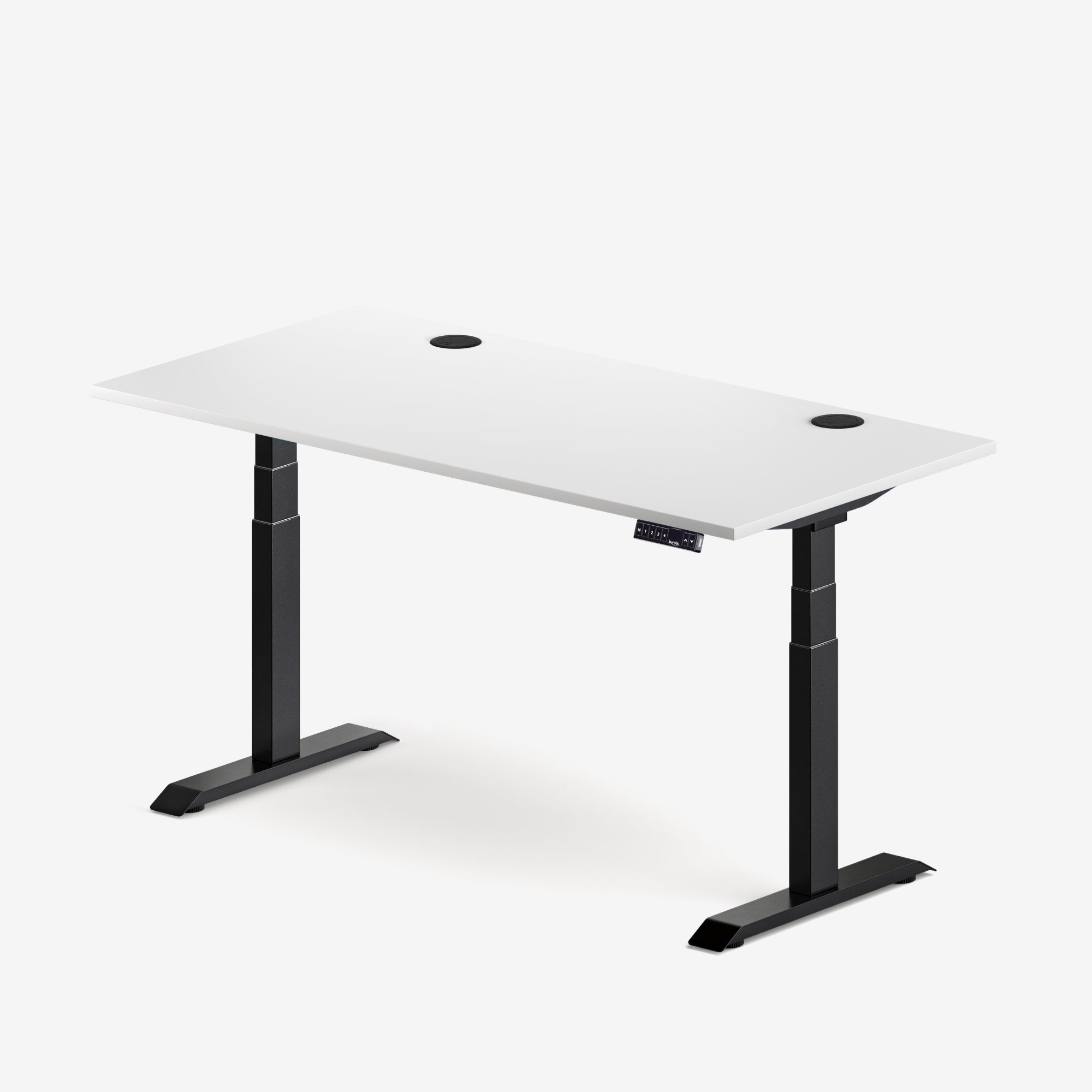
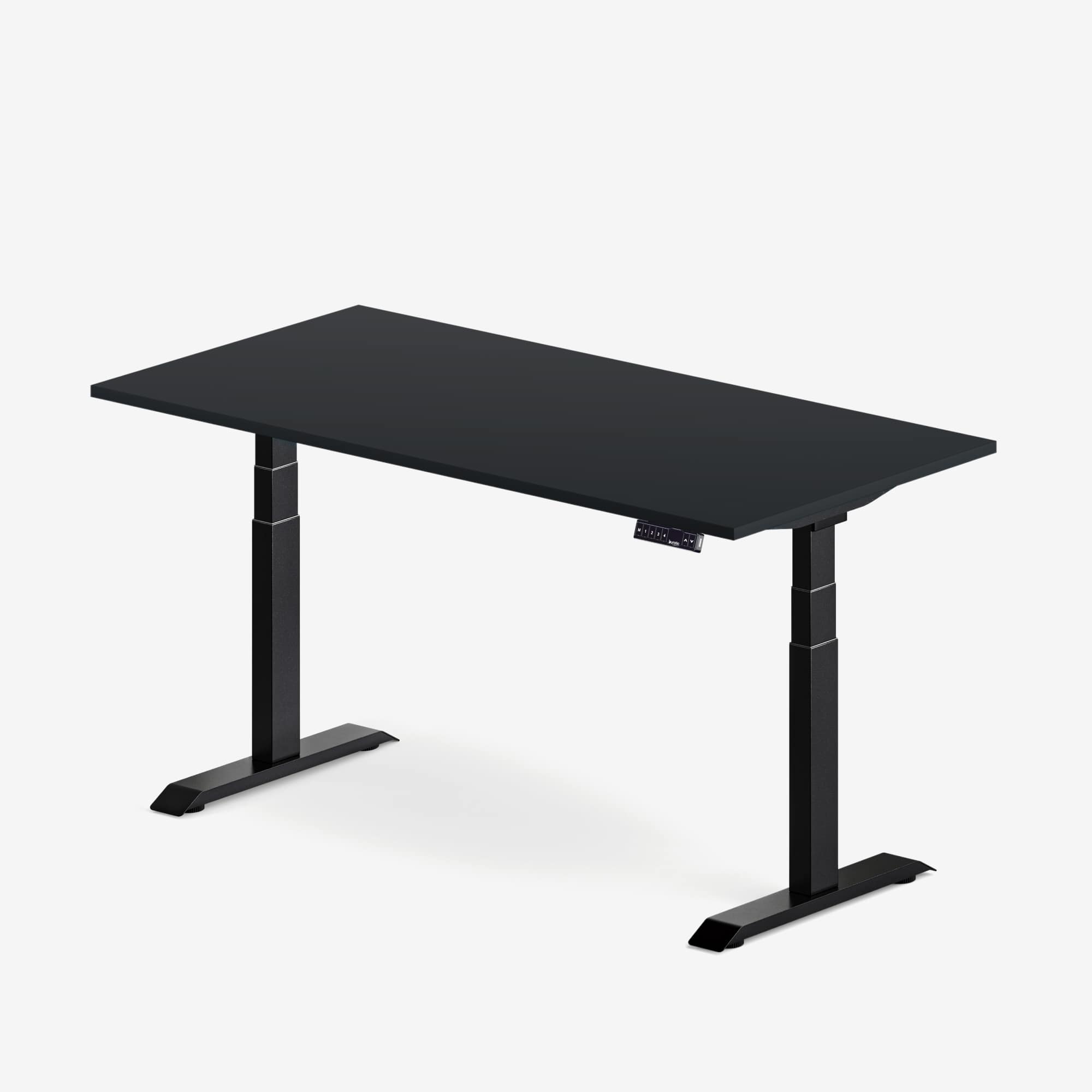
Solid wood, laminated surfaces and other materials can differ substantially in weight. Record the actual weight of the chosen top, not a generic estimate for its dimensions. For a custom surface, include attached hardware such as reinforcing channels, cable trays and drawers. The Aspire standing desk frame can be paired with an appropriate surface, but compatibility and limits must be verified for the exact project.
Count every screen and mounting component
Use the published weight of each monitor without its removable factory stand when it will be attached to an arm. Then add the complete weight of every arm, pole, crossbar, clamp and adapter. Do not confuse an arm's per-screen rating with the desk's capacity. Both limits must be respected independently.
For four screens, create four separate lines in the inventory. This catches differences between models and prevents a rough average from hiding one unusually heavy display. Verify VESA compatibility, screen dimensions and the mounting method with Burotic's monitor arm compatibility guide.
Add computers and accessories
Include laptops, desktop towers placed on or suspended from the moving surface, docking stations, speakers, lights, cameras, microphones, power bars, desk shelves, printers and storage. Small items add up. Also account for objects that regularly appear during work, such as reference books or product samples.
Separate fixed and moving items
A cabinet on the floor does not travel with the desk. A computer holder attached under the top does. Mark each item as fixed or moving so only the correct load is assigned to the lifting system. Cables should not carry weight or pull on the desk at full height; plan their support separately.
Use a simple calculation
Add the weight of the top, all attached hardware and every item that rises with the desk. Compare that total with the verified capacity for the complete configuration. Then leave a reasonable margin rather than designing a workstation that sits at the stated maximum on day one.
A margin provides room for uncertainty, future accessories and normal changes in use. It is not a substitute for an engineering specification, and there is no universal percentage that fits every frame. If the project is close to a limit, reduce the load, choose a more suitable configuration or ask the manufacturer to review the setup.
Distribution matters as much as the total
A desk can be below its overall capacity and still perform poorly if most of the load is concentrated at one edge or far behind the centreline. A cluster of heavy monitors on a deep arm creates leverage at the rear of the surface. A desktop computer hanging from one side creates an uneven load. Follow mounting-zone instructions and distribute equipment as symmetrically as the workflow allows.
Keep the main display close to the user's centreline and place secondary screens according to how often they are used. The CCOHS monitor-positioning guidance recommends arranging screens to limit awkward head and neck movement. Ergonomic placement should be considered together with load distribution, not after the desk is installed.
Four-monitor setups need extra planning
Check width and depth
Screen count does not determine the required desk size by itself. Bezel width, orientation, arm geometry and viewing distance all affect the footprint. A wide desk can improve placement, but width must remain within the frame manufacturer's permitted range. Use Burotic's standing desk width guide and desk depth guide to plan usable space.
Check the arms at every height
Raise and lower the desk slowly during setup while watching clearances. Upper screens can approach shelves or lights. Rear arms can strike a wall. Cables can tighten when the desk rises. Stop immediately if anything binds, pulls or collides.
Control screen movement
Every standing desk moves during height changes, and tall stacks can make small movements more visible. Tighten mounting hardware to the specified torque, keep the floor stable and level, and confirm that the top is properly attached. Avoid using a monitor arm as a handle when moving or repositioning the desk.
Do not ignore the electrical and cable load
Power and data cables need enough controlled slack for the full travel range, but excess cable should not hang into pinch points. Secure the power bar to an approved location when the product permits it, create a single planned route toward the wall and test the system at minimum and maximum height. Burotic's movement-ready cable management guide explains the process.
Never use cables to support equipment. A suspended computer, power adapter or docking station needs its own suitable attachment. Use certified electrical products appropriate for Canada and follow their instructions. Do not overload a power bar simply because the desk can physically carry the equipment.
How to compare standing desk specifications
- Definition of capacity: determine whether it includes the top and whether it applies during movement.
- Permitted top dimensions: verify width, depth, thickness and mounting requirements.
- Frame configuration: confirm the exact model, number of legs and any cross-support requirements.
- Accessory compatibility: check approved mounting areas for drawers, trays and computer holders.
- Documentation: prefer a clear installation manual and accessible support over a large number with no context.
- Future plan: include realistic additions such as another monitor, a heavier computer or audio equipment.
Canadian competitor content also treats total workstation weight as a planning step. ProgressiveDesk's standing desk weight estimator, published May 21, 2024, illustrates why equipment beyond the screens needs to be counted. Use any estimator as a checklist, then confirm the final numbers with primary product documentation.
Common calculation mistakes
Do not count only the monitors, omit the top, use shipping weight instead of product weight, or assume every variant of a desk has the same rating. Avoid treating a short successful lift test as proof of long-term compatibility. The lifting system, fasteners, top and mounting accessories must all be appropriate.
Another common error is planning exactly to the limit. Workstations change. A new display, heavier laptop or stack of books can erase the available room. A design that leaves sensible capacity and surface space is easier to maintain.
Plan the whole workstation before ordering
Create a simple table with item, quantity, individual weight, total weight, mounting location and source. Mark uncertain values and resolve them before purchase. Draw the top from above, plot the monitor clamps and accessory mounts, and confirm that none compete for the same edge or interfere with the frame beneath.
A complete adjustable desk or frame should be selected from verified specifications, not from screen count alone. Once the load, dimensions and mounting plan are clear, you can choose a desk that supports both the equipment and an ergonomic working position. The best result is not the highest theoretical capacity; it is a well-documented setup with balanced placement, safe cable movement and room to adapt.


Previous article
When Should You Sit or Stand at a Standing Desk?
Next article
When Should You Sit or Stand at a Standing Desk?