





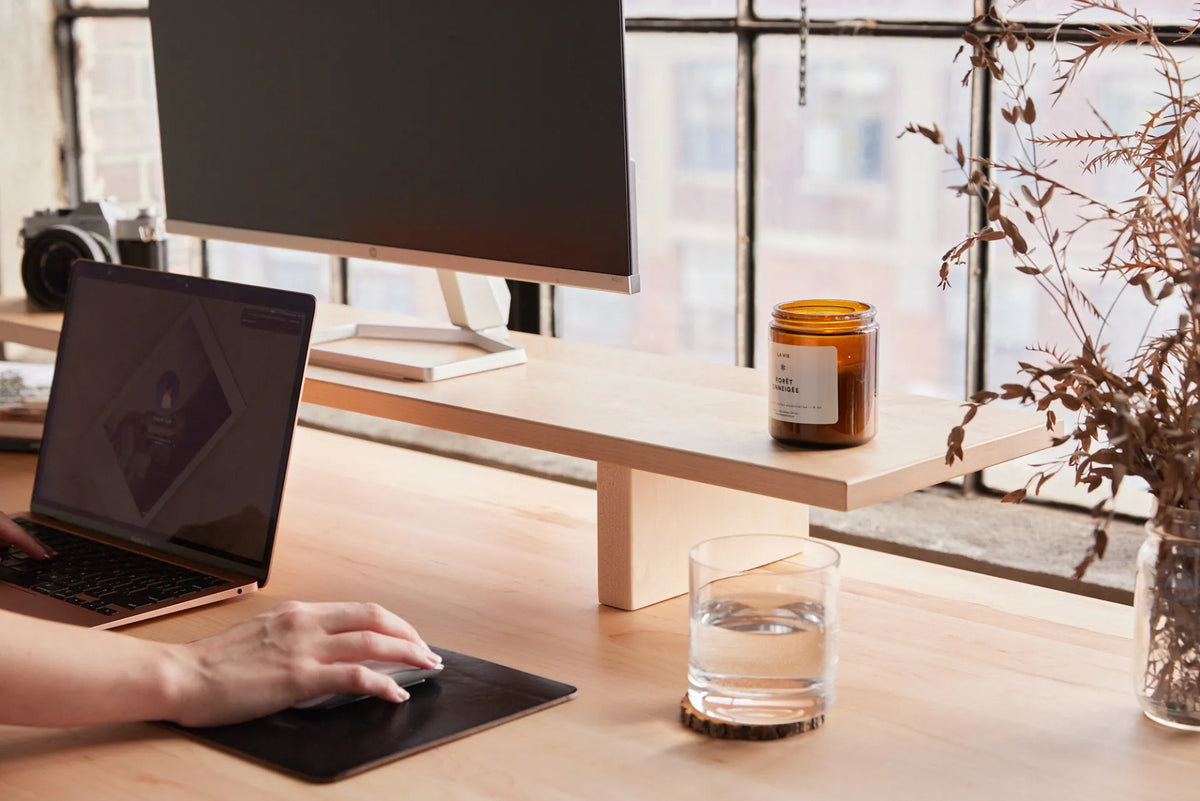
Should You Tilt Your Monitor? Best Screen Angle for Desk Work

In this article
Yes, a monitor can be tilted slightly, but the purpose is not to chase a universal angle. The screen should face your eyes as squarely as practical while your head and neck remain comfortable. For many conventional desktop setups, that means a small backward tilt, often within roughly 10 to 20 degrees, after the monitor height and viewing distance are correct.
A large tilt is usually a sign that another part of the setup needs attention. A screen that leans too far back can catch overhead reflections, while one that tilts too far forward may be hard to read and can encourage you to bend your neck. Set height and distance first, then use tilt for fine adjustment.
What monitor tilt actually changes
Monitor tilt changes the angle between the display surface and your line of sight. When that relationship is close to perpendicular, the image is easier to view across the screen and the panel is less likely to reflect a bright light directly toward you. Tilt does not replace correct screen height, distance or horizontal placement.
The U.S. Occupational Safety and Health Administration advises tilting a monitor so it is perpendicular to the line of sight, usually no more than 10 to 20 degrees. The Canadian Centre for Occupational Health and Safety emphasizes that viewing angle and distance should be treated as starting guidelines and adapted to the user.
Start with height, not tilt
Sit or stand in your normal working posture and look straight ahead with your head balanced over your torso. The screen should not make you lift your chin. CCOHS notes that looking upward is tiring and describes a natural line of sight that angles somewhat downward.
For a typical monitor, place the top portion of the viewing area around eye level or slightly below, then look toward the centre of the screen without moving your head dramatically. If the display is very large, the top edge may need to sit lower so the upper content does not require repeated upward eye and neck movement.
If you use a separate riser, start with Burotic's guide on how high a monitor stand should be. Correct the support height before using extreme tilt to compensate.
Set viewing distance next
Move the screen far enough away that you can see the full working area without scanning with the head, but close enough to read normal text without leaning forward. CCOHS presents a broad viewing-distance range because vision, screen size and task details differ. The practical test is whether you can read comfortably while remaining against the chair back or balanced in standing posture.
The guide on how far a monitor should be from your eyes covers distance in more detail. Increase text scaling before pulling a very large screen too close simply to read small interface elements.
How to set the monitor angle
- Sit or stand in the posture you use most often.
- Set the monitor height and viewing distance.
- Centre the primary screen in front of you.
- Keep the display close to vertical at first.
- Tilt it back slightly until the screen faces your line of sight squarely.
- Check for glare from windows and overhead lights.
- Read content at the top, centre and bottom of the screen.
- Stop when you can view the full display without lifting the chin, bending the neck or chasing reflections.
The final setting may be almost vertical. A small change of a few degrees can be enough.
How much tilt is too much?
A screen is probably tilted too far when the top edge is noticeably behind the bottom and overhead fixtures appear as bright reflections, or when text and shapes look distorted across the panel. It is also too much if you raise the chin to see the top or bend the neck more deeply to see the lower content.
A forward tilt may help in a very high mounted display or a specialized standing installation, but it should not be used to justify placing the screen above a comfortable viewing zone. Lower the monitor first if possible.
Use glare as feedback, not the only rule
Tilt can redirect a reflection, but it may simply move glare to another part of the screen. Control the source whenever possible.
- Place the monitor perpendicular to windows rather than facing them directly.
- Use adjustable blinds or curtains during strong sun.
- Move lamps out of the reflection path.
- Reduce extreme contrast between the screen and the room.
- Keep glossy objects away from the display.
- Clean the screen according to the manufacturer's instructions.
If changing the tilt removes one reflection but creates an uncomfortable head position, fix the lighting instead. The CCOHS page on eye discomfort recommends proper lighting design and monitor placement ahead of relying on an anti-glare screen.
Flat monitors, curved monitors and large screens
Flat monitor
A small backward tilt often keeps the panel square to a slightly downward line of sight. Check that the top and bottom remain equally readable.
Curved monitor
Curvature does not remove the need for correct height and distance. Centre yourself with the screen and use only enough tilt to maintain a comfortable view. A very large curved display may need to sit farther back than a smaller flat monitor.
Large monitor
As screen height increases, the top edge can rise above a comfortable zone. Lowering the whole display is generally better than tilting it far backward. Consider text scaling and application layout so the most-used content sits near the central viewing area.
Should the screen angle change when you stand?
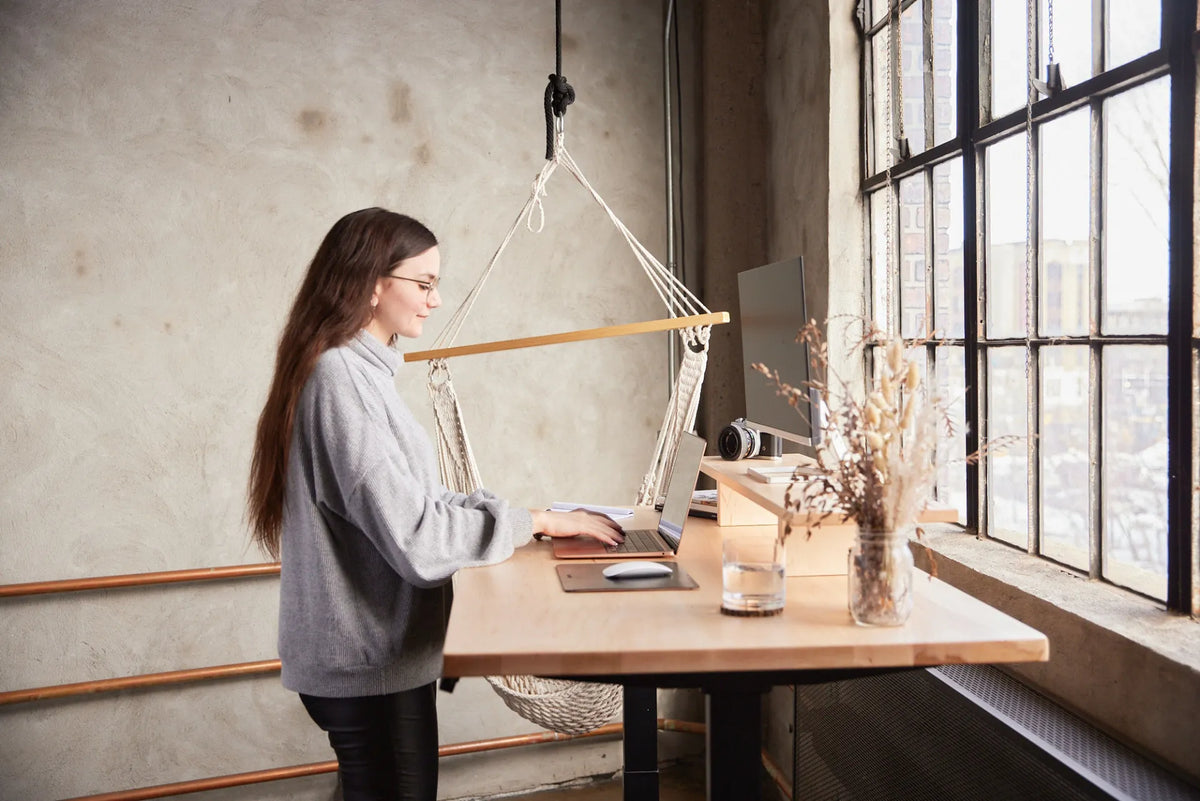
Possibly. When a sit-stand desk moves, the relationship between your eyes, the screen and overhead lights can change. Set the standing desk to a comfortable work height, then check monitor height, distance and tilt again. Do not assume the seated position transfers perfectly.
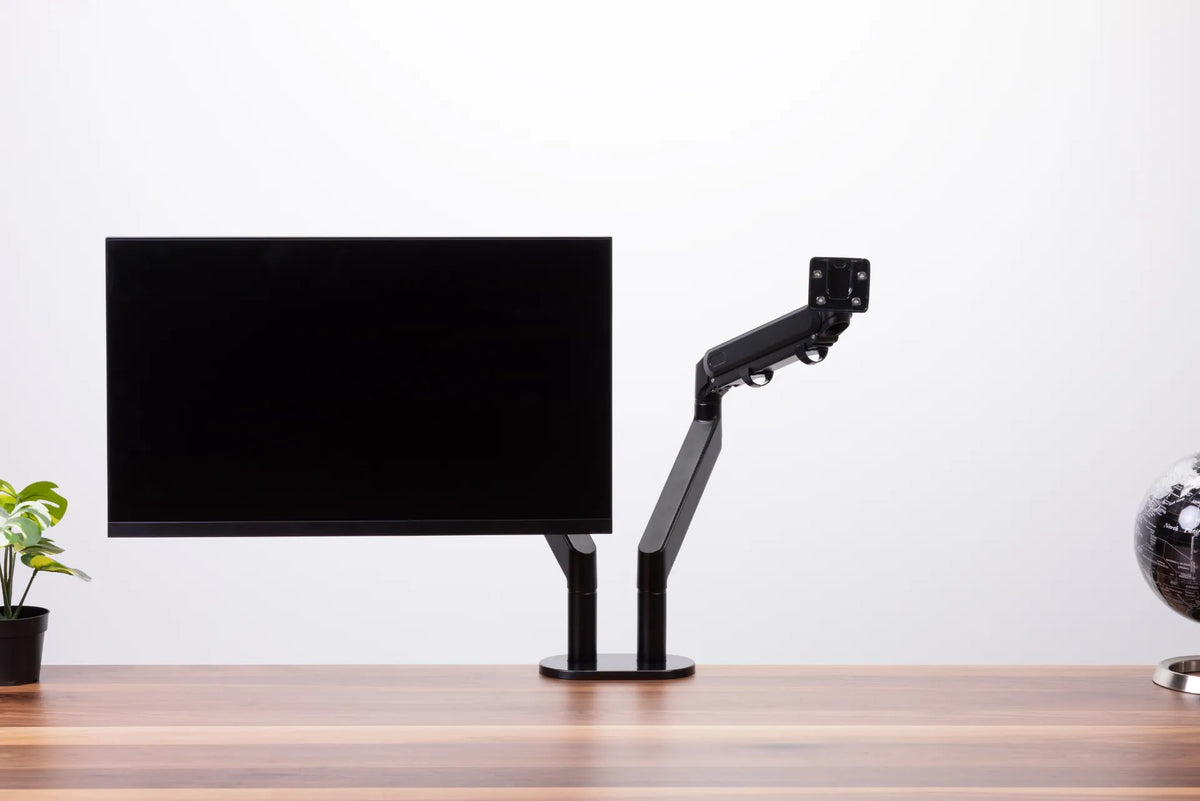
A flexible monitor arm can make small angle and height corrections easier when switching positions. Confirm the display's mounting pattern, weight and current product compatibility before selecting a mount.
Laptop plus monitor setup
A laptop screen and external monitor rarely match perfectly in height and angle without additional support. Choose the screen used most as the primary display and centre it. Place the secondary screen close enough that turning does not require a large neck movement. If the laptop is used mainly as a secondary reference, raising it can reduce the height difference, but use an external keyboard and mouse when the laptop is elevated for prolonged work.
Do not tilt both screens to arbitrary matching numbers. Adjust them so their viewed surfaces feel visually consistent from your working position. The eye cares about the relationship to your line of sight, not whether both hinges show the same angle.
Dual-monitor angle versus tilt
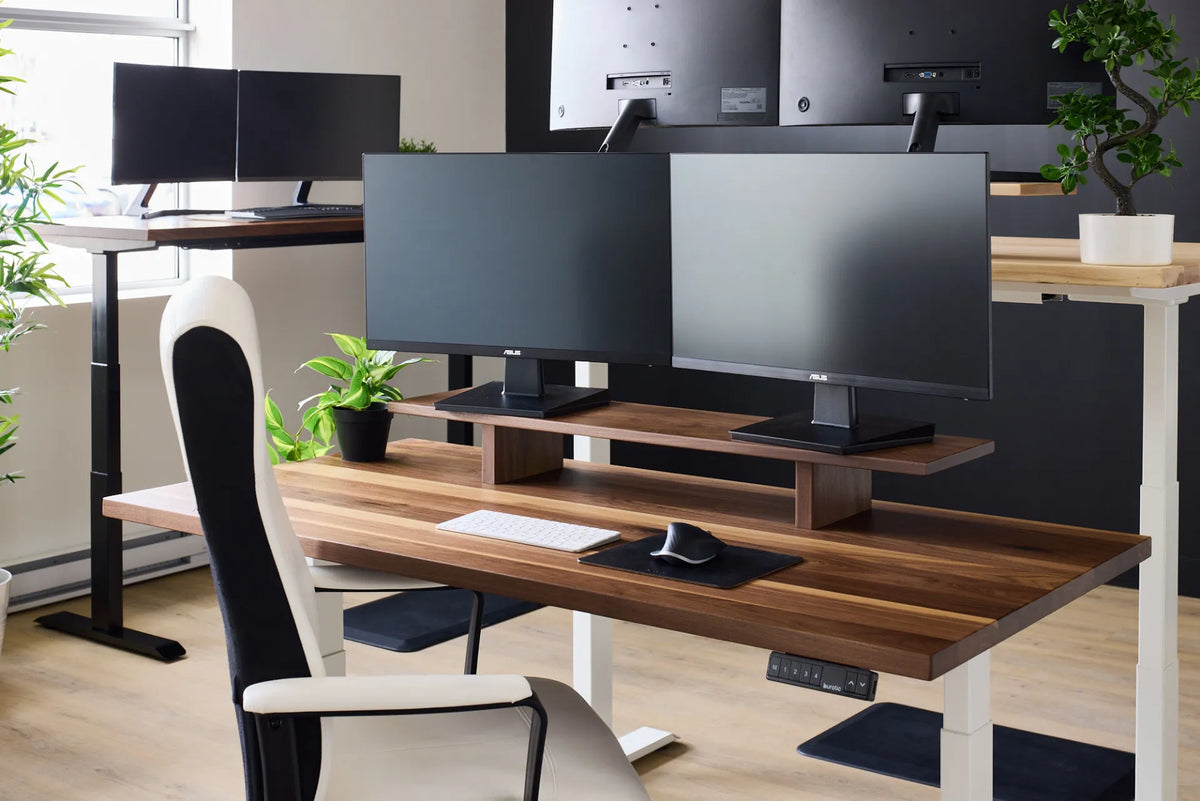
With two monitors, people often confuse inward rotation with vertical tilt. Rotation brings the screens into a shallow horizontal curve around you. Tilt changes the top-to-bottom angle. Set the primary display directly ahead, rotate the secondary toward you, then adjust each vertical tilt so both face your eyes.
If you use both equally, place the meeting point in front of you and keep height, distance and vertical tilt consistent. See the guide on aligning dual monitors for the full arrangement.
Common monitor-tilt mistakes
Using tilt to compensate for a screen that is too high
Tilting a high screen downward may make the panel face you, but it can still require upward viewing. Lower the screen first.
Leaning the screen back to avoid a window reflection
This can replace a side reflection with an overhead one. Reorient the desk or control the window light before making a large angle change.
Adjusting from a slouched posture
If you set the monitor while collapsed forward, it may be wrong when you sit back. Establish a sustainable position first, then bring the screen to you.
Copying a precise angle without testing
Ten to 20 degrees is a useful range, not a target everyone must hit. Eyewear, screen size, lighting and task details can change the result.
A five-minute verification
Open a document with text near the top, middle and bottom. Read each area without moving your head more than naturally required. Then display a dark background and look for window or light reflections. Move between seated and standing positions if applicable. Finally, work for several minutes and notice whether you begin lifting the chin, leaning forward or narrowing the eyes.
Make one small change at a time. If discomfort persists despite a reasonable setup, an ergonomist or qualified health professional can assess factors that a general guide cannot. This article provides general information and is not medical advice.
Bottom line
A slight monitor tilt is often helpful, but it comes after height, distance and centring. Begin near vertical, angle the display so it faces your natural line of sight and stay within a modest range unless the equipment or task requires something different. The best angle is the smallest adjustment that gives a clear view without glare or an awkward neck position.
Previous article
Should Your Desk Be Perpendicular to a Window?
Next article
Should Your Knees Be at 90 Degrees When Sitting at a Desk?