

Should You Put a Desk in Front of a Window? Pros, Cons and Layout Tips

In this article
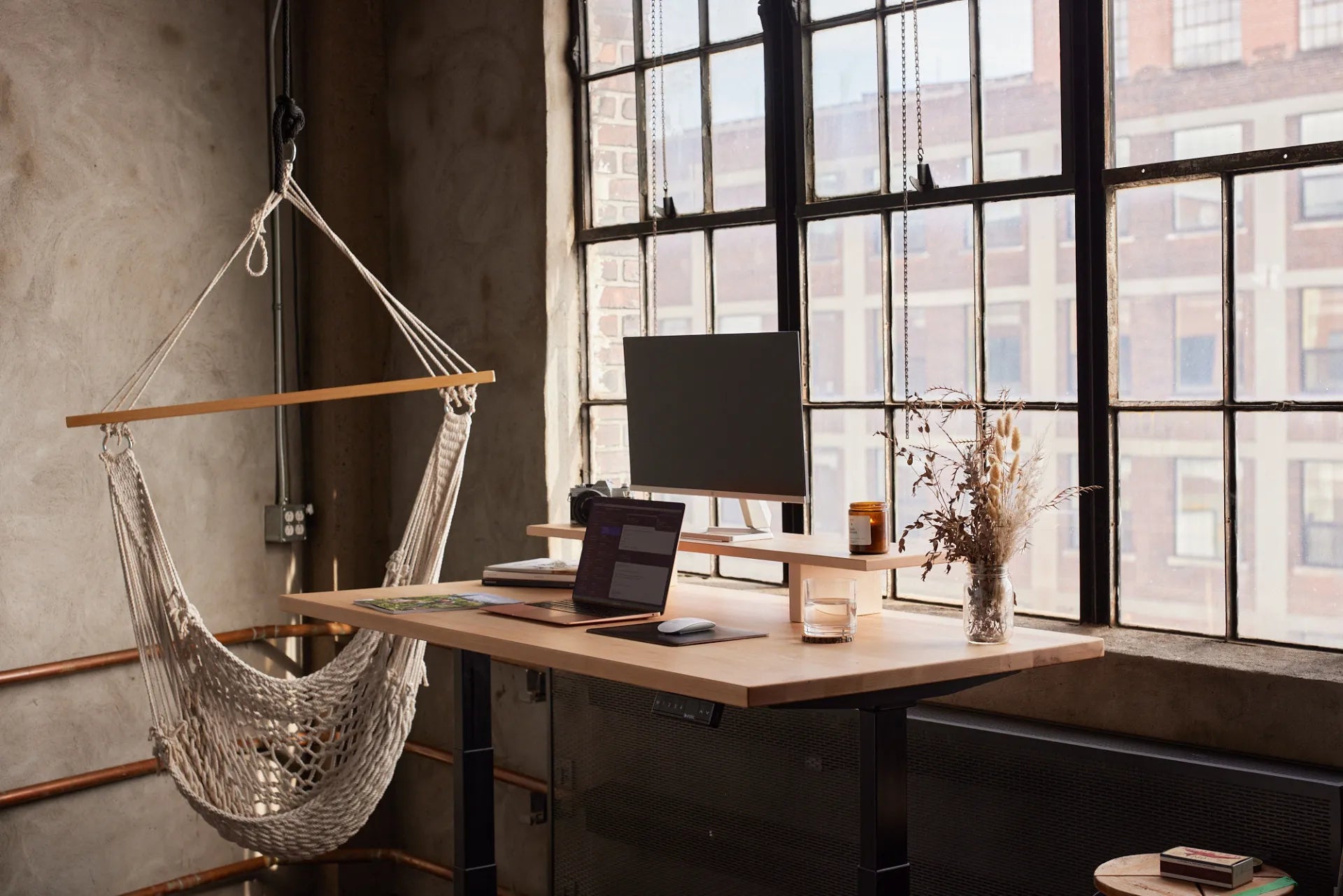
Putting a desk in front of a window can make a home office feel brighter and more open, but it is not automatically the best position for computer work. The right answer depends on the window’s direction, the time of day you work, screen reflectivity, room temperature, video calls, privacy and the amount of clearance available.
For many workspaces, the most adaptable layout is beside or slightly angled to the window. It provides daylight and an outside view without placing the brightest surface directly behind the screen or directly behind the user. Still, a front-facing arrangement can work very well when blinds, monitor position and desk depth are planned together.
The three basic window layouts
Desk facing the window
This arrangement gives the user a direct view and can make a small room feel less enclosed. It may also create a large difference in brightness between the screen and the window, particularly during direct sun. A monitor positioned in front of the glass can block part of the view, and the window sill or covering may limit how far back the screen can move.
Desk perpendicular to the window
Side lighting is often the easiest starting point for screen work. Daylight reaches the room without sitting directly in the line of sight or reflecting straight back from behind the user. The desk can usually be rotated a few degrees as the sun changes. Right-handed users who write on paper may prefer the window on the left to reduce hand shadows, while left-handed users may prefer the reverse.
Desk with the window behind the user
This can provide a pleasant front-facing wall and keep the view out of the work zone, but a bright window behind the user may reflect on the monitor. It can also create strong backlighting during video calls, causing the camera to darken the face. Curtains, shades and a front light can reduce these problems.
Benefits of placing a desk near a window
Daylight can reduce the need for electric lighting and make the workspace feel more welcoming. An outside view also makes it easy to look away from the screen periodically. The existing Burotic guide to using natural light in the workplace explores how daylight can support a better office environment when glare and heat are controlled.
A window-facing setup may be especially appealing for writing, planning, creative work and tasks that alternate between paper and screen. It can also improve the background seen behind the user on video calls if the room, rather than the bright glass, is behind them.
Possible drawbacks to solve
Glare and excessive contrast
Glare can come from a visible bright window, direct sun on the display or reflections on a glossy screen. CCOHS explains that a poorly positioned monitor can contribute to awkward head and upper-body positions. Do not compensate for glare by leaning, twisting or placing the monitor too low. Adjust the room first: rotate the desk, change the screen angle, use adjustable blinds or diffuse light with a sheer covering.
Check the setup in the morning, at midday and late afternoon. A layout that works in winter may behave differently during long summer evenings. The 2026 DEZCTOP guide on desks in front of windows similarly recommends keeping the workstation slightly off-axis and avoiding direct afternoon sun when possible.
Temperature and airflow
Windows can create heat gain, cold downdrafts or drafts from an open sash. Avoid blocking a radiator, baseboard heater or air return with a desk, storage unit or cable bundle. Leave the clearance required by the heating system and window manufacturer. If direct sun heats equipment, move the electronics or use a suitable shade rather than relying only on air conditioning.
Privacy and security
A ground-floor window can expose screens, documents or equipment to people outside. Position confidential displays away from the sight line, use appropriate coverings and follow workplace privacy requirements. Avoid placing valuable equipment where an open window could expose it to rain or where a cable could interfere with the latch or emergency egress.
Video-call lighting
A window directly behind the camera can provide flattering front light, but direct sun may be harsh and change throughout a call. A window behind the user creates backlighting. The simplest test is to open the camera at the times you usually meet, then adjust the desk angle, blinds and a soft room light. Keep the camera near eye level and do not sacrifice monitor ergonomics solely for the background.
How far should the desk be from the window?
There is no universal distance. Leave enough room for curtains, handles, cleaning, airflow and the full travel of a height-adjustable desk. Confirm that the monitor arm, shelf or laptop will not contact the glass when the desk rises. A deeper work surface gives more flexibility, but the screen must remain readable without leaning forward. Burotic’s 24-inch versus 30-inch desk depth guide can help assess that trade-off.
Also plan cable routes before final placement. Window walls may have fewer outlets, and extension cords should not cross walking paths. Keep enough slack for the desk’s full height range and follow the standing desk cable management guide for moving cables.
A practical layout test
- List the hours when the workstation is used most.
- Observe direct sun and reflections at those times.
- Place the desk temporarily before mounting accessories.
- Centre the main monitor with the keyboard and chair.
- Test sitting and standing positions, including the top height.
- Open the video camera and check face lighting and background.
- Confirm window access, airflow, outlets and cable clearance.
- Recheck the arrangement after a week of real work.
Which orientation is best for different priorities?
| Priority | Good starting layout | Main check |
|---|---|---|
| Maximum outside view | Facing the window | Brightness contrast and direct sun |
| Long computer sessions | Perpendicular to the window | Reflections from the side |
| Fewer visual distractions | Facing an interior wall | Screen reflection from behind |
| Frequent video calls | Window near or behind camera | Stable, diffused face light |
Setting up the monitor and desk
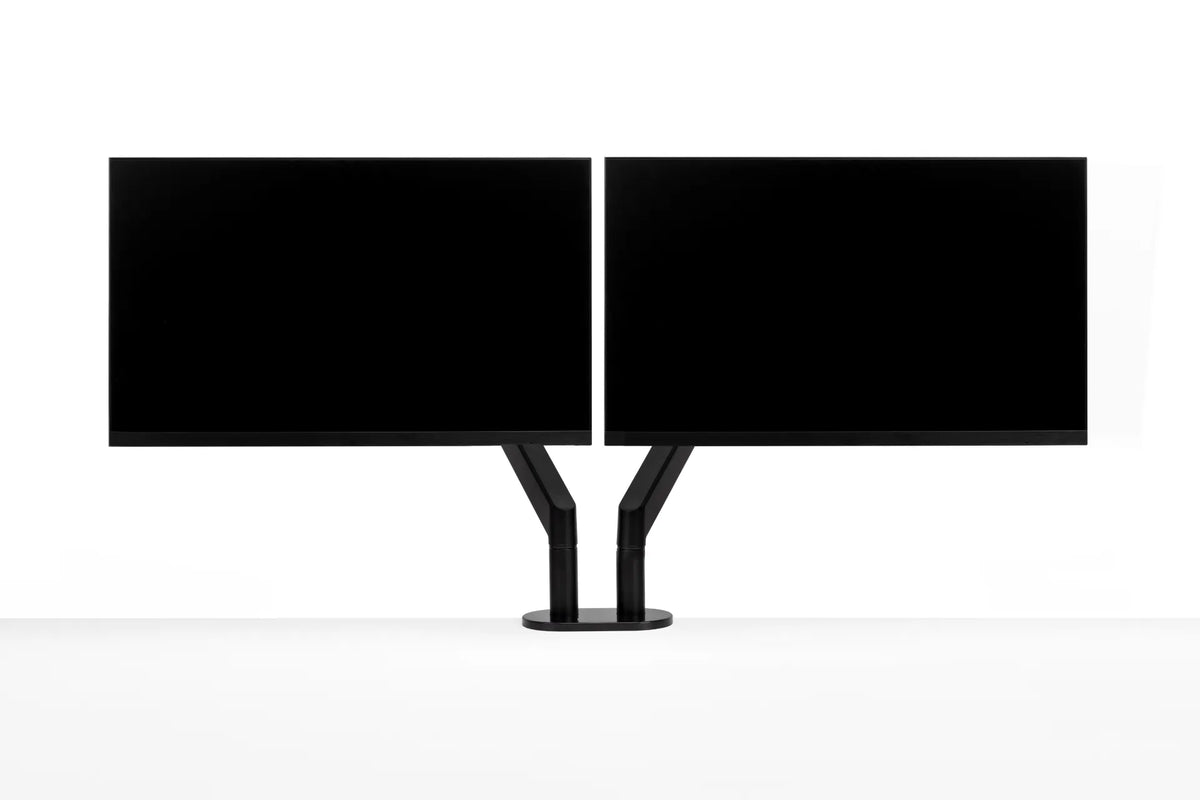
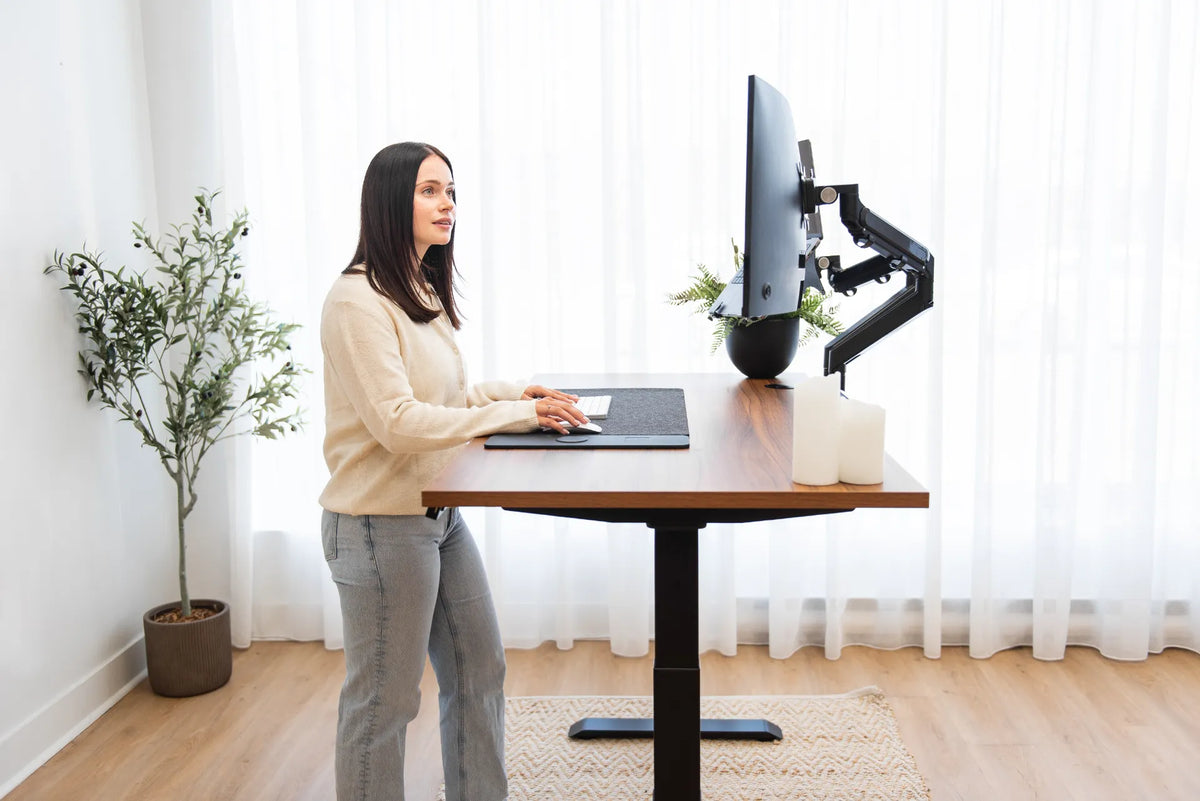
Once the room position is chosen, fit the workstation to the user. Keep the primary screen in front of the body, adjust text size before moving the screen too close and keep the keyboard and mouse within easy reach. An adjustable monitor arm can make it easier to change height, depth and angle, subject to the monitor’s size, mounting pattern, weight and desk compatibility.
A height-adjustable desk can also help different users find a workable position beside a window. Burotic’s Aspire Solid Wood Standing Desk offers multiple surface sizes, but room measurements, window clearance and the selected configuration should be checked on the current product page before ordering.
So, should your desk face the window?
It can, especially when the view matters and direct sunlight is manageable. For most screen-heavy work, placing the desk perpendicular to the window is the safest first experiment because it balances daylight with easier glare control. Facing away can work when distractions are a concern, provided reflections and video backlighting are addressed.
Treat desk placement as a test rather than a decorating rule. Observe the room through a full workday, adjust blinds and screen angles, and keep the final setup only if you can read comfortably, move freely and use the window safely. A few days of testing can prevent years of working around the wrong layout.

Previous article
How to Protect Wood Floors Under an Office Chair and Standing Desk
Next article
Ergonomic Laptop and Monitor Setup: A Practical Canadian Guide