





Standing Desk Safety Around Children and Pets

In this article
A height-adjustable desk adds a moving surface, powered components and hanging cables to a room that may also be used by children or pets. The solution is not to assume that one feature makes the desk safe. A child lock, anti-collision response or memorized height can help when a specific desk includes it, but supervision, clear travel space and disciplined cable routing remain essential.
This guide provides a practical routine for a home office. It does not replace the manufacturer’s manual, local electrical requirements or professional safety advice. Desk features differ, so confirm the controls and limitations of your exact model before relying on any function.
Understand the desk’s moving envelope
The moving envelope is the full volume occupied by the desktop, frame, accessories and cables from the lowest position to the highest. Hazards can exist above, below and beside the desk. A shelf may be clear while seated but collide with a monitor at standing height. A storage cabinet may fit under the desk when raised but become an obstruction on the way down.
Run the desk through its intended range while no child or animal is nearby. Watch every edge and accessory. Check walls, window sills, chair arms, drawer units, toys, beds, crates, lamps and waste bins. The recent competitor guidance we reviewed emphasizes that anti-collision systems are designed to respond to obstructions, but their sensitivity and behaviour vary. Treat them as a backup, not permission to leave the area unchecked.
Our guide to decorating a standing desk without blocking movement explains how to plan this envelope for objects placed on and around the desk.
Keep the controller out of casual reach
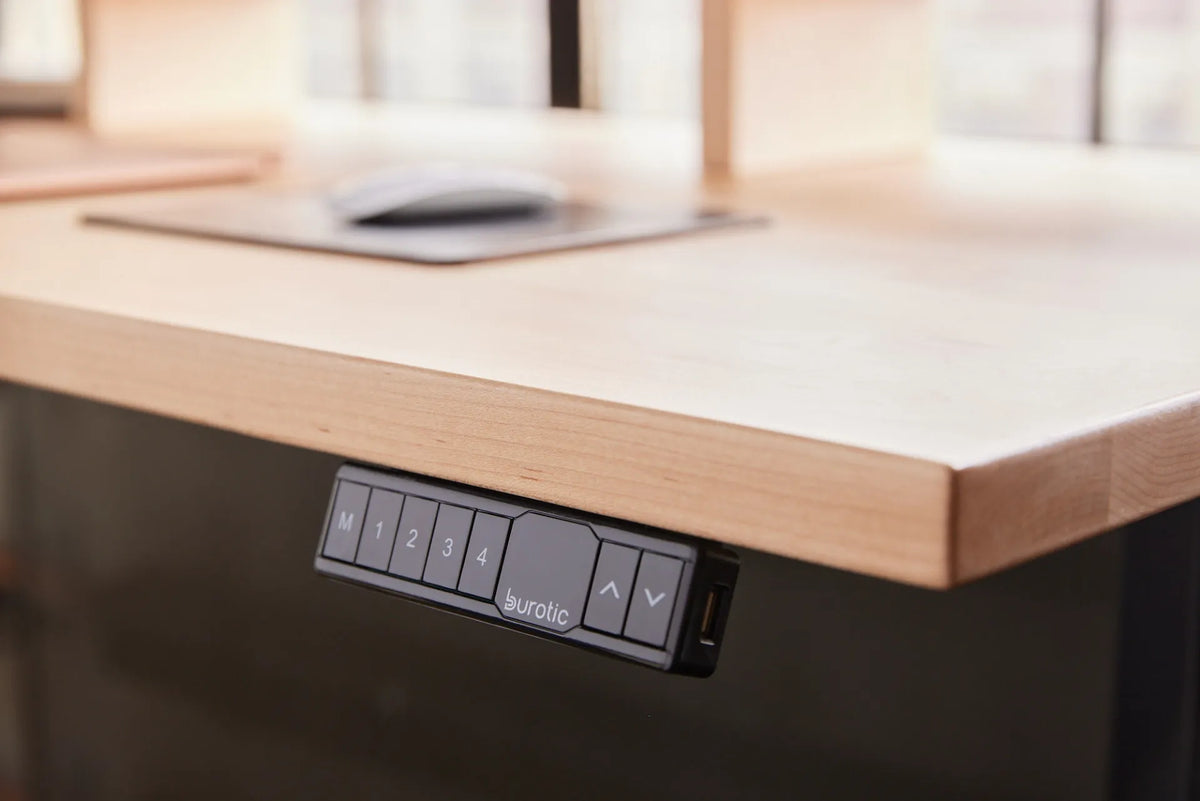
A controller placed near the front edge is convenient for an adult user and may also attract curious hands. If the model provides a lock function, learn how to activate and confirm it using the official instructions. Do not assume that every controller locks, or that the same button sequence applies to every desk.
If there is no verified lock, restrict access to the room or disconnect power according to the manufacturer’s instructions when the desk will be unattended for an extended period. Do not improvise a cover that jams buttons, traps heat or interferes with normal operation. Avoid moving the controller or changing wiring unless the installation instructions permit it.
Controller location also affects accidental activation by an adult’s hip, chair arm or stored object. Review our article on standing desk controller placement before installing or relocating one.
Never move the desk without a clear view
Before pressing an arrow or memory button, look above and below the entire desktop. Confirm that no child, pet, hand, paw, tail, toy or furniture part is in the path. Stay at the controller while the desk moves. Do not start a memory cycle and walk away, even if the controls allow one-touch travel.
Move the desk when the room is calm, not while a pet is chasing a toy or a child is playing under the workstation. If something unexpected enters the moving envelope, stop immediately. Follow the manual if the desk reports an error or becomes uneven. Do not repeatedly cycle the motors to force movement through resistance.
Manage pinch and crush zones
The most obvious clearance is under the desktop, but several smaller zones deserve attention:
- between the desktop edge and a wall, shelf or window ledge;
- between moving frame sections;
- between the desktop and a rolling cabinet or chair arm;
- around monitor-arm joints and cable loops;
- under attached drawers, keyboard trays or power accessories.
Do not let children play, hide or build forts under an adjustable desk. Do not place a pet bed, food bowl or crate inside its travel area. A location can appear generous at standing height and become confined when the desk descends. Keep the floor clear enough that an adult can see the whole base before movement.
Route cords for both electrical and movement safety
Health Canada advises keeping appliance cords out of children’s reach because pulling a cord can bring equipment down. The same principle applies to monitors, chargers, lamps and desktop accessories. Secure excess length so it does not form a low loop, but preserve enough controlled slack for the desk’s full height range.
Keep plugs and power bars off routes where pets may chew them or people may trip. Do not run extension cords under rugs, through doors or behind heat sources. Health Canada also notes that electrical products connected to outlets, including power bars and extension cords, must carry an appropriate recognized Canadian certification mark.
A moving desk needs one deliberate service loop between the mobile desktop and the fixed wall supply. Test the loop at the lowest and highest positions. It should not pull tight, drag on the floor, catch a leg or enter a moving joint. A compatible height-adjustable desk frame should always be installed and operated according to its official instructions.
Secure equipment on the desktop
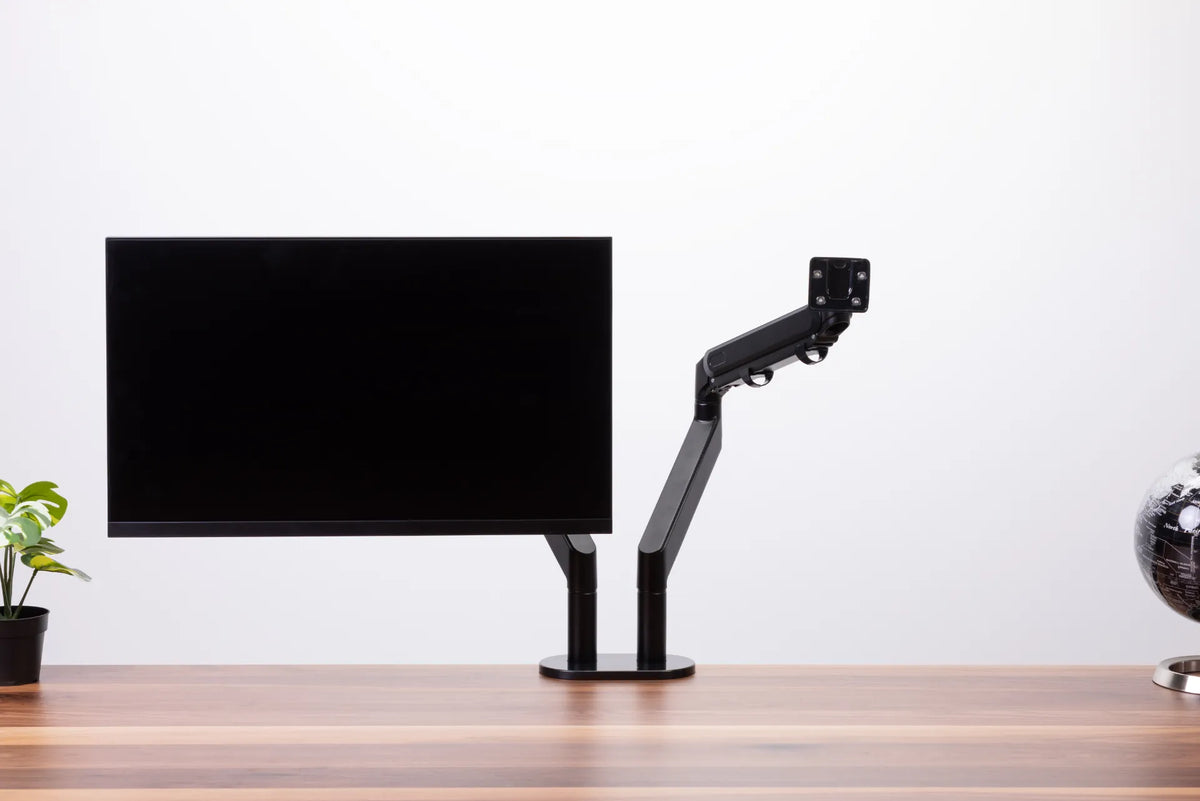
Desk movement can expose unstable equipment. Place monitors on stable bases or compatible mounts, tighten hardware to the manufacturer’s specifications and keep heavy objects away from unsupported edges. Make sure a laptop, speaker, lamp or cup cannot slide when the desk starts or stops.
Avoid long hanging straps, headphone cables or charging cords that invite pulling. Small objects that could be swallowed should not be stored within reach. If a pet jumps onto the desk, reduce the attraction by removing food, loose toys and warm devices from accessible edges.
Use memory positions carefully
Memory presets reduce repeated button pressing, but they also move the desk toward a stored destination. Save only useful positions after verifying the workspace. Recheck them after changing a desktop, monitor arm, drawer, mat or floor arrangement. A new accessory can change clearance even when the saved height remains the same.
Label shared presets if several adults use the desk. Never describe a preset as a safe child height. Children should not operate the desk without appropriate supervision, and a height that is clear for one room arrangement may not be clear later.
Know what anti-collision can and cannot do
An anti-collision function may detect increased resistance and stop or reverse movement. It cannot identify every soft, narrow or moving object in every situation. Sensitivity can differ by model and setting. It is not a substitute for watching the desk, and it does not eliminate pinch zones around accessories.
Test only as instructed by the manufacturer. Do not use a person, pet or valuable object to test detection. If the desk behaves unpredictably, disconnect it as directed and consult the manual or support resources. Our Aspire reset and error-code guide can help with approved troubleshooting steps for that base, but physical damage, unusual noise or repeated errors may require service.
Create a shutdown routine
At the end of the day:
- Return the desk to a stable position with clear space around it.
- Remove cups, small items and tempting objects from the edge.
- Confirm that cords are secured and undamaged.
- Lock the controller only if the verified model provides that function.
- Restrict room access or disconnect power as the manual allows when necessary.
- Recheck the area after cleaning, rearranging furniture or adding an accessory.
A standing desk can coexist with a family home when its movement is treated as an active operation. Clear the full travel path, keep control of the controller, route cables deliberately and never rely on a single electronic safeguard. The safest habit is simple: inspect, stay present and stop at the first uncertainty.

Previous article
Clamp-Mounted Desk Accessories: Fit, Placement and Desktop Protection
Next article
Clamp-Mounted Desk Accessories: Fit, Placement and Desktop Protection