





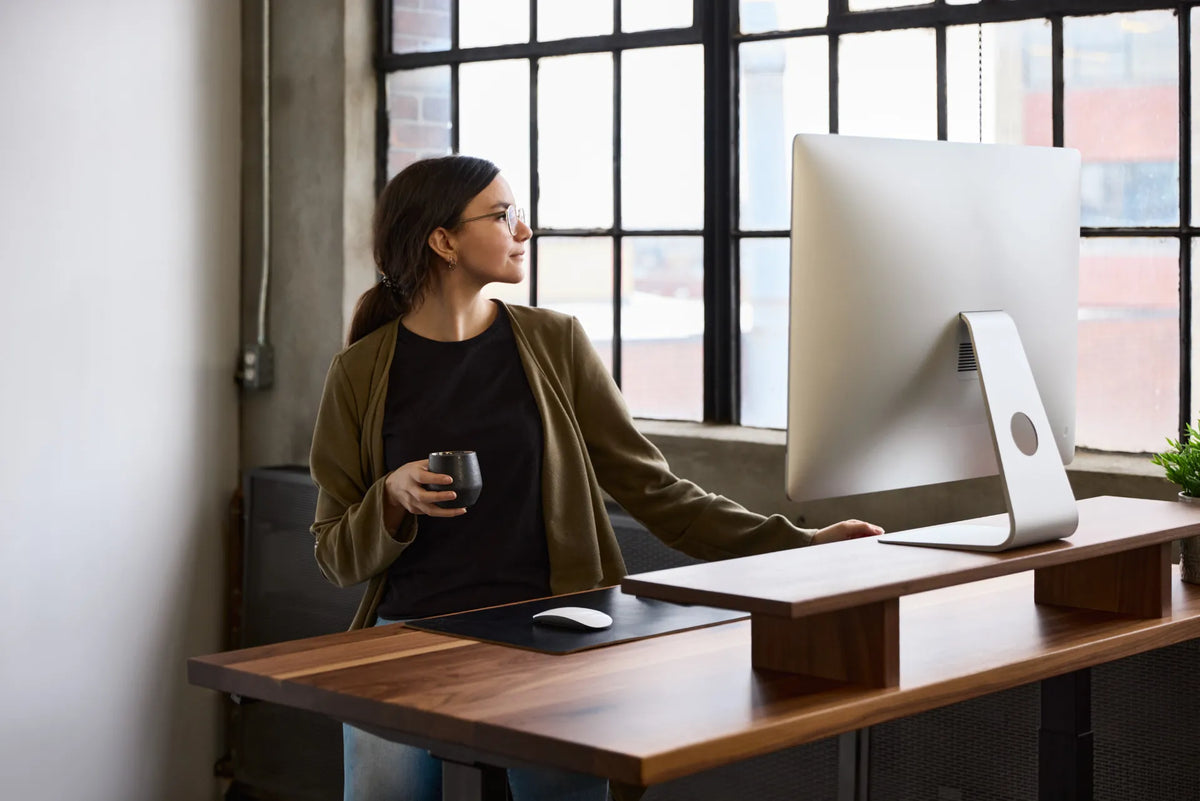
How to Centre a Monitor on Your Desk for Better Ergonomics

In this article
A monitor can be perfectly centred on the desktop and still be off-centre from the person using it. For everyday ergonomics, your body is the better reference point. The primary screen should normally sit in front of your usual keyboard position, so reading, typing and pointing do not require repeated neck or trunk rotation.
This guide explains how to centre one monitor, how to handle a second screen, and how to check the arrangement in both seated and standing positions. It provides general setup guidance, not medical advice. Persistent pain, numbness or vision problems deserve assessment by a qualified professional.
Quick answer: centre the primary monitor on your working position
Sit or stand where you actually type. Place the keyboard directly in front of you, then align the centre of the primary monitor with the centre of the keyboard area and your body. Do not use the middle of the furniture as the only reference if your keyboard, chair or standing position is shifted to one side.
Keep the screen at a comfortable viewing distance and set its height so you can read without repeatedly lifting or dropping your head. The Canadian Centre for Occupational Health and Safety recommends placing the monitor directly in front of the user when it is the main display, with the top of the screen around eye level or slightly below, depending on the task and eyewear.
Why the desk centre can be misleading
A wide desk may contain a drawer, monitor shelf, controller, lamp or storage zone that changes where you sit. An L-shaped desk can create two work zones. A laptop beside an external screen can also pull the keyboard away from the geometric centre. In each case, centring the display on the furniture can leave it offset from the body.
Use the line from your nose through the middle of the keyboard as the practical centreline. The main screen should meet that line. If your chair naturally drifts sideways, inspect the reason before moving the display again. Armrests, drawers, a desk leg or a crowded mouse area may be steering you away from the intended position.
Set the keyboard and mouse before the screen
Monitor placement works best after the input devices are settled. Put the keyboard close enough that your elbows remain near your sides and your shoulders stay relaxed. Leave enough room for the mouse beside it without reaching across a wide number pad or around papers.
Once this task zone feels natural, move the monitor to match it. This sequence prevents a common mistake: placing the screen first and then twisting the keyboard to fit the remaining space. The Burotic mouse-position guide explains reach and device placement in more detail.
Find a comfortable viewing distance
Distance depends on screen size, resolution, text size, eyesight and the work being done. Start with the screen at roughly an arm's length, then move it closer or farther while keeping text readable and your posture relaxed. Increase text size before leaning forward for long periods.
A very deep desk can push a fixed monitor too far away, while a shallow desk may bring a large display uncomfortably close. The monitor-distance guide offers a practical test. The goal is clear viewing without craning forward, not a single measurement for every user.
Adjust height after centring
With the screen centred, adjust vertical position. For many people, the top of the usable display sits near eye level or a little below, allowing the gaze to fall slightly downward. Progressive lenses and bifocals may require a lower screen to avoid tipping the head back.
Check the whole screen, not only the top edge. You should be able to read the upper and lower areas with small eye movements and without repeated head tilting. A stable monitor stand can add height, while a compatible arm can change height, depth and angle. Review the verified monitor-stand height guide before adding elevation.
One monitor: keep the work directly ahead
With one display, centring is straightforward. Put the most frequently used application near the middle of the screen. If the monitor is ultrawide, centre the portion used for focused work and place supporting windows to either side. A wide screen does not require the neck to travel from edge to edge all day.
Keep the stand or arm base stable and confirm that it does not force the screen sideways around a shelf, speaker or plant. If an accessory occupies the correct screen position, move the accessory rather than accepting a rotated posture.
Two monitors: centre the primary or centre the seam
For two screens, choose the layout from actual use. If one monitor carries most of the work, place it directly in front of the body and angle the secondary display inward. If both are used about equally, centre the seam between them and keep the inner edges close enough that eye movement, rather than large head turns, handles most transitions.
Match the screens' height and viewing distance when practical. Put the more frequently consulted display on the side that requires the least repeated rotation. A monitor arm can make fine adjustments easier, but compatibility and clamp clearance must be confirmed. The monitor-arm position guide covers those checks.
Check sitting and standing separately
A sit-stand desk changes the relationship between the body, keyboard and display. Raise the desk to your normal standing height and repeat the centring test from your actual foot position. Do not assume a screen aligned while seated will remain ideal if you stand farther from one side of the desk.
Save useful desk heights only after keyboard reach and screen position work together. Move the monitor, arm or stand if you repeatedly rotate at one height. The desk should support a neutral working direction in both positions, even if small adjustments are needed.
Account for the camera without sacrificing alignment
Video calls can tempt users to push the monitor sideways to improve a camera angle or background. A better approach is to keep the primary display centred and place the camera near the top centre of that screen. Then adjust lighting, chair position or background independently.
If a laptop camera is used beside a main monitor, decide whether calls are frequent enough to make the laptop a temporary primary screen. Otherwise, keep the external display centred for normal work and move the call window near the camera during meetings.
Control glare and window reflections
Centring the screen is not enough if the chosen position creates strong glare. CCOHS recommends arranging displays to avoid bright windows directly in front of or behind the user when possible. A position roughly perpendicular to a window often makes reflections easier to manage.
Use blinds, curtains and room lighting before turning the screen to a sharp angle. If the display must rotate far away from the keyboard to avoid glare, reconsider the desk orientation. The screen, body and light should be solved as one arrangement.
Use a five-minute alignment test
- Place the chair or feet where you normally work.
- Centre the keyboard on your body and set the mouse within easy reach.
- Align the primary screen with the keyboard centreline.
- Set a readable distance, then adjust height and tilt.
- Open a typical document and work for five minutes.
- Notice whether your head, shoulders or torso drift to one side.
- Repeat at standing height and during a common two-screen task.
Small drift can reveal a layout problem that measurements miss. Correct the reason for the drift, such as a drawer, chair arm or off-centre task window, before locking the monitor arm in place.
Common monitor-centring mistakes
- Centring the screen on the desktop instead of the user.
- Leaving the keyboard off-centre under a centred monitor.
- Using a secondary screen as the main display while it remains far to one side.
- Moving the monitor sideways to make room for decoration.
- Ignoring glare, corrective lenses or text size.
- Checking only the seated position on a standing desk.
- Turning the whole body repeatedly instead of angling the secondary display inward.
Final recommendation
Start with the body and the task, not the furniture. Centre the keyboard on your usual working position, place the primary monitor on the same centreline, and then tune distance, height and glare. For dual screens, centre the primary display when it dominates or centre the seam when use is balanced. Recheck the arrangement while standing and after a normal work session.
Burotic's active Monitor Arm can support flexible positioning when the verified screen and desktop compatibility requirements are met. A fixed stand may be the simpler choice when only height is missing. Choose the least complicated solution that keeps the display stable and directly usable.
Sources: CCOHS, Monitor Positioning; CCOHS, Sit/Stand Desk; Progressive Desk Canada, monitor setup guide, consulted September 30, 2026.

Previous article
How to Set Up a Standing Desk in a Corner
Next article
Standing Desk Setup for Renters: A No-Drill Home Office Guide