

Standing Desk USB Port Guide: Charging, Limits and Safety

In this article
A USB port built into a standing desk controller looks simple: connect a cable and charge a phone without running another cord across the desktop. The useful answer is more nuanced. A controller port may provide convenient low-power charging, but the connector shape alone does not tell you its wattage, supported charging protocol or suitability for a laptop. Those details depend on the exact desk, controller and power system.
This guide explains how to evaluate a standing desk USB port, what it can reasonably be used for and how to integrate it into a safe, movement-ready workstation. It is general product guidance, not a substitute for the manual supplied with your desk or device.
Start with the exact controller, not the connector
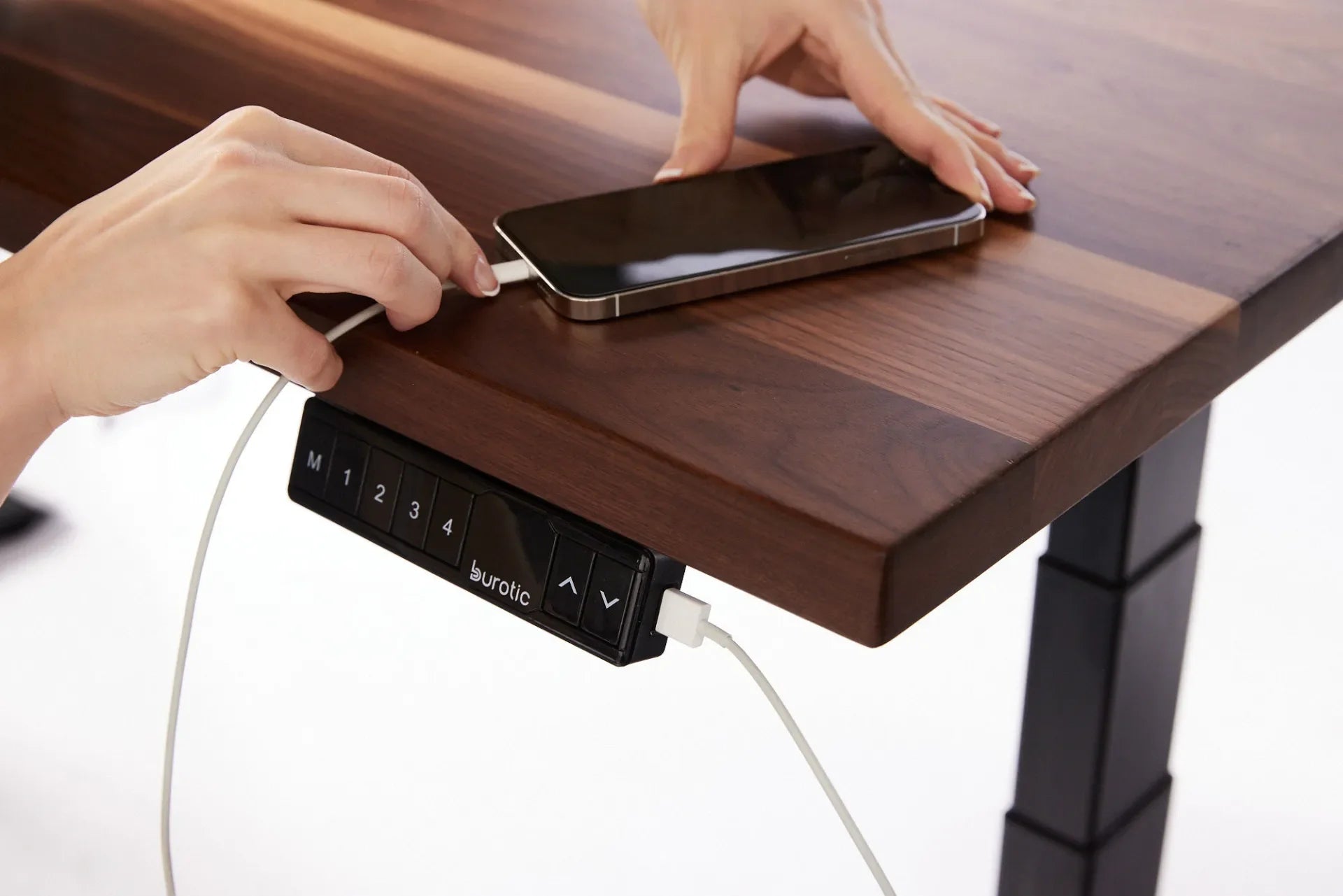
The photo for this article shows a cable being connected to a visible USB-A port on the side of a Burotic standing desk controller beside a walnut desktop. That observation confirms the connector type visible in this image. It does not establish the port's output, fast-charging support or compatibility with every phone.
Before using any controller port, find the manual for the exact desk and control panel. Look for output voltage, current and total wattage. If the manual does not state those values, ask the manufacturer before relying on the port for an expensive or power-hungry device. A USB-A opening can support many different power levels, and USB-C can also range from basic power to much higher negotiated output.
Connector type and charging capability are different facts
USB-A and USB-C describe physical connectors. They do not guarantee a particular charging speed. The USB Implementers Forum explains that USB Power Delivery is a negotiated system with defined voltage and power capabilities. A port that does not advertise USB Power Delivery should not be treated as a laptop charger merely because a USB-C cable fits.
Check the device's own charging requirements too. Phones, earbuds, watches, tablets and laptops do not draw the same amount of power. A low-output controller port may maintain or slowly charge a phone while being unsuitable for a notebook computer. Some devices may display a slow-charging notice. That is a compatibility signal, not necessarily a fault.
What a standing desk USB port is best used for
A controller port is most useful for a small device that moves with the desktop. A phone placed near the controller is the clearest example. The short cable stays in the moving zone and does not need to span from the desk to a wall outlet. Small accessories may also be appropriate when their documented input matches the port's documented output.
The convenience is greatest for occasional top-ups. If a device needs predictable fast charging all day, a certified wall charger or properly specified desk power bar is usually easier to verify. If a laptop powers a monitor, dock and peripherals, use the adapter recommended for that laptop rather than expecting a controller port to replace it.
Do not infer data transfer
A charging port on a desk controller is normally part of the furniture's power system, not a connection to your computer. Unless the manual explicitly says otherwise, do not expect it to transfer files, connect a keyboard or operate a USB hub. Treat it as power-only and keep data peripherals connected to the computer or dock.
Build a movement-ready charging route
A standing desk changes height, so cable planning must work at the lowest and highest positions. Put the phone where it will not be pushed by the monitor, keyboard or papers. Use a cable long enough to reach without tension, but short enough that it will not loop into the controller buttons, desktop edge or chair path.
Run the desk through its full travel while watching the cable. Stop if the plug bends sharply, the cable catches, or the phone is pulled. The same full-height test is central to Burotic's standing desk cable management guide. A route that looks tidy while seated can become tight when the desktop rises.
Keep charging cables separate from the moving legs and pinch points. Do not wrap a cable tightly around the controller lead. If you use an adhesive clip, make sure it does not block controls and that its adhesive is suitable for the desktop finish. Leave enough slack near each connector to avoid repeated side loading.
Compare the controller port with other power options
Controller USB port
Best for one small device near the controls, provided the manual confirms compatibility. It minimizes visible cable length and moves with the desk. Its limitation is that output may be modest or undocumented, and a single port does not solve power for the entire workstation.
Desk-mounted power bar
A desk-mounted unit can serve monitors, computers and chargers when its electrical ratings, certification and installation suit the equipment. Burotic's Power Bar is an active Shopify product with on-desk and under-desk configurations. Review the current product page and manual for the exact ports, ratings and installation details before purchase. The desk power bar setup guide covers placement, load planning and Canadian certification checks.
Wall charger or dock
A manufacturer-specified charger is often the most dependable option for a laptop or fast-charging phone. A dock may consolidate power, display and data for a compatible laptop. These options add cable-routing work, but their specifications are usually easier to match to the device.
Canadian electrical safety checks
Health Canada advises consumers to look for a Canadian certification mark on plug-in electrical products and to buy from reputable sellers. Ontario's Electrical Safety Authority publishes recognized certification marks that help identify equipment evaluated for Canadian requirements. These checks apply to the charger, adapter or power bar feeding your workstation.
Do not use a damaged cable, loose connector or overheated adapter. Disconnect equipment that smells unusual, becomes excessively hot, sparks or shows discolouration. Avoid daisy-chaining power bars and do not exceed the rating of an outlet or accessory. If you are uncertain about household wiring or repeated electrical problems, consult a qualified professional.
The controller port itself is part of the desk system. Do not open the control box or modify its wiring to increase charging power. Follow the desk manual for reset and troubleshooting procedures. Burotic's memory preset guide also stresses model-specific instructions because button sequences vary.
Troubleshoot slow or inconsistent charging
- Confirm the specification. Compare the port output with the device's required input.
- Try a known-good cable. Cable quality and damage can limit charging.
- Remove unnecessary adapters. Every extra connection introduces another compatibility point.
- Test while the desk is stationary. Movement-related interruptions suggest tension or a loose plug.
- Restart only as directed. Use the manufacturer's controller reset procedure, not a generic sequence.
- Switch to the device charger. If the controller port cannot meet the requirement, use the charger designed for the device.
A phone that charges slowly but consistently may simply be receiving limited power. A connection that repeatedly drops, heats up or feels loose should not be ignored.
A practical setup checklist
- Identify the exact desk and controller model.
- Verify the port type, output and supported charging protocols in the manual.
- Match the output to the device, not just the cable connector.
- Use a short, sound cable with strain relief.
- Place the device where it cannot fall when the desk moves.
- Test the desk at minimum and maximum height.
- Keep plug-in equipment certified for Canadian use.
- Use the original device charger when predictable high power is required.
Choose convenience without guessing
A standing desk USB port can remove one loose cable and make phone top-ups easier. Its value depends on verified output, device compatibility and a route that remains safe through the desk's full movement. Read the controller manual first, reserve the port for an appropriate small device and use a specified charger or certified power solution for higher loads.
If you are planning a complete adjustable workstation, review the current Aspire Standing Desk Frame and its documentation alongside your power and cable needs. The right setup treats charging as part of the moving desk system, not as an afterthought.



Previous article
Active Sitting Stool vs. Ergonomic Chair: Which Should You Use?
Next article
What Desk Shape Is Best for Your Workspace?