





Can You Plug a Monitor and Laptop Into the Same Power Bar?

In this article
In many home-office setups, a monitor and laptop can share the same power bar. These devices are usually modest loads compared with space heaters, kettles or other high-wattage appliances. The answer still depends on the power bar's rating, Canadian certification, the input ratings of the connected equipment and the manufacturer's instructions.
Do not decide by counting empty outlets alone. Three open receptacles do not mean that any three devices are safe together. The correct process is to verify the power bar, add the loads you plan to connect and route the cable so the setup remains safe when the desk moves.
Short answer
You can generally connect one office monitor and one laptop power adapter to the same power bar when all of the following are true:
- the power bar carries a recognized Canadian electrical certification mark;
- its voltage, current and wattage ratings are suitable for the connected equipment;
- the combined load stays within the rating of the power bar and wall circuit;
- the power bar is plugged directly into an appropriate wall receptacle, not another power bar;
- both device manufacturers allow their products to be used that way;
- the cord is undamaged, unobstructed and not pinched by furniture;
- the power bar is used indoors and in the conditions stated on its label.
If any rating is missing, the product is uncertified or the instructions conflict, do not guess. Replace the device or ask a qualified electrician or the manufacturer.
Why a laptop and monitor are usually a manageable pair
A laptop power adapter and office monitor normally draw far less power than a portable heater. The exact demand varies by laptop, display size, brightness, charging state and workload. A high-performance mobile workstation can draw more than a light ultrabook, and a large high-refresh display can draw more than a basic office monitor.
That variation is why generic internet wattage estimates should not be used as the final check. Read the input label on each adapter or device. If the label gives watts, add them. If it gives voltage and amperage, wattage can be estimated with the relationship watts = volts × amps. Use the input rating, not the USB output rating, when assessing the demand on the power bar.
How to check the load step by step
- Read the power-bar label. Find the rated voltage, current and maximum load. Do not rely on the product shape or the number of outlets.
- Find each device input. Check the laptop adapter and monitor label or manual. Record the maximum input values.
- Add the loads. Include every device that may operate at the same time, such as a dock, speakers, task light or phone charger.
- Stay within every limit. The power bar, wall receptacle and circuit all matter. If you do not understand the ratings, ask a qualified electrician.
- Test the full desk travel. On an adjustable desk, raise and lower the desk while watching for tension, pinching and unplugging.
Health Canada advises consumers to read product directions and check whether a device is safe to use with an extension cord or power bar. It also says electrical products that plug into an outlet should meet Canadian safety standards and carry certification from an accredited body.
Certification matters in Canada
Look for a recognized Canadian certification mark on the product, not merely in an online listing. Health Canada identifies marks such as CSA, cUL and cETL as examples. A familiar logo, low price or claim that a device is compliant is not a substitute for the actual approved mark.
This is especially important for products bought online. Health Canada's 2026 guidance on buying electrical products online says not to buy plug-in products without a Canadian electrical certification mark and to check that an extension cord or power bar is rated for the product in use.
Do you need surge protection?
A power bar adds outlets. A surge protector adds a specified form of transient overvoltage protection. Some products combine both functions, but the terms are not interchangeable. If surge protection matters for your equipment, confirm that the product is specifically identified and rated for that purpose.
Surge protection does not make overloading acceptable, and it does not replace backup power. If your work requires time to save files during an outage, a properly sized uninterruptible power supply may be a separate consideration. Follow the equipment manufacturer's requirements and do not connect devices in a way the UPS instructions prohibit.
Mistakes to avoid
Daisy-chaining power bars
Do not plug one power bar into another. The Electrical Safety Authority advises against daisy-chaining. It makes the real load harder to see and can create unsafe connections. If the wall outlet is too far away or you need more receptacles, redesign the setup rather than building a chain.
Adding a portable heater
Health Canada specifically warns never to plug a portable electric heater into an extension cord or power bar. A laptop and monitor may be modest office loads, but adding a high-wattage heating appliance changes the situation. Keep heaters and similar high-load appliances off the desk power bar.
Using USB ports without checking output
A built-in USB-C or USB-A port may charge a phone or accessory, but the connector shape does not tell you the available power or supported charging protocol. Read the output label. A laptop that charges over USB-C may require more power than the port can provide. In that case, use the laptop's approved power adapter in an AC outlet rather than assuming any USB-C port is sufficient.
Hiding heat or damage
Do not bury a power bar under papers, fabric or dense cable bundles. Keep it visible enough to inspect, allow any ventilation required by the instructions and stop using it if the plug, cord or housing is damaged, discoloured, loose or unusually warm.
Ignoring standing-desk movement
A safe electrical load can still become an unsafe mechanical setup if cables pull during height changes. Leave a controlled service loop, secure the cable path and keep cords away from moving frame parts. Our guide explains safe desk power-bar placement and cable planning.
Where should the power bar go?
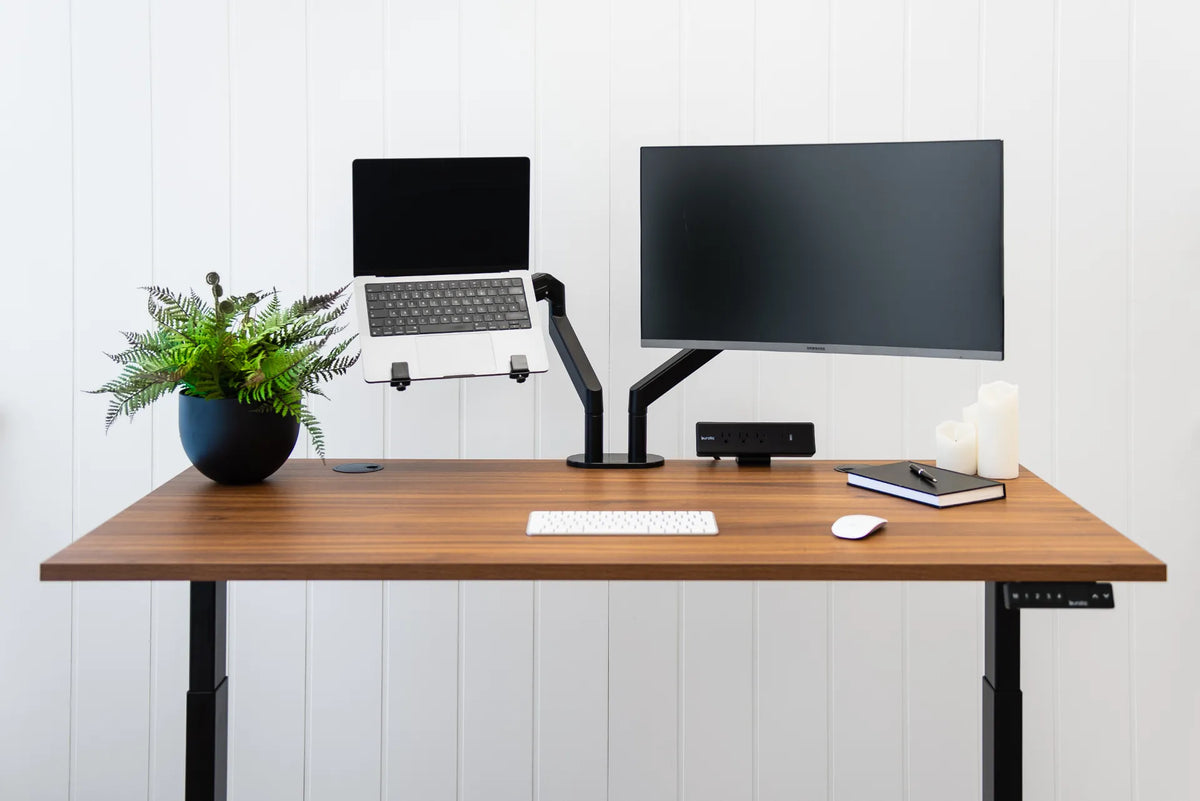
A desk-mounted or under-desk location can keep laptop and monitor plugs together and reduce the number of cords that travel to the wall. The best position is one you can reach and inspect without placing the device where knees, chair arms or moving frame components will hit it.
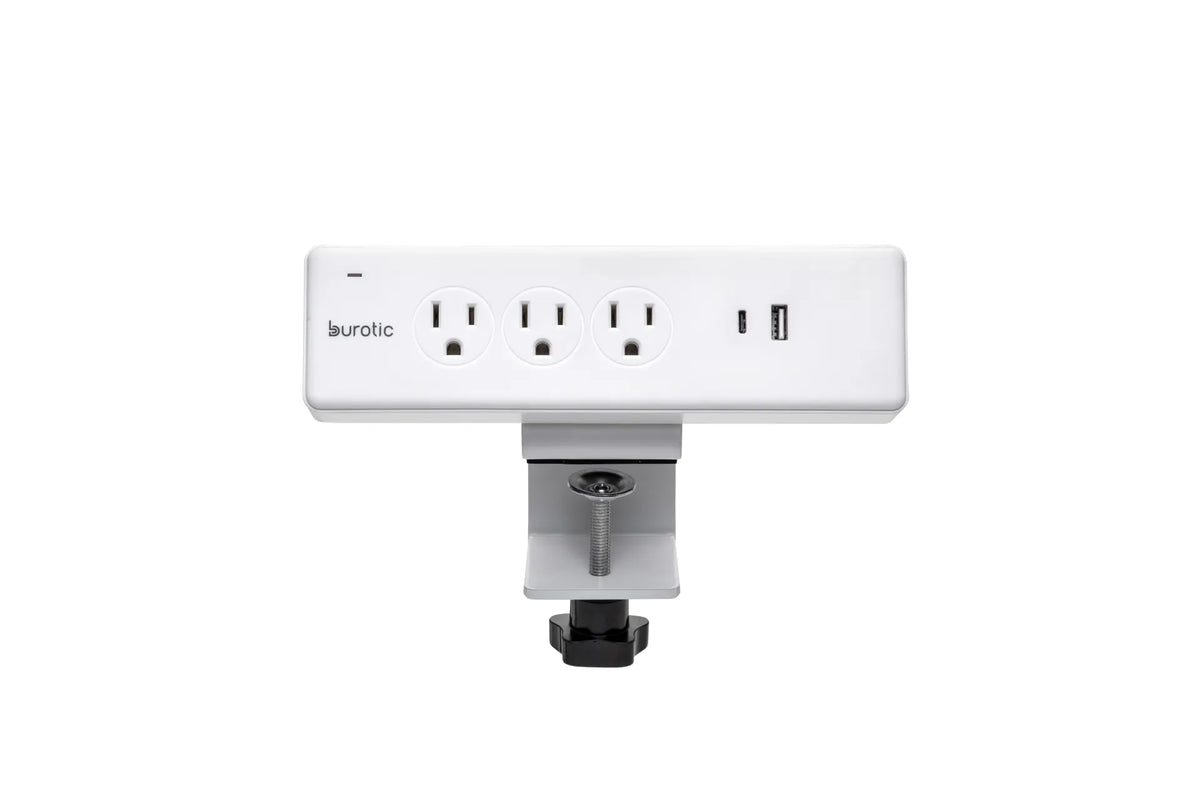
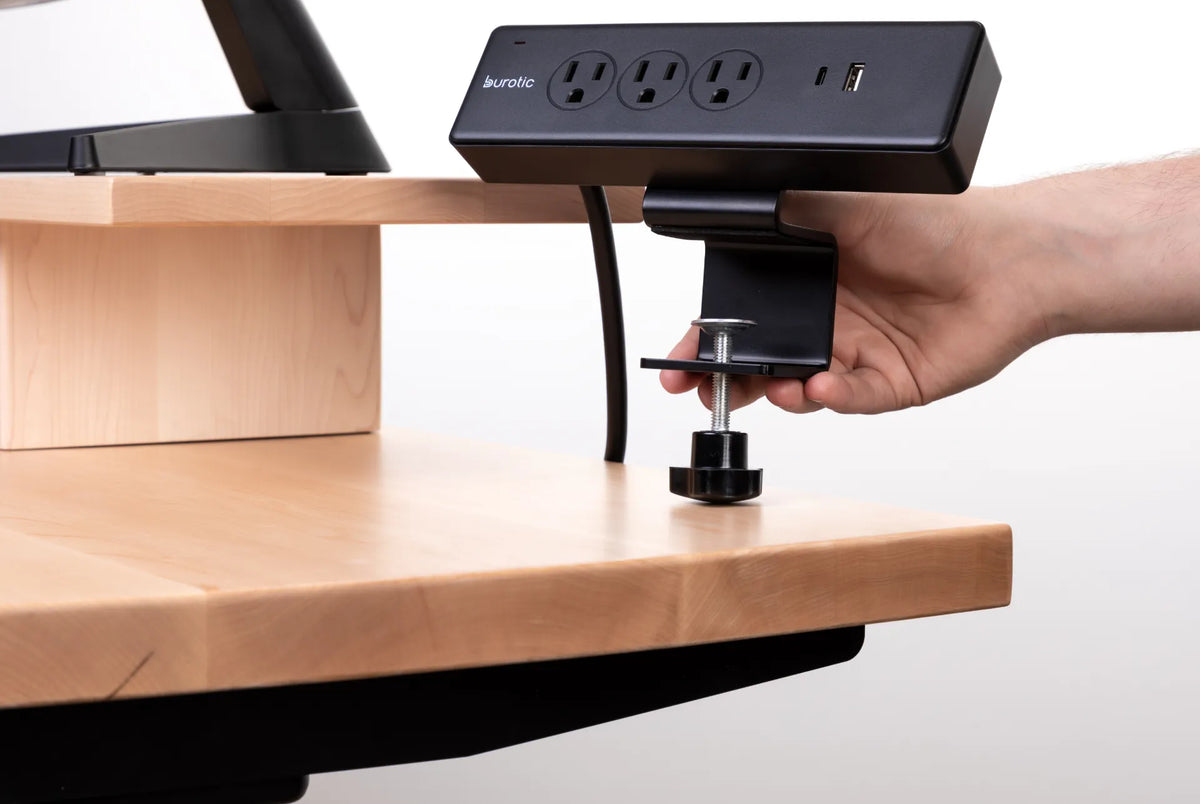
The Burotic Power Bar is available in on-desk and under-desk configurations. Choose based on access and cable routing, then verify the current product specifications and instructions before deciding what to connect. If you use a clamp-mounted option, review how to install a clamp-on power bar without damaging the desk.
A practical office checklist
- Certified product with a recognized Canadian mark
- Readable rating label and undamaged cord
- Laptop adapter and monitor load checked
- No heater or other high-wattage appliance
- No power bar connected to another power bar
- USB output checked separately from AC outlets
- Plugs fully seated and accessible for inspection
- Cables tested through the standing desk's full movement
- Liquid kept away from the power bar
The bottom line
A monitor and laptop can commonly share one suitable power bar, but safety comes from certification, ratings and correct use, not from the devices being office equipment. Read the labels, add every simultaneous load, avoid daisy chains and keep high-wattage appliances elsewhere.
If the setup is for a business, an older building or a circuit that trips, feels warm or shows damage, stop using it and involve a qualified electrician. General guidance cannot assess the condition or capacity of a specific electrical installation.
Previous article
Does a Desk Pad Protect Your Desk? What It Can and Cannot Prevent