





Standing Desk Memory Presets Not Working? What to Check

In this article
If your standing desk memory presets are not working, first identify what has failed: the desk may move normally but refuse to save a height, a saved button may move to the wrong position, recall may require a different button action than expected, or the controller may not respond at all. These symptoms point to different checks. Do not repeatedly press buttons or force the desktop when a cable, obstruction, or error may be involved.
Begin with the instructions for the exact desk and controller model. Preset procedures are not universal. Some controllers require a save button followed by a numbered key, some use a longer press, and some operate in one-touch or press-and-hold recall modes. The steps below help you classify the problem safely without inventing a sequence that may not apply to your equipment.
1. Confirm that the desk still moves up and down
Use the manual up and down controls for a short, clear movement. Watch the full area above and below the desktop. If the desk does not move manually, the issue is broader than memory. Check power, controller connections, visible error messages, and obstructions before testing presets again.
If manual movement works smoothly, the lifting system has at least basic power and control. You can focus on the saving and recall process. If movement is uneven, noisy, or stops unexpectedly, stop using presets and follow the troubleshooting instructions for the desk. Burotic's guide to a standing desk that is not moving separates common power and motion checks.
2. Decide whether saving or recalling is the problem
The preset will not save
Set the desk to a safe test height. Follow the exact save sequence in the product instructions and watch for the expected display response. If nothing appears, try the sequence once more at a different height. Avoid rapid repeated commands, which can make it hard to tell whether the controller accepted the input.
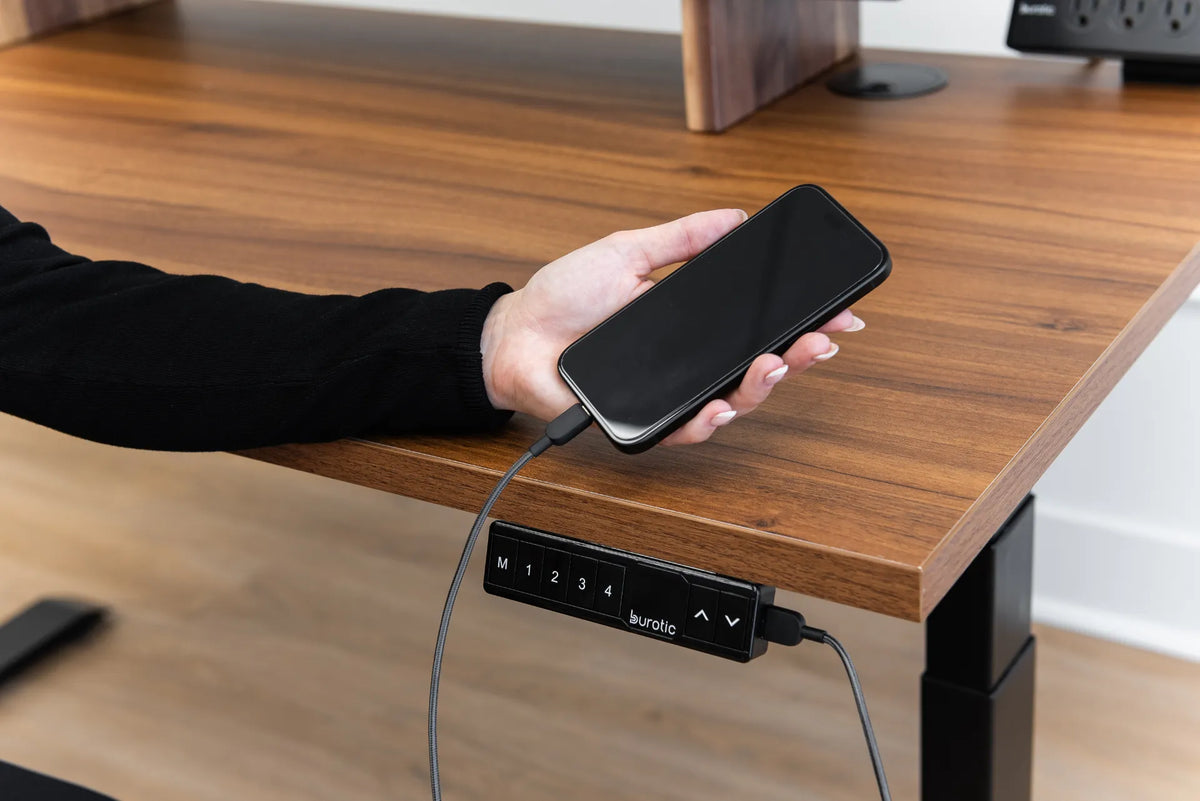
Make sure you are using a numbered memory key rather than an up, down, lock, or menu function. If the controller has a lock feature, confirm it is not active according to the manual. Do not assume a symbol has the same meaning across brands or controller generations.
The preset saves but does not recall
The controller may require you to hold the memory key until the desk reaches the saved height. Another mode may permit one-touch movement. Keep the path clear and maintain attention while the desk moves. If the desk starts only while the button is held, that may be the intended configuration rather than a fault.
Use a clearly different test height so you can see whether the saved value changed. If the desk returns to an older height, the new value may not have been stored. Repeat only the verified save sequence for your model.
3. Check the display and lock state
Look for a lock symbol, error code, blank display, flashing number, or unexpected height reading. Record the exact characters before disconnecting power. A photo can help support identify the controller state. Do not guess at the meaning of a code from a different desk.
If the display is blank, verify that the power cable is connected to a working outlet and that controller cables are fully seated where the instructions allow the user to inspect them. Turn the desk off or disconnect it before reseating a cable if the manufacturer requires that precaution. Never open a control box or electrical component.
For a controller that does not respond to any input, use the broader standing desk controller checklist rather than treating the fault as a memory-only issue.
4. Remove possible obstructions
A preset recalls a target height, so the desk may encounter something that was not in the path when the value was saved. Check:
- a chair arm, filing cabinet, windowsill, shelf, or drawer below or above the desktop;
- cables that become tight at standing height;
- a monitor arm or accessory touching the wall;
- an under-desk drawer or cable tray contacting the frame;
- objects placed on a mobile cabinet beneath the desk.
Anti-collision behaviour can stop or reverse a desk when resistance is detected. Clear the area before trying again. Do not defeat a safety function or keep commanding movement against an object.
5. Consider a recent power interruption
A power outage, unplugged cable, moved power bar, or installation change may leave some controllers needing initialization or reset. Memory behaviour after power loss varies by system. Some saved values may remain while the height reference needs to be re-established. Others may require presets to be saved again.
Check whether the display height appears reasonable and whether the desk reaches its normal lower position without obstruction. Use only the reset procedure published for your exact model. Burotic's standing desk reset guide explains how to prepare for a reset and why copying a generic button sequence can create confusion.
6. Reset only when the instructions support it
A reset can help when the controller has lost its height reference or the manufacturer directs it after certain errors. It is not the first response to every failed preset. Before resetting:
- remove objects from the movement path;
- confirm the desk is on a stable, level surface;
- check that required cables are secure;
- record the error code and current behaviour;
- find the reset steps for the specific desk and controller.
Complete the procedure without interruption. The desk may move to a lower reference position as part of initialization. Keep hands, chair arms, cabinets, and cables clear. After the reset, test manual movement before saving new presets.
7. Save practical sitting and standing heights again
Once normal movement is restored, set a seated height that lets the shoulders relax and the elbows remain close to the body while the keyboard and mouse are accessible. Set a standing height that supports the same neutral relationship without raising the shoulders or bending the wrists. CCOHS advises arranging sit-stand work so the monitor and input devices support comfortable postures in both positions.
Save one height at a time using the verified sequence. Move away from it, recall it, and confirm the result before programming the next key. Burotic's guide to saving standing desk memory presets gives a structured setup process. Treat presets as convenient reference points, then make small adjustments when footwear, keyboard position, or the task changes.
8. Check cables throughout the height range
A desk can recall a lower preset successfully but stop on the way to a higher one because a cable becomes tight. Raise the desk manually and slowly while watching power, monitor, laptop, and accessory cables. Provide enough slack for the full intended range without leaving loops where feet or chair casters can catch them.
Keep plugs supported and avoid using the connector as a strain relief. If a monitor cable is too short, replace it with an appropriate length rather than limiting desk movement through tension. A cable tray should move with the desktop only if designed and installed for that purpose.
9. Rule out an accidental overwrite
A preset that goes to a new but consistent height may have been overwritten. This can happen when a save control is pressed unintentionally while adjusting the desk. Reprogram the key once and verify it immediately. If the value changes again without a deliberate save action, document the behaviour and stop relying on that key until support reviews the controller.
In a shared office, label preset assignments or agree on which buttons each person uses. A changed height may be another user's saved value rather than an electrical failure.
When to stop troubleshooting
Stop and contact qualified support if the desk moves unevenly, shows a recurring error after the approved reset, produces an unusual sound or smell, has damaged cables, moves without a clear command, or cannot complete normal manual travel. Also stop if the controller or power components show physical damage or liquid exposure.
Prepare the desk model, controller model, purchase information, exact display message, and a short description of the steps already tried. A photo or video of the display can make diagnosis more efficient. Do not open motors, legs, the control box, or the handset.
Quick diagnostic sequence
- Clear the full movement path.
- Test manual up and down movement.
- Record the display and any lock or error state.
- Confirm the exact save and recall procedure.
- Test one preset at an obviously different height.
- Inspect cable slack and nearby furniture.
- Use the model-specific reset only if appropriate.
- Re-save and verify each preset separately.
- Contact support if the behaviour is unsafe or persistent.
The key distinction
A memory problem is not always a motion problem. If manual movement works, focus on the save sequence, recall mode, lock state, and accidental overwriting. If manual movement fails, address power, connections, obstructions, errors, and initialization before presets. Separating these two paths prevents unnecessary resets and makes the symptoms easier to report.
Always follow the instructions for the exact desk. Memory presets are useful when they return you to practical starting heights, but safe clearance and attentive movement remain more important than one-touch convenience.

Previous article
Under-Desk Storage Ideas for a Small Home Office
Next article
Under-Desk Storage Ideas for a Small Home Office